
Product Lifecycle and Test Links
What happens when a subscription product is deleted or trashed, how cached product data keeps subscriptions running, and how to use test links for quick checkout testing.
Availability: Free
Page Navigation
- Current guide: Product Lifecycle and Test Links
- Where to open it: WordPress Admin -> Products -> Add/Edit Product
- Section overview: Open overview
- Previous guide: product-experience
- Next guide: README
- Troubleshooting: Audits, Logs, and Troubleshooting
Overview
Subscription products may outlive the product listing that created them. ArraySubs handles this gracefully by caching product data at the time of subscription creation and using that cache when the original product is no longer available. This guide explains the product lifecycle from creation through deletion, admin warnings that help prevent accidental disruption, and the helper test links available on every subscription product.
Product Deletion and Trashing
What Happens to Active Subscriptions
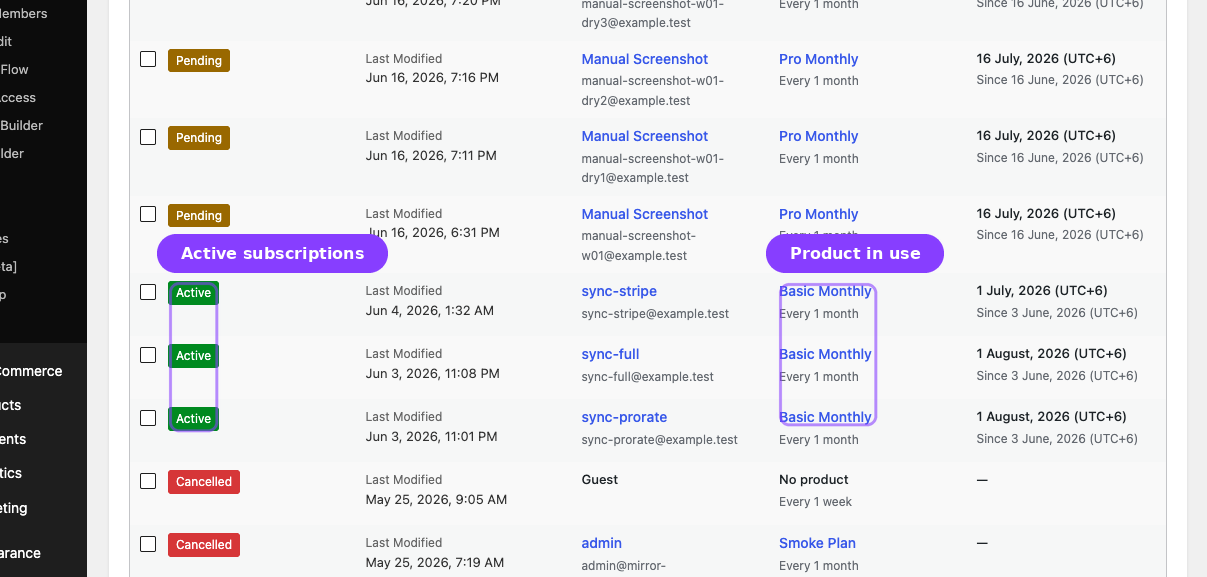
When a subscription product is trashed or permanently deleted, active subscriptions are not affected. They continue to operate normally — renewals are processed, the billing schedule continues, and the customer portal still displays the subscription. This is possible because ArraySubs caches product data on every subscription at the time of creation.
Cached Product Data
When a subscription is created from an order, ArraySubs stores a snapshot of the product on the subscription:
| Stored Field | Purpose |
|---|---|
| Product name | Displayed wherever the product name is referenced |
| Product SKU | Displayed in admin and order details |
| Full product data | Complete product information including type, prices, attributes (for variations), and product flags |
| Cached timestamp | When the snapshot was taken |
This cached data is stored once at subscription creation and is not updated if the product changes afterward.
What Changes After Deletion
| Aspect | Before deletion | After deletion |
|---|---|---|
| Subscription status | Active | Active (unchanged) |
| Renewal processing | Normal | Normal (continues) |
| Customer portal | Shows product name | Shows product name with "(deleted)" suffix |
| Admin subscription detail | Links to product | Shows cached name, product link removed |
| New purchases | Product is purchasable | Product is not purchasable |
Trashing vs Permanent Deletion
| Action | Effect | Reversible? |
|---|---|---|
| Trash | Product moves to WooCommerce trash. Subscriptions continue with cached data. The product can be restored. | Yes — restoring the product removes the deletion metadata. |
| Permanent delete | Product is removed from the database entirely. Subscriptions continue with cached data. | No — the product cannot be recovered. |
When a trashed product is restored (untrashed), the subscription is updated to reflect that the product is available again. The "(deleted)" suffix is removed from the display name.
Admin Warnings
ArraySubs provides clear warnings to prevent accidental product deletion when active subscriptions exist.
Product Edit Screen Warning
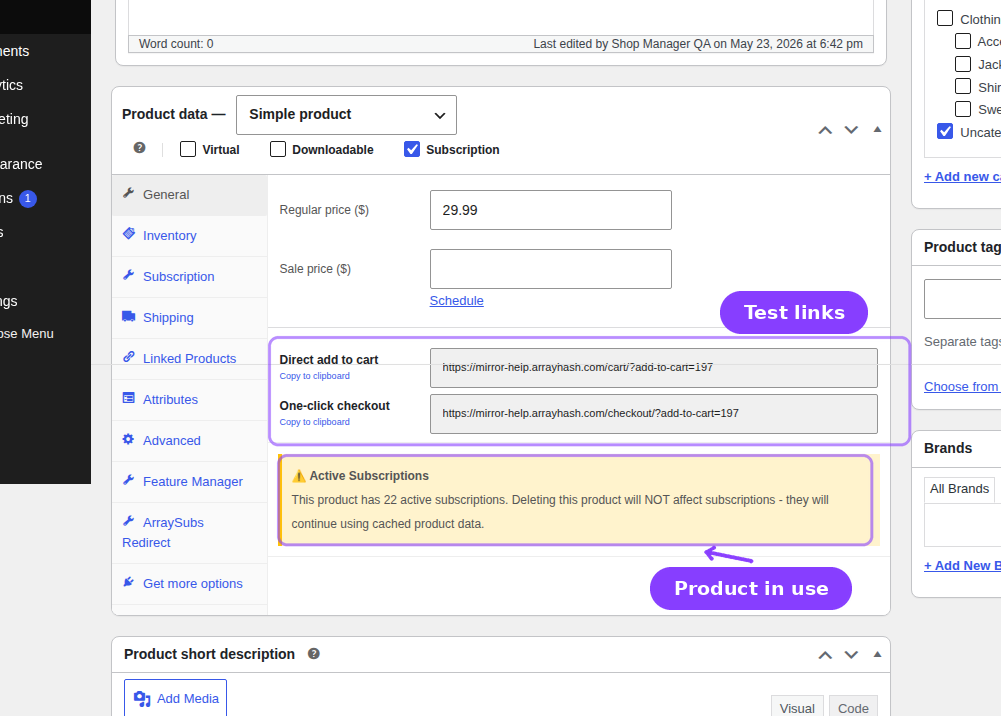
When editing a subscription product that has active subscriptions, a yellow warning box appears in the product editor:
⚠️ Active Subscriptions — This product has N active subscription(s). Deleting this product will NOT affect subscriptions — they will continue using cached product data.
This tells you at a glance that the product is in use and that deletion is safe (subscriptions won't break), while still giving you the subscription count.
Post-Deletion Admin Notice
After trashing or deleting a product with active subscriptions, a transient-based admin notice appears on the next page load:
[Product Name] was [deleted/trashed]. N active subscription(s) use this product and will continue with cached product data. [View Subscriptions]
The "View Subscriptions" link takes you to the subscriptions list filtered to the affected subscriptions.
Product Test Links
Every subscription product includes test links in the WooCommerce product editor. These links let you quickly test the checkout flow without navigating through the storefront.
Where to Find Them
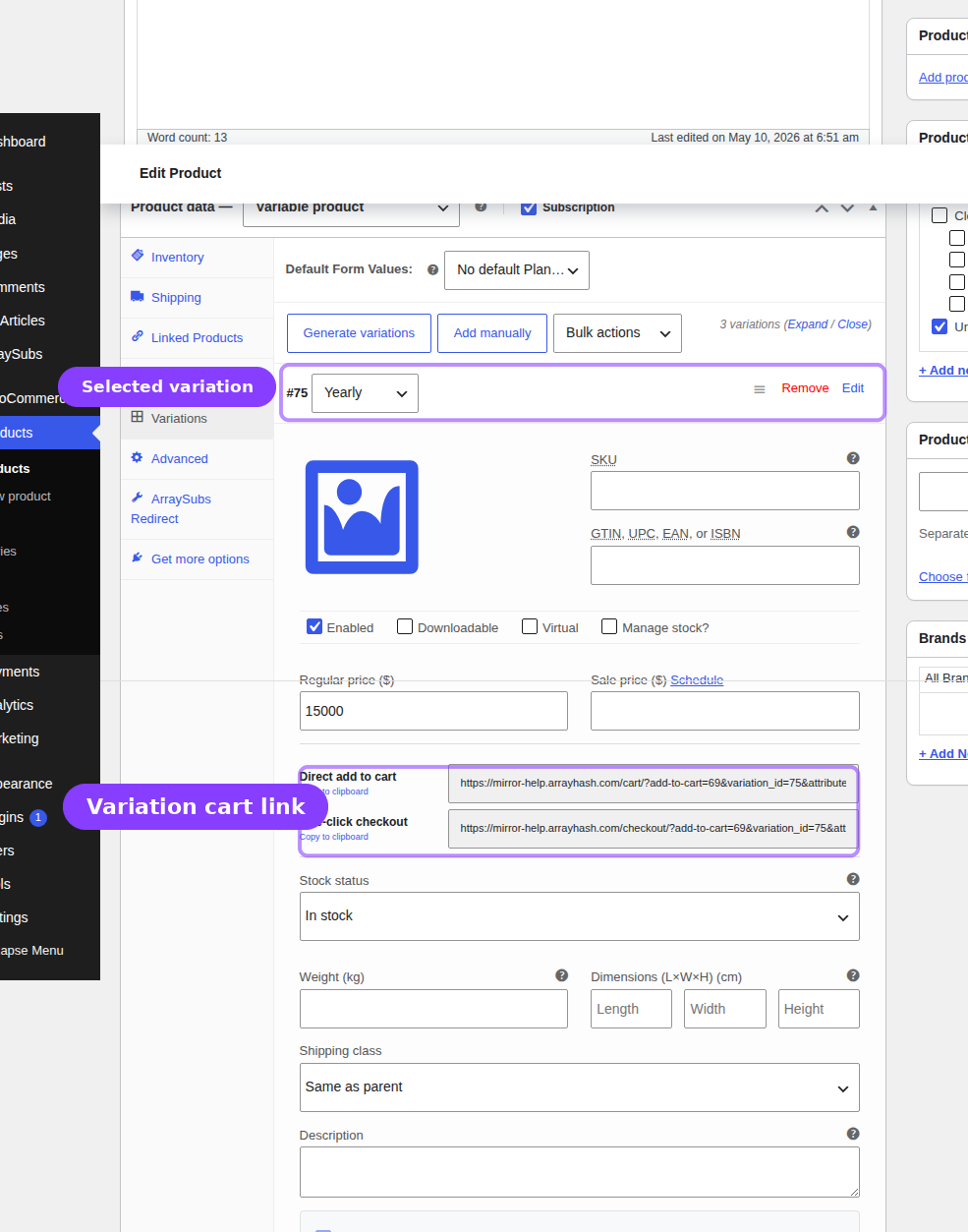
Test links appear in the General tab of the product editor, in a section labeled Helper Links. For variable products, each variation has its own set of test links within the variation panel.
Available Links
| Link | Purpose | What It Does |
|---|---|---|
| Direct add to cart | Adds the product to the cart | Navigates to the cart page with the product automatically added |
| One-click checkout | Goes straight to checkout | Navigates to the checkout page with the product automatically added, bypassing the cart page |
Each link is displayed as a read-only text field with a Copy button for easy clipboard copying.
URL Format
Simple products:
- Add to cart:
{cart_url}?add-to-cart={product_id} - Checkout:
{checkout_url}?add-to-cart={product_id}
Variable products (per variation):
- Add to cart:
{cart_url}?add-to-cart={parent_id}&variation_id={variation_id}&{attribute_params} - Checkout:
{checkout_url}?add-to-cart={parent_id}&variation_id={variation_id}&{attribute_params}
The attribute parameters are included automatically based on the variation's attributes.
When to Use Test Links
- During development: Quickly test the subscription checkout flow without browsing the storefront.
- After product changes: Verify that billing fields, pricing, trials, and signup fees appear correctly in the cart and checkout.
- Sharing with team: Copy the checkout link and send it to a colleague or client for review.
- Troubleshooting: Bypass catalog visibility, redirects, and access restrictions to test the raw checkout flow.
Test links work regardless of product visibility settings, catalog restrictions, or Redirect Product Page configuration. They use WooCommerce's standard add-to-cart mechanism.
Real-Life Use Cases
Use Case 1: Retiring a Product Safely
A store owner wants to stop selling the "Silver Plan" and replace it with a new "Professional Plan." They:
- Create the new Professional Plan product.
- Configure plan switching on the old Silver Plan to upgrade/crossgrade to Professional.
- Set the Silver Plan's WooCommerce catalog visibility to Hidden (so new customers don't see it).
- Leave the Silver Plan published — existing subscribers continue normally.
Optionally, they can trash the Silver Plan later. All 150 active Silver Plan subscriptions continue with cached product data. No action is needed for existing subscribers.
Use Case 2: Quick QA Testing
A developer sets up a new subscription product with a 7-day trial, $5.99 signup fee, and $29.99/month billing. Before going live, they:
- Open the product editor.
- Copy the one-click checkout link from the Helper Links section.
- Open the link in an incognito browser.
- Complete checkout and verify the trial display, signup fee in cart totals, and subscription creation.
No need to navigate through the shop, find the product, and add it to cart manually.
Edge Cases and Important Notes
- Cached data is read-only. The product snapshot is stored once at subscription creation. Changing the product afterward does not update the cached data on existing subscriptions.
- Product name fallback. If the cache is missing (for subscriptions created before caching was implemented), the system shows "Unknown Product."
- Audit logging. All product creation, edit, trash, and delete events are logged in the audit system with details about which fields changed and who made the change.
- Variable product variations. When a variation is deleted, the same caching and warning behavior applies. The subscription uses the cached variation data including attributes.
- Test links and one-click checkout. When the one-click checkout setting is enabled in General Settings, the test checkout link may also clear the cart before adding the product (depending on your one-click checkout configuration).
Troubleshooting
| Problem | Likely Cause | What to Do |
|---|---|---|
| Subscription shows "Unknown Product" | Subscription was created before product caching was implemented, and the product was deleted | The subscription still works, but the display name cannot be recovered. Admin can check the _product_id meta for the original product ID. |
| Admin warning about active subscriptions | Expected behavior when editing a product with active subscriptions | This is informational. You can safely continue editing or even delete the product — subscriptions will not break. |
| Test link adds wrong product to cart | Product data needs to be saved first | Save or update the product before using the test links. The links are generated from the saved product data. |
| Post-deletion notice keeps appearing | Transient has not expired yet | The notice appears once or twice after deletion and clears automatically. |
| Restored product still shows "(deleted)" on subscriptions | Cache not refreshed | The "(deleted)" indicator should clear when the product is untrashed. If it persists, the subscription may need to be re-saved from admin. |
Related Guides
- Create and Configure Subscription Products — How to set up the product before lifecycle events.
- Plan Switching and Product Relationships — Auto-downgrade when a product is retired.
- Product Experience and Display — How cached product data appears in the storefront and customer portal.
FAQ
Will existing subscriptions break if I delete a product?
No. Active subscriptions continue to work normally. Renewals are processed, billing continues, and the customer portal shows the subscription with cached product data. The only thing that stops is new purchases of the deleted product.
Can I change a product's price without affecting existing subscribers?
Yes. Existing subscriptions use the price that was locked in at the time of purchase. Changing the product price only affects new subscriptions created after the change.
Are test links visible to customers?
No. Test links appear only in the WooCommerce product editor in the admin dashboard. Customers do not see these links.
What happens if I trash and then restore a product?
When you restore (untrash) a product, ArraySubs clears the deletion metadata on affected subscriptions. The "(deleted)" suffix is removed from the product name display, and the product becomes purchasable again.
Do test links work for logged-out users?
Yes. The add-to-cart URL mechanism works for all visitors. You can test the checkout as a guest (if guest checkout is enabled) or create an account during checkout.