
Portal Action Failures
Troubleshoot cancellation, pause, skip, reactivation, and plan switch errors in the customer portal.
Availability: Free + Pro
Page Navigation
- Current guide: Portal Action Failures
- Where to open it: WordPress Admin -> ArraySubs -> Audits [beta]
- Direct route:
/wp-admin/admin.php?page=arraysubs-mainadmin#/audits/portal-action-failures - Section overview: Open overview
- Previous guide: payment-and-shipping-issues
- Next guide: README
- Troubleshooting: Audits, Logs, and Troubleshooting
Overview
The customer portal lets subscribers manage their own subscriptions through self-service actions — cancel, pause, skip, resume, reactivate, and switch plans. Each action goes through validation checks for permissions, subscription status, and feature availability. When a check fails, the customer sees an error message.
This guide covers the most common portal action failures, what causes them, and how to resolve them.
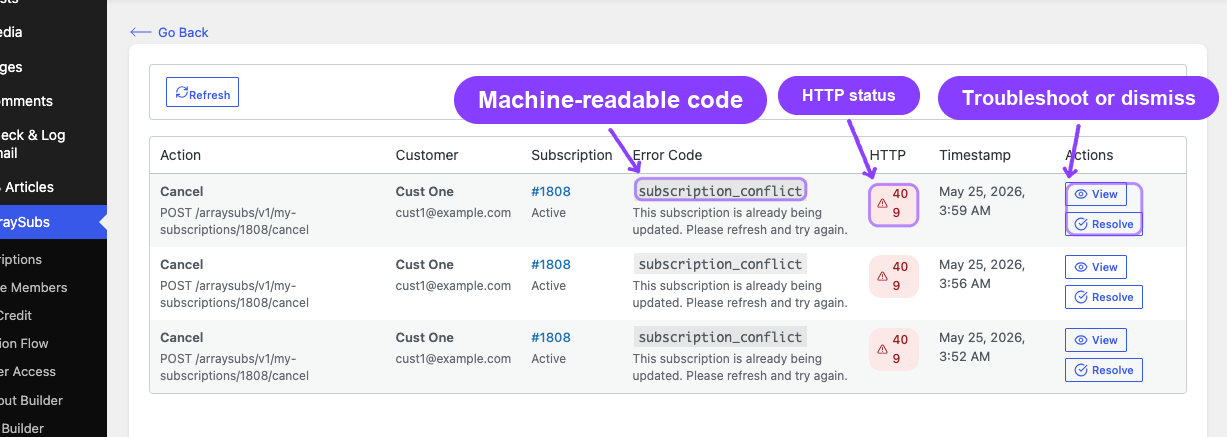
Permission and Ownership Errors
These errors apply to all portal actions. The system always verifies the customer's identity and ownership before processing any action.
| Error | HTTP Status | Cause | Resolution |
|---|---|---|---|
| Not logged in | 401 | The customer's session expired or they are not authenticated | The customer must log in again |
| Subscription not found | 404 | The subscription ID is invalid or the post was deleted/trashed | Verify the subscription exists in the admin |
| Invalid subscription ownership | 403 | The subscription's _customer_id metadata is missing, zero, or negative |
Check the subscription's customer ID field in the admin; fix the metadata if corrupted |
| Permission denied | 403 | The logged-in user does not match the subscription's _customer_id |
The customer can only manage their own subscriptions; admins should use the admin panel instead |
Cancellation Failures
Feature Disabled
Error: "Customer cancellation is not available for this subscription."
Cause: The cancellation toggle is disabled in ArraySubs → Settings → General Settings under Customer Action Toggles, or the specific subscription is not eligible for customer-initiated cancellation.
Fix: Enable the Allow Customers to Cancel setting.
Invalid Status for Cancellation
Error: "Cannot cancel this subscription."
Cause: The subscription is not in Active or On-Hold status. Subscriptions that are already cancelled, expired, or pending cannot be cancelled again.
Fix: Check the subscription status. If it is already cancelled or expired, no further cancellation is needed.
Cancellation Type Behavior
ArraySubs supports two cancellation modes, configured in settings:
Immediate cancellation:
- Status changes to
Cancelledimmediately - All pending renewal orders are cancelled
- All future scheduled actions are removed
- The customer loses access immediately
End-of-period cancellation:
- Status stays Active (or On-Hold)
- A
_waiting_cancellationflag is set - Cancellation is scheduled for the next payment date
- The customer retains access until the period ends
- An "Undo Cancellation" option becomes available
Undo Cancellation Failures
Error: "This subscription does not have a scheduled cancellation."
Cause: The customer is trying to undo a cancellation, but no _waiting_cancellation flag exists on the subscription. This happens when:
- The cancellation was immediate (not end-of-period)
- The cancellation flag was already cleared
Fix: If the subscription was immediately cancelled, use the admin panel to reactivate it instead.
Pause Subscription Failures
Feature Disabled
Error: "Pause subscription is not available for customers."
Cause: The Allow Customers to Pause setting is disabled.
Fix: Enable pause in ArraySubs → Settings → General Settings under Customer Action Toggles.
Invalid Status
Pause is only available for subscriptions in Active status. Subscriptions that are on-hold, cancelled, expired, or already paused cannot be paused.
Resume Failures
Error: The resume action is not available.
Cause: The subscription does not have an active pause period (no _pause_until_date metadata is set).
Fix: Only subscriptions currently in a paused state can be resumed. Check the subscription detail page for the current pause status.
Skip Renewal Failures
Feature Disabled
Error: "Skip renewal is not available for customers."
Cause: The Allow Customers to Skip setting is disabled.
Fix: Enable skip renewal in ArraySubs → Settings → General Settings.
Invalid Cycles
Error: Validation error on the cycles parameter.
Cause: The customer submitted a skip request with zero or empty cycle count. At least 1 cycle is required.
Fix: This is typically a UI issue. If using custom integrations, ensure the cycles parameter is at least 1.
Plan Switching Failures
Feature Disabled
Error: "Plan switching is disabled."
Cause: The plan switching feature is turned off in settings.
Fix: Enable plan switching in ArraySubs → Settings → General Settings.
Invalid Status
Error: "Plan switching is only available for active subscriptions."
Cause: Only subscriptions in Active or Trial status can switch plans. On-hold, cancelled, or expired subscriptions cannot initiate a plan switch.
Fix: If the subscription is on-hold, the customer needs to pay the outstanding renewal first. If cancelled, the subscription must be reactivated by an admin before a plan switch is possible.
No Available Switch Options
Symptoms: The plan switch button does not appear in the portal, or no options are shown.
Cause: The subscription product does not have any upgrade or downgrade products configured.
Fix: Go to the product editor, open the Linked Products tab, and configure the upgrade/downgrade product relationships.
Permission Denied
Error: "You do not have permission to manage this subscription."
Cause: The logged-in user is not the owner of the subscription.
Reactivation Failures
Invalid Status
Reactivation is only available for subscriptions in Cancelled or Expired status. Active, on-hold, trial, and pending subscriptions cannot be reactivated because they are already in a non-terminated state.
Feature Disabled
If the Allow Customers to Reactivate toggle is off, the reactivation button does not appear in the portal.
General Diagnostic Steps
When a customer reports a portal action failure:
- Identify the action — which button did the customer click? (Cancel, Pause, Skip, Switch, Reactivate, Resume)
- Check the subscription status — is the subscription in a status that allows the action?
- Check the settings — is the action enabled for customers in General Settings?
- Check ownership — does the
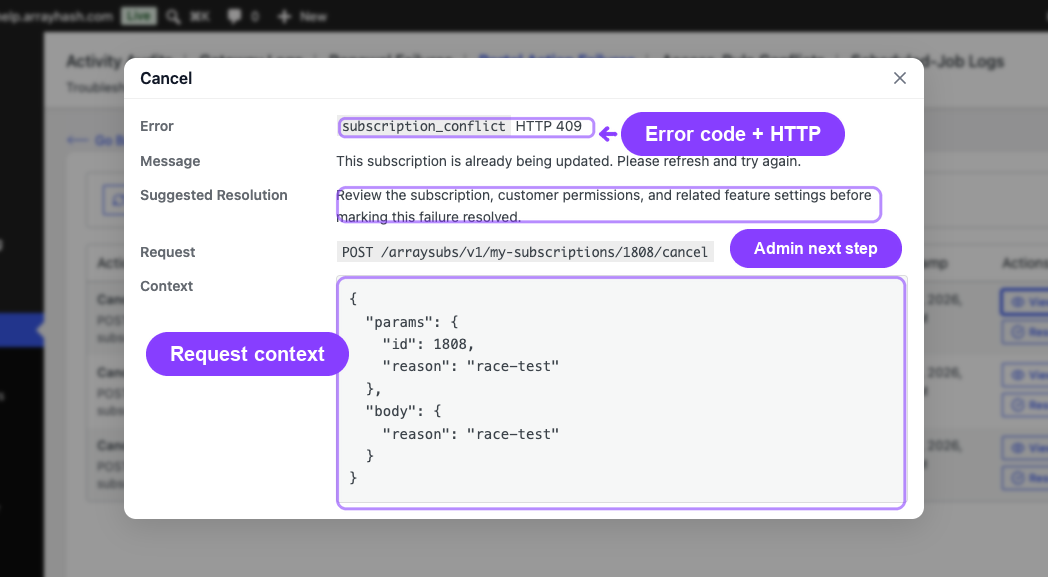
_customer_idon the subscription match the logged-in user? - Check the error message — the REST API returns a specific error code and message that identifies the exact check that failed
- Check subscription notes — system notes may show recent status changes that explain why the action is blocked
- Check the Activity Audit — (Pro) look for recent activity that may have changed the subscription state
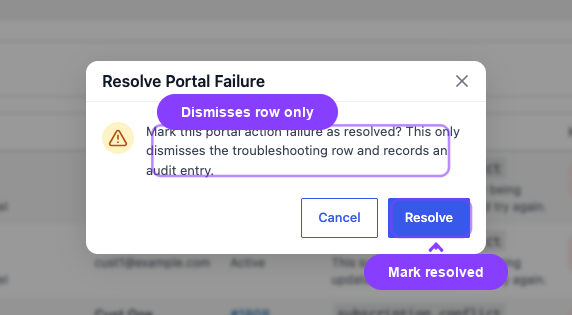
Common Error Response Format
All portal actions return structured error responses:
| Field | Description |
|---|---|
| Error code | A machine-readable identifier (e.g., cancellation_disabled, invalid_subscription, permission_denied) |
| Message | A human-readable explanation |
| HTTP status | 400 (bad request), 401 (not logged in), 403 (permission denied), 404 (not found), or 500 (server error) |
Related Guides
- Self-Service Actions — how each portal action works for customers
- Activity Audits — trace portal actions in the audit log
- Renewal Failures and Billing Issues — when a renewal failure blocks portal actions
FAQ
Why can't the customer see the Cancel button?
The Cancel button only appears when:
- Customer cancellation is enabled in settings
- The subscription status is Active or On-Hold
- The customer is logged in and owns the subscription
What happens if a customer cancels during a grace period?
The cancellation proceeds according to the configured cancellation type (immediate or end-of-period). If immediate, the subscription is cancelled right away. If end-of-period, it is scheduled for the next payment date.
Can an admin perform portal actions on behalf of a customer?
Admins manage subscriptions through the admin panel, not the customer portal. Use the subscription detail page to change statuses, dates, and settings directly.
Does a failed portal action affect the subscription?
No. If the validation check fails, the subscription state is not changed. The customer sees an error message, and the subscription remains in its current state.
Why does the customer see "Permission denied" even though they are logged in?
The _customer_id stored on the subscription must exactly match the logged-in user's ID. If the subscription was created with a different customer or the metadata was corrupted, the ownership check fails. An admin can fix this by updating the subscription's customer assignment.