
Reports Hub
A single admin page that indexes every report, dashboard, and analytics surface across ArraySubs — with direct links to each one and clear labels showing which are free and which require Pro.
Availability: Free
Page Navigation
- Current guide: Reports Hub
- Where to open it: WordPress Admin -> ArraySubs -> Reports and WooCommerce -> Analytics
- Direct route:
/wp-admin/admin.php?page=arraysubs-mainadmin#/reports - Section overview: Open overview
- Previous guide: README
- Next guide: Retention Analytics
- Troubleshooting: Audits, Logs, and Troubleshooting
Overview
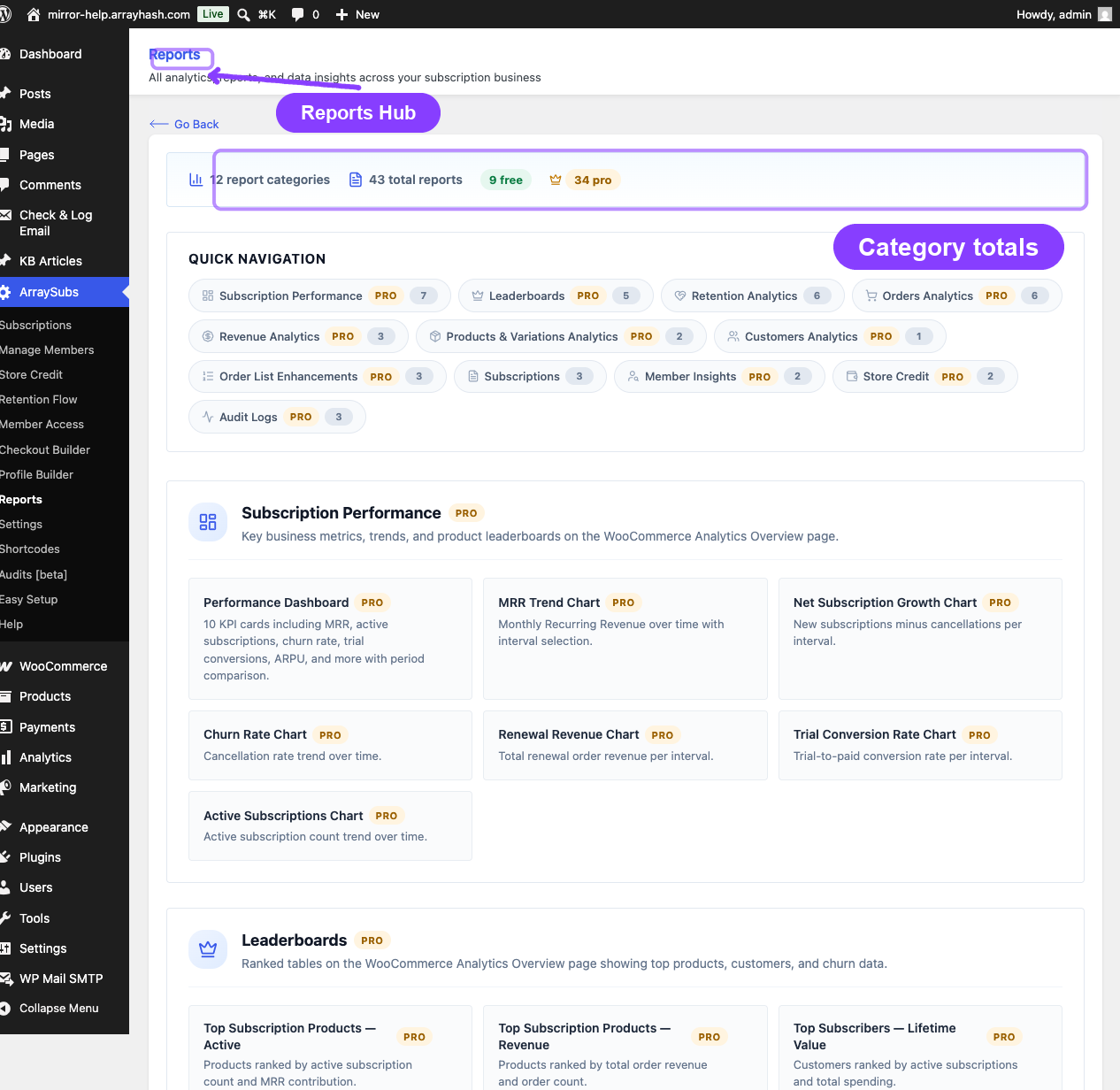
The Reports Hub is a centralized directory page inside the ArraySubs admin panel. It lists every analytics and reporting surface available in the product, organized by category, and provides direct links so you can jump to any report in one click.
Navigate to ArraySubs → Reports to open the page.
The hub itself does not display data or charts. Instead it acts as a launch pad — showing you what reports exist, what each one measures, and where to find it. Reports that live inside WooCommerce Analytics open in the WooCommerce admin area; reports that live inside ArraySubs open within the ArraySubs admin panel.
When to Use This
- You want a quick overview of all the analytics features available with your current license.
- You are new to ArraySubs and want to discover what reporting capabilities exist.
- You need to jump to a specific report but cannot remember which WooCommerce menu or ArraySubs page it lives on.
- You want to see which reports are included free and which require an upgrade to Pro.
How It Works
The Reports page organizes every report into 12 categories. Each category shows a header with its name, description, and a Free or Pro label. Inside each category, individual report cards appear in a responsive grid.
Every report card includes:
- A descriptive title
- A brief explanation of what the report shows
- A Free or Pro badge
- A link arrow that opens the report when clicked
At the top, a summary bar shows the total number of categories, total individual reports, and how many are free versus Pro.
Below the summary bar, a quick navigation section provides pill-style links to every category on the page. Click any pill to scroll directly to that section.
Report Categories
Subscription Performance Pro
KPI cards, time-series charts, and leaderboards on the WooCommerce Analytics Overview page.
| Report | What it shows |
|---|---|
| Performance Dashboard | 10 KPI cards (MRR, active subscriptions, churn rate, trial conversions, ARPU, and more) with period comparison |
| MRR Trend Chart | Monthly Recurring Revenue over time |
| Net Subscription Growth Chart | New subscriptions minus cancellations per interval |
| Churn Rate Chart | Cancellation rate trend |
| Renewal Revenue Chart | Total renewal order revenue per interval |
| Trial Conversion Rate Chart | Trial-to-paid conversion rate per interval |
| Active Subscriptions Chart | Active subscription count over time |
All 7 reports link to WooCommerce → Analytics → Overview.
For full documentation see Subscription Performance Dashboard.
Leaderboards Pro
Ranked tables on the WooCommerce Analytics Overview page.
| Report | What it shows |
|---|---|
| Top Subscription Products — Active | Products ranked by active subscription count and MRR contribution |
| Top Subscription Products — Revenue | Products ranked by total order revenue and order count |
| Top Subscribers — Lifetime Value | Customers ranked by active subscriptions and total spending |
| Top Cancellation Reasons | Most common cancellation reasons with count and percentage |
| Highest Churn Products | Products ranked by cancellation volume and churn rate |
All 5 reports link to WooCommerce → Analytics → Overview.
For full documentation see Subscription Performance Dashboard.
Retention Analytics (Free)
Cancellation and retention flow analytics under WooCommerce Analytics.
| Report | What it shows |
|---|---|
| Retention Summary | Cancellations, average age at cancel, average payments before cancel, offer acceptance rate, retained revenue |
| Churn Reasons Breakdown | Pie chart of cancellation reasons |
| Retention Offer Performance | Offers shown vs accepted by type (Discount, Pause, Downgrade, Contact Support) |
| Retention Trend Chart | Daily cancellation and retention activity over time |
| Activity Logs | Detailed event log of cancellations, scheduled cancels, undone cancels, offers shown/accepted/declined |
| Product-Level Retention | All metrics filtered by specific subscription product |
All 6 reports link to WooCommerce → Analytics → Retention.
For full documentation see Retention Analytics.
Orders Analytics Pro
Enhanced WooCommerce Orders report with subscription type classification and advanced filters.
| Report | What it shows |
|---|---|
| All Orders by Type | Orders report with Type column (Subs Purchase, Subs Renew, Subs Trial, Subs Upgrade, Credit Purchase, Other) |
| Renewal Orders Only | Filtered to subscription renewal orders |
| Initial Purchase Orders | Filtered to initial subscription purchase orders |
| Trial Orders | Filtered to subscription trial orders |
| Plan Switch Orders | Filtered to plan switch (upgrade/downgrade) orders |
| Credit Purchase Orders | Filtered to Store Credit purchase orders |
All 6 reports link to WooCommerce → Analytics → Orders.
For full documentation see WooCommerce Analytics Extension.
Revenue Analytics Pro
WooCommerce Revenue report extended with subscription-specific breakdowns.
| Report | What it shows |
|---|---|
| Revenue Overview | Standard report plus Subs Renewal, Subs Upgrade, and Credit Purchase revenue cards |
| Subscription Renewal Revenue | Total revenue from renewal orders over the period |
| Subscription Upgrade Revenue | Total revenue from plan switch orders over the period |
All 3 reports link to WooCommerce → Analytics → Revenue.
For full documentation see WooCommerce Analytics Extension.
Products & Variations Analytics Pro
WooCommerce Products and Variations reports with subscription product filtering.
| Report | What it shows |
|---|---|
| Subscription Products Report | Products report filtered to subscription products only |
| Subscription Variations Report | Variations report filtered to subscription product variations only |
Reports link to WooCommerce → Analytics → Products and Variations respectively.
For full documentation see WooCommerce Analytics Extension.
Customers Analytics Pro
WooCommerce Customers report with member profile quick links.
| Report | What it shows |
|---|---|
| Customers Report with Member Links | Standard Customers report with a Member Details link for each customer |
Links to WooCommerce → Analytics → Customers.
For full documentation see WooCommerce Analytics Extension.
Order List Enhancements Pro
Enhanced WooCommerce Orders admin page with type columns, coupon columns, filters, and a summary panel.
| Report | What it shows |
|---|---|
| Order List — All Types | Orders page with Type and Coupon columns, per-type count summary panel |
| Filter by Order Type | Type dropdown to filter by Subs Purchase, Subs Renew, Subs Trial, Subs Upgrade, Credit Purchase, or Other |
| Filter by Coupon | Coupon dropdown to filter orders by coupon code usage |
All 3 reports link to WooCommerce → Orders.
For full documentation see Order List Enhancements.
Subscriptions (Free)
View, search, filter, and export subscription data from the ArraySubs admin panel.
| Report | What it shows |
|---|---|
| All Subscriptions List | Sortable list with search, status filtering, bulk actions, and per-page control |
| Subscription Detail View | Full lifecycle timeline, related orders, meta data, and activity notes |
| CSV Export | Export subscriptions to CSV with status and date filters |
All 3 reports link to ArraySubs → Subscriptions.
For full documentation see Subscription Operations and Admin Tools and Records.
Member Insights Pro
Detailed member profiles with subscription stats, order history, and lifetime value.
| Report | What it shows |
|---|---|
| Member Profile Dashboard | Search any customer to view subscription stats, active subscriptions, purchased products, and addresses |
| Customer Lifetime Value | Per-member lifetime order total, active subscription count, and registration date |
Both reports link to ArraySubs → Manage Members.
For full documentation see Member Lookup and Profiles.
Store Credit Pro
Customer store credit balances and transaction history.
| Report | What it shows |
|---|---|
| Credit Balances | Search customers and view/adjust their current store credit balance |
| Credit Transaction History | Full transaction log of credits, debits, adjustments, and refunds with date filtering |
Reports link to ArraySubs → Store Credit → Manage Credits and Credit History respectively.
For full documentation see Store Credit Management and Credit History.
Audit Logs Pro
Activity audit trails, webhook delivery logs, and scheduled job execution history.
| Report | What it shows |
|---|---|
| Activity Audit Trail | All subscription actions with actor, timestamp, entity, and changed values |
| Gateway Webhook Logs | Payment gateway webhook delivery logs and gateway health status |
| Scheduled Job Logs | Action Scheduler execution history for renewals, emails, status changes, and maintenance |
Reports link to ArraySubs → Audits pages.
For full documentation see Activity Audits, Gateway Health Dashboard, and Scheduled Job Logs.
Real-Life Use Cases
New Admin Orientation
A new shop manager joins the team and needs to learn what subscription data is available. They open ArraySubs → Reports and scan every section to understand what reports exist, which ones are Pro, and where to find them. Within minutes they know where to find MRR, churn, retention, and member data.
Finding the Right Report
A merchant remembers seeing "churn rate" somewhere but cannot recall whether it was in WooCommerce Analytics or inside ArraySubs. They open the Reports Hub, click the Retention Analytics quick-nav pill, and find the Churn Rate Chart card with a direct link.
Evaluating a Pro Upgrade
A store owner on the free plan opens the Reports page and sees 9 free reports alongside 30+ Pro reports. They click through the Pro badges to understand exactly what additional data insights they would gain by upgrading.
Edge Cases and Important Notes
- The Reports Hub does not display live data — it is a navigation and discovery page. Each card links to the actual report where data is displayed.
- Pro-labeled reports still appear on the page when the Pro plugin is not active. This lets free users see what is available with an upgrade.
- Some report links open WooCommerce Analytics pages (the
wc-admininterface). Others stay within the ArraySubs admin panel. - The report count in the summary bar reflects all registered report sections, regardless of Pro availability.
Related Guides
- Subscription Performance Dashboard — KPI cards, charts, and leaderboards.
- Retention Analytics — Cancellation and retention flow analytics.
- WooCommerce Analytics Extension — Subscription filters and metrics in WC Analytics.
- Order List Enhancements — Type and coupon columns on the Orders page.
- Admin Tools and Records — Subscription export and related orders.
- Member Lookup and Profiles — Member detail page.
- Store Credit Management — Credit balance management.
- Activity Audits — Subscription activity audit trail.
FAQ
Where do I find the Reports page?
Navigate to ArraySubs → Reports in the WordPress admin sidebar. It appears just before the Settings menu.
Does the Reports page show live data?
No. It is a directory of all available reports with direct links. Click any report card to open the actual report where data is displayed.
Do I need ArraySubs Pro to see this page?
No. The Reports page itself is part of the free plugin. It shows all available reports, with Pro badges on features that require the Pro plugin.
Can I use the Reports page without WooCommerce Analytics?
The page works without WooCommerce Analytics enabled, but the links to WooCommerce Analytics reports (Orders, Revenue, Products, Variations, Customers, Overview) will not function unless WooCommerce Admin is active.
Why do some cards show "Pro" when I have Pro installed?
The Pro badge indicates that the feature requires the Pro plugin, not that it is unavailable to you. If Pro is active, clicking the card takes you to the working report.