
Member Insight
ProLook up any customer, view their complete subscription and commerce profile, and jump to related screens — all from one unified dashboard.
Availability: Pro
Page Navigation
- Current guide: Member Insight
- Where to open it: WordPress Admin -> ArraySubs -> Manage Members
- Direct route:
/wp-admin/admin.php?page=arraysubs-mainadmin#/manage-members - Section overview: Open overview
- Previous guide: member-operations
- Next guide: admin-tools-and-records
- Troubleshooting: Audits, Logs, and Troubleshooting
Overview
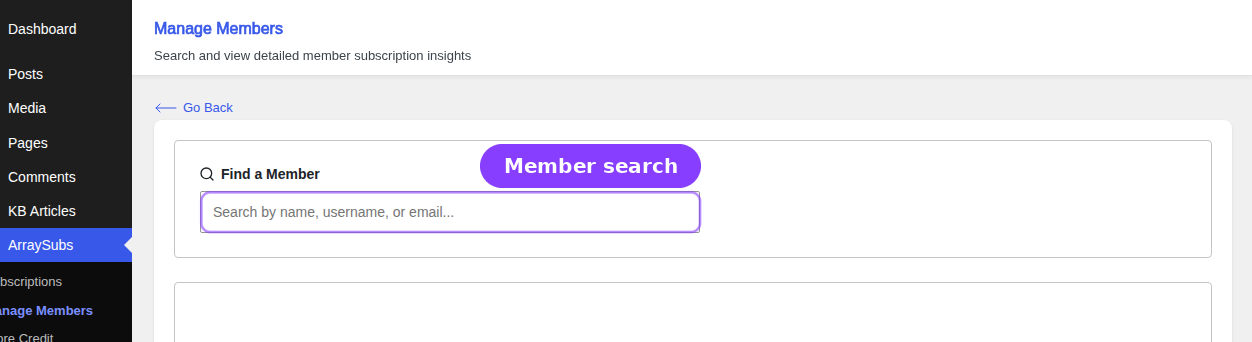
The Manage Members page is a centralized member insight dashboard that brings together everything you need to know about a subscriber in one place. Instead of clicking between the WordPress user list, WooCommerce orders, subscription records, and store credit screens, you search for a customer and see the full picture immediately.
The page is available at ArraySubs → Manage Members in your WordPress admin sidebar when the Pro plugin is active.
What you can do from this page
| Task | Where to look |
|---|---|
| Find a customer by name, username, or email | Search bar at the top of the page |
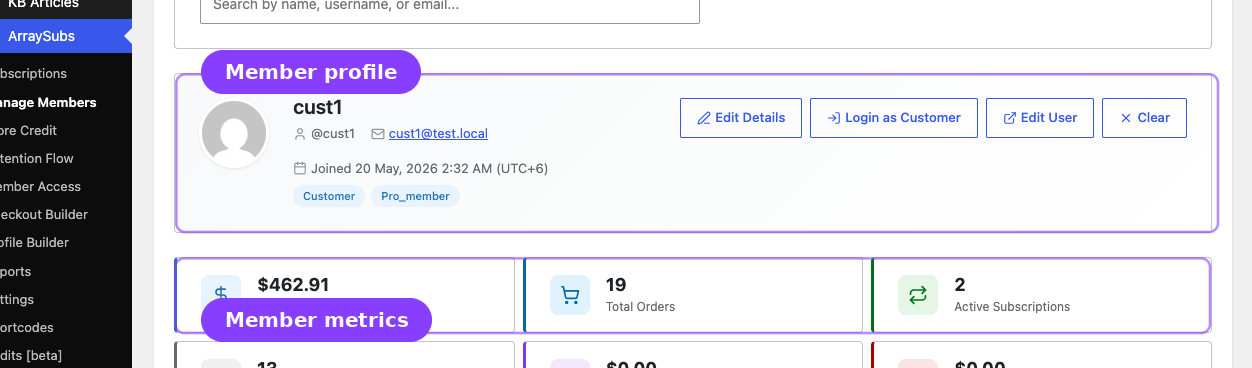
| See a customer's profile, contact info, and roles | Profile card |
| Check lifetime spending, order count, and refund totals | Stats grid |
| Review all subscriptions with status, billing schedule, and next payment | Subscriptions section |
| See non-subscription product purchases | Purchased Products section |
| Check store credit balance at a glance | Stats grid and quick links |
| Log in as the customer to troubleshoot their account | Login as Customer button |
| Jump to WooCommerce orders, store credit management, or feature entitlements | Quick links |
Prerequisites
- ArraySubs Pro plugin installed and active
- Admin or Shop Manager access (
manage_woocommerceormanage_optionscapability)
Section guides
- Member Lookup and Profiles — Search for members, read the profile card, view stats, and use Login as Customer.
- Member Commerce Overview — Review subscription history, purchased products, store credit balance, and addresses.
- Member Operations — Quick links to related screens, admin shortcuts across WordPress and WooCommerce, and member insight metrics.
How to open Member Insight for a specific customer
There are several ways to land on a member's profile:
- Search directly — Open ArraySubs → Manage Members, type the customer's name, username, or email, and select them from the results dropdown.
- From a subscription — In the All Subscriptions list, click the customer name. With Pro active, the link takes you straight to the member profile.
- From a WooCommerce order — On the order edit screen, click the Open Member Details button that appears below the order details.
- From the order preview modal — In the WooCommerce orders list, click the eye icon to preview an order, then use the Member details action.
- From a user profile — On any WordPress user edit page, click the Member Details button near the page heading.
- From WooCommerce Analytics — In the Customers report, click the Member details link under the customer's username.
- Direct URL — Navigate to
admin.php?page=arraysubs-mainadmin#/manage-members/{user_id}with the customer's WordPress user ID.
Related guides
- Toolkit Settings — Login as User — Enable and configure admin impersonation.
- Store Credit — Full store credit management, transaction history, and settings.
- Subscription Operations — The All Subscriptions list and subscription detail screens.
- Customer Portal Pages — What your customers see in their My Account area.
FAQ
Do I need the Pro plugin to use Manage Members?
Yes. The Manage Members menu and the REST API that powers it are part of the Pro plugin's Member Insight feature. Without Pro, the menu item does not appear.
Can Shop Managers access Manage Members?
Yes. Any user with the manage_woocommerce or manage_options capability can search members and view their profiles.
Does the page show data from all subscription statuses?
Yes. The subscriptions section displays every subscription for the customer regardless of status — active, cancelled, on-hold, expired, pending, paused, and trial. Each status is shown with a color-coded badge.
Is there a limit on search results?
The search returns up to 20 matching users, ordered by display name. If you do not see the customer you are looking for, try a more specific search term such as their exact email address.
Can I edit a subscription from the Manage Members page?
You cannot edit a subscription inline on the member page. Click the subscription ID or the View link in the subscriptions table to open the full subscription detail screen, where you can make changes.