
Admin Tools and Records
Subscription notes, feature entitlements, related orders, and data export — the tools that keep your records complete.
Availability: Free (Notes, Orders, Export); Pro (Feature Log)
Page Navigation
- Current guide: Admin Tools and Records
- Where to open it: WordPress Admin -> ArraySubs -> Subscriptions
- Section overview: Open overview
- Previous guide: README
- Next guide: lifecycle-management
- Troubleshooting: Audits, Logs, and Troubleshooting
Overview
Beyond browsing and editing subscriptions, ArraySubs gives you a set of tools for record-keeping and operational insight. This guide covers:
- Subscription Notes — an activity log of every change, plus a space for your own admin notes. See the dedicated Subscription Notes module guide.
- Feature Log — a per-customer view of subscription entitlements and usage (Pro).
- Related Orders and Refund History — every order and refund linked to a subscription.
- Export Subscriptions — download subscription data as CSV or JSON.
Subscription Notes
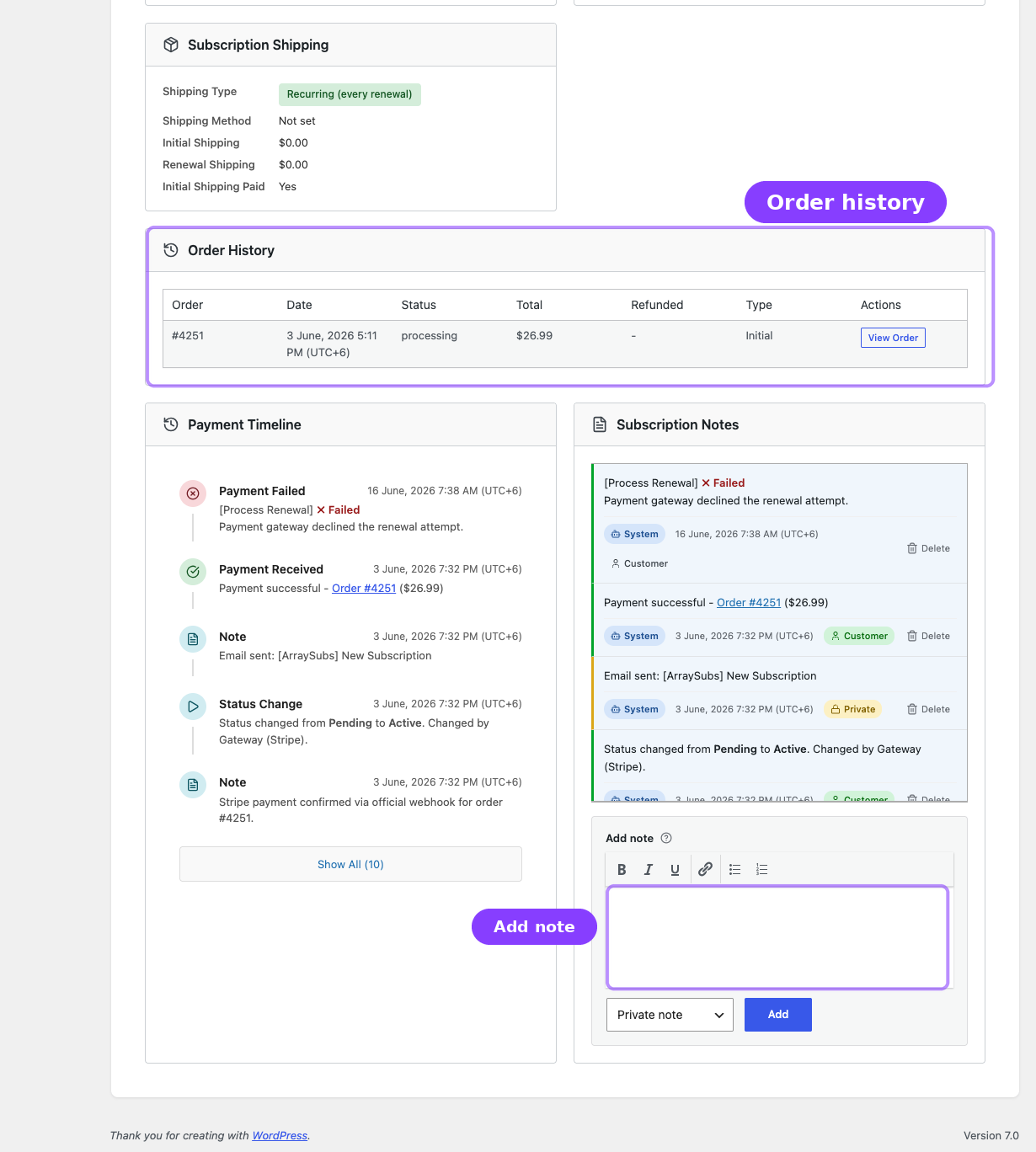
Subscription Notes is now documented as its own root-level module because it is a core operational tool, not a small detail inside the subscription screen. Open Subscription Notes for note types, author badges, automatic events, manual note workflow, and troubleshooting examples.
Feature Log / Entitlement Review Pro
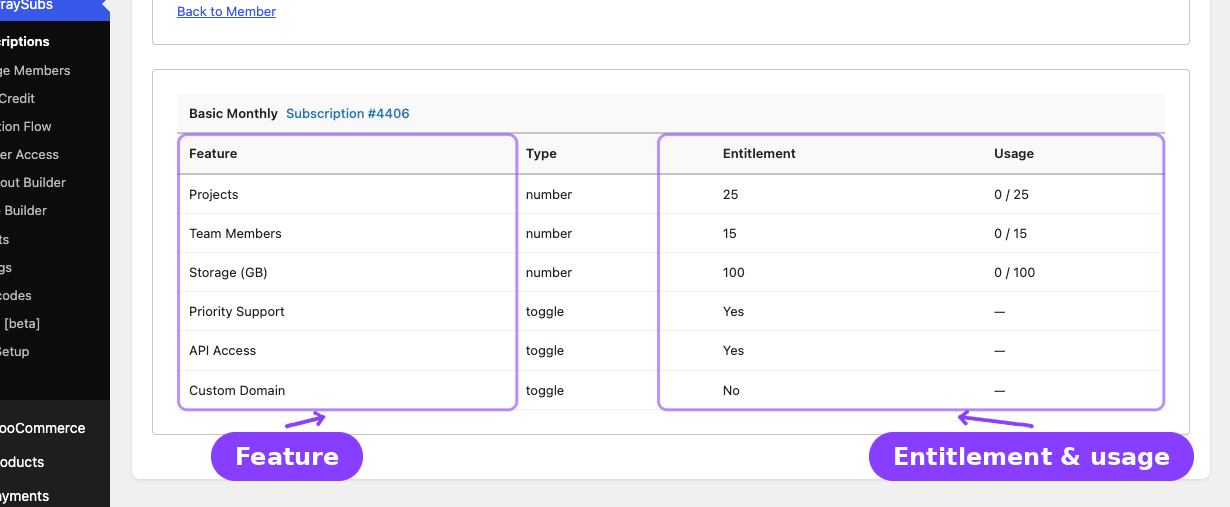
The Feature Log shows what product entitlements (features) a customer has access to across their subscriptions. This is part of the Feature Manager module.
How to Access
Open a subscription detail screen and click Feature Log in the header (or follow the link from a Manage Members profile). The route uses /subscriptions/feature-log?user_id=... and displays feature data for that customer.
What It Shows
The page header shows the customer's name and email. Below that, the display depends on the aggregation mode configured in Feature Manager settings:
Per-Subscription Mode
Each active subscription gets its own table. The table header shows the product name and a link to the subscription (e.g., "Monthly Plan – Subscription #1234").
| Column | What It Shows |
|---|---|
| Feature | Feature name (e.g., "Downloads", "API Access") |
| Type | The feature type — Toggle, Number, or Text |
| Entitlement | The granted value — "Yes"/"No" for toggles, a number or "Unlimited" for number types, raw text for text types |
| Usage | Current usage against the entitlement limit (only shown if usage tracking is enabled in settings) — e.g., "10 / 50" or "10 / Unlimited" |
Combined Mode
All features across all active subscriptions are merged into a single table with the same columns. Duplicate features are resolved using the Feature Manager's merge/intersect logic.
Feature Types
| Type | Display | Example |
|---|---|---|
| Toggle | "Yes" or "No" | API Access: Yes |
| Number | Numeric value or "Unlimited" | Downloads: 50 (or Unlimited) |
| Text | Raw string value | License Tier: Gold |
The Usage column only appears when the Show usage in admin setting is enabled in Feature Manager settings.
For the full Feature Manager guide — including product setup, customer display, all settings, and usage tracking — see the dedicated Feature Manager section.
Related Orders, Invoices, and Refund History
The Order History card on the subscription detail screen shows every WooCommerce order linked to the subscription.
Order Table Columns
| Column | What It Shows |
|---|---|
| Order | Order number (e.g., #1234), linked to the WooCommerce order edit screen |
| Date | Order creation date |
| Status | WooCommerce order status — Processing, Completed, Refunded, etc. |
| Total | Formatted order total with currency symbol |
| Refunded | Refund amount in red text, or a dash if no refunds |
| Type | Initial for the first signup order, Renewal for every subsequent billing |
| Actions | A "View Order" link that opens the order in WooCommerce |
Refund Sub-Rows
When an order has refunds, each refund appears as an indented row directly below the parent order:
- Refund ID (e.g., "└ Refund #456")
- Date of the refund
- Amount (shown as a negative, e.g., "-$50.00")
- Reason for the refund
If the order is fully refunded, the row gets a visual highlight.
Total Refunded Badge
If any refunds exist across all orders, the Order History card header displays a red Total Refunded badge showing the cumulative refund total — for example, "Total Refunded: $150.00".
Sorting
Orders are displayed in chronological order. The full list is loaded with the subscription detail — there is no separate pagination for orders.
Export Subscriptions
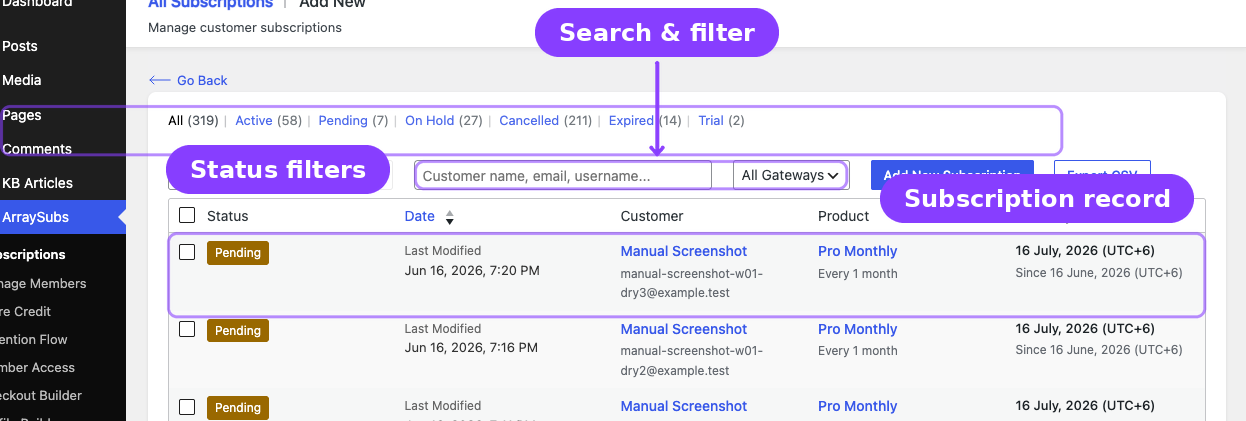
ArraySubs lets you download subscription data for reporting, migration, or backup purposes.
How to Export
- Go to ArraySubs → Subscriptions.
- Optionally, switch to a specific status tab to filter the export.
- Click the Export CSV button at the top of the list.
- A file downloads automatically to your browser.
Export Formats
| Format | How to Access |
|---|---|
| CSV | Click the Export CSV button in the admin list |
| JSON | Call the REST endpoint directly: GET /arraysubs/v1/subscriptions/export?format=json |
Export Fields
The CSV export includes 15 columns:
| Field | Description |
|---|---|
| Subscription ID | Internal post ID |
| Status | Localized status label (e.g., "Active", "Cancelled") |
| Customer Name | Display name of the subscription owner |
| Customer Email | Customer's email address |
| Product Name | Name of the linked subscription product |
| Recurring Amount | Numeric recurring price |
| Currency | Three-letter currency code (e.g., USD) |
| Billing Cycle | Formatted as "1 month", "2 week", etc. |
| Start Date | When the subscription started |
| Next Payment Date | Next scheduled renewal |
| Last Payment Date | Most recent successful payment |
| End Date | When the subscription ended (blank if still active) |
| Total Payments | Count of completed renewal payments |
| Payment Method | Payment method title (e.g., "Stripe", "Bank Transfer") |
| Created Date | When the subscription record was created |
Filtering
The export respects the current status filter. If you are viewing the Active tab, only active subscriptions are exported. If you are on the All tab, every subscription is included.
File Details
- Encoding: UTF-8 with BOM header (Excel compatibility).
- Filename:
subscriptions-export-YYYY-MM-DD-HHmmss.csv. - Field Escaping: Values containing commas or quotes are properly escaped with double-quote wrapping.
Real-Life Use Cases
Use Case 1: Investigating a Support Ticket
A customer says they were charged twice. Open the subscription detail, scroll to Order History, and check all renewal orders and their dates. Then read the Subscription Notes to see system-generated events around the dates in question.
Use Case 2: Verifying Feature Entitlements (Pro)
A customer claims they should have 100 downloads per month but only see 50. Open the Feature Log for that customer and check the entitlement value against their subscription's product configuration.
Use Case 3: Monthly Revenue Report
At the end of each month, go to Subscriptions, filter by Active, and click Export CSV. Open the file in a spreadsheet to calculate monthly recurring revenue from the Recurring Amount column.
Use Case 4: Documenting an Admin Action
Before making a manual change to a subscription (like updating the invoice email or correcting an address), add a Private note explaining why — e.g., "Updated invoice email per support ticket #5432." This preserves the audit trail.
Troubleshooting
| Problem | Likely Cause | What to Do |
|---|---|---|
| Notes panel is empty on a subscription | The subscription is newly created with no events yet | System notes are created as events occur (status changes, payments, etc.). Add a manual note if needed. |
| Feature Log page shows "No features found" | The customer has no active subscriptions with Feature Manager products, or the feature is not configured | Verify the subscription product has features defined in the Feature Manager tab |
| Export CSV file is empty | No subscriptions match the current status filter | Switch to the All tab and export again |
| Refund amounts do not appear in Order History | The refund was processed outside WooCommerce (e.g., directly in the payment gateway dashboard) | Process refunds through WooCommerce so they are recorded on the order and reflected in the subscription |
Related Guides
- Subscription Operations — the full subscription list, create, edit, and detail screens
- Subscription Detail Cards — the conditional cards for cancellation, coupon, and more
- Lifecycle Management — understanding the events that create system notes
- Advanced Analytics — Order List Enhancements Pro — order type columns, filters, and the embedded report panel on the WooCommerce Orders page
FAQ
Can customers see private notes?
No. Private notes are only visible to users with admin access. Only notes created with the Customer type appear in the customer's My Account area.
Are system notes editable?
No. System-generated notes cannot be edited. You can delete them, but the content cannot be modified after creation.
Can I export subscriptions in a format other than CSV?
Yes. The REST endpoint supports JSON format: GET /arraysubs/v1/subscriptions/export?format=json. This returns the same data structure as the CSV but as a JSON array.
Does the Feature Log show cancelled subscriptions?
The Feature Log displays features from the customer's active subscriptions. Cancelled or expired subscriptions are not included in the entitlement calculation.
How far back does the Order History go?
The Order History shows every order ever linked to the subscription — from the initial signup order through every renewal. There is no time limit or page limit on the history.