
Activity Audits
ProA searchable, filterable log of every action taken across your subscription store — by admins, customers, the system, or payment gateways.
Availability: Pro
Page Navigation
- Current guide: Activity Audits
- Where to open it: WordPress Admin -> ArraySubs -> Audits [beta]
- Direct route:
/wp-admin/admin.php?page=arraysubs-mainadmin#/audits/activity-audits - Section overview: Open overview
- Previous guide: access-rule-conflicts
- Next guide: Gateway Health
- Troubleshooting: Audits, Logs, and Troubleshooting
Overview
The Activity Audits screen provides a centralized timeline of everything that happens inside ArraySubs. Every subscription status change, product update, coupon application, email send, and settings change is recorded as an audit entry with the author, timestamp, entity references, and a structured diff of what changed.
Use this screen when you need to:
- Trace who changed a subscription and when
- Verify that a renewal was processed correctly
- Confirm an email was sent to a customer
- Audit admin configuration changes
- Investigate support tickets by reviewing the full activity timeline
How to Access
Navigate to ArraySubs → Audits [beta] → Activity Audits.
The page requires the Pro plugin to be active. Without Pro, a placeholder message appears.
How It Works
ArraySubs automatically writes an audit entry whenever a significant action occurs. Each entry is stored as a note (custom post type arraysubs_sub_note) with metadata that records the author, entity type, visibility, and a structured list of field changes.
Entries are classified by two dimensions:
Author role — who performed the action:
| Role | Description | Icon |
|---|---|---|
| System | Automated actions triggered by scheduled jobs, lifecycle rules, or internal processes | Bot |
| Admin | Actions taken by a user with manage_woocommerce or manage_options capability |
Shield |
| Customer | Actions taken by the subscription owner from the customer portal | User |
| Gateway | Actions triggered by a payment gateway webhook (Stripe, PayPal, Paddle) | Credit card |
Entity type — what the action relates to:
| Entity | Examples |
|---|---|
| Subscription | Status changes, date updates, cancellations, renewals, reactivations |
| Member | Customer data updates, profile changes, role assignments |
| Product | Product field changes, variation updates, pricing changes |
| Order | Order status changes, payments, refunds, payment method changes |
| Coupon | Coupon applications, discount tracking, retention discounts |
| Email send events (new subscription, renewal reminder, payment failed, etc.) | |
| Settings | Plugin settings changes (any global configuration update) |
| Other | Entries that do not match the above categories |
Reading the Audit Table
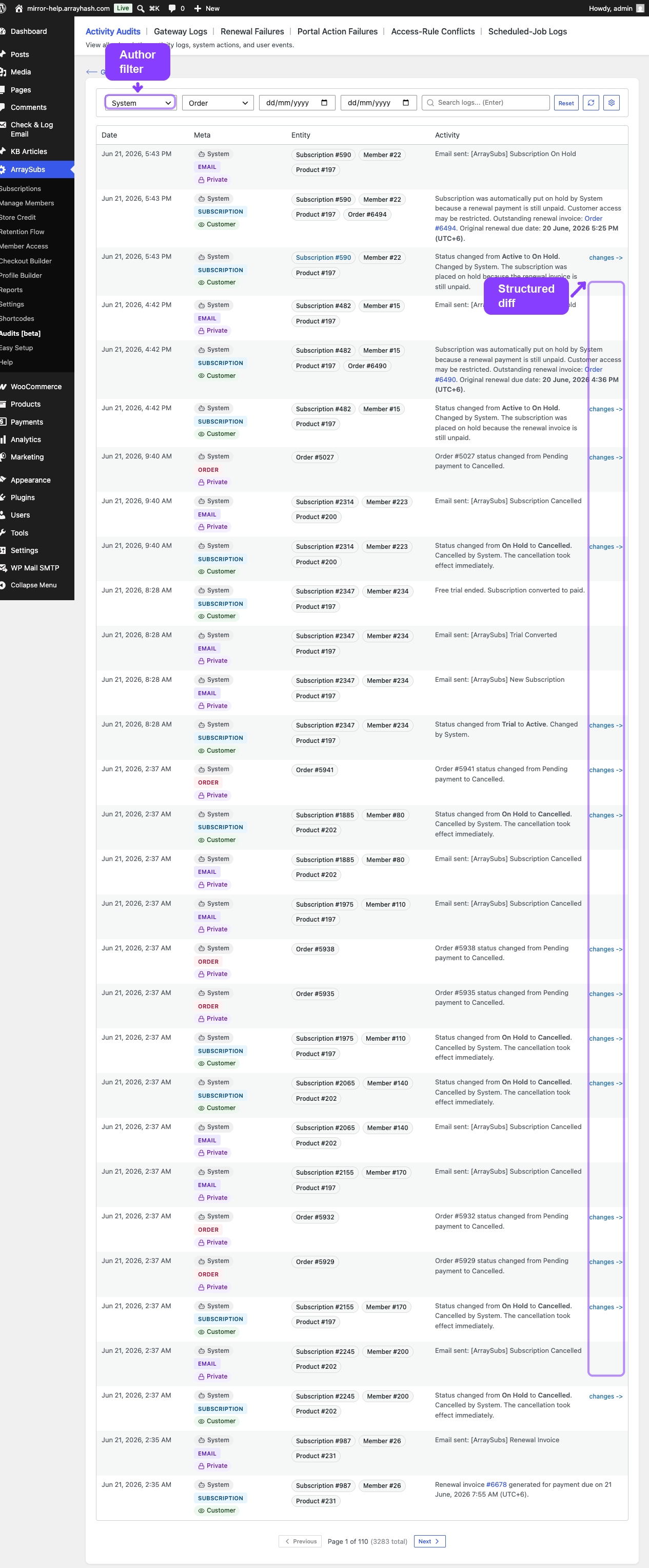
The audit table displays entries in reverse chronological order (newest first) with these columns:
| Column | What It Shows |
|---|---|
| Date | Timestamp of the action, converted to your site timezone |
| Author | Color-coded badge showing the author role (System, Admin, Customer, or Gateway) and the user name when available |
| Type | Entity type badge (Subscription, Product, Order, etc.) |
| Visibility | Whether the note is Private (admin-only, lock icon) or Customer (visible to the customer, eye icon) |
| Entity | Clickable reference pills linking to the related subscription, product, order, or other entity |
| Activity | The human-readable description of what happened, with a changes → link when structured field changes are available |
Viewing Change Details
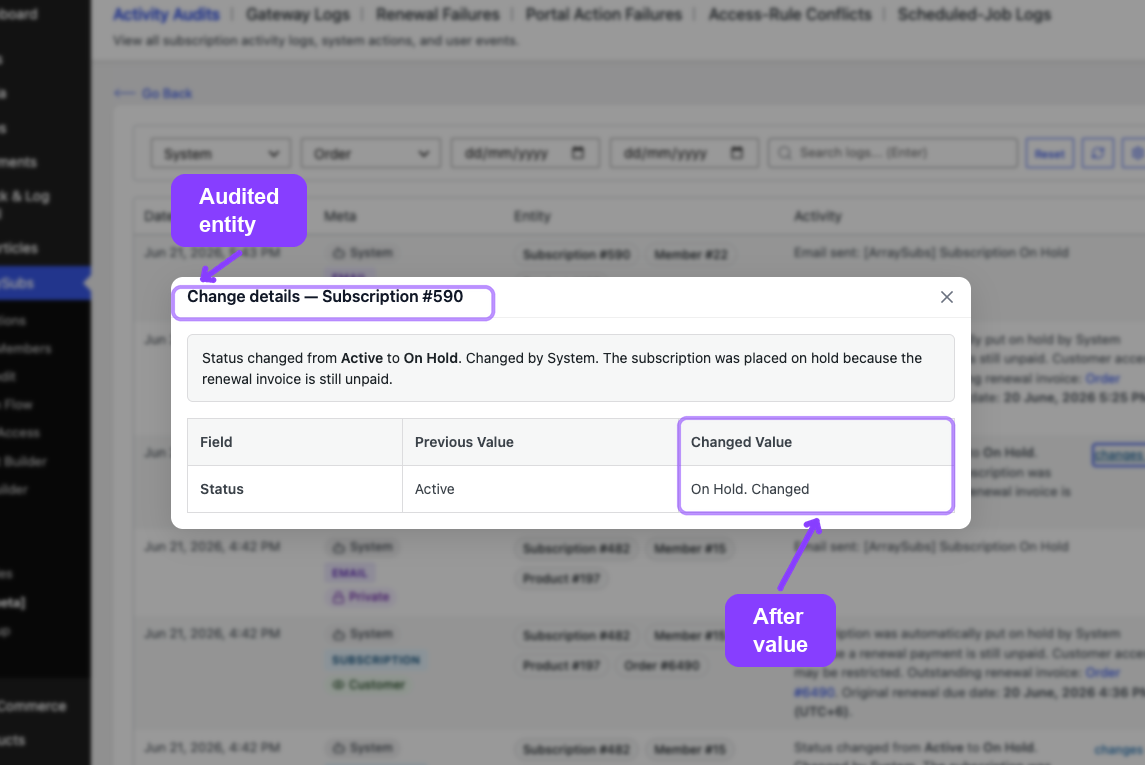
When an audit entry includes structured field changes, click the changes → link in the Activity column. A modal opens showing:
- The entity the change relates to
- A table listing each changed field with its previous value and changed value
- A dash (
—) appears when a value was empty before or after the change
For example, a subscription status change might show:
| Field | Previous Value | Changed Value |
|---|---|---|
| Status | active | on-hold |
Filtering Audit Entries
The filter bar at the top of the page provides five controls:
Author Role
Select from: All Authors, System, Admin, Customer, Gateway.
Use this to isolate automated system actions from manual admin changes, or to review only what customers did.
Entity Type
Select from: All Entities, Subscription, Member, Product, Order, Coupon, Email, Settings, Other.
Use this to focus on a single area — for example, choose Email to verify which emails were sent during a billing cycle.
Date Range
Enter a From and To date to limit the results to a specific time window. Both dates are inclusive.
Search
Type a keyword and press Enter to search note content. Use this to find entries mentioning a specific subscription number, product name, or error message.
Reset and Refresh
- Reset clears all filters back to defaults
- Refresh (spinning icon) reloads the current page with the active filters
Logging Settings
Click the gear icon next to the filter bar to open the Logging Settings popover. This lets you toggle which entity types are recorded:
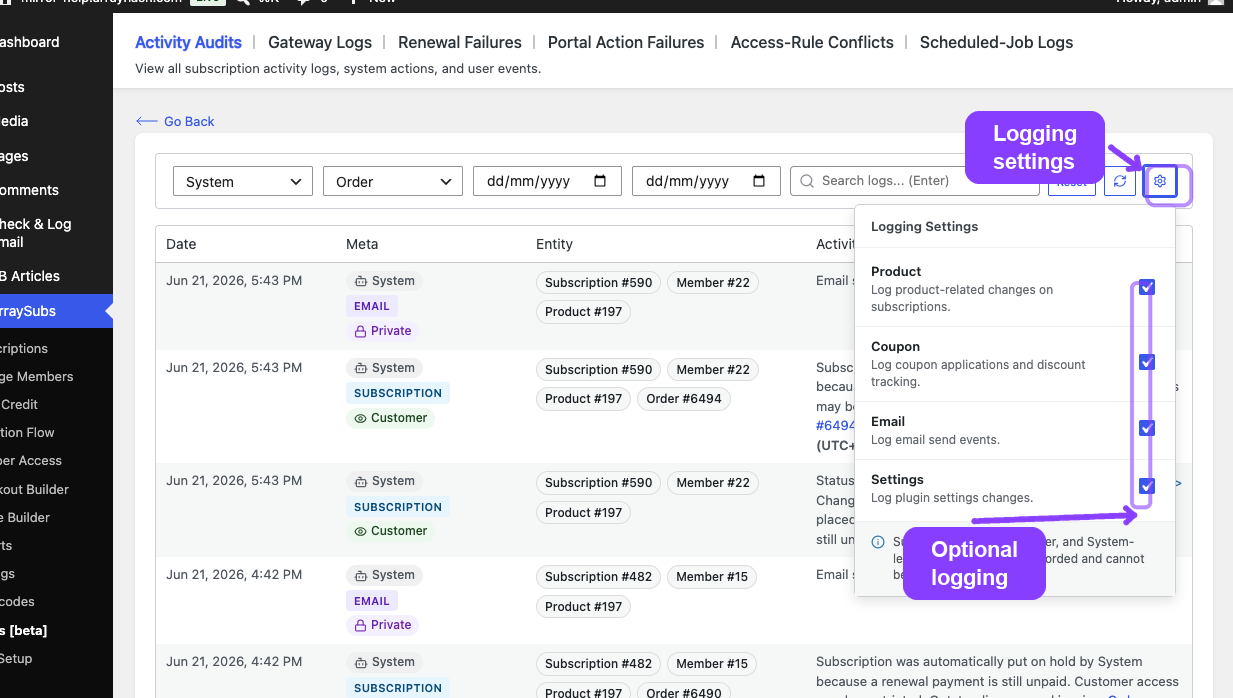
| Entity | Description | Default |
|---|---|---|
| Product | Log product-related changes on subscriptions | Enabled |
| Coupon | Log coupon applications and discount tracking | Enabled |
| Log email send events | Enabled | |
| Settings | Log plugin settings changes | Enabled |
Subscription, member, order, and system-level audit entries are always recorded and cannot be disabled. The toggles above only control the four optional entity types.
Changes to logging settings take effect immediately. Disabling an entity type stops new entries from being created but does not delete existing entries.
Pagination
The table displays 30 entries per page. Navigation controls at the bottom show:
Page X of Y (Z total)
Use the Previous and Next buttons to move between pages.
Real-Life Use Cases
Use Case 1: Investigating a Support Ticket
A customer reports they were charged twice. Filter by Entity: Order and search for the customer's name or subscription number. The audit trail shows every order created, including renewal invoices, and you can verify whether a duplicate was generated or whether the customer is seeing a renewal and a separate purchase.
Use Case 2: Verifying Admin Changes
Your team has multiple shop managers. Filter by Author: Admin and Entity: Settings to see which admin changed a configuration setting, when, and what the previous value was.
Use Case 3: Tracking Gateway Actions
After connecting Stripe through the official WooCommerce Stripe gateway, ArraySubsPro automatically provisions its secondary Stripe webhook. Filter by Author: Gateway to confirm that payment events are being received and processed. Each gateway-triggered action includes the gateway name in the entry.
Edge Cases and Important Notes
- Gateway entries are identified by a
[Gateway: {name}]prefix in the note content, which is parsed out for display and replaced with the Gateway author badge. - Entity classification uses stored metadata first, then falls back to content-based parsing. In rare cases, an entry may appear as Other if the content does not match known patterns.
- Audit entries persist indefinitely. There is no automatic cleanup. Over time, the note count grows. Use date filters to manage large volumes.
- Search is content-based. It looks for keywords inside the note text, not in metadata fields like subscription ID or entity type. Use the entity and author filters for structured queries.
Troubleshooting
| Problem | Likely Cause | What to Do |
|---|---|---|
| No audit entries appear | Pro plugin not active, or logging settings toggled off for that entity type | Verify Pro is active; check the Logging Settings popover |
| An action is not showing in the log | The entity type logging is disabled, or the action occurred before Pro was activated | Enable the entity toggle; note that past actions before activation are not retroactively logged |
| "Other" entity type appears unexpectedly | The note content did not match known entity patterns | This is cosmetic — the entry is still valid; check the content and references for details |
| Filter returns no results | Date range too narrow, or search keyword does not match note content | Widen the date range; try different keywords |
Related Guides
- Scheduled-Job Logs — execution history for automated jobs
- Gateway Health Dashboard — gateway connection and webhook monitoring
- Admin Tools and Records — per-subscription notes and export
FAQ
How far back do audit entries go?
Entries are kept indefinitely from the moment the Pro plugin is activated. There is no automatic retention limit or cleanup schedule for activity audit entries.
Can I export audit entries?
The current audit screen does not include a CSV or JSON export. Use the filter and search tools to narrow down entries on screen.
Are customer-visible notes shown in the customer portal?
Notes marked as Customer visibility appear in the subscription detail notes section when the customer views their subscription. Private notes are visible only to admins.
Do audit entries slow down the site?
Audit entries are stored as lightweight WordPress posts with metadata. Normal volumes do not cause performance issues. Sites with very large note counts can use date filters to limit queries.
What happens if I disable an entity type in Logging Settings?
New entries for that entity type stop being created. Existing entries are not deleted and remain searchable.