
Essential Daily Workflows
How the subscription lifecycle works from checkout to renewal, where merchants manage everything, and what to verify before going live.
Availability: Free + Pro
Page Navigation
- Current guide: Essential Daily Workflows
- Where to open it: WordPress Admin -> ArraySubs
- Section overview: Open overview
- Previous guide: easy-setup-wizard
- Next guide: first-time-setup
- Troubleshooting: Audits, Logs, and Troubleshooting
Overview
Once your store is set up and products are published, the subscription system runs largely on autopilot. This guide explains the day-to-day mechanics: what happens automatically, what you should monitor, and how the major pieces connect. Read this before going live to understand what your store will be doing behind the scenes.
How the Subscription Lifecycle Works
Every subscription follows a predictable path from checkout to either renewal, expiration, or cancellation. Here is the complete flow:
Checkout to Subscription
- A customer adds a subscription product to their cart and completes checkout.
- ArraySubs creates a subscription record linked to the order.
- The subscription starts in
Pendingstatus (orTrialif the product has a trial). - When the order is marked as paid, the subscription moves to
Active.
ArraySubs supports both the classic WooCommerce checkout and the block-based checkout (Store API). The subscription creation happens automatically regardless of which checkout method your store uses.
Trial Phase
If the product includes a free trial:
- The subscription starts in
Trialstatus immediately after checkout. - No recurring payment is collected during the trial period.
- The system calculates the trial end date based on the trial length and trial period configured on the product.
- A daily batch job checks for subscriptions ready to convert from trial to paid.
- When the trial ends, the subscription converts to
Activeand the first paid billing cycle begins.
If the customer cancels during the trial, the subscription is cancelled. If the product has an auto-downgrade target configured, the system can automatically switch the customer to a lower-tier plan instead of cancelling.
Active Phase and Renewals
Once a subscription is active, the renewal engine handles all recurring billing:
- Invoice generation — The system creates a pending WooCommerce renewal order (invoice) 6 hours before the payment due date.
- Payment processing — With automatic payments Pro, the system charges the customer's saved payment method. With manual renewals, the customer receives an invoice email and pays through the order payment link.
- Successful payment — The renewal order is marked as paid, the subscription's next payment date advances to the next billing cycle, and the completed payments counter increments.
- Failed payment — The subscription enters the grace period (see below).
This cycle repeats for every billing period until the subscription is cancelled, expired, or paused.
Grace Period Flow
When a renewal payment is not received by the due date, the system follows this timeline:
 Due date          +3 days             +10 days
    │                 │                    │
    ├─── Active ──────┤──── On Hold ──────┤── Cancelled
    │  (customer has  │  (access          │  (subscription
    │   full access)  │   restricted)     │   terminated)
    │                 │                    │
- Days 0–3: The subscription stays
Active. The customer retains full access. This gives time for payment retries, bank processing delays, or the customer to pay manually. - Days 3–10: The subscription moves to
On Hold. Customer access is restricted. The outstanding invoice is still open for payment. - Day 10+: The subscription is automatically cancelled. All future scheduled actions are removed.
At any point during the grace period, if the customer pays the outstanding invoice, the subscription immediately returns to Active.
Both grace period durations are configurable in ArraySubs → Settings → General.
Expiration
If a subscription has a defined subscription length (not unlimited), it automatically expires after the configured number of billing cycles. For example, a 12-month plan with monthly billing expires after 12 successful payments.
Expired subscriptions cannot be renewed — the customer would need to purchase a new subscription.
Cancellation
Cancellations can happen in three ways:
| Trigger | What happens |
|---|---|
| Customer cancels from portal | Immediate cancellation or scheduled at end of billing period (configurable in Settings) |
| Admin cancels from dashboard | Immediate cancellation with optional status change confirmation |
| System auto-cancels | After the grace period expires without payment |
When a subscription is cancelled, all future scheduled actions (renewals, reminders, expiration) are unscheduled.
Automated Background Jobs
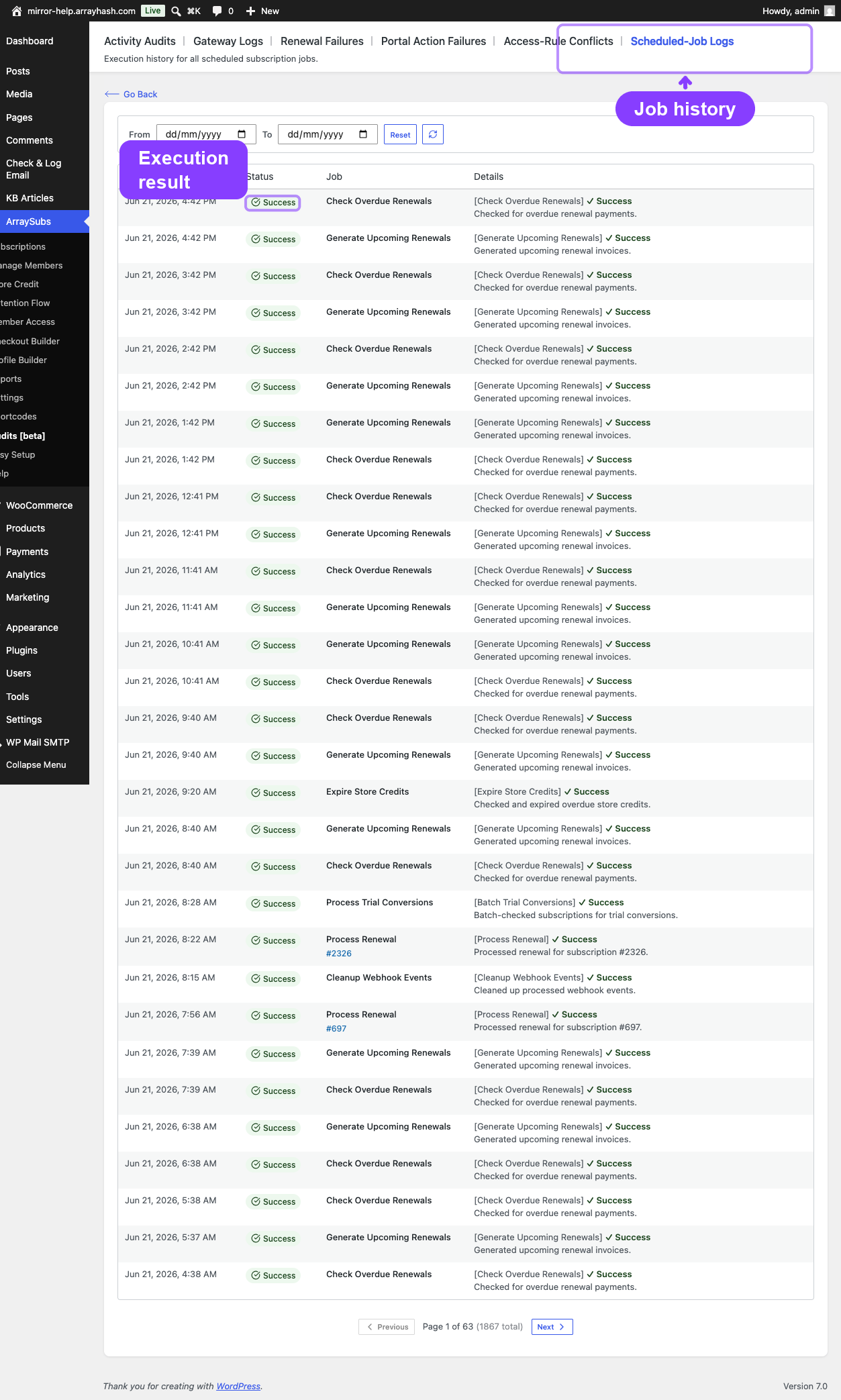
ArraySubs runs several scheduled jobs automatically using the Action Scheduler system. You do not need to configure these — they run on their own after activation.
| Job | Schedule | What it does |
|---|---|---|
| Generate upcoming renewals | Every hour | Creates renewal invoice orders for subscriptions due within the next 6 hours |
| Check overdue renewals | Every hour | Monitors unpaid invoices and transitions subscriptions through the grace period (Active → On Hold → Cancelled) |
| Process trial conversions | Daily at 2:00 AM | Converts trial subscriptions to active when the trial period ends |
| Expire subscriptions | On demand | Marks subscriptions as expired when their subscription length is reached |
| Send renewal reminders | On demand | Sends upcoming renewal reminder emails (configurable days before due date) |
All scheduled jobs use execution locks to prevent concurrent processing. If a job is already running when the next run triggers, the duplicate is safely skipped.
Where Merchants Manage Everything
Admin Dashboard — ArraySubs Menu
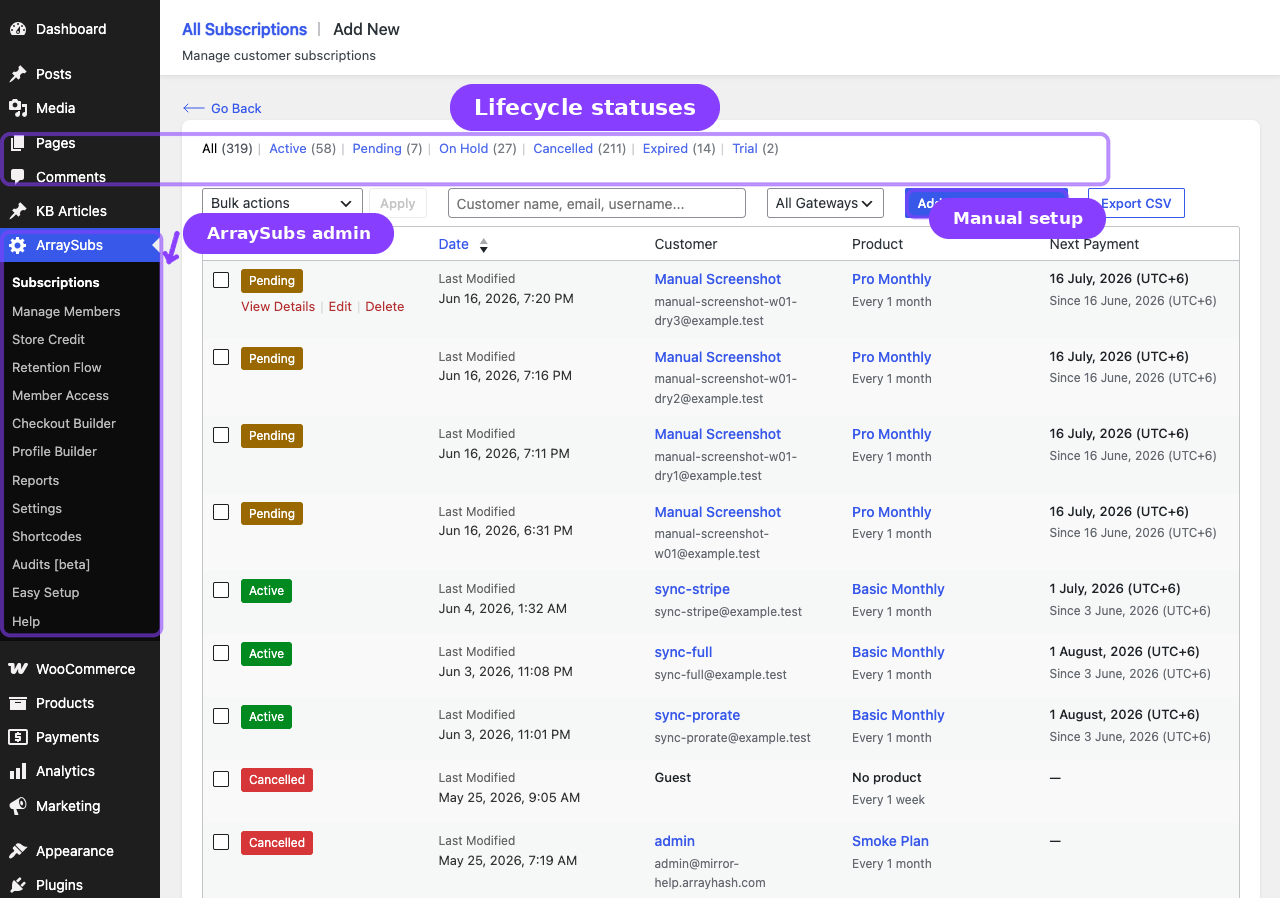
The main ArraySubs admin interface is a single-page application (SPA) accessible from the WordPress sidebar. Here is a map of every page and what it is for:
Subscriptions
| Page | Path | Purpose |
|---|---|---|
| All Subscriptions | ArraySubs → Subscriptions | Filterable list of all subscriptions with status badges, customer info, and actions |
| Add New | ArraySubs → Subscriptions → Add New | Manually create a subscription for a customer |
| Subscription Detail | Click any subscription | Full detail view: info card, customer info, product, billing, addresses, related orders, notes |
| Edit Subscription | Edit button on detail page | Limited editing: invoice email, addresses, status |
Retention
| Page | Path | Purpose |
|---|---|---|
| Retention Flow | ArraySubs → Retention Flow | Manage cancellation reasons and configure retention offers (discount, pause, downgrade, contact support) |
Member Access
| Page | Path | Purpose |
|---|---|---|
| Role Mapping | ArraySubs → Member Access | Assign WordPress roles based on subscription plans |
| Content Gate | Member Access → Content Gate | Step-by-step guides for Elementor, Gutenberg, shortcode, and PHP content gates |
| Discount Rules | Member Access → Discount Rules | Member-based pricing discounts |
| Shop Access Rules | Member Access → Shop Access Rules | Purchase restrictions for members / non-members |
| URL Rules | Member Access → URL Rules | Restrict specific URLs or URL patterns |
| Post Types | Member Access → Post Types | Restrict by post type, taxonomy, or specific posts |
| Downloads | Member Access → Downloads | Download access control and rate limiting |
| Login Limit | Member Access → Login Limit | Concurrent session limits Pro |
Profile Builder
| Page | Path | Purpose |
|---|---|---|
| Profile Form | ArraySubs → Profile Builder → Profile Form | Custom profile fields for customer accounts |
| My Account | Profile Builder → My Account | Reorder, rename, and customize My Account menu items |
Settings
| Page | Path | Purpose |
|---|---|---|
| General | ArraySubs → Settings → General | Core configuration: billing, checkout, trials, grace period, emails, customer portal |
| Toolkit | Settings → Toolkit | Configuration screen for Admin Bar Visibility, Admin Dashboard Access, WordPress Login Page, and Login as User. |
| Plan Switching | Settings → Plan Switching | Upgrade, downgrade, crossgrade rules and proration settings |
| Refunds | Settings → Refunds | Refund behavior, proration, auto gateway refund |
| Skip & Pause | Settings → Skip & Pause | Skip renewal and pause subscription settings Pro |
| Feature Manager | Settings → Feature Manager | Product feature/entitlement configuration Pro |
Other Pages
| Page | Path | Purpose |
|---|---|---|
| Shortcodes | ArraySubs → Shortcodes | Reference page listing all available shortcodes with examples |
| Help | ArraySubs → Help | Support contact information |
| Audits → Activity Audits | ArraySubs → Audits | Activity audit logs Pro |
| Audits → Scheduled Job Logs | Audits → Scheduled Job Logs | Scheduled job execution logs Pro |
| Audits → Gateway Logs | Audits → Gateway Logs | Payment gateway health dashboard Pro |
WooCommerce Product Editor
Subscription configuration lives inside the WooCommerce product editor:
- Go to Products → Edit on any product.
- Check the Subscription checkbox in the Product data section.
- Open the Subscription tab to configure billing period, interval, length, trial, and signup fee.
- For variable products, configure subscription fields per-variation.
Customer Portal (Frontend)
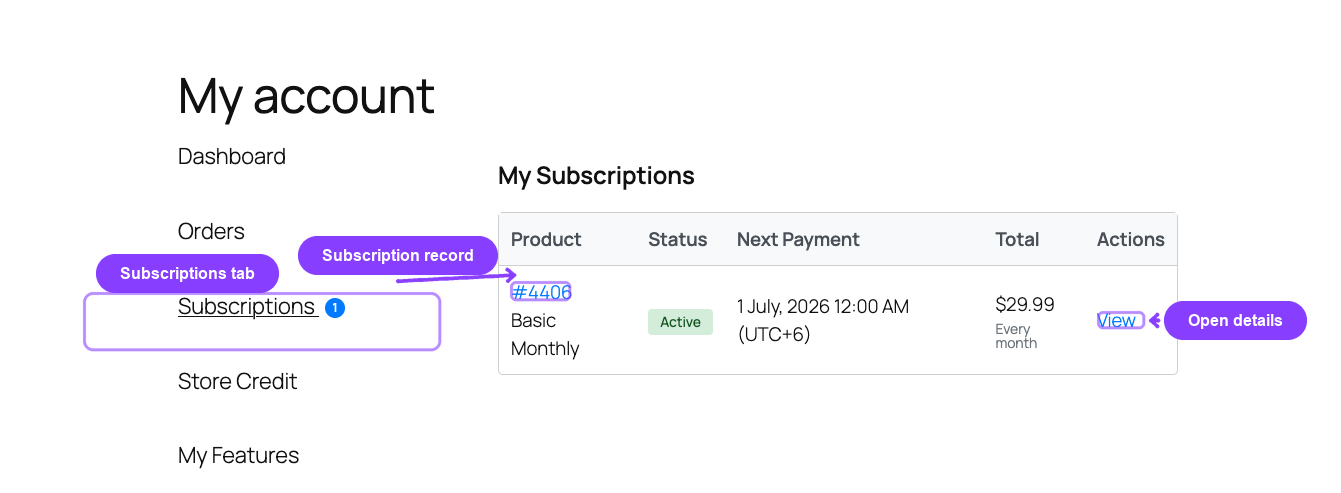
Customers manage their subscriptions at My Account → Subscriptions. The portal is read-only for viewing and provides action buttons for self-service operations based on your settings.
Before You Go Live — Verification Checklist
Run through this checklist before opening your store to real customers:
Products
Subscription Creation
- After a test order is paid, a subscription appears in ArraySubs → Subscriptions
Customer Portal
- The Subscriptions
Email Notifications
Settings
Payment (for automatic renewals — Pro)
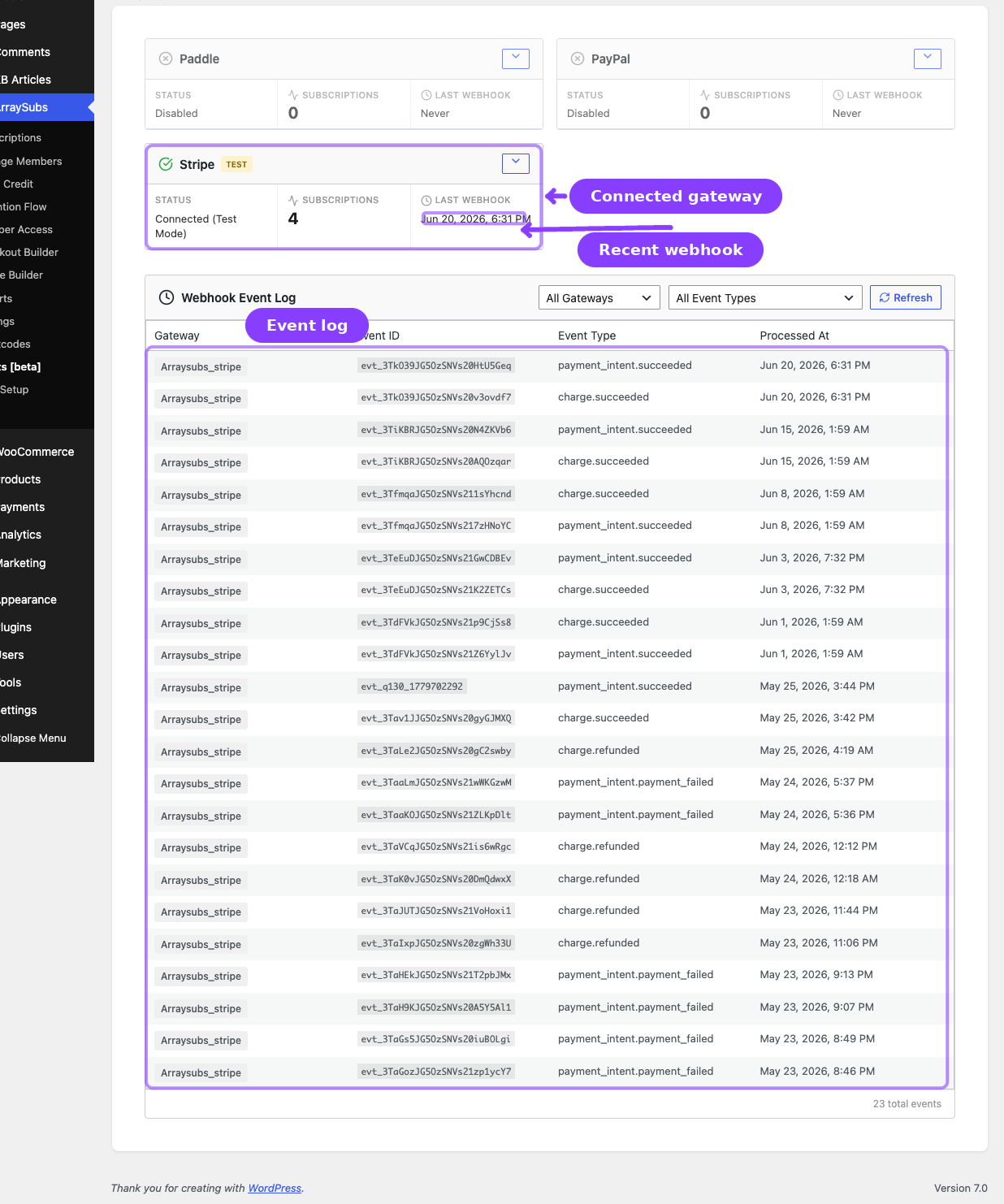
- Gateway health shows a healthy status in Audits → Gateway Logs Pro
Real-Life Use Cases
Use Case 1: Monthly Box Subscription Store
A subscription box store ships products monthly. The merchant creates a simple subscription product ($39.99/month), enables the grace period (3 active + 7 on-hold days), and sets up renewal reminder emails 3 days before the due date. On renewal day, the system generates an invoice, attempts payment, and alerts the customer if payment fails. The merchant monitors All Subscriptions daily for any on-hold subscriptions that need attention.
Use Case 2: SaaS Membership with Trials
A digital service offers a 14-day trial. The merchant configures a trial on the product, enables "one trial per customer" in settings, and sets up content restriction rules in Member Access. Customers sign up, get gated content access during the trial, and the batch job auto-converts them to paid after 14 days. The merchant reviews retention analytics periodically to monitor churn and adjust retention offers.
Use Case 3: Multi-Tier Coaching Platform
A coaching platform has three variable subscription tiers. The merchant configures plan switching (upgrades and downgrades) in settings, sets up role mapping so each tier grants a different WordPress role, and restricts premium content by role. Customers can switch plans from the portal, and the proration system handles pricing adjustments automatically.
Troubleshooting
| Problem | Likely Cause | What to Do |
|---|---|---|
| Renewal invoices are not being generated | The Action Scheduler is not running (cron issue) | Check that WordPress cron is functioning. Install a cron monitoring plugin or set up a real server cron job |
| Subscriptions stay in Pending after checkout | The order was not marked as paid | Ensure the payment gateway processes the order or manually mark it as Processing/Completed |
| Grace period transitions are not happening | The hourly overdue check job is not executing | Verify Action Scheduler is active. Check Audits → Scheduled Job Logs Pro for job execution history |
| Customers cannot see the Subscriptions tab | Permalinks need to be flushed | Go to Settings → Permalinks and click Save Changes |
| Emails are not sending | WordPress mail is misconfigured | Install an SMTP plugin and verify email delivery with a test message |
Related Guides
- Before You Launch — Requirements, core concepts, and the full Free vs Pro feature map.
- First-Time Setup — Step-by-step installation and your first subscription product.
- Manage Subscription Products — Complete product configuration, plan switching, coupon integration, and more.
FAQ
How often do the renewal batch jobs run?
Invoice generation and overdue checks run every hour. Trial conversions run once daily at 2:00 AM. These schedules are automatic and do not require configuration.
What happens if I change settings while subscriptions are active?
Most settings apply to future actions only. For example, changing the grace period affects future overdue transitions, not subscriptions already in the grace period.
Can I manually trigger a renewal for a specific subscription?
No direct manual trigger exists in the admin UI. For testing, use a staging site with a short billing cycle, or run the relevant queued action from WooCommerce → Status → Scheduled Actions when one exists. ArraySubs no longer supports manually editing the next payment date from the subscription edit form.
Do I need WP-Cron or a real server cron?
ArraySubs uses the Action Scheduler library, which runs through WordPress cron. For reliable scheduling on production stores, a real server cron job (hitting wp-cron.php every minute) is recommended over the default WP-Cron visitor-triggered approach.
What should I monitor daily?
Check the All Subscriptions list for any subscriptions in On Hold status — these may need attention (customer outreach, payment issues). Review email logs for delivery failures if you notice customers are not responding to renewal invoices.
Will deactivating the Pro addon break existing subscriptions?
No. Existing subscription data is preserved. However, Pro-only features (automatic payments, store credit, checkout builder, etc.) will stop functioning until the addon is reactivated. Manual renewals will continue to work through core.