
Member Operations
ProJump from the member profile to related screens across ArraySubs and WooCommerce, and understand the insight metrics the dashboard calculates for each customer.
Availability: Pro
Page Navigation
- Current guide: Member Operations
- Where to open it: WordPress Admin -> ArraySubs -> Manage Members
- Section overview: Open overview
- Previous guide: member-lookup-and-profiles
- Next guide: README
- Troubleshooting: Audits, Logs, and Troubleshooting
Overview
The Manage Members page is not just a data viewer — it is a navigation hub. Three quick-link cards, inline table links, and five admin-wide shortcut integrations let you reach any customer-related screen in one or two clicks. This guide covers every outbound navigation path and explains how the insight metrics shown in the stats grid are calculated.
Quick links
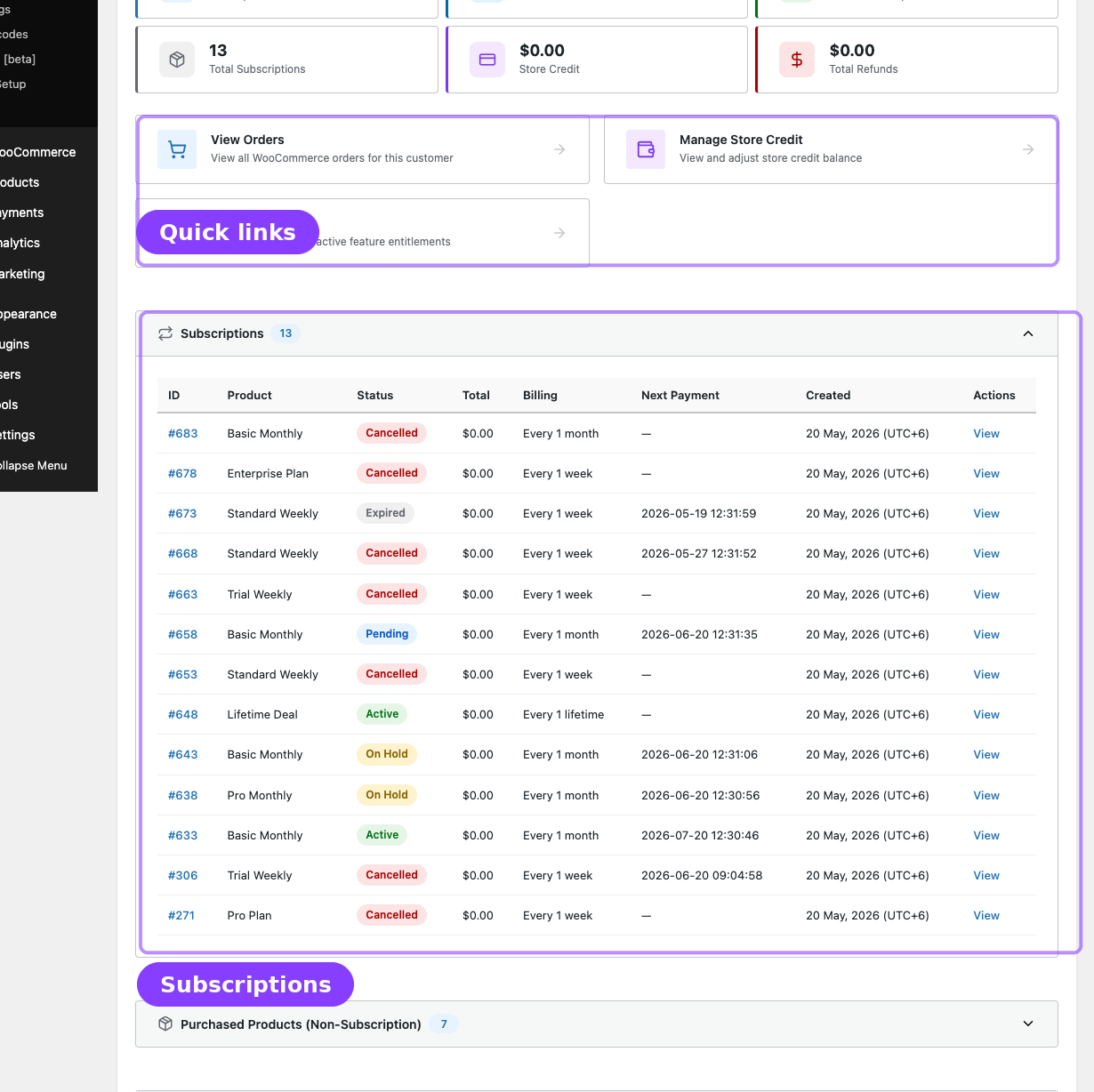
Below the stats grid, three quick-link cards provide one-click access to related screens:
| Quick link | Where it goes | What you can do there |
|---|---|---|
| View Orders | WooCommerce → Orders, pre-filtered by the customer's email | Browse the customer's full order history, open individual orders, issue refunds |
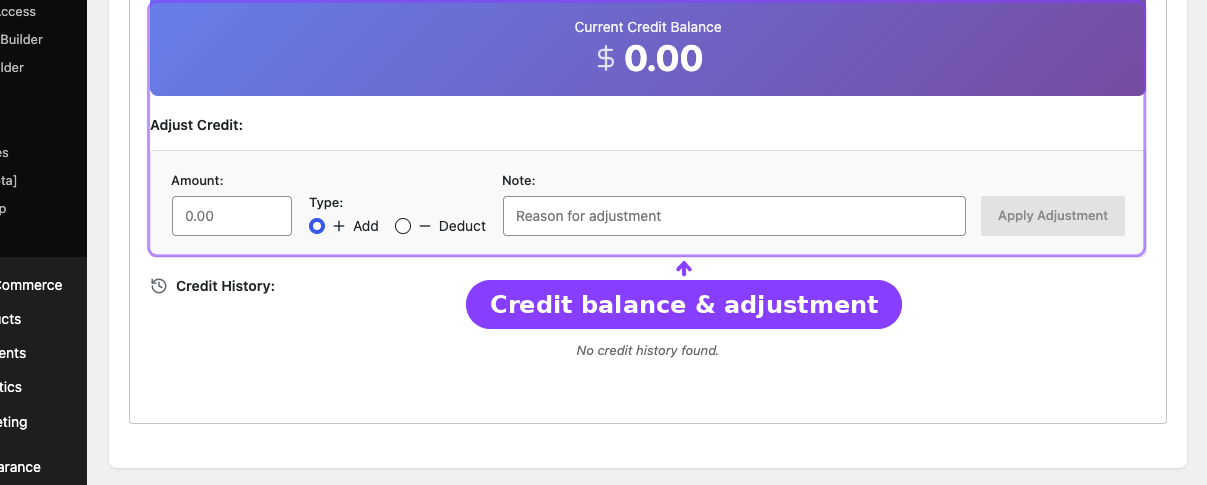
| Manage Store Credit | ArraySubs → Store Credit, scoped to the selected customer | View the credit transaction log, add or deduct credit, see the current balance |
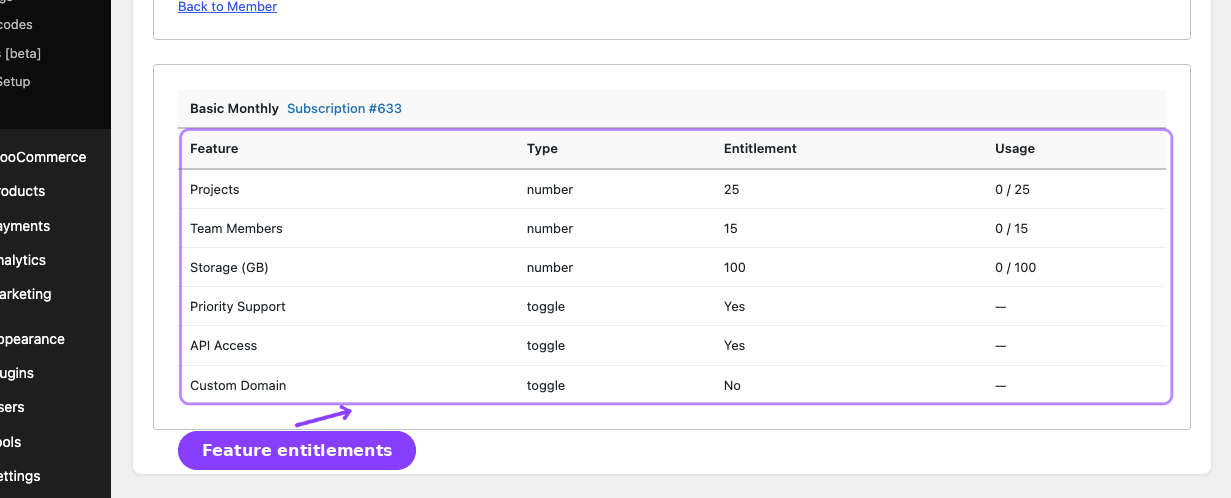
| Show Features | ArraySubs → Feature Log, filtered by the customer's user ID | Review the customer's active feature entitlements across all subscriptions |
View Orders opens in a new browser tab because it links to the native WooCommerce orders screen. Manage Store Credit and Show Features navigate within the ArraySubs admin SPA, so you stay in the same tab.
Opening a subscription detail
The subscriptions table in the member profile includes two ways to jump to a subscription's full detail screen:
- Click the subscription ID link (e.g.,
#142) in the ID column. - Click the View action in the Actions column.
Both routes open the subscription detail page within ArraySubs, where you can review billing information, open the focused edit form for invoice or address updates, view related orders, and manage the subscription lifecycle.
Admin shortcuts across WordPress and WooCommerce
When the Pro plugin is active, the Member Insight feature injects Member Details shortcuts into five existing admin screens. These shortcuts save you from having to navigate to the Manage Members page manually — you can jump to any customer's member profile directly from the context you are already working in.
Shortcut locations
| Screen | Where the shortcut appears | What it looks like |
|---|---|---|
| All Subscriptions list | Customer name column | The customer name link redirects to the member profile instead of the WordPress user editor |
| WooCommerce order edit | Below the order details section | An Open Member Details button |
| WooCommerce order preview | Quick-view modal actions | A Member details action link |
| WordPress user edit page | Near the page heading | A Member Details button |
| WooCommerce Analytics → Customers | Under each customer's username in the report table | A Member details action link |
All shortcuts open the Manage Members page at #/manage-members/{user_id} and automatically load the customer's profile.
Member Insight metrics explained
The stats grid on the member profile displays six metrics. Here is how each one is calculated:
Total Spent
The lifetime sum of all WooCommerce order totals for this customer. This uses the WC_Customer object's expenditure data, which includes all order statuses that WooCommerce counts toward the customer total.
Total Orders
The count of all WooCommerce orders placed by this customer. Like Total Spent, this reflects WooCommerce's own customer order count.
Active Subscriptions
The number of this customer's subscriptions that currently have an active status. Only arraysubs-active subscriptions are counted — trial, on-hold, paused, and other statuses are excluded from this count.
Total Subscriptions
The total number of subscription records associated with this customer, in any status. This includes active, trial, cancelled, expired, on-hold, paused, and pending subscriptions.
Store Credit
The customer's current store credit balance, retrieved from the Pro Store Credit feature. If Store Credit is disabled, this shows as zero. The balance reflects all credits and debits (promotional credits, refund-to-credit, purchases, renewals, expirations, and admin adjustments).
Total Refunds
The sum of all refunded amounts across the customer's WooCommerce orders. This is calculated by iterating over the customer's orders and summing each order's refunded total. It covers both full and partial refunds.
All monetary values (Total Spent, Store Credit, Total Refunds) are formatted using your store's WooCommerce currency settings, including the currency symbol, decimal separator, and thousand separator.
Real-life use cases
Use case 1: Support ticket triage
A customer writes in saying "my subscription isn't working." Open Manage Members, search for their email, and in seconds you can see whether their subscription is active, on-hold, or cancelled — plus their last order status, payment totals, and credit balance — without opening multiple admin screens.
Use case 2: VIP customer review
Before a customer success call, pull up the member profile to see Total Spent, Active Subscriptions, and purchase history. The stats grid gives you an instant picture of how valuable the relationship is, and the quick links let you jump into orders or store credit adjustments during the call.
Use case 3: Troubleshooting a portal issue
A customer reports they cannot see their subscription in the portal. Use Login as Customer from the profile card to switch into their account and see exactly what the portal renders. After investigating, switch back to your admin session using the notification bar.
Troubleshooting
| Problem | Likely cause | What to do |
|---|---|---|
| Quick links do not appear below the stats grid | The member data has not finished loading, or the Pro REST endpoint returned an error | Wait for the loading skeleton to complete; check the browser console for API errors |
| "View Orders" opens WooCommerce orders but shows no results | The customer's email may differ between WordPress and WooCommerce, or the customer has no orders | Verify the email match; check if the customer actually has orders |
| "Open Member Details" button is missing on WooCommerce order pages | The Pro plugin is not active, or the order has no associated customer ID | Confirm Pro is active; guest orders without a linked user account will not show the button |
| Admin shortcut on Subscription list still links to WordPress user editor | The Pro filter may not have loaded; a caching or plugin conflict is preventing the hook | Clear any object cache; confirm the Pro plugin version is current |
| Stats show stale or unexpected numbers | WooCommerce customer data caches may be outdated | WooCommerce periodically recalculates customer totals; a new order or refund should update the stats on next page load |
Related guides
- Manage Members — Overview — All entry points and a summary of the Manage Members page.
- Member Lookup and Profiles — Search, profile card, stats grid, and Login as Customer.
- Member Commerce Overview — Subscription history, purchased products, store credit, and addresses.
- Store Credit — Full store credit management and settings.
- Subscription Detail Cards — Cards displayed on the subscription detail screen.
FAQ
Does the "View Orders" quick link include subscription renewal orders?
Yes. The link opens the WooCommerce orders screen filtered by the customer's email. All order types appear — initial sign-up orders, renewal orders, switch orders, and regular product orders.
Will the admin shortcuts still work if I deactivate the Pro plugin?
No. All five shortcut integrations (subscription list, order edit, order preview, user profile, and analytics customers) are registered by the Pro Member Insight feature. Deactivating Pro removes them, and links revert to their default WooCommerce or WordPress behavior.
How often are the stats grid metrics recalculated?
The metrics are fetched live from the REST API every time you load a member profile. There is no caching layer — the values reflect the current database state. Total Spent and Total Orders depend on WooCommerce's own customer aggregation, which updates as orders are completed or refunded.
Can I see a breakdown of Total Spent by subscription vs non-subscription orders?
Not directly on the stats grid. The Total Spent metric is a single aggregate number from WooCommerce. However, you can compare the subscription totals shown in the Subscriptions table against the product totals in the Purchased Products table for a rough breakdown.
What happens to the Manage Members menu if I deactivate Pro?
The Manage Members menu item disappears from the ArraySubs sidebar. The core admin SPA still contains the route, but it is hidden from the menu when the Member Insight feature is not available.