
Customer and Storefront Display
ProHow feature entitlements appear to customers on the storefront product page, in My Account, and how admins review them.
Availability: Pro
Page Navigation
- Current guide: Customer and Storefront Display
- Where to open it: WordPress Admin -> Products -> Edit Product and ArraySubs -> Settings -> Feature Manager
- Section overview: Open overview
- Previous guide: store-credit-emails
- Next guide: defining-product-features
- Troubleshooting: Audits, Logs, and Troubleshooting
Overview
Feature Manager surfaces product entitlements in three places:
- Storefront product page — A "What's Included" section listing the product's features.
- My Account → My Features — A dedicated customer page showing all entitlements from active subscriptions.
- Admin Feature Log — An admin-only view showing any customer's complete feature entitlements.
Each display has its own settings, layout, and behavior.
Storefront Product Page
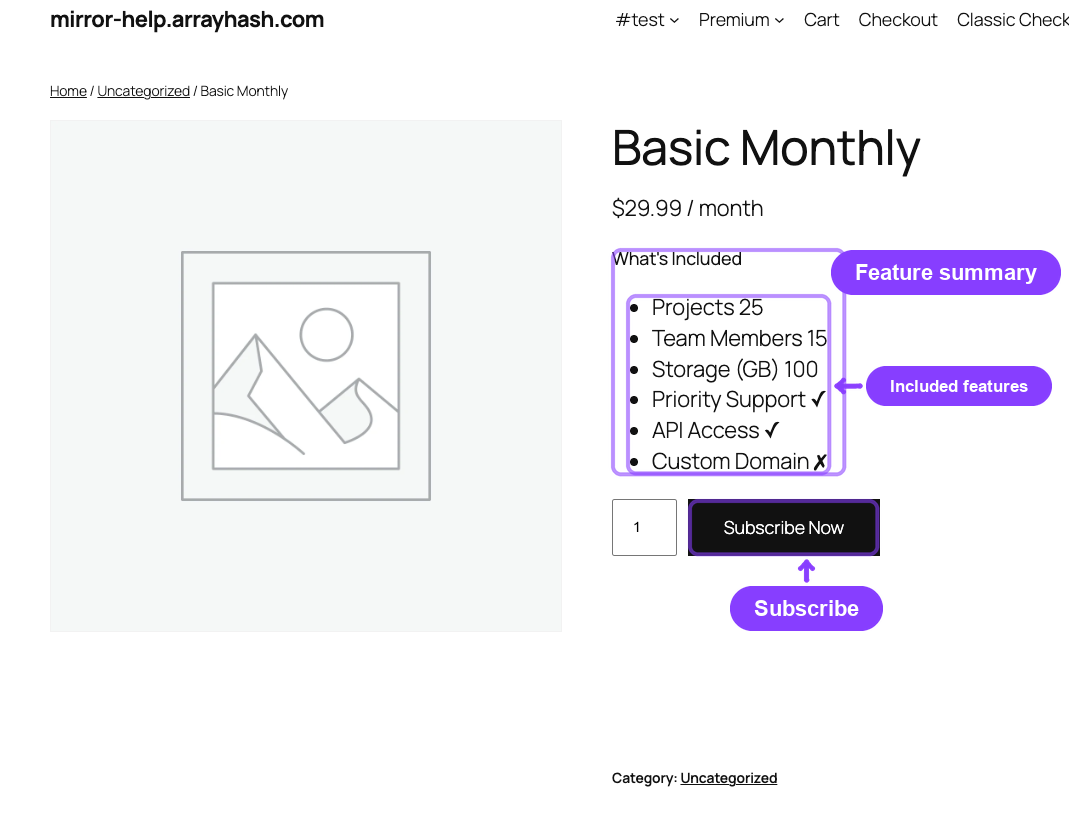
When enabled, a "What's Included" section appears on the single product page below the product summary. It lists all enabled features for that product with their values.
How to Enable
Go to ArraySubs → Settings → Feature Manager and turn on Show on Product Page.
What It Displays
The section renders an ordered list of all enabled features defined on the product:
- Toggle features — Show ✓ (for Yes) or ✗ (for No) next to the feature name.
- Number features — Show the numeric value or "Unlimited" next to the feature name.
- Text features — Show the text value next to the feature name.
Features appear in the order you set in the product editor. Disabled features are not displayed.
Display Example
A "Professional Plan" product page would show:
What's Included
- Projects — 25
- Team Members — 15
- Storage (GB) — 100
- Priority Support — ✓
- API Access — ✓
- Custom Domain — ✗
The storefront display currently renders on simple subscription products only. Variable product pages do not show the "What's Included" section at the product level. Customers will still see their variation-specific features in My Account after subscribing.
My Features Page (Customer Portal)
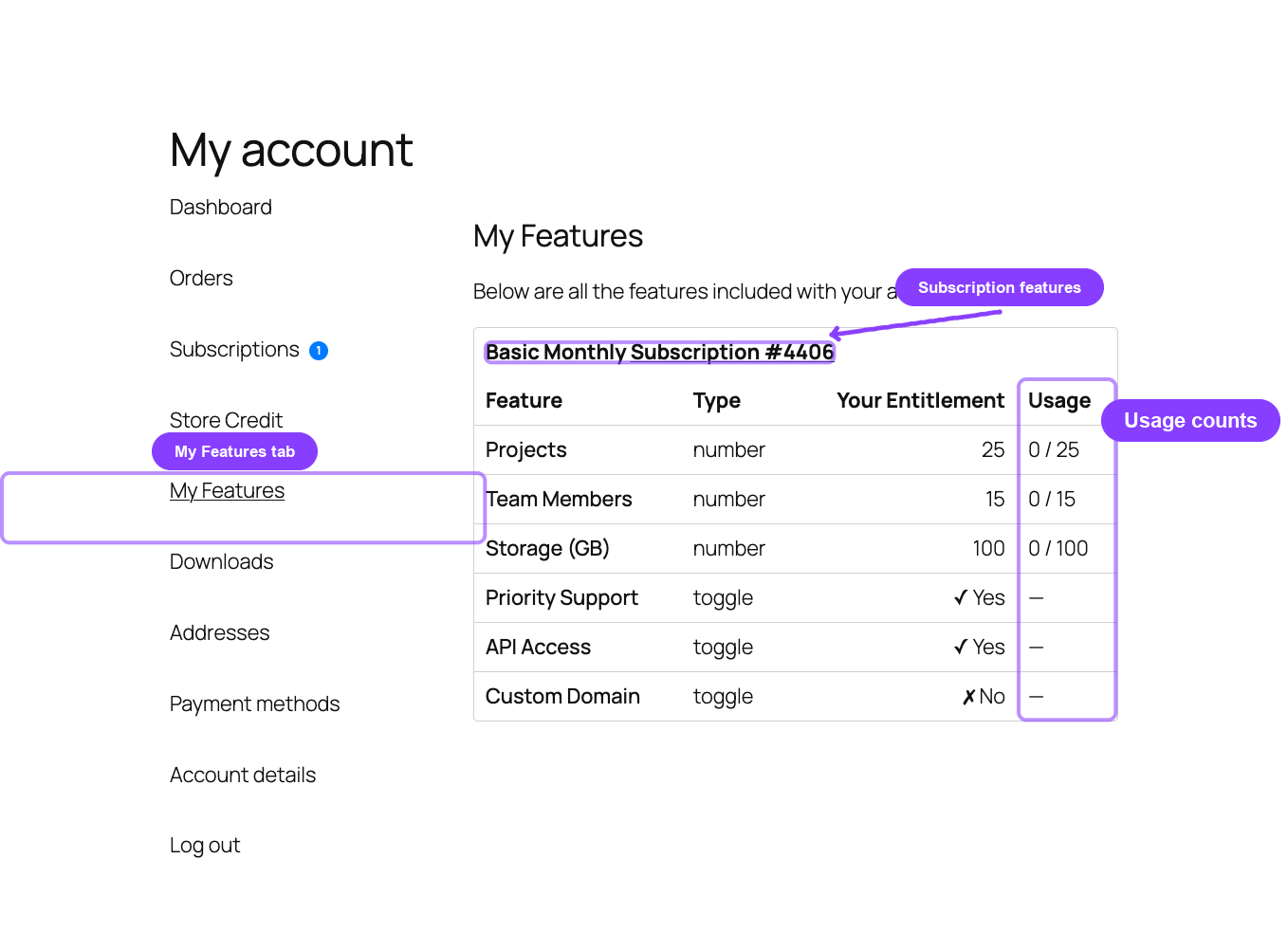
Customers see a My Features tab in their WooCommerce My Account navigation. This page shows all features from their active subscriptions.
URL path: /my-account/features/
How to Enable
Both of these must be turned on in ArraySubs → Settings → Feature Manager:
- Enable Feature Manager — The master switch.
- Show in My Account — Controls whether the My Features menu item and page appear.
Menu Position
The My Features menu item is placed after Subscriptions in the My Account sidebar (or after Orders if the Subscriptions tab doesn't exist). The item label defaults to "My Features" and can be customized using the My Account Editor.
Aggregation Modes
The page supports two display modes, controlled by the Feature Aggregation Mode setting:
Per-Subscription Mode (Default)
Each active subscription is displayed as a separate section with its own feature table.
Section header: Shows the product name and a "Subscription #ID" link back to the subscription detail page.
Table columns:
| Column | What It Shows |
|---|---|
| Feature | The feature name as defined in the product editor |
| Type | Toggle, Number, or Text |
| Your Entitlement | The value granted by this subscription — ✓/✗ for toggles, a number or "Unlimited" for number types, raw text for text types |
| Usage | Current usage against the limit (only shown if usage tracking is enabled) |
If a customer has three active subscriptions with features, three separate tables appear.
Combined Mode
All features across all active subscriptions are merged into a single table. When the same feature name appears in multiple subscriptions:
- Number values are summed (e.g., 10 + 25 = 35).
- Toggle values are OR'd (if any subscription grants "Yes", the combined result is "Yes").
- Text values show the value from the highest-priority subscription.
The table uses the same columns as per-subscription mode, but under a single "Combined Features" heading.
Usage Tracking Display
When Show Usage Count in My Account is enabled in settings, an extra Usage column appears in the feature tables, but only for number-type features.
Usage is displayed as:
3 / 10— 3 used out of 10 allowed.3 / Unlimited— 3 used with no cap.
Toggle and text features do not show usage data.
Usage data is populated by your site's custom code or integrations using the plugin's helper functions (arraysubs_increment_feature_usage, arraysubs_update_feature_usage, etc.). The Feature Manager module defines the entitlement limits — your code tracks actual consumption.
Empty State
If a customer has no active subscriptions with features, the page shows:
"You don't have any features yet. Subscribe to a plan to unlock features!"
A link to the shop page is provided.
Feature Value Display Reference
| Type | Active Value | Inactive Value |
|---|---|---|
| Toggle | ✓ Yes | ✗ No |
| Number | The number (e.g., "500") or "Unlimited" | — |
| Text | The text value (e.g., "Gold Tier") | — |
Admin Feature Log
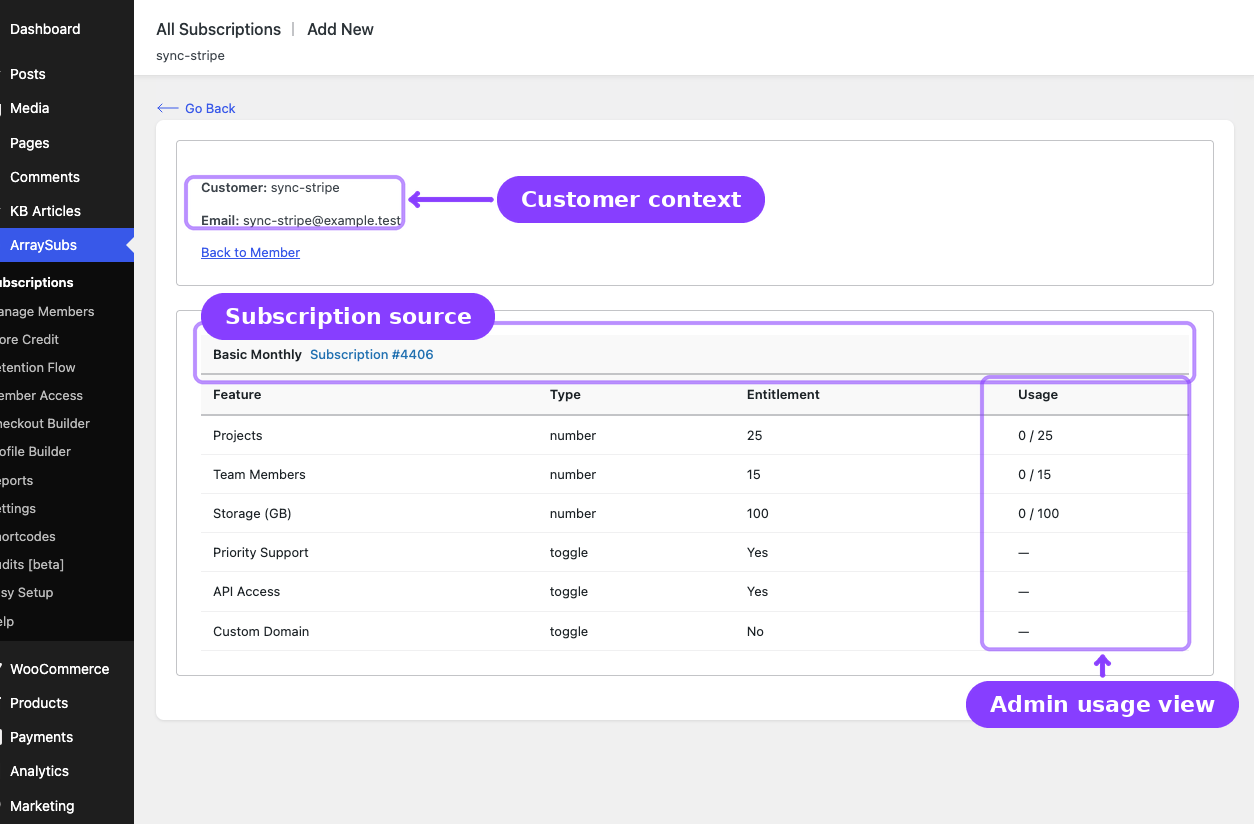
The Feature Log is an admin-only view that shows a specific customer's complete feature entitlements across all their subscriptions.
How to Access
There are two entry points:
- From the subscription detail screen — Navigate to ArraySubs → Subscriptions → [any subscription], then look for the Feature Log link in the admin tools.
- From Manage Members — Navigate to ArraySubs → Manage Members → [customer profile], then click the Feature Log shortcut link.
Both take you to the Feature Log page at: ArraySubs admin → Subscriptions → Feature Log?user_id={ID}
What It Shows
Header: The customer's name and email.
Content: Depends on the aggregation mode configured in Feature Manager settings.
Per-Subscription View
Separate table per active subscription. Each table header shows the product name and a link to the subscription.
| Column | What It Shows |
|---|---|
| Feature | Feature name |
| Type | Toggle, Number, or Text |
| Entitlement | The granted value |
| Usage | Used / Limit (only if Show Usage Count in Admin is enabled) |
Combined View
All features across the customer's subscriptions merged into a single table with the same columns.
The Usage column in the admin Feature Log is controlled by a separate setting (Show Usage Count in Admin) and can be toggled independently from the customer-facing usage display.
Usage Tracking System
Feature Manager includes a complete entitlement tracking system for number-type features. This allows your site to record how much of a feature a customer has consumed and display progress against the defined limit.
How Usage Works
- Limits come from the product. The feature's
valueon the product (e.g., "100" for 100 API calls) becomes the entitlement limit. - Consumption is tracked per subscription. Each subscription maintains its own usage counters for features.
- Usage is recorded by your code. The plugin provides helper functions for incrementing, updating, and resetting usage. Your custom integrations call these functions when the customer consumes a feature.
- Display is automatic. When usage tracking display is enabled in settings, the usage data appears alongside entitlements in both customer and admin views.
Available Helper Functions
These functions are available for developers and integrations:
| Function | Purpose |
|---|---|
arraysubs_get_feature_usage($subscription_id, $feature_key) |
Get usage data for a single feature on a subscription |
arraysubs_get_customer_feature_usage($customer_id, $feature_key) |
Get aggregated usage across all of a customer's subscriptions |
arraysubs_increment_feature_usage($subscription_id, $feature_key, $amount) |
Add to the usage counter |
arraysubs_update_feature_usage($subscription_id, $feature_key, $used) |
Set usage to a specific value |
arraysubs_reset_feature_usage($subscription_id, $feature_key) |
Reset usage to zero |
arraysubs_is_feature_usage_allowed($subscription_id, $feature_key, $additional) |
Check if usage is within limits |
arraysubs_is_customer_feature_usage_allowed($customer_id, $feature_key, $additional) |
Check aggregated usage across subscriptions |
Usage Data Structure
Each usage record contains:
| Field | Description |
|---|---|
used |
How much the customer has consumed |
limit |
The maximum entitlement (from the product feature value) |
remaining |
How much is left (limit minus used) |
percentage |
Consumption percentage |
is_unlimited |
Whether the feature is set to "Unlimited" |
last_reset |
Timestamp of when usage was last reset to zero |
Feature Behavior by Subscription Status
Features are only surfaced for subscriptions in qualifying statuses:
| Subscription Status | Features Visible? |
|---|---|
| Active | ✓ Yes |
| Trial | ✓ Yes |
| On Hold | ✗ No |
| Pending Cancel | ✗ No |
| Cancelled | ✗ No |
| Expired | ✗ No |
When a subscription leaves active or trial status, its features disappear from the customer's My Features page and the admin Feature Log.
Plan Switching and Features
When a customer switches from one plan to another (e.g., upgrading from Basic to Premium), the subscription's linked product or variation changes. Because features are always read from the current product, the new plan's features replace the old immediately.
There is no transition period — the customer sees their new entitlements as soon as the switch completes.
A Feature Comparison setting exists in the Feature Manager settings panel. This is reserved for a future plan-switching experience that would show a side-by-side comparison of current vs. new plan features before the customer confirms the switch.
FAQ
Why don't I see features on my variable product page? The storefront "What's Included" display currently renders only on simple product pages. Variable products do not show features at the product level. Customers see variation-level features in their My Features page after subscribing.
Can customers see features before purchasing? On simple products, yes — the "What's Included" section on the product page shows all enabled features. For variable products, features are not displayed on the storefront, so customers discover them after subscribing.
Why is the Usage column empty?
Usage data must be populated by your site's code or integrations using the helper functions. The Feature Manager defines limits but does not automatically track consumption. Check that your integration is calling arraysubs_increment_feature_usage() or arraysubs_update_feature_usage().
What happens when I change features on a product? Changes take effect immediately. The next time a customer loads their My Features page, they see the updated features. There is no versioning — the current feature set is always what's displayed.
Can I show different My Features page titles? Yes. Go to ArraySubs → Settings → Feature Manager and set a custom My Account Page Title. Leaving it blank defaults to "My Features."
Related Docs
- Defining Product Features — How to add and manage features in the product editor.
- Feature Manager Settings — Complete settings reference.
- Customer Portal Pages — My Features in the broader customer portal context.
- Admin Tools and Records — Feature Log from the subscription detail screen.
- Manage Members — Feature Log from the member profile.