
Admin Dashboard Access
Restrict direct WordPress dashboard access for customers while preserving backend access for administrators and selected staff roles.
Availability: Free
Page Navigation
- Current guide: Admin Dashboard Access
- Where to open it: WordPress Admin -> ArraySubs -> Settings -> Toolkit
- Direct route:
/wp-admin/admin.php?page=arraysubs-mainadmin#/settings/toolkit - Section overview: Manual Home
- Previous guide: Admin Bar Visibility
- Next guide: WordPress Login Page
- Troubleshooting: Audits, Logs, and Troubleshooting
What This Tool Does
Restrict wp-admin access stops customers and other unauthorized users from browsing the WordPress admin dashboard. When they visit /wp-admin, ArraySubs redirects them to your selected destination.
Administrators are always allowed. You can also allow staff roles such as Shop Manager by adding them to Allowed roles.
When to Use This
- Customers can log in successfully but should stay in WooCommerce My Account.
- You want subscribers redirected away from
/wp-admin. - Your staff needs backend access, but regular members should not see the dashboard.
- You are building a membership, course, SaaS, community, or digital product site where customers should only use frontend account pages.
How to Configure It
- Go to ArraySubs -> Settings -> Toolkit.
- Turn on Restrict wp-admin access.
- Choose Redirect unauthorized users to:
- WooCommerce My Account page for a normal customer flow.
- 404 Not Found page when you want the admin route to look unavailable.
- Add any non-admin staff roles to Allowed roles.
- Click Save Settings.
- Test with a customer account in a separate browser session.
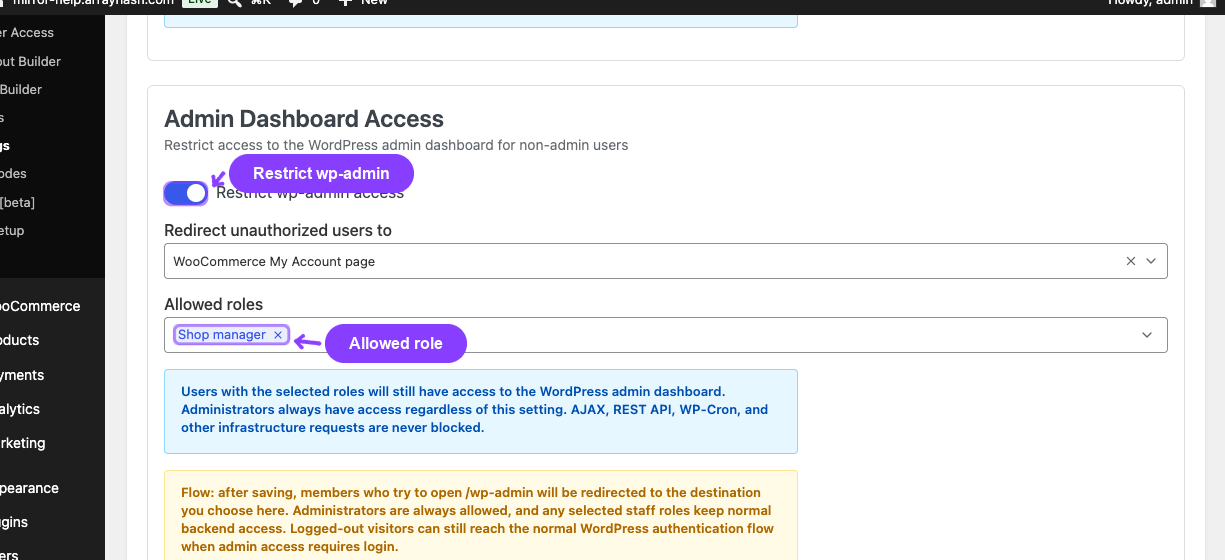
Settings Reference
| Setting | Default | Type | Notes |
|---|---|---|---|
| Restrict wp-admin access | Off | Toggle | Enables the dashboard restriction |
| Redirect unauthorized users to | WooCommerce My Account page | Dropdown | Appears when restriction is on |
| Allowed roles | None | Multi-select | Administrators are always allowed and do not need to be selected |
What Is Never Blocked
- WordPress AJAX requests.
- REST API calls.
- WP-Cron requests.
- Action Scheduler background processing.
- Administrator access.
Testing Checklist
- Log in as a customer.
- Visit
/wp-admin. - Confirm the browser redirects to the destination you selected.
- Log in as an administrator.
- Visit
/wp-admin. - Confirm the dashboard still opens normally.
- If you selected a staff role, test that role separately.
Troubleshooting
| Problem | Likely Cause | What to Do |
|---|---|---|
Customer still reaches /wp-admin |
The setting is off, or their role is allowed | Check the toggle and the Allowed roles field |
| Shop Manager is blocked | Shop Manager is not selected | Add Shop Manager to Allowed roles and save |
| Redirect lands on the wrong page | Redirect destination is set differently than expected | Reopen Toolkit and check the dropdown |
Related Guides
- Admin Bar Visibility — Hide the frontend toolbar.
- WordPress Login Page — Redirect default login and registration URLs.
- Member Access Overview — Restrict content, products, discounts, and downloads.