
Lifecycle Management
How subscriptions move through statuses — from creation to activation, renewal, grace periods, cancellation, and expiration.
Availability: Free
Page Navigation
- Current guide: Lifecycle Management
- Where to open it: WordPress Admin -> ArraySubs -> Subscriptions
- Section overview: Open overview
- Previous guide: admin-tools-and-records
- Next guide: README
- Troubleshooting: Audits, Logs, and Troubleshooting
Overview
Every ArraySubs subscription follows a defined lifecycle. Understanding how and when subscriptions change status helps you predict billing behavior, handle support requests, and configure your store correctly.
This guide covers:
- The six subscription statuses and what each one means.
- Every status transition — what triggers it and what happens.
- The two-phase renewal system with grace periods.
- Trial conversion and auto-downgrade.
- Immediate vs. end-of-period cancellation.
- Expiration rules.
- What emails are sent at each stage.
Prerequisites
- Familiarity with the Subscription Detail Screen.
- General Settings configured — especially grace period settings and email reminder schedule.
Subscription Statuses
ArraySubs uses six statuses:
| Status | Badge Color | Meaning |
|---|---|---|
| Pending | Orange | Subscription created but not yet activated. Waiting for first payment or manual activation. |
| Active | Green | Subscription is live. Renewals are being processed on schedule. |
| Trial | Cyan | Subscription is in a free trial period. No charges until the trial ends. |
| On Hold | Yellow | Subscription is suspended. Renewals are paused. Typically triggered by an unpaid invoice or a manual hold. |
| Cancelled | Red | Subscription is permanently stopped. No further renewals will be processed. |
| Expired | Red | Subscription reached its billing cycle limit or fixed end date. No further renewals. |
Additionally, an active subscription can carry a "Cancels at end of period" indicator. This is not a separate status — the subscription remains Active until the scheduled cancellation date.
Lifecycle Diagram
                    ┌───────────┐
                    │  Created  │
                    └─────┬─────┘
                          │
              ┌───────────┴───────────┐
              ▼                       ▼
        ┌──────────┐           ┌──────────┐
        │ PENDING  │           │  TRIAL   │
        └────┬─────┘           └────┬─────┘
             │                      │
        (Activated)          (Trial converts)
             │                      │
             └──────────┬───────────┘
                        ▼
                  ┌──────────┐
            ┌────▶│  ACTIVE  │◀────────────┐
            │     └────┬─────┘             │
            │          │                   │
       [Reactivate]    │             [Payment received
            │    [Unpaid for 3 days]   or reactivation]
            │          │                   │
            │          ▼                   │
            │    ┌──────────┐              │
            │    │ ON HOLD  │──────────────┘
            │    └────┬─────┘
            │         │
            │   [Unpaid for 7 more days]
            │         │
            │         ▼
            │    ┌──────────┐
            └────│CANCELLED │
                 └──────────┘

                 ┌──────────┐
                 │ EXPIRED  │
                 └──────────┘
            (After final payment
             or end date reached)
Activation
From Pending to Active
When a subscription is created (manually or through checkout), it starts as Pending. It moves to Active when:
- The initial payment is completed (checkout flow), or
- An admin manually changes the status to Active from the edit page.
What happens on activation:
- The next payment date is calculated based on the billing schedule.
- A "New Subscription" email is sent to the customer.
- An admin notification email is sent.
- A renewal reminder is scheduled (based on the configured days-before setting).
From Trial to Active (Trial Conversion)
Trial subscriptions convert to Active automatically when the trial period ends. This is handled by a scheduled job that runs daily at 2:00 AM.
What happens on trial conversion:
- The system checks all Trial subscriptions whose next payment date has passed.
- For each one, it checks if an auto-downgrade target is configured.
- If no auto-downgrade is set, the subscription moves to Active, the next payment date is recalculated using the billing period (not the trial period), and the trial length meta is cleared.
- A "Trial Converted" email is sent to the customer.
If an auto-downgrade target is configured on the product, the subscription switches to the downgrade product instead of simply converting. The customer receives an "Auto Downgrade" email instead.
Reactivation (From On Hold or Cancelled)
An admin can reactivate a subscription by changing its status to Active from the edit page. When reactivated:
- The
_on_hold_datemeta is cleared. - A "Subscription Reactivated" email is sent.
- The renewal reminder is rescheduled.
Renewal Flow
ArraySubs uses a two-phase renewal system to give customers time to pay before any negative consequences.
Phase 1: Invoice Generation
ArraySubs schedules renewal invoice generation per subscription using your configured Invoice Timing setting. The hourly Generate Upcoming Renewals job remains as a recovery safety net in case an exact scheduled action is missed. For each qualifying subscription:
- The system verifies no pending renewal order already exists.
- A new WooCommerce order (invoice) is created with Pending payment status.
- The invoice order ID is stored on the subscription as
_pending_renewal_order_id. - A "Renewal Invoice" email is sent to the customer with a payment link.
The subscription stays Active
The subscription does not change status when the invoice is created. It remains Active throughout the grace period. This is intentional — the customer keeps full access while they pay.
Phase 2: Payment
Payment can happen through two paths:
Manual payment — the customer clicks the payment link in the invoice email, goes to the WooCommerce order-pay page, and completes payment. When the order is marked as paid:
- The completed payments counter increments.
- The last payment date is updated.
- The pending renewal order reference is cleared.
- The system checks if the subscription should expire (based on subscription length or end date).
- If not expiring, the next payment date is advanced and a new renewal cycle begins.
- A "Payment Successful" email is sent.
Automatic payment (Pro) — the Pro plugin's automatic payment module charges the customer's saved payment method. The outcome follows the same steps as manual payment on success, or triggers the grace period flow on failure.
Different Renewal Price
If the subscription has a different renewal price configured, the system automatically switches to the new price after the specified number of completed payments. For example, if the different renewal price is set to $30 after 3 payments, the first three renewals charge the original price and all subsequent renewals charge $30.
Grace Period System
When a renewal invoice goes unpaid, ArraySubs does not immediately penalize the customer. Instead, a two-phase grace period gives them time to resolve payment.
Grace Period Timeline
     Invoice       Payment        ┌──────────────────────┐     ┌──────────────────────────┐
     Created       Due Date       │   ACTIVE (3 days)    │     │    ON HOLD (7 days)      │     CANCELLED
       │              │           │   Customer has       │     │    Access restricted     │
       ▼              ▼           │   full access        │     │                          │
  ─────┼──────────────┼───────────┼──────────────────────┼─────┼──────────────────────────┼─────►
  6 hrs before     Day 0        Day 0                  Day 3  Day 3                    Day 10
Phase 1: Active Grace (3 Days)
After the payment due date passes, the subscription stays Active for 3 days. During this time:
- The customer has full access to their subscription benefits.
- The unpaid invoice is still waiting for payment.
- If the customer pays during this window, the subscription continues normally.
Phase 2: On Hold (7 Days)
If the invoice is still unpaid after 3 days, the subscription moves to On Hold:
- The
_on_hold_dateis recorded for accurate timing. - A "Subscription On Hold" email is sent to the customer.
- Customer access is restricted (depending on your member access configuration).
- If the customer pays during this window, the subscription returns to Active.
Automatic Cancellation
If the invoice remains unpaid for 7 more days (10 days total from the due date), the subscription is automatically cancelled:
- Status changes to Cancelled.
- End date and cancelled date are set.
- The cancellation reason is recorded as "overdue_payment".
- The pending renewal order is cancelled.
- All future scheduled actions are removed.
- A "Subscription Cancelled" email is sent.
The grace period durations (3 days active, 7 days on-hold) are configurable in Settings → General Settings → Grace Period Configuration. Adjust these to match your business policy.
Payment During Grace Period
If the customer pays their invoice at any point during the grace period — whether the subscription is still Active or already On Hold — the subscription returns to Active status and the next billing cycle is scheduled normally.
Cancellation
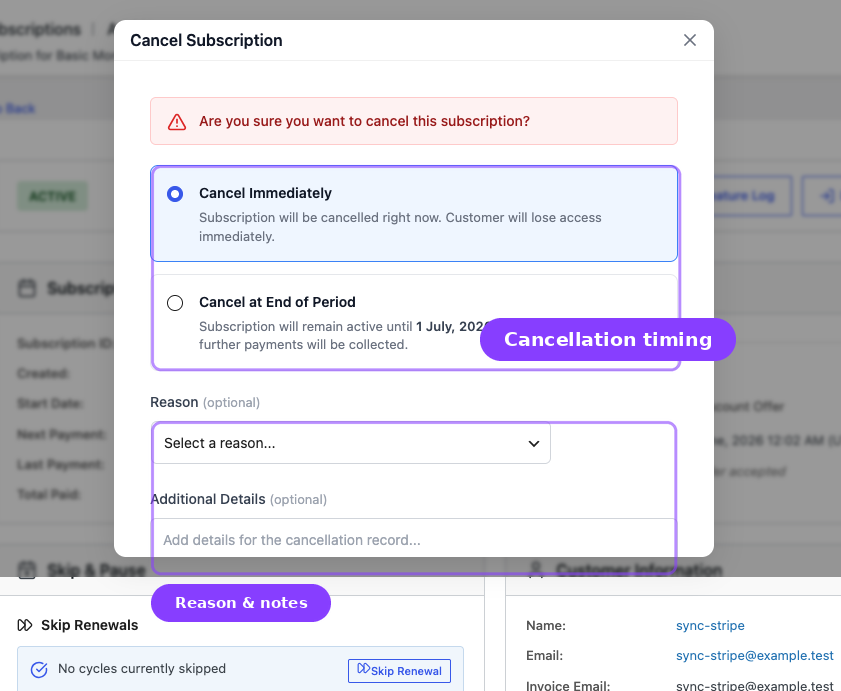
ArraySubs supports two cancellation modes.
Immediate Cancellation
The subscription is cancelled right now. Available from the Cancel Subscription button on the detail page or the status change control on the edit page.
What happens:
- Status changes to Cancelled.
- The cancellation date, reason, and who cancelled it (admin ID or system) are recorded.
- All future scheduled actions are removed — no more renewals, reminders, or status checks.
- The waiting-cancellation flag is cleared (if it was set).
- Any pending plan switch is cleared.
- Payment retry state is cleared so failed-renewal retry actions do not continue after cancellation.
- A "Subscription Cancelled" email is sent to the customer.
- An admin notification email is sent.
End-of-Period Cancellation
The subscription remains active until the next payment date, then cancels automatically. This keeps the customer's access until they have used the period they already paid for.
When the end-of-period cancellation is scheduled:
- The
_waiting_cancellationflag is set to true. - The scheduled cancellation date is set to the next payment date.
- The subscription stays in its current status (Active, Trial, etc.).
- Renewal invoice/payment jobs are unscheduled so the customer is not billed again during the pending-cancellation window.
- Any pending plan switch is cleared because it would otherwise wait for a renewal that will not happen.
End-of-period cancellation requires a valid future date
If ArraySubs cannot resolve a valid future cancellation date, the schedule request fails safely. It does not turn the request into an immediate cancellation.
When the cancellation date arrives:
- A scheduled job detects that the cancellation date has passed.
- Status changes to Cancelled.
- The cancelled date is recorded and the waiting-cancellation meta is cleared.
- All future scheduled actions are removed.
- Any pending plan switch is cleared.
- A "Subscription Cancelled" email is sent.
Undo Scheduled Cancellation
If a scheduled cancellation has not yet executed, it can be reversed. Click Undo Scheduled Cancellation on the detail page:
- A confirmation dialog asks: "Are you sure you want to undo the scheduled cancellation? The subscription will continue renewing normally."
- If confirmed, all cancellation-related meta is removed:
_waiting_cancellation_cancellation_scheduled_date_cancellation_reason_cancelled_by_cancellation_type
- The subscription resumes normal renewal scheduling.
Undoing a scheduled cancellation restores the renewal schedule and can send the configured cancellation-undone confirmation email.
Expiration
Subscriptions expire when they reach a defined limit. There are two expiration triggers:
Length-Based Expiration
If the subscription has a subscription length greater than zero (e.g., 12 billing cycles), the system checks after every successful payment whether the completed payments count has reached the limit. When it does:
- Status changes to Expired.
- The end date is set.
- All future renewals are unscheduled.
- A "Subscription Expired" email is sent.
Date-Based Expiration (Fixed End Date) Pro
If the subscription uses a Fixed Period Membership with an absolute end date, the system checks whether the end date has passed. This check runs alongside the overdue renewal checker.
Auto-Downgrade at Expiration
If an auto-downgrade target is configured on the product, the Pro plugin can intercept the expiration and switch the customer to a different plan instead of expiring them. The arraysubs_should_expire_subscription filter allows this intervention.
Trial Management
Trial Start
When a customer purchases a subscription product with a trial configured, the subscription is created with:
- Status: Trial
- Trial length and period stored as meta (e.g., 14 days)
- Trial end date calculated
- Next payment date set to the trial end date (this is when conversion will happen)
A "Trial Started" email is sent to the customer.
Trial Conversion
A daily scheduled job at 2:00 AM checks for Trial subscriptions whose next payment date has passed. For each one:
- If an auto-downgrade target is configured, the subscription switches to the downgrade product.
- Otherwise, the status changes to Active and the next payment date is recalculated using the billing period.
- The trial length meta is cleared.
- A "Trial Converted" email is sent (or an "Auto Downgrade" email if downgraded).
Trial Expiration Without Conversion
If a trial subscription passes its conversion date but something prevents conversion (no valid payment method, auto-downgrade configured to a different plan), the auto-downgrade handler takes over and manages the transition.
Manual Status Changes
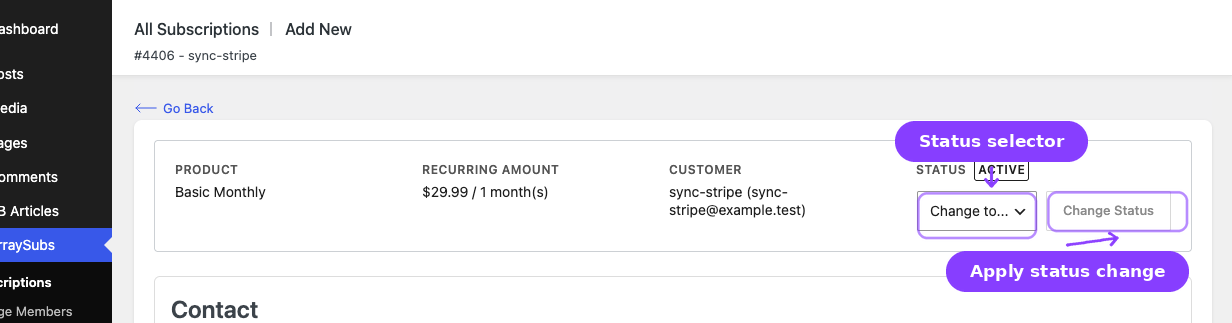
Admins can change a subscription's status from the edit page. The same six statuses are available targets, with specific confirmation messages for Critical transitions (Cancel, On Hold, Activate).
Important Distinctions
- Using the status dropdown performs a basic status change with a post-status transition hook but minimal side effects.
- Using the Cancel Subscription button on the detail page performs a full cancellation with reason capture, meta cleanup, scheduled action removal, and email notifications.
For cancellations, always prefer the Cancel Subscription button over the status dropdown. The button handles all cleanup and audit steps that a raw status change does not.
Changing a subscription to Cancelled via the status dropdown on the edit page performs an immediate cancellation with full cleanup (the same as clicking Cancel → Immediate). However, it does not capture a cancellation reason. For a complete audit trail, use the Cancel button on the detail page instead.
Email Triggers by Lifecycle Event
Every major lifecycle event can trigger an email. The table below maps events to their emails.
Customer Emails
| Lifecycle Event | Email Sent |
|---|---|
| Subscription activated (Pending → Active) | New Subscription |
| Trial started | Trial Started |
| Trial converted to paid | Trial Converted |
| Renewal invoice generated (based on invoice timing setting) | Renewal Invoice |
| Renewal payment successful | Payment Successful |
| Renewal payment failed | Payment Failed |
| Subscription placed on hold (grace period) | Subscription On Hold |
| Subscription cancelled | Subscription Cancelled |
| Subscription expired | Subscription Expired |
| Subscription reactivated | Subscription Reactivated |
| Auto-downgrade completed | Auto Downgrade |
| Retention discount accepted | Retention Discount Accepted |
| Upcoming renewal (configurable days before) | Renewal Reminder |
| Subscription nearing end date | Expiring Soon |
Admin Emails
| Lifecycle Event | Email Sent |
|---|---|
| New subscription created | Admin New Subscription |
| Payment failed | Admin Payment Failed |
| Subscription cancelled | Admin Subscription Cancelled |
Each email can be individually enabled or disabled in Settings → General Settings. The renewal reminder timing (days before next payment) is also configurable there.
Scheduled Jobs Summary
ArraySubs uses the Action Scheduler to run lifecycle operations on a reliable schedule:
| Job | Frequency | What It Does |
|---|---|---|
| Generate Upcoming Renewals | Hourly | Recovery job that creates missing renewal invoices within the configured invoice timing window |
| Generate Renewal Invoice | Per-subscription | Creates the exact renewal invoice before the due date based on the invoice timing setting |
| Check Overdue Renewals | Hourly | Moves unpaid subscriptions through the grace period (Active → On Hold → Cancelled) and processes waiting (end-of-period) cancellations |
| Process Trial Conversions | Daily at 2:00 AM | Converts expired trials to Active (or auto-downgrades them) |
| Send Renewal Reminder | Per-subscription | Sends a reminder email before the next renewal (configurable days) |
| Send Expiring Soon | Per-subscription | Sends a notice when a subscription is approaching its end date |
Real-Life Use Cases
Use Case 1: Customer's Card Expired Before Renewal
The renewal invoice is generated before the due date based on your invoice timing setting. The customer's card fails. The subscription stays Active for 3 more days (grace period). During this time, the customer receives a "Renewal Invoice" email with a payment link. If they update their card and pay within 3 days, nothing changes. If they do not, the subscription moves to On Hold and they receive a "Subscription On Hold" email. After 7 more days unpaid, the subscription is cancelled automatically.
Use Case 2: Seasonal Business with Scheduled Cancellations
A customer wants to keep their subscription until the end of May but not renew in June. The admin opens the subscription detail page, clicks Cancel Subscription, selects Cancel at End of Period, and confirms. The subscription stays Active — the customer keeps access until June 1. On that date, the system cancels it automatically.
Use Case 3: Trial-to-Paid Conversion for a SaaS Product
A customer signs up for a 14-day trial. During the trial, they have full access. On day 14 at 2:00 AM, the trial conversion job runs. The subscription changes to Active, the next payment date is set to 14 days from now (first billing cycle), and the customer receives a "Trial Converted" email.
Troubleshooting
| Problem | Likely Cause | What to Do |
|---|---|---|
| Subscription stuck in Pending | Initial payment was never completed, or admin created it manually without activating | Open the subscription, change status to Active |
| Subscription cancelled unexpectedly | Overdue renewal — the grace period expired without payment | Check Order History for unpaid invoices and the Payment Timeline for the sequence of events |
| Trial did not convert | The trial conversion scheduled job did not run, or the next payment date was not set correctly | Check the Action Scheduler log for HOOK_PROCESS_TRIAL_CONVERSIONS errors |
| On-Hold subscription not cancelled after 7 days | The overdue renewal checker uses the _on_hold_date meta for timing — it may have been cleared or not set |
Check the subscription's meta for _on_hold_date |
| Emails not sent for lifecycle events | The specific email type may be disabled in General Settings | Verify email enable/disable toggles in Settings → General Settings |
| Scheduled cancellation did not execute | The overdue renewal checker job may have encountered an error | Check the Action Scheduler logs for errors on HOOK_CHECK_OVERDUE_RENEWALS |
Related Guides
- Subscription Operations — the admin screens for managing subscriptions
- Subscription Detail Cards — what each card shows at different lifecycle stages
- Admin Tools and Records — notes, order history, and export tools
- Customer Portal — Self-Service Actions — what customers can do from their account: cancel, skip, pause, switch plans
- Settings — General Settings — grace period, email timing, and customer action configuration
- Subscription Products — Plan Switching — auto-downgrade targets
- Emails and Notifications — which emails are triggered at each lifecycle stage
- Advanced Analytics Pro — subscription performance metrics, churn rate, and renewal revenue driven by lifecycle events
- Retention, Cancellation, and Refunds — cancellation setup, retention offers, refund policies, and retention analytics
FAQ
What happens if I change a subscription to Active manually?
The subscription becomes active and renewal scheduling resumes. A "Subscription Reactivated" email is sent. Make sure the next payment date is set to a valid future date.
Can a cancelled subscription be reactivated?
Yes. An admin can change a cancelled subscription's status to Active from the edit page. This reactivates the subscription and resumes renewal processing.
What happens to the grace period if I change the settings?
Grace period settings (active grace days and on-hold grace days) apply going forward. Subscriptions already in a grace period will be evaluated against the new settings on the next hourly check.
Is the 6-hour invoice window configurable?
The 6-hour window before the due date is defined as a system constant. It is not configurable through the admin settings. Adjusting it requires a code-level change.
What is the difference between Cancelled and Expired?
Cancelled means the subscription was stopped by someone (customer, admin, or the system due to non-payment). Expired means the subscription completed its full billing cycle count or reached its configured end date. Both are terminal statuses, but they have different causes and different meta recorded (cancellation reason vs. completion of term).
Do grace periods apply to trial subscriptions?
Grace periods apply to Active subscriptions with unpaid renewal invoices. Trial subscriptions do not generate renewal invoices — they convert to Active when the trial ends. If the first real payment after conversion fails, the grace period system kicks in at that point.
What emails does an end-of-period cancellation trigger?
When the cancellation is scheduled, no email is sent. When the cancellation executes (at the end of the current period), a "Subscription Cancelled" email is sent.