
Member Access and Restrictions
Control who can see, download, and purchase content on your site — using flexible rules tied to subscription status, purchase history, roles, spending thresholds, and feature entitlements.
Availability: Free — Login Limit rules require Pro
Page Navigation
- Current guide: Member Access and Restrictions
- Where to open it: WordPress Admin -> ArraySubs -> Member Access
- Section overview: Open overview
- Previous guide: Feature Manager Settings
- Next guide: Role Mapping
- Troubleshooting: Audits, Logs, and Troubleshooting
Overview
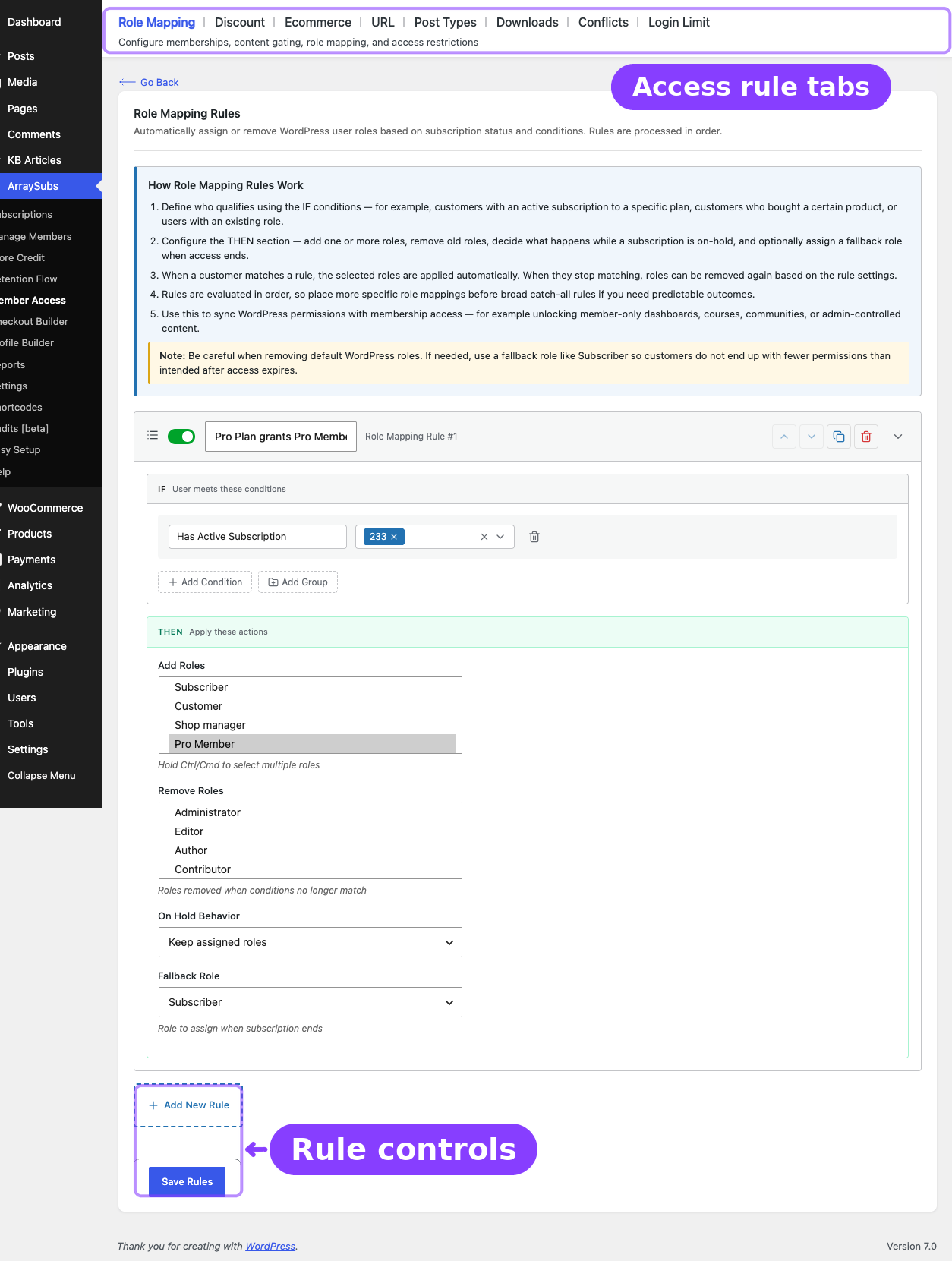
Member Access is the rule engine behind content gating, product restrictions, member discounts, download provisioning, automatic role assignment, and session controls in ArraySubs. Instead of locking content behind a single "members only" toggle, you build layered rules with conditions, targets, actions, and optional scheduling — giving you precise control over what each subscriber group can access, purchase, and download.
Everything is managed from one admin screen at ArraySubs → Member Access, organized into these tabs:
| Tab | What It Controls |
|---|---|
| Role Mapping | Automatically assign or remove WordPress roles when a subscription starts, pauses, or ends |
| Content Gate | Step-by-step guides for Elementor, Gutenberg, shortcode, and PHP content gates |
| Discount | Offer per-item or per-cart member pricing based on subscription conditions |
| Shop Access | Restrict product visibility and purchasing for non-qualifying users |
| URL | Block access to specific pages or URL patterns on your site |
| Post Types | Gate posts, pages, and custom post types behind subscription conditions |
| Downloads | Provision downloadable files to qualifying subscribers via My Account |
| Conflicts | Review overlapping or competing rules before they affect customers |
| Login Limit Pro | Cap concurrent login sessions per subscriber tier |
Every tab uses the same rule builder interface: define who qualifies (IF conditions), what is affected (TARGET), what happens (THEN action), and optionally when it unlocks (SCHEDULE for drip content).
How All Rules Share a Common Structure
Regardless of the rule type, every rule in Member Access follows the same pattern:
- Enabled toggle — Turn the rule on or off without deleting it.
- Rule name — A label for your reference (not shown to customers).
- IF conditions — One or more conditions that determine who the rule applies to. You can combine conditions with AND (all must match) or OR (any can match), and nest them into groups.
- TARGET — What the rule acts on (products, URLs, post types, files, etc.). Not all rule types have a separate target section.
- THEN action — What happens when conditions are met — assign a role, apply a discount, block access, serve a file, etc.
- SCHEDULE — Optional content dripping. Delay the rule from taking effect until a configurable number of days, weeks, or months after the subscriber's subscription start date.
Condition Types
Every rule type uses the same set of conditions. You can mix and match these across any rule:
| Condition | What It Checks |
|---|---|
| Has Active Subscription | User has an active (or trial) subscription — optionally to specific products |
| Has Subscription Variation | User has an active subscription to a specific product variation |
| Purchased Product | User has purchased a specific product (any order, not necessarily a subscription) |
| Purchased Variation | User has purchased a specific product variation |
| Purchased from Category/Tag | User has purchased from a given product category or tag |
| Lifetime Purchase Amount | User's total spend meets a threshold (>=, >, =, <, <=) |
| Feature Value Pro | User's Feature Manager entitlement value meets a threshold (with sum, max, or any aggregation across subscriptions) |
| User Role | User has one of the specified WordPress roles |
Conditions support AND/OR logic at the top level, and you can create condition groups with their own AND/OR logic for complex nested requirements. For example: "Has Active Subscription to Product A AND (Lifetime Spend >= $500 OR User Role is VIP)."
Content Dripping (Schedule)
Any rule that supports scheduling can delay access for a configurable period after the subscription starts. This is ideal for online courses, phased membership programs, or drip-fed content libraries.
- Delay value — A number (1, 7, 30, etc.)
- Delay unit — Days, weeks, or months
- Calculation — The system checks the subscriber's earliest qualifying subscription start date and grants access once
start date + delayhas passed.
For example, a Post Type rule with a 30-day schedule means a new subscriber must wait 30 days before seeing that content — even if they meet all other conditions immediately.
Quick Start
- Go to ArraySubs → Member Access.
- Choose the tab for the rule type or guide you need (Role Mapping, Content Gate, Discount, Shop Access, URL, Post Types, Downloads, or Login Limit).
- Click Add New Rule.
- Name your rule.
- Set the IF conditions (e.g., Has Active Subscription to "Gold Membership").
- Set the TARGET if the rule type requires one (e.g., specific product categories for a discount).
- Set the THEN action (e.g., 20% percentage discount).
- Optionally enable a schedule for drip content.
- Click Save.
Tab Guides
These pages mirror the actual tabs in the plugin UI:
- Role Mapping — Automatically assign or remove WordPress roles from subscription conditions.
- Content Gate — Choose the right gating surface for Elementor, Gutenberg, shortcodes, and PHP.
- Discount — Configure subscriber-only product pricing and discount behavior.
- Shop Access — Restrict product visibility, direct access, and purchasing.
- URL — Protect page paths and URL patterns with priority-based rules.
- Post Types — Gate posts, pages, and custom post types with archive behavior controls.
- Downloads — Provision gated files to qualifying customers through My Account.
- Conflicts — Review URL-rule overlaps with higher-priority per-post overrides.
- Login Limit Pro — Set global session caps and rule-based session overrides.
Related Guides
- Shortcodes — Full shortcode reference including
[arraysubs_restrict]and[arraysubs_visibility]. - Access-Rule Conflicts (Troubleshooting) — Diagnose overlapping or conflicting Member Access rules.
- Lifecycle Management — How subscription statuses (active, on-hold, cancelled, expired, trial) interact with access rules.
- Product Experience and Display — Feature Manager — Set up feature entitlements for Feature Value conditions.
FAQ
Do I need to enable something before Member Access works?
The Member Access system is enabled by default. Go to ArraySubs → Member Access and start creating rules. No additional activation step is required.
Can I combine multiple condition types in a single rule?
Yes. Every rule supports multiple conditions with AND or OR logic and nested condition groups. For example, you can require an active subscription and a minimum lifetime spend in the same rule.
What happens if multiple rules conflict?
Rules are evaluated in order. For most rule types, the first matching rule wins. For discounts, the best (lowest) price wins. For Login Limit rules, the highest session limit wins. See Access-Rule Conflicts for detailed resolution guidance.
Does Member Access work with WooCommerce Block Checkout / Store API?
Yes. Shop Access restriction rules are fully compatible with the WooCommerce Store API, including add-to-cart validation, quantity restrictions, and cart item validation for block-based checkout flows.
When I deactivate the Pro plugin, what happens to Login Limit rules?
Login Limit rules stop being enforced. The rules remain saved in your settings, so reactivating Pro restores them. All other rule types (Role Mapping, Discount, Shop Access, URL, Post Types, Downloads) continue working because they are part of the core plugin.