
Member Commerce Overview
ProReview a customer's subscription history, non-subscription purchases, store credit balance, and saved addresses — all within the member profile.
Availability: Pro
Page Navigation
- Current guide: Member Commerce Overview
- Where to open it: WordPress Admin -> ArraySubs -> Manage Members
- Section overview: Open overview
- Previous guide: README
- Next guide: member-lookup-and-profiles
- Troubleshooting: Audits, Logs, and Troubleshooting
Overview
Once you select a member on the Manage Members page, three collapsible data sections appear below the stats grid and quick links. These sections show the customer's subscription records, non-subscription product purchases, and billing/shipping addresses. Together with the stats cards, they give you a complete commerce picture for the customer without leaving the page.
When to use this
- You need to verify which subscriptions a customer holds and their current statuses.
- A customer asks about past purchases and you want to confirm what they bought outside of subscriptions.
- You need to check or confirm the customer's billing or shipping address on file.
- You want to see the store credit balance before offering a refund-to-credit adjustment.
Subscriptions section
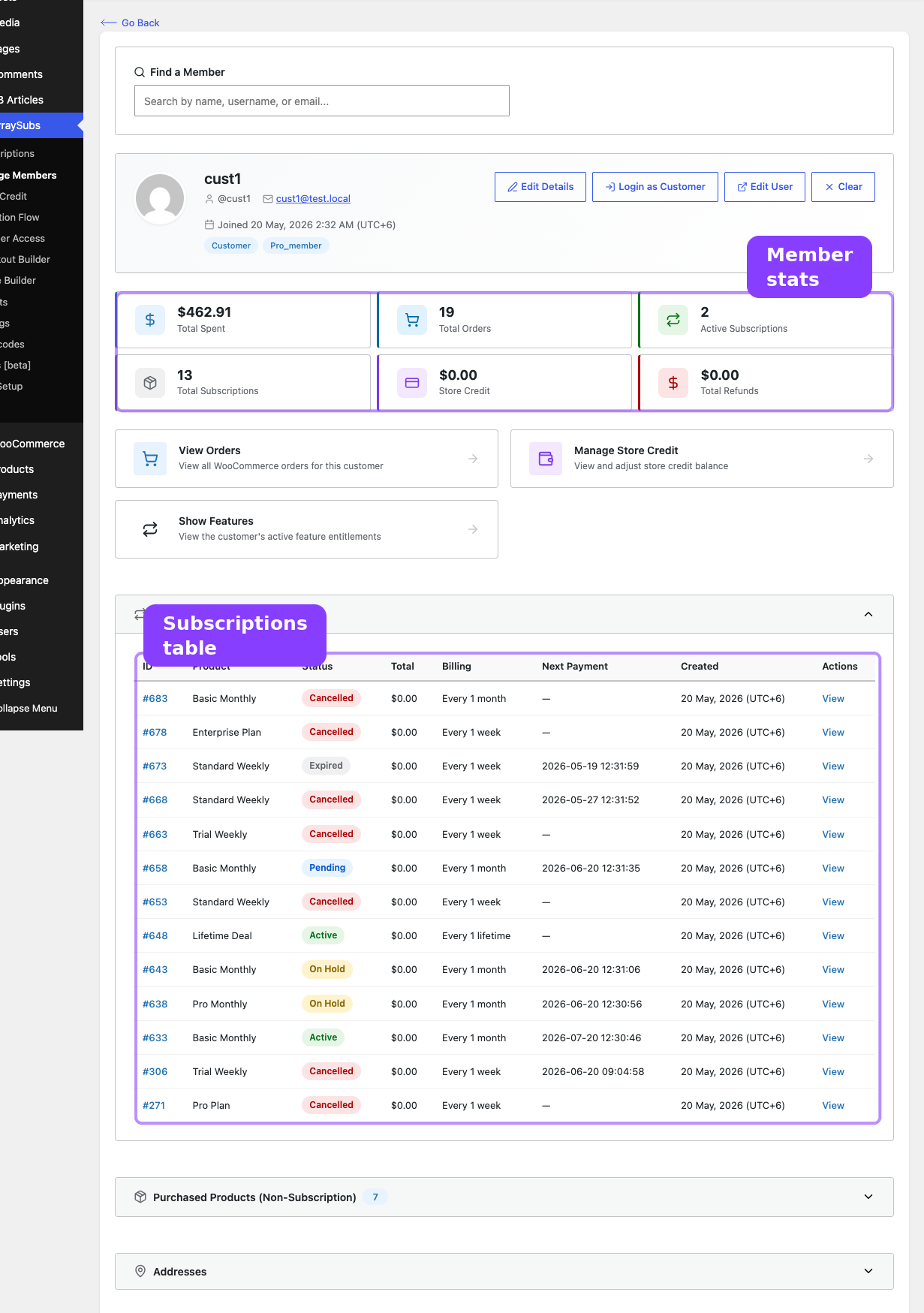
The Subscriptions section is expanded by default and shows a count badge in the header (for example, Subscriptions (3)). It displays a table of every subscription associated with the customer, in any status.
Table columns
| Column | What it shows |
|---|---|
| ID | Subscription ID, displayed as a clickable link (e.g., #142) that opens the full subscription detail screen |
| Product | The subscription product name |
| Status | A color-coded badge showing the current subscription status |
| Total | The subscription recurring total in your store's currency format |
| Billing | The billing schedule, displayed as "Every {interval} {period}" (e.g., Every 1 month) |
| Next Payment | The next scheduled payment date, or a dash if no future payment is scheduled |
| Created | The date the subscription was created, formatted for your site's locale |
| Actions | A View link that opens the subscription detail page |
Status badges
Each subscription status is shown with a distinct color for quick scanning:
| Status | Color |
|---|---|
| Active | Green |
| Trial | Light blue |
| Pending | Blue |
| On Hold | Yellow |
| Paused | Yellow |
| Cancelled | Red |
| Expired | Gray |
If the customer has no subscriptions, a message reads "No subscriptions found."
Opening a subscription from the member view
Click the subscription ID link (e.g., #142) or the View action link in the last column. Both take you to the full subscription detail screen within ArraySubs, where you can view and edit the subscription.
Purchased Products (Non-Subscription)
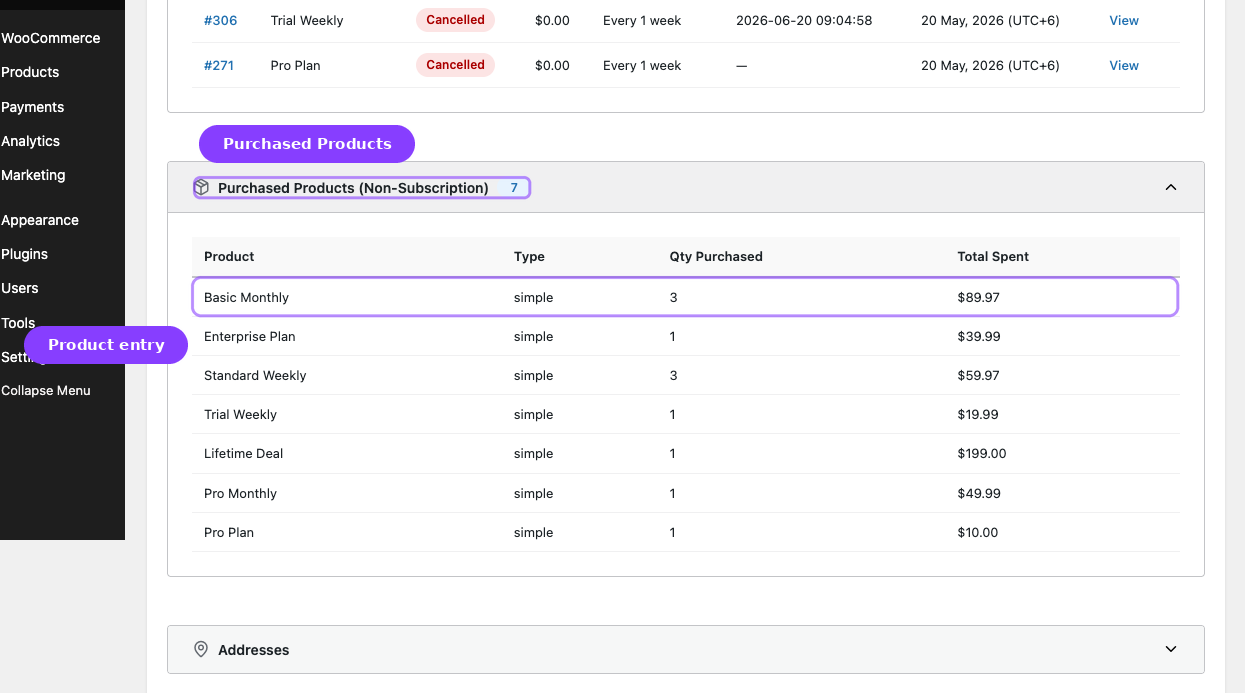
The Purchased Products (Non-Subscription) section is collapsed by default and shows a count badge. It lists WooCommerce products the customer has bought that are not subscription products — physical goods, digital downloads, one-time services, and so on.
How products are collected
The system looks at all of the customer's WooCommerce orders with a completed or processing status and extracts individual line items. Any product that has subscription billing enabled is excluded. Products are deduplicated by product ID, and quantities and totals are aggregated across multiple orders.
Table columns
| Column | What it shows |
|---|---|
| Product | The product name |
| Type | The WooCommerce product type (simple, variable, etc.) |
| Qty Purchased | The total quantity purchased across all qualifying orders |
| Total Spent | The total amount the customer has spent on this product, formatted as currency |
If the customer has no non-subscription purchases, a message reads "No non-subscription products purchased."
This section only considers orders with completed or processing status. Orders that are pending, refunded, cancelled, or failed are not included in the product and quantity totals.
Store credit balance
The customer's store credit balance appears in two places on the Manage Members page:
- Stats grid — The purple Store Credit card shows the current balance formatted in your store currency.
- Quick link — The Manage Store Credit card links to the dedicated Store Credit management page for this customer, where you can view the full transaction history and make manual adjustments.
Store credit data requires the Pro Store Credit feature to be active. If the feature is disabled, the stat card shows a zero balance and the quick link still appears but leads to an empty state on the Store Credit page.
For full store credit management — including adding or deducting credit, viewing transaction history, and configuring credit settings — see the Store Credit guide.
Addresses
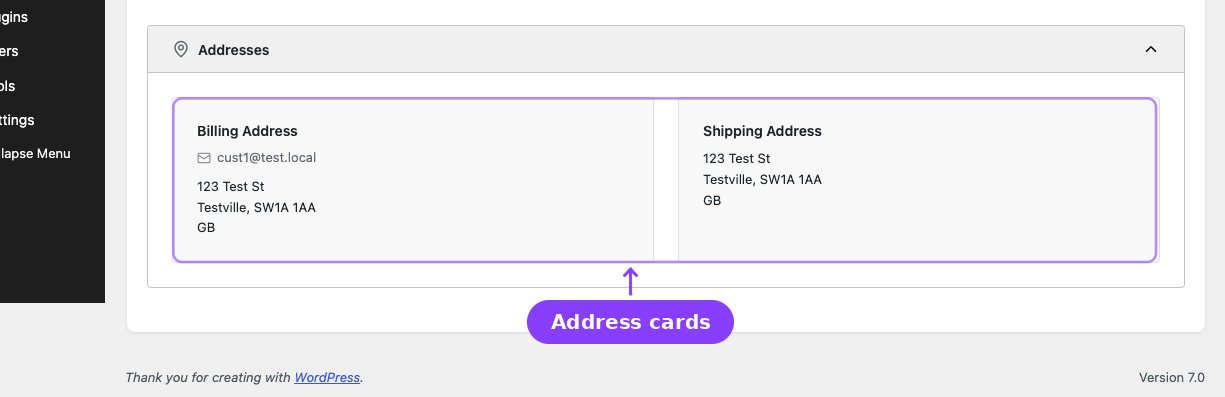
The Addresses section is collapsed by default and displays the customer's billing and shipping addresses side by side.
Billing address card
| Field | Source |
|---|---|
| WooCommerce billing email | |
| Phone | WooCommerce billing phone |
| Street address | Lines 1 and 2 |
| City, state, postcode | Combined on one line |
| Country | Country code |
Shipping address card
| Field | Source |
|---|---|
| Phone | WooCommerce shipping phone (if set) |
| Street address | Lines 1 and 2 |
| City, state, postcode | Combined on one line |
| Country | Country code |
If either address is not set, the card displays "No billing address set." or "No shipping address set."
The addresses shown on this page are read-only. To edit a customer's addresses, click Edit User in the profile card to open the WordPress user profile, or edit addresses directly in WooCommerce.
Troubleshooting
| Problem | Likely cause | What to do |
|---|---|---|
| Subscriptions section shows zero even though the customer has subscriptions | The _customer_id meta on subscriptions does not match the user ID |
Verify the subscription's customer ID in the subscription detail screen |
| Purchased Products section is empty for a known buyer | Orders may be in a non-qualifying status (pending, refunded, etc.) | Check the customer's WooCommerce orders; only completed and processing orders contribute to this section |
| Store credit shows zero when the customer should have a balance | Store Credit feature is disabled or the balance was expired/used | Enable Store Credit in Pro settings; check the transaction history on the Store Credit page |
| Addresses show as "not set" | The customer has not filled in WooCommerce address fields on their account | Ask the customer to update their address in My Account → Addresses, or edit it from the WordPress user profile |
Related guides
- Manage Members — Overview — All entry points and a summary of the Manage Members page.
- Member Lookup and Profiles — Search, profile card, stats grid, and Login as Customer.
- Member Operations — Quick links, admin shortcuts, and insight metrics.
- Store Credit — Full store credit management and settings.
- Subscription Operations — The subscription detail screen and editing.
FAQ
Are all subscription statuses shown in the table?
Yes. Active, trial, pending, on-hold, paused, cancelled, and expired subscriptions all appear. Each status has a distinct color badge so you can scan the list quickly.
Why are some products missing from the Purchased Products section?
Products from subscription orders are intentionally excluded — this section focuses on non-subscription purchases. Additionally, only orders with completed or processing status are considered. Products from refunded, pending, or cancelled orders do not appear.
Can I adjust the store credit balance from this page?
Not directly. The Manage Members page shows the balance as a read-only stat card. Click the Manage Store Credit quick link to open the dedicated Store Credit page, where you can add or deduct credit with a note.
Does the Subscriptions section show expired or cancelled subscriptions?
Yes. Every subscription for the customer appears in the table regardless of status. This gives you a complete history, not just the currently active subscriptions.
Can I edit addresses from this page?
No. The addresses are displayed in read-only mode. Use the Edit User button in the profile card to open the WordPress user profile where addresses can be modified.