
Order List Enhancements
ProSee subscription order types and coupons at a glance on the WooCommerce Orders page, filter orders by type or coupon, and view an embedded summary panel — plus back-classify orders that existed before activation.
Availability: Pro
Page Navigation
- Current guide: Order List Enhancements Pro
- Where to open it: WordPress Admin -> WooCommerce -> Orders
- Direct route:
/wp-admin/admin.php?page=wc-orders - Section overview: Open overview
- Next guide: README
- Troubleshooting: Audits, Logs, and Troubleshooting
Overview
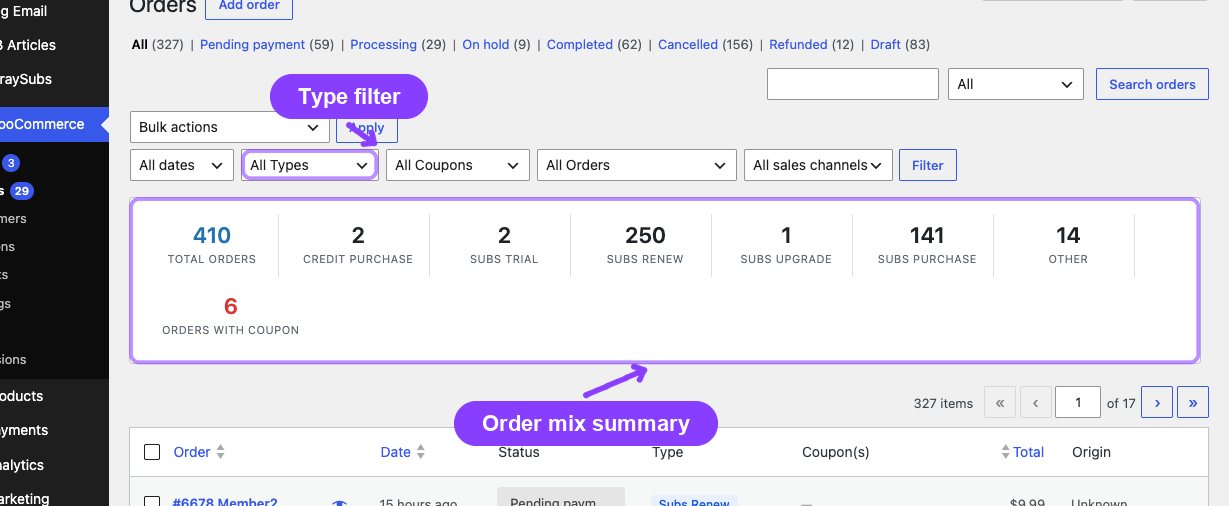
The Order List Enhancements add four capabilities to the standard WooCommerce → Orders page:
- Two new columns — Order Type and Coupons.
- Three filter dropdowns — Type, Coupon, and Subscription Products Only.
- An embedded report panel — A summary bar showing order counts by type.
- A backfill tool — A one-click mechanism to classify orders created before the Pro plugin was activated.
These enhancements work with both HPOS (Custom Orders Table) and legacy post-type order storage.
When to Use This
- Quickly identify which orders on the list are renewals, upgrades, trials, or credit purchases.
- Filter the orders list to show only renewal orders during a billing investigation.
- Check which orders used a specific coupon code.
- See a quick count-by-type summary without leaving the Orders page.
- Back-classify historical orders after first activating the Pro plugin.
Columns
Order Type Column
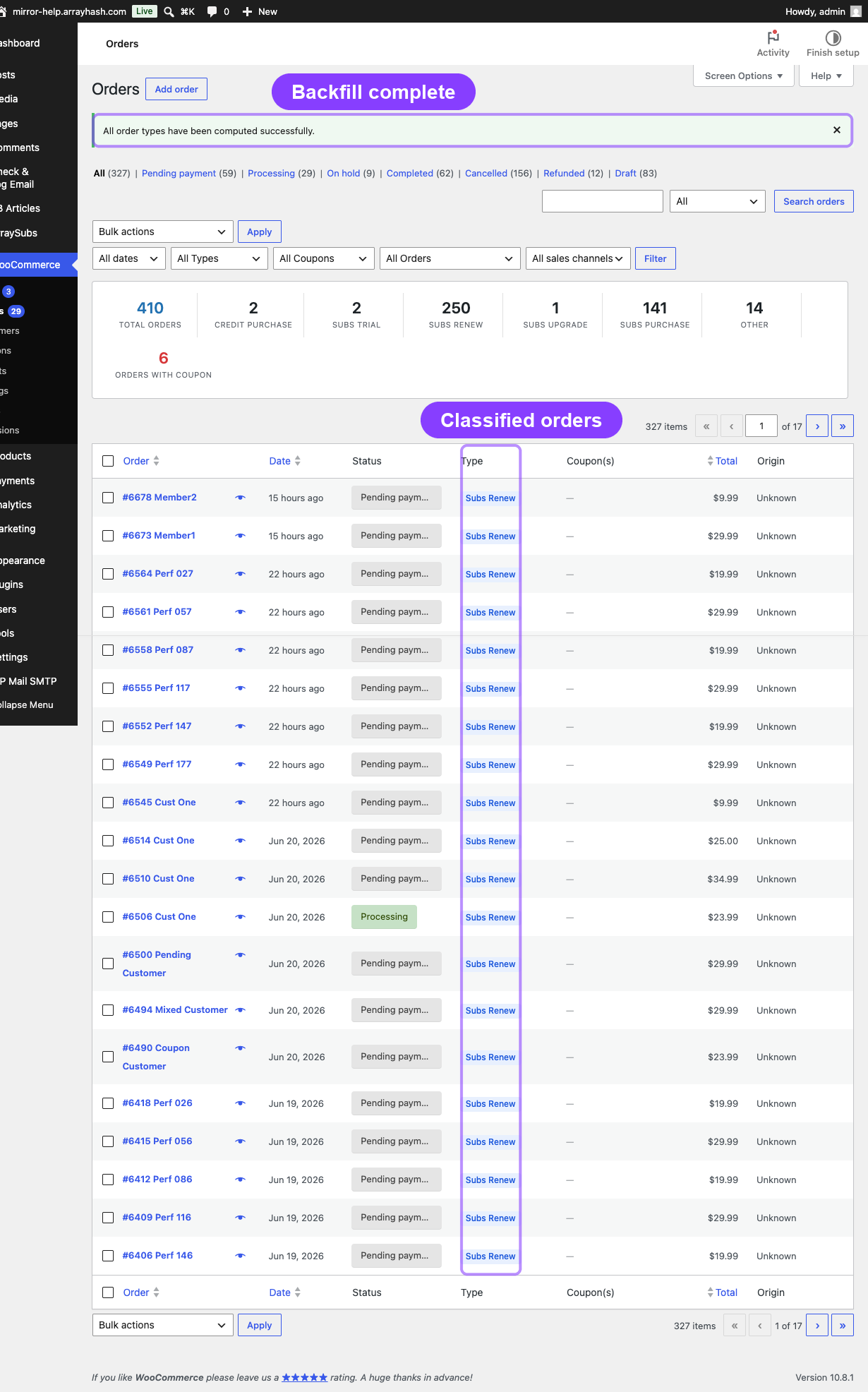
A Type column appears in the orders table showing the classified type of each order as a color-coded badge:
| Badge | Meaning |
|---|---|
| Subs Purchase | Initial subscription checkout |
| Subs Trial | Initial checkout with a trial period |
| Subs Renew | Renewal order |
| Subs Upgrade | Plan switch order |
| Credit Purchase | Store Credit product purchase |
| Other | Regular WooCommerce order |
Each badge has a distinct color to make scanning the list easy.
Coupons Column
A Coupon(s) column shows the coupon codes applied to each order. If multiple coupons were used, they appear as a comma-separated list. Orders with no coupons show an empty cell.
Filter Dropdowns
Three filter dropdowns appear above the orders table.
Type Filter
A dropdown that filters orders by their computed type. Selecting a type shows only orders matching that classification.
| Option | Shows |
|---|---|
| All Types | No type filtering (default) |
| Subs Renew | Renewal orders only |
| Subs Purchase | Initial subscription purchases |
| Subs Upgrade | Plan switch orders |
| Credit Purchase | Store Credit purchases |
| Subs Trial | Trial orders |
| Other | Regular WooCommerce orders |
Coupon Filter
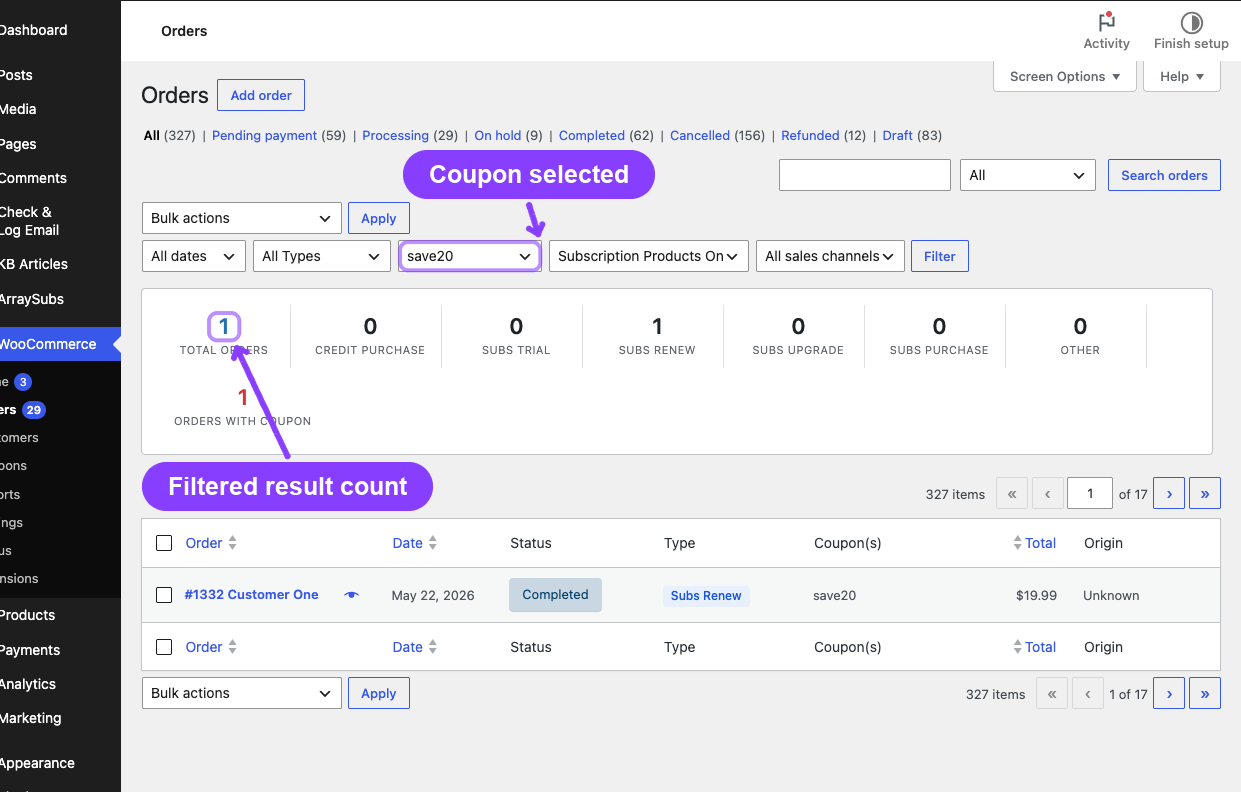
A dropdown populated with every coupon code used across your orders. Select a coupon to show only orders that used that specific code.
The coupon list is dynamically built from actual order data, so only coupons that have been applied to at least one order appear.
Subscription Products Only
A checkbox or toggle that, when enabled, shows only orders containing at least one subscription product. This is useful for separating subscription-related orders from regular product orders when you don't need to filter by a specific type.
The three filters can be combined. For example, you can filter by Type = Subs Renew and Coupon = SAVE20 to find all renewal orders that used a specific discount code.
Embedded Report Panel
A summary panel appears above the orders table showing aggregate counts for the current view:
| Metric | Description |
|---|---|
| Total Orders | Total number of orders matching current filters (status, date range, search, etc.) |
| Per-type counts | Individual count for each order type (Subs Purchase, Subs Renew, Subs Trial, Subs Upgrade, Credit Purchase, Other) |
| Orders with Coupon | Number of orders in the current view that have at least one coupon applied |
The panel updates dynamically as you apply or remove filters, change the order status tab, or adjust the date range.
Order Type Backfill
Orders created before the Pro plugin was activated do not have the computed type metadata. The backfill tool classifies these historical orders so they appear correctly in all analytics features.
How to Run the Backfill
- Navigate to WooCommerce → Orders.
- If unclassified orders exist, an admin notice appears at the top of the page explaining that some orders need type classification.
- Click the Compute Order Types button in the notice.
- The system processes orders in batches of 200 per request.
- A progress indicator shows how many orders have been processed.
- When all orders are classified, a completion message confirms the total count.
What the Backfill Does
For each unclassified order, the backfill:
- Resolves the order type using the same priority logic used for new orders (Credit Purchase → Subs Trial → Subs Renew → Subs Upgrade → Subs Purchase → Other).
- Stores the computed type as
_arraysubs_computed_typeorder meta. - Stores the subscription product flag as
_arraysubs_has_subscription_productorder meta.
When to Run It
- After first activation — Run it once to classify all existing orders.
- After reactivation — If you deactivated and reactivated the Pro plugin, orders created during the inactive period need classification.
- After migration — If you migrated orders from another system or restored a database backup, some orders may lack type metadata.
Safety
- The backfill is non-destructive — it only adds metadata, it never modifies or deletes order data.
- It requires manage_woocommerce or manage_options capability.
- It uses a WordPress nonce for security verification.
- Processing is batched to avoid timeouts. If the page times out mid-batch, simply click the button again — already-classified orders are skipped.
Real-Life Use Cases
Investigating a Billing Issue
A support agent needs to find all renewal orders for a specific period. They navigate to WooCommerce → Orders, set the date range to the relevant week, and select Subs Renew from the Type filter. The list now shows only renewal orders, making it easy to check for failures or discrepancies.
Auditing Coupon Usage
A marketing manager wants to know how a promotional coupon performed across subscription orders. They select the coupon from the Coupon filter dropdown and note the order count. The Type column shows whether the coupon was mostly used on initial purchases, trials, or renewals.
Quick Order Mix Check
A store owner wants a daily snapshot of their order mix. They open the Orders page and scan the report panel at the top: 45 total orders today — 12 renewals, 8 new subscriptions, 2 upgrades, 1 credit purchase, 22 other. No filters needed.
Edge Cases and Important Notes
- The backfill button only appears when needed. If all orders already have type metadata, the admin notice does not display.
- Type classification is automatic for new orders. After activation, every new order is classified immediately at creation, checkout, and payment. No manual action is required for future orders.
- Filters apply to the current WooCommerce order query. If you are viewing a specific order status tab (e.g., Processing), the Type filter and report panel reflect only that status subset.
- Coupon dropdown is cached. The list of available coupons is cached using
wp_cache_set()for performance. If a coupon was just used for the first time, refresh the page to see it in the dropdown. - Both HPOS and legacy storage are supported automatically. The enhancement detects your store's storage mode and adjusts column rendering, filter queries, and backfill logic accordingly.
Related Guides
- Reports Hub — Central directory of all analytics and data screens.
- Subscription Performance Dashboard — KPI cards, charts, and leaderboards on the Analytics Overview page.
- Retention Analytics — Churn reasons, retention offer effectiveness, and trend charts.
- WooCommerce Analytics Extension — Type filters and subscription metrics in WC Analytics reports.
- Admin Tools and Records — Subscription export and related orders.
- Coupon Integration — Configuring subscription-applicable coupons.
FAQ
Do I need to run the backfill every time I update the plugin?
No. The backfill is only needed once after first activation (or after reactivation). Once an order has type metadata, it persists through plugin updates.
Will the backfill slow down my store?
The backfill processes 200 orders per batch request and runs only when you click the button. It does not run in the background or affect frontend performance. For stores with tens of thousands of orders, it may take several button clicks to process all batches.
Can I filter by multiple types at once on the Orders page?
The Orders page filter supports single-type selection. For multi-type filtering, use the advanced filters in WooCommerce → Analytics → Orders — see WooCommerce Analytics Extension.
What happens if an order type changes?
The computed type is recalculated whenever an order is updated. For example, if an order originally classified as "Other" later gains subscription meta (because a subscription was created asynchronously), the type updates on the next order save.
Why does an order show no type badge?
The order was likely created before the Pro plugin was activated and hasn't been backfilled yet. Run the Compute Order Types backfill from the admin notice at the top of the Orders page.