
Retention Offers
Present targeted offers to customers at the exact moment they are about to cancel — discounts, pausing, downgrading, or connecting with support — to save the subscription and retain revenue.
Availability: Free
Page Navigation
- Current guide: Retention Offers
- Where to open it: WordPress Admin -> ArraySubs -> Retention Flow
- Direct route:
/wp-admin/admin.php?page=arraysubs-mainadmin#/retention-flow - Section overview: Open overview
- Previous guide: Retention Analytics
- Next guide: retention-use-cases
- Troubleshooting: Audits, Logs, and Troubleshooting
Overview
Retention offers are the most powerful churn-reduction tool in ArraySubs. When a customer starts the cancellation process, instead of letting them leave silently, the system presents one or more offers designed to address their specific reason for leaving. A customer who says "too expensive" sees a discount. A customer who says "need a break" sees a pause option. A customer with technical problems is directed to support.
Each offer type is independently configurable: you enable the ones that make sense for your business, assign trigger reasons, set offer parameters, and write custom messaging.
Navigate to ArraySubs → Retention Flow and scroll to the Retention Offers section to configure everything.
When to Use This
- You want to reduce cancellations by giving customers alternatives before they leave.
- You want to offer temporary discounts to price-sensitive customers.
- You want to let customers pause instead of cancel during seasonal slowdowns.
- You have cheaper plans and want to offer downgrades instead of cancellations.
- You want to route customers with problems to your support team before they quit.
Prerequisites
- ArraySubs core plugin installed and active
- Customer cancellation enabled in ArraySubs → Settings → General
- Cancellation reasons configured on the Retention Flow page (see Cancellation Setup)
- For the Downgrade offer: Plan Switching configured with downgrade paths on your subscription products
How It Works
The retention offer flow inserts itself between the cancellation reason step and the final cancellation. Here is the complete sequence:
- Customer clicks Cancel Subscription in the portal
- Cancellation reason modal appears → customer selects a reason
- System checks: Are retention offers enabled? Is the customer eligible for any offers based on the selected reason?
- If yes → Retention offers modal appears with available offers
- Customer either accepts an offer (subscription is retained) or clicks "No thanks, continue to cancel" (cancellation proceeds)
- Every step is logged for Retention Analytics
The Retention Modal
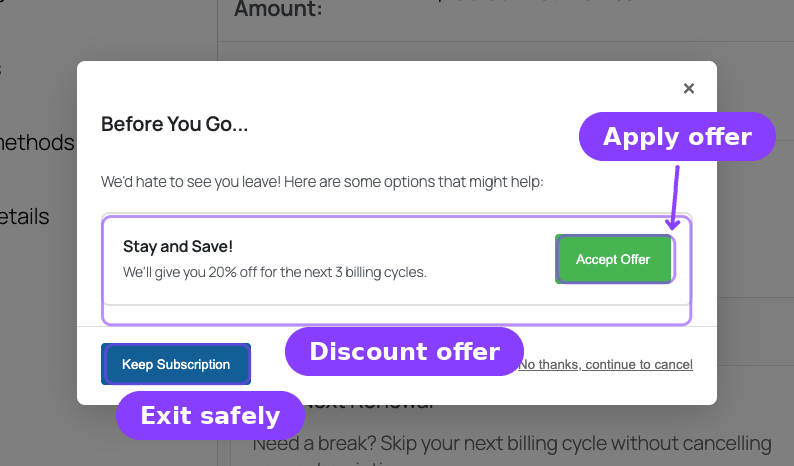
The retention modal appears with the heading "Before You Go..." and the message: "We'd hate to see you leave! Here are some options that might help:"
Below the message, offer cards are displayed — one for each offer the customer is eligible for. At the bottom, two buttons:
- Keep Subscription — closes the modal, takes no action (subscription stays active)
- No thanks, continue to cancel — dismisses all offers and proceeds with the cancellation
Enabling Retention Offers
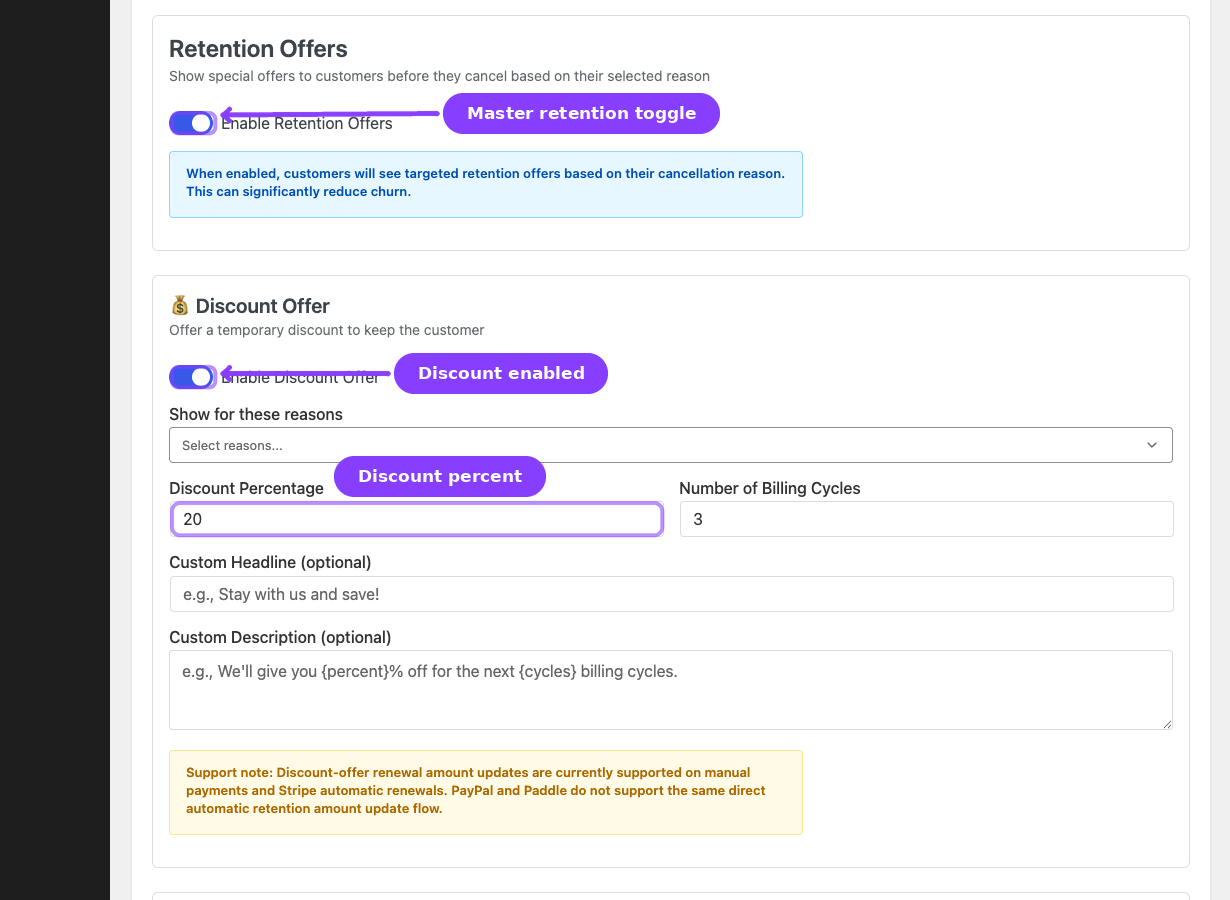
On the Retention Flow admin page, toggle Enable Retention Offers to activate the system. When disabled, customers go directly from the reason step to the cancellation — no offers are shown.
When enabled, you configure each offer type individually below the master toggle.
Offer Types
Discount Offer
The discount offer gives the customer a percentage reduction on their recurring subscription price for a limited number of billing cycles.
How it appears to the customer: A card showing the discount percentage and how many renewals it applies to.
What happens when accepted:
- Retention discount metadata is stored on the subscription
- The subscription's next renewal (and subsequent renewals up to the cycle limit) will be discounted
- If a pending renewal order already exists, the discount is applied to it immediately as a negative fee line item
- The pending cancellation (if any) is cleared
- A subscription note records the acceptance
How the discount works on renewals:
Each time a renewal payment is successfully collected, the system decrements the remaining discount cycles. When the cycles are exhausted, the discount metadata is cleaned up and renewals return to the full price.
The subscription detail page in the customer portal displays the active retention discount:
- The original recurring amount (struck through)
- The discounted amount
- How many discounted cycles remain
Configuration
| Setting | Description | Range |
|---|---|---|
| Enable Discount Offer | Show or hide this offer type | Toggle |
| Show for these reasons | Which cancellation reasons trigger this offer. Leave empty to show for all reasons. | Multi-select |
| Discount Percentage | The percentage discount applied to the recurring amount | 1–100% |
| Number of Billing Cycles | How many renewal cycles the discount applies to | 1–12 |
| Custom Headline | Override the default offer heading (optional) | Text |
| Custom Description | Override the default offer description (optional). Supports {percent} and {cycles} placeholders. |
Textarea |
Default Messaging
If you leave the headline and description blank, the system uses sensible defaults:
- Headline: "Stay and Save!"
- Description: "We'll give you [percent]% off for the next [cycles] billing cycles."
Gateway compatibility note: Discount-offer renewal amount updates are fully supported on manual payments and Stripe automatic renewals. PayPal and Paddle do not support the same direct automatic retention amount update flow. Customers on these gateways may need to pay the full amount, with the discount handled as a credit or manual adjustment.
One Discount Per Subscription
A subscription can only have one active retention discount at a time. If the customer already accepted a discount offer on this subscription, the discount offer will not be shown in future cancellation attempts. The system checks the offer history to prevent stacking.
Pause Offer
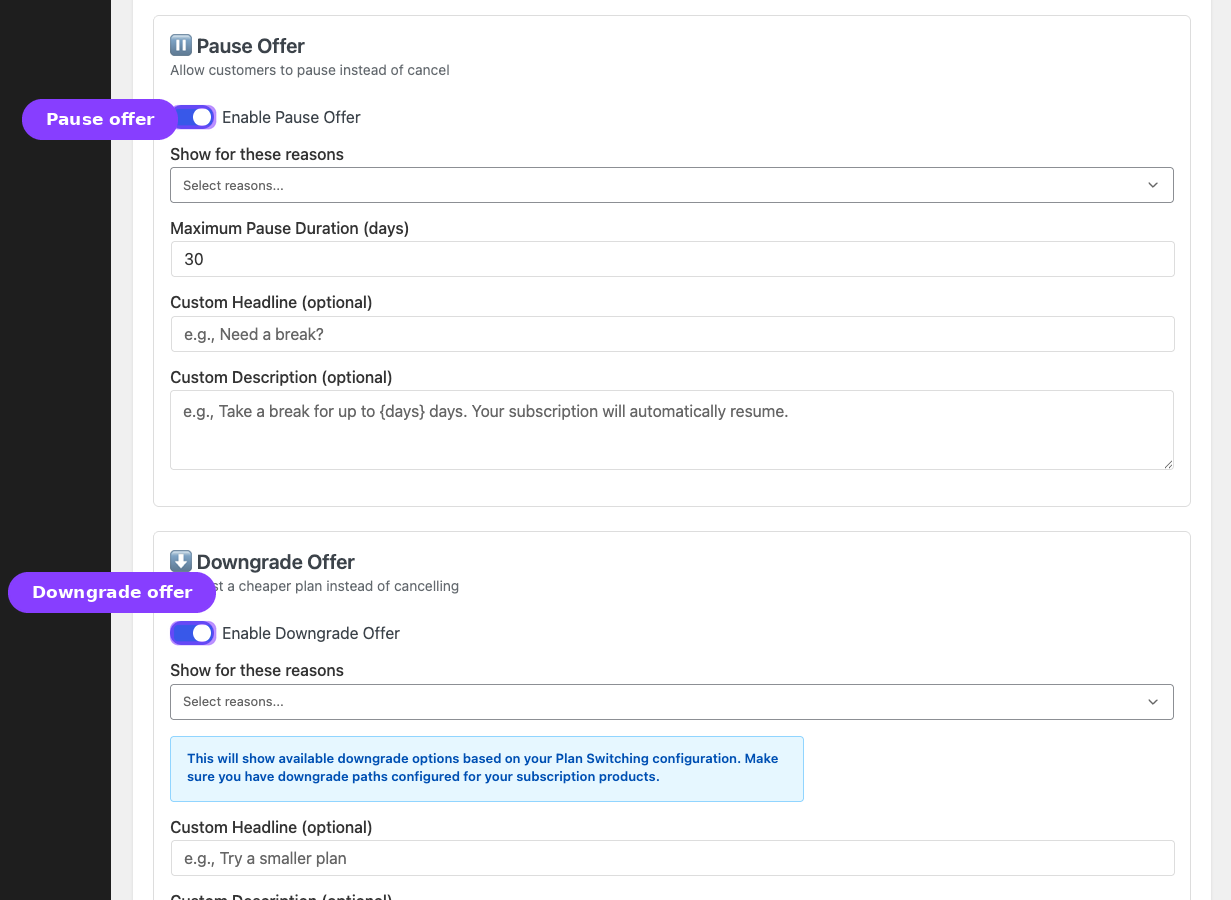
The pause offer lets the customer temporarily suspend their subscription instead of cancelling. The subscription moves to On-Hold status and automatically resumes after the configured pause duration.
How it appears to the customer: A card showing the proposed pause duration (in days).
What happens when accepted:
- The subscription status changes to On-Hold
- Pause metadata is stored: pause date, duration, scheduled resume date, and a
retention_offerpause reason - The
_next_payment_dateis shifted forward by the pause duration - An automatic resume is scheduled using Action Scheduler
- The pending cancellation (if any) is cleared
What happens at resume time:
When the scheduled resume date arrives, the system automatically:
- Changes the subscription status back to Active
- Clears all pause-related metadata
- Recalculates the next payment date
- Logs the resume event
Configuration
| Setting | Description | Range |
|---|---|---|
| Enable Pause Offer | Show or hide this offer type | Toggle |
| Show for these reasons | Which cancellation reasons trigger this offer. Best for "temporary break" or "not using" reasons. | Multi-select |
| Maximum Pause Duration (days) | How long the customer's subscription will be paused | 7–90 days |
| Custom Headline | Override the default offer heading (optional) | Text |
| Custom Description | Override the default offer description (optional). Supports {days} placeholder. |
Textarea |
Default Messaging
- Headline: "Need a Break?"
- Description: "Take a break for up to [days] days. Your subscription will automatically resume."
The pause offer through retention is separate from the standalone pause/skip feature. A customer who pauses through retention will have their subscription auto-resume after the configured duration.
Downgrade Offer
The downgrade offer suggests a cheaper subscription plan as an alternative to cancelling. It leverages the Plan Switching system to present available downgrade options.
How it appears to the customer: A card that redirects to the plan switching flow where available downgrade products are shown with their pricing.
What happens when accepted:
- The system stores a
_pending_plan_switchmeta with the downgrade intent - The customer is redirected to the plan switching modal where available downgrade options are listed
- The customer completes the plan switch through the standard plan switching flow
- The original subscription is cancelled and replaced with the new lower-tier plan (or the existing subscription is modified, depending on the plan switching configuration)
Configuration
| Setting | Description | Range |
|---|---|---|
| Enable Downgrade Offer | Show or hide this offer type | Toggle |
| Show for these reasons | Which cancellation reasons trigger this offer. Best for "too expensive" or "missing features" reasons. | Multi-select |
| Custom Headline | Override the default offer heading (optional) | Text |
| Custom Description | Override the default offer description (optional) | Textarea |
The Downgrade offer only works if you have configured downgrade paths in the Linked Products tab of your subscription products. Without downgrade products configured, this offer will not have any plans to present. See Plan Switching and Relationships.
Contact Support Offer
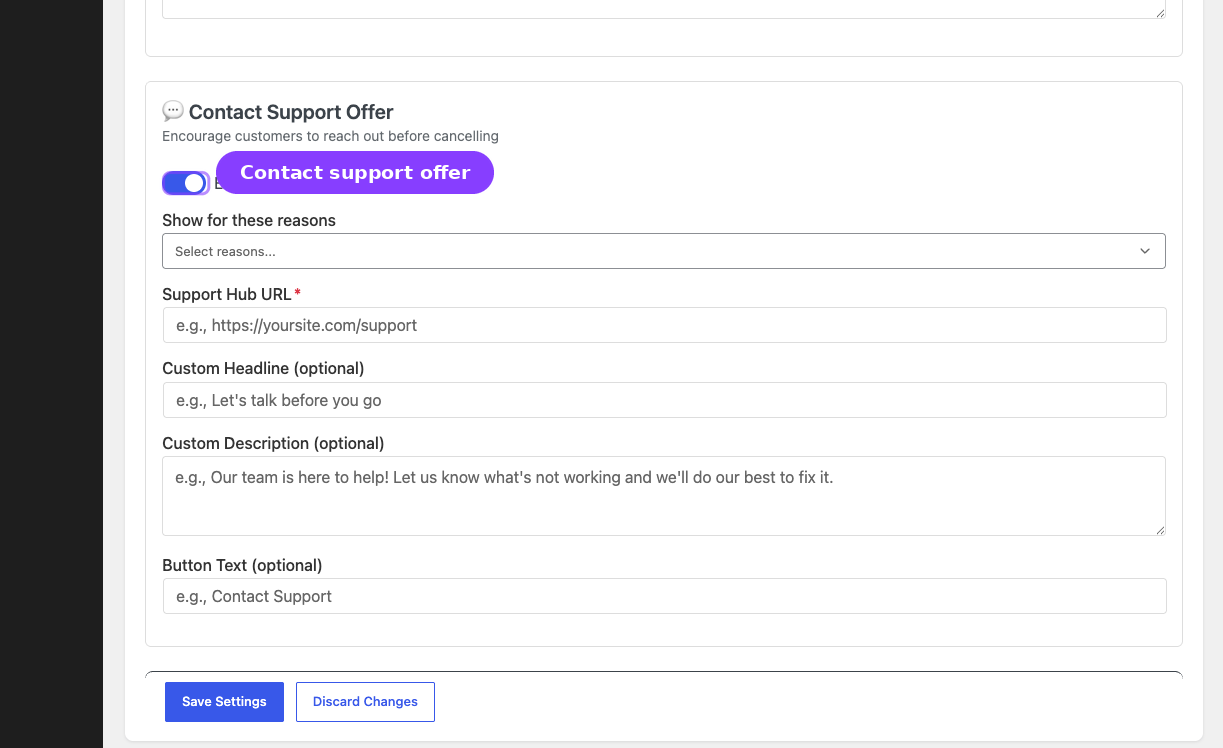
The contact support offer encourages the customer to reach out to your support team before cancelling. It provides a direct link to your support page, help desk, or contact form.
How it appears to the customer: A card with a custom message and a button linking to your support URL.
What happens when accepted:
- The customer clicks the support link, which opens in a new tab
- The acceptance is logged in the offer history
- The subscription remains active
- The cancellation modal is closed
Configuration
| Setting | Description | Range |
|---|---|---|
| Enable Contact Support Offer | Show or hide this offer type | Toggle |
| Show for these reasons | Which cancellation reasons trigger this offer. Best for "technical issues" or "missing features" reasons. | Multi-select |
| Support Hub URL | The URL where customers will be directed (required when enabled) | URL |
| Custom Headline | Override the default offer heading (optional) | Text |
| Custom Description | Override the default offer description (optional) | Textarea |
| Button Text | Override the default button text (optional) | Text |
The Support Hub URL field is required when this offer is enabled. Leaving it blank will prevent the offer from appearing. Make sure the URL points to an active page — a broken link will frustrate customers who are already considering leaving.
Trigger Reasons
Every retention offer has a Show for these reasons multi-select field. This is how you target offers to specific cancellation reasons.
How Targeting Works
- Empty (no reasons selected): The offer is shown for all cancellation reasons. This is the broadest setting.
- Specific reasons selected: The offer is only shown when the customer selects one of the chosen reasons.
Targeting Strategy
| Cancellation Reason | Recommended Offers |
|---|---|
| Too expensive | Discount, Downgrade |
| Not using it enough | Pause, Downgrade |
| Found a better alternative | Discount, Contact Support |
| Missing features I need | Contact Support, Downgrade |
| Technical issues | Contact Support |
| Just need a temporary break | Pause |
| Other | All offers (leave reasons empty) |
You can mix and match freely. A single reason can trigger multiple offers, and a single offer can be triggered by multiple reasons.
Eligibility Conditions
Beyond trigger reasons, the system evaluates additional eligibility conditions to determine whether an offer should be shown. These conditions are checked automatically and are not editable per-offer in the current UI — they are built-in logic.
Subscription Value Condition
Checks if the subscription's recurring amount falls within a configured min/max range. This prevents showing discounts to customers on your cheapest plan (where a discount would be negligible) or your most expensive plan (where a discount might be too costly).
Customer Total Spend Condition
Checks the customer's lifetime spend. You might want to reserve retention offers for customers who have already generated significant revenue.
Remaining Days Condition
Checks how many days remain until the subscription's next payment or end date. This ensures offers are relevant to the subscription's current stage.
Already Used Check
The system checks whether the customer has already accepted the same offer type on this subscription. A customer who already used a discount offer will not see another discount offer on the same subscription.
Offer Acceptance and Subscription Updates
When a customer accepts a retention offer, the following changes happen universally:
- The pending cancellation is cleared — if the subscription had a waiting cancellation flag, it is removed
- The offer is recorded in history — metadata stored includes: offer type, offer ID, acceptance date, and offer details
- A subscription note is added — documenting the accepted offer type and parameters
- An analytics event is logged — in the
arraysubs_retention_logstable for reporting - The subscription remains active (or transitions to on-hold for pause offers)
Offer-Specific Updates
| Offer Type | Status After | Key Changes |
|---|---|---|
| Discount | Active | Retention discount applied, renewal price reduced for N cycles |
| Pause | On-Hold | Subscription paused, auto-resume scheduled, next payment date shifted |
| Downgrade | Active (on new plan) | Plan switch initiated, customer directed to select a downgrade product |
| Contact Support | Active | Support URL opened, subscription unchanged |
What the Customer Sees in the Portal
After a retention offer is accepted, the subscription detail page in the customer portal reflects the changes:
After Discount Acceptance
The subscription overview shows:
- Original recurring amount (struck through)
- New discounted recurring amount
- The number of discounted cycles remaining
The discount information updates after each renewal. When the discounted cycles are exhausted, the display returns to the standard recurring amount.
After Pause Acceptance
The subscription status changes to On-Hold with a note about the scheduled resume date. The customer does not have a manual resume button for retention pauses — the resume happens automatically on the scheduled date.
Edge Cases and Important Notes
- Multiple offers can be shown simultaneously. If a customer is eligible for both a discount and a pause offer based on their selected reason, both cards appear in the retention modal. The customer chooses one.
- Accepting one offer dismisses the modal. The customer cannot accept multiple offers in a single cancellation attempt.
- Declining all offers does not prevent future offers. If the customer cancels a different subscription later, offers are evaluated fresh for that subscription.
- Discount offers are one-time per subscription. A discount offer cannot be used twice on the same subscription. However, a customer with multiple subscriptions can use discount offers on each one.
- Pause duration is fixed. The customer accepts or declines the configured pause duration — they cannot choose a custom number of days.
- Downgrade requires plan switching configuration. If no downgrade products are configured for the subscription's product, the downgrade offer will not appear even if enabled.
- Retention offers are only shown in the customer portal. Admin-initiated cancellations, system cancellations, and API cancellations bypass the retention flow entirely.
- Gateway limitations for discount offers. While discount metadata is stored correctly for all payment methods, the actual renewal amount adjustment on the gateway side is only automatically supported for manual payments and Stripe. PayPal and Paddle may require manual handling.
Troubleshooting
| Problem | Likely Cause | What to Do |
|---|---|---|
| Retention offers do not appear during cancellation | The master toggle is disabled, no offers are enabled, or the customer is not eligible | Check Retention Flow → Enable Retention Offers and individual offer toggles. Verify trigger reasons match the customer's selected reason |
| Discount offer appears but with wrong percentage | The setting was changed after the offer was configured | Review the Discount Percentage field on the Retention Flow page |
| Pause offer does not appear | Pause offer is disabled, or the trigger reasons don't match the selected cancellation reason | Check the Pause offer toggle and trigger reason configuration |
| Downgrade offer appears but shows no plans | No downgrade products are configured in the Linked Products tab | Configure downgrade paths on the subscription product under Product Data → Linked Products |
| Customer already used a discount and wants another one | Each subscription can only use one discount offer. This is by design | Explain to the customer that the discount was already applied. Consider manually adjusting the subscription if necessary |
| Contact Support URL leads to a broken page | The URL in settings is incorrect or the page was deleted | Update the Support Hub URL on the Retention Flow page |
Related Guides
- Cancellation Setup — Configure cancellation timing and reasons
- Retention Analytics — Measure the impact of your retention offers
- Retention Use Cases — 15+ real-life scenarios for using retention offers effectively
- Subscription Self-Service Actions — The complete customer portal actions guide
- Plan Switching and Relationships — Configure upgrade/downgrade paths for the downgrade offer
FAQ
How many offers can be shown at once?
All enabled offers that match the customer's selected reason and pass eligibility checks are shown simultaneously. There is no limit on the number of offer cards in the modal.
Can a customer accept multiple offers?
No. Accepting one offer closes the modal and applies that offer. The customer cannot stack a discount and a pause in a single cancellation attempt.
What if the customer closes the modal without choosing?
Closing the modal (clicking the X or pressing Escape during the retention step) does not cancel the subscription. The customer must explicitly click "No thanks, continue to cancel" to proceed with cancellation.
Do retention offers work with automatic payment gateways?
Yes, but with limitations. Discount offers fully work with manual payments and Stripe. PayPal and Paddle may not automatically adjust the recurring charge amount. Pause and Contact Support offers work with all gateways.
Can I customize the "Before You Go..." heading?
The modal heading and intro message are not currently customizable. Individual offer cards support custom headlines and descriptions.
What happens if I disable retention offers after customers have active discounts?
Existing retention discounts continue to apply until their cycles are exhausted. Disabling retention offers only prevents new offers from being shown — it does not remove active discounts from existing subscriptions.
Does the downgrade offer work with variable products?
Yes. If the customer's current variation has downgrade paths configured through linked products, those downgrade options will be available in the plan switching flow.