
Credit History
ProA global transaction log showing every store credit event across all customers — additions, deductions, applications, expirations, and more.
Availability: Pro
Page Navigation
- Current guide: Credit History
- Where to open it: WordPress Admin → ArraySubs → Store Credit → Credit History
- Direct route:
/wp-admin/admin.php?page=arraysubs-mainadmin#/store-credit/history - Section overview: Open overview
- Previous guide: Store Credit
- Next guide: emails
- Troubleshooting: Audits, Logs, and Troubleshooting
Overview

The Credit History page gives you a bird's-eye view of all store credit activity in your store. Every credit transaction — from admin adjustments and refund conversions to automated renewal applications and expirations — appears here in a single, filterable log.
Use this page to audit credit activity, investigate unusual patterns, or verify that automated processes (like renewal auto-apply and credit expiration) are working as expected.
When to Use This
- You want to see all credit activity across every customer in one place.
- You need to audit how much credit was issued last month and from which sources.
- You want to confirm that renewals are correctly consuming credit.
- You need to verify that expired credits were processed on schedule.
- You want to trace a specific transaction back to its source.
Prerequisites
- ArraySubs Pro active
- Store Credit enabled in ArraySubs → Store Credit → Settings
- Admin or Shop Manager access
Steps
Access the Credit History
Go to ArraySubs → Store Credit → Credit History.
The page loads a paginated table of all credit transactions, sorted by date (newest first).
Filter Transactions
Two filter dropdowns sit above the table:
Filter by Source:
| Option | What it shows |
|---|---|
| All Sources | Every transaction regardless of source |
| Plan Downgrade | Credit earned when a customer switches to a cheaper plan |
| Refund | Credit granted from a refund-to-credit conversion |
| Admin Adjustment | Credit manually added or deducted by an admin |
| Promotional | Promotional credit grants |
| Credit Purchase | Credit bought by the customer through the store |
| Applied to Renewal | Credit deducted to pay for a subscription renewal |
| Applied to Order | Credit deducted at checkout for a new order |
| Expired | Credit that was removed after passing its expiration date |
Filter by Type:
| Option | What it shows |
|---|---|
| All Types | Both credits and debits |
| Credit (Added) | Only transactions where credit was added to an account |
| Debit (Deducted) | Only transactions where credit was deducted |
Select your filters and the table refreshes automatically. A Total: N transactions counter above the table reflects the filtered count.
Read the Transaction Table
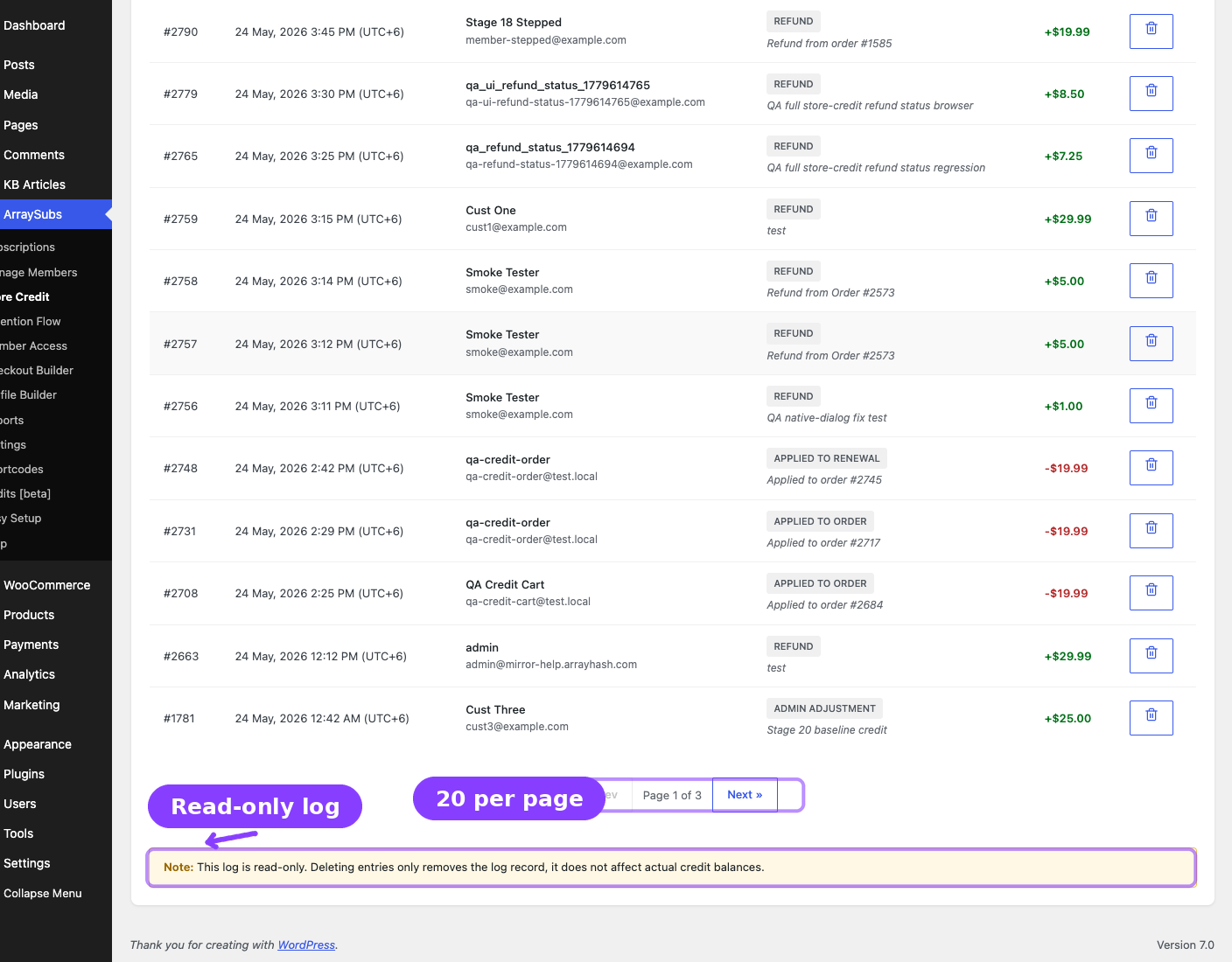
| Column | What it shows |
|---|---|
| ID | A unique transaction identifier (e.g., #1042). |
| Date | When the transaction was recorded. |
| Customer | The customer's display name with their email address shown below. |
| Description | The source label (e.g., "Refund", "Applied to Renewal") plus any note. If the transaction is linked to a subscription, a "Subscription: #123" link appears that opens the subscription detail page. |
| Amount | The credit or debit amount. Credits show a + prefix in green; debits show a - prefix in red. |
| Actions | A delete button (trash icon) for each entry. |
The table paginates at 20 transactions per page. Use Prev and Next to navigate.
Delete a Log Entry
Deleting a log entry removes the record only. It does not reverse the credit transaction or change any customer's balance. This action cannot be undone.
- Click the trash icon in the Actions column for the entry you want to remove.
- A confirmation modal appears showing the transaction ID, customer name, and amount.
- Click Delete to confirm, or Cancel to go back.
- A success toast confirms the deletion.
The warning note at the bottom of the page reminds you: "This log is read-only. Deleting entries only removes the log record, it does not affect actual credit balances."
Real-Life Use Cases
Use Case 1: Monthly Credit Audit
At the end of each month, you want to know how much credit was issued and consumed:
- Open Credit History.
- Filter by Credit (Added) to see all inflows.
- Note the total count and scan the source breakdown (downgrades vs. refunds vs. admin grants).
- Switch the filter to Debit (Deducted) to see all outflows.
- Compare inflows vs. outflows to understand net credit movement.
Use Case 2: Verifying Renewal Auto-Apply
You enabled auto-apply to renewals and want to confirm it is working:
- Filter by source Applied to Renewal.
- Verify that recent renewal dates have corresponding debit entries.
- Click any Subscription: #123 link to open the subscription and cross-check the renewal order.
Use Case 3: Checking Expiration Processing
You set a 90-day expiration period and want to verify credits are expiring on schedule:
- Filter by source Expired.
- Confirm entries appear with the expected dates and amounts.
- If no entries appear and credits should have expired, check that the background job is running (the expiration job runs daily at 3:00 AM server time).
Edge Cases and Important Notes
- Deleting a log does not affect balances. The log is an audit trail. Removing an entry does not reverse the underlying credit transaction. To adjust a balance, use the Store Credit Management page.
- Subscription links. Not all transactions are linked to a subscription. Customer-level transactions (admin adjustments, purchases, checkout applications) show no subscription link.
- Filters are combined. Selecting both a source and a type filter narrows results to transactions matching both criteria. For example, "Refund" + "Credit (Added)" shows only refund-originated credits.
- Pagination resets on filter change. When you change a filter, the table returns to page 1.
Troubleshooting
| Problem | Likely Cause | What to Do |
|---|---|---|
| No transactions appear | Store Credit was just enabled and no credit activity has occurred yet | Grant a test credit via the Management page and verify it appears here |
| Missing renewal application entries | Auto-apply to renewals is disabled | Enable Auto-Apply to Renewals in Store Credit Settings |
| Expiration entries not showing | Expiration days set to 0 (never expire) or the background job has not run yet | Check the Expiration Period setting and wait for the next 3:00 AM job cycle |
| Customer name shows as "Unknown" | The WordPress user account was deleted after the transaction was logged | This is expected behavior — the log retains the entry even if the user no longer exists |
Related Guides
- Store Credit Management — Manage individual customer balances and adjustments.
- Refund to Credit — How refund-sourced credits are created.
- Store Credit Settings — Configure expiration, auto-apply, and purchase rules.
FAQ
Can I export the credit history?
The credit history does not currently have a built-in export feature. You can use browser-based table copy tools or query the transaction data through the REST API at arraysubs/v1/credits/history.
Does deleting a log entry notify the customer?
No. Log deletion is a silent admin action that only removes the audit record.
How far back does the history go?
There is no time limit. The history retains all transactions from the moment Store Credit was enabled. Pagination handles large volumes.
Can I filter by a specific customer?
The Credit History page does not have a per-customer filter. To see a specific customer's history, use the Store Credit Management page and search for them directly.