
Store Credit Management
ProSearch for any customer, view their credit balance, adjust it manually, and review their full transaction history — all from one admin page.
Availability: Pro
Page Navigation
- Current guide: Store Credit Management
- Where to open it: WordPress Admin → ArraySubs → Store Credit → Manage Credits
- Direct route:
/wp-admin/admin.php?page=arraysubs-mainadmin#/store-credit - Section overview: Open overview
- Previous guide: refund-to-credit
- Next guide: store-credit-settings
- Troubleshooting: Audits, Logs, and Troubleshooting
Overview
The Store Credit Management page is the primary admin interface for working with individual customer credit. You can look up any customer by name, username, or email, see their current balance at a glance, add or deduct credit with a note, and scroll through their complete transaction history.
This is where support teams handle credit adjustments, where store owners grant promotional credit, and where anyone investigating a customer's credit activity goes first.
When to Use This
- A customer contacts support asking about their credit balance.
- You need to grant promotional or goodwill credit to a specific customer.
- You need to deduct credit that was issued in error.
- You want to review when, how, and why a customer earned or spent credit.
Prerequisites
- ArraySubs Pro active
- Store Credit enabled in ArraySubs → Store Credit → Settings
- Admin or Shop Manager access (
manage_woocommerceormanage_options)
How It Works
The page is divided into two sections: a customer lookup panel on the left and a balance and history panel on the right. Select a customer to load their data, then use the adjustment form to modify their balance or browse the history table.
Steps
Find a Customer
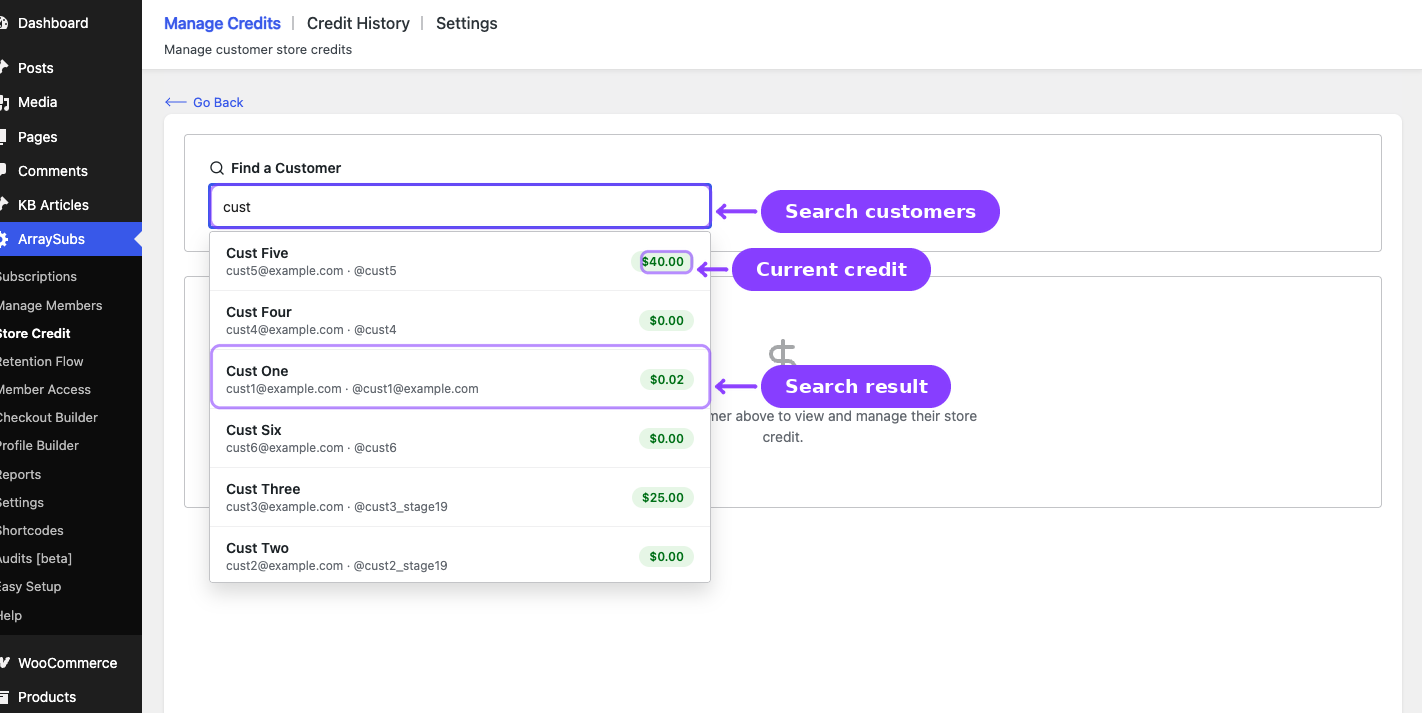
- Go to ArraySubs → Store Credit → Manage Credits.
- Type at least 2 characters into the search field. The search checks the customer's display name, username, and email address.
- Results appear as a dropdown showing each matching customer's name, email, and current credit balance.
- Click a customer to load their full profile.
View Balance and History

Once a customer is selected, the right panel shows:
- Current Credit Balance — The customer's total account-level credit, formatted in your store currency.
- Member Details button — Opens the customer's full member profile in the Manage Members screen.
- Credit History table — A paginated list of every transaction on this customer's account.
The history table displays:
| Column | What it shows |
|---|---|
| Date | When the transaction occurred. |
| Description | The source label (e.g., "Admin Adjustment", "Applied to Renewal") and an optional note if one was provided. |
| Amount | The credit or debit amount. Credits appear with a + prefix in green; debits appear with a - prefix in red. |
| Balance After | The customer's balance immediately after this transaction. |
History is paginated at 10 transactions per page. Use the Prev and Next buttons at the bottom to navigate.
Add Credit
- In the Adjust Credit section, enter the amount you want to add.
- Set the type to Add.
- Optionally enter a reason in the Note field (e.g., "Goodwill credit for delayed shipment").
- Click Apply Adjustment.
The customer's balance updates immediately, a new transaction is logged, and the customer receives a Credit Added email notification (if enabled in WooCommerce email settings).
Deduct Credit
- Enter the amount you want to remove.
- Set the type to Deduct.
- Optionally enter a reason.
- Click Apply Adjustment.
You cannot deduct more than the customer's current balance. If the customer has $25.00 in credit and you try to deduct $30.00, the system will show an error.
Clear Selection
Click the Clear button next to the customer name to deselect and return to the search view.
Real-Life Use Cases
Use Case 1: Goodwill Credit After a Support Interaction
A long-term subscriber contacts support about a billing error on their last renewal. After resolving the issue, you want to credit $10 as a goodwill gesture.
- Search for the customer's email.
- Select them and confirm their balance.
- Set Add → $10.00 → Note: "Goodwill — billing error on renewal #4521".
- Click Apply Adjustment.
The customer sees the credit in their My Account portal and it will automatically apply to their next renewal.
Use Case 2: Removing Incorrectly Issued Credit
A batch import accidentally added $100 in promotional credit to the wrong customer. You need to reverse it.
- Search for the affected customer.
- Confirm they have the $100 balance.
- Set Deduct → $100.00 → Note: "Correction — promotional credit assigned to wrong account".
- Click Apply Adjustment.
Use Case 3: Investigating a Customer's Credit History
A customer asks "Why was $15 deducted from my credit?" You can:
- Search for the customer.
- Scroll their history table to find the $15 debit entry.
- Check the Description column — it might say "Applied to Renewal" with a note referencing the renewal order.
- Report back to the customer with the exact date and reason.
If you also see a matching Reversal entry for the same amount on a later date, that means the renewal payment failed and the credit was automatically restored — no manual action needed. See Failed renewal reversal in the Store Credit overview for the full flow.
Settings Reference
| Setting | What it controls | Default |
|---|---|---|
| Store Credit enabled | Whether the entire Store Credit system is active. If disabled, this page will not function. | Enabled |
No additional settings are specific to this page. The management page inherits the global Store Credit enabled/disabled toggle from Store Credit Settings.
Edge Cases and Important Notes
- Search requires at least 2 characters. Single-character searches are not sent to avoid excessive results.
- Maximum 20 search results. If the customer you need does not appear, refine your search with a more specific query.
- Adjustments are admin-only. Customers cannot adjust their own credit — they can only view their balance and history.
- All adjustments are logged. Every add or deduct action creates a transaction record with the admin's note, visible in both this page and the global Credit History page.
- The "Add" adjustment uses the
adminsource. This means it appears as "Admin Adjustment" in transaction logs and email notifications. - Balance is customer-level only. This page manages account-wide credit. Subscription-level credit (from downgrades) is managed at the subscription level and is separate from the balance shown here.
Troubleshooting
| Problem | Likely Cause | What to Do |
|---|---|---|
| Search returns no results | Customer has not placed an order or does not have a WordPress account | Verify the customer exists in Users or WooCommerce → Customers |
| "Cannot deduct more than available balance" error | Deduction amount exceeds the current balance | Reduce the deduction amount to match or fall below the displayed balance |
| Balance shows $0 but customer claims they have credit | Credit may be at the subscription level (from a downgrade), not the customer account level | Check the customer's subscription detail page for subscription-level credit |
| Adjustment succeeds but no email sent | The Credit Added email is disabled in WooCommerce settings | Go to WooCommerce → Settings → Emails and enable the "Store Credit Added" email |
Related Guides
- Credit History — View all transactions across all customers.
- Store Credit Settings — Enable/disable the system and configure credit behavior.
- Manage Members — Commerce Overview — View credit balances from the member profile.
FAQ
Does the customer get notified when I adjust their credit?
Yes, if the Store Credit Added email is enabled in WooCommerce email settings. The customer receives an email showing the credited amount, their new balance, and the source label "Admin Adjustment".
Can I see who made a credit adjustment?
The current transaction log does not display the admin user who performed the adjustment. The Note field is the best way to track context.
Does adding credit here also add subscription-level credit?
No. This page manages customer-level credit only. Subscription-level credit is created automatically during plan downgrades and is managed separately on the subscription's detail page.
Can I bulk-adjust credit for multiple customers at once?
Not from this page. Bulk adjustments would require individual searches and adjustments for each customer.