
Cancellation Setup
Configure when and how subscriptions are cancelled, what reasons customers can choose, and how the Retention Flow admin page brings it all together.
Availability: Free
Page Navigation
- Current guide: Cancellation Setup
- Where to open it: WordPress Admin -> ArraySubs -> Retention Flow
- Direct route:
/wp-admin/admin.php?page=arraysubs-mainadmin#/retention-flow - Section overview: Open overview
- Previous guide: README
- Next guide: README
- Troubleshooting: Audits, Logs, and Troubleshooting
Overview
Cancellation setup controls three things: when a subscription is cancelled (immediately or at the end of the billing period), why the customer is cancelling (the reason they select), and how the admin Retention Flow page lets you manage both in one place. Getting this right is foundational — every retention offer, analytics report, and refund decision depends on the cancellation configuration.
When to Use This
- You are setting up ArraySubs for the first time and need to define your cancellation policy.
- You want to switch between immediate and end-of-period cancellation.
- You need to customize the reasons shown to customers during cancellation.
- You want to require cancellation reasons to gather data for your retention strategy.
Prerequisites
- ArraySubs core plugin installed and active
- At least one subscription product created
- Customer cancellation enabled in ArraySubs → Settings → General → Customer Actions → Allow Cancellation
How It Works
When a customer clicks Cancel Subscription in the customer portal, ArraySubs opens a cancellation modal. The modal asks the customer for a cancellation reason (if configured), then either directly cancels the subscription or schedules it for end-of-period cancellation based on your settings.
If retention offers are also enabled, the system inserts a retention offer step between the reason selection and the final cancellation. See Retention Offers for that flow.
Cancellation Timing
The most important decision in your cancellation setup is whether subscriptions end immediately or at the end of the billing period. This setting affects everything — customer access, renewal scheduling, refund eligibility, and the customer experience.
Immediate Cancellation
When Cancel Immediately is enabled (the default):
- The subscription status changes to Cancelled the moment the customer confirms
- All scheduled renewals, reminders, and future actions are removed instantly
- The customer loses access to subscription benefits immediately
- The subscription
_end_dateis set to the current time - A subscription note records: who cancelled, the reason, and the timestamp
This is straightforward but can feel abrupt to customers, especially if they have remaining paid time in their current billing cycle. Consider pairing this with a prorated refund policy (see Refund Management).
End-of-Period Cancellation
When Cancel Immediately is disabled:
- The subscription stays Active until the next payment date
- A pending cancellation flag (
_waiting_cancellation) is set on the subscription - The customer retains full access until the paid period ends
- No future renewal is processed — the subscription cancels automatically when the period expires
- The customer sees: "Subscription scheduled for cancellation at the end of your current billing period."
This is a more customer-friendly approach. The subscription detail page shows a Cancellation Details card with the scheduled cancellation date and an Undo Cancellation option for both admins and customers.
End-of-period cancellation is generally recommended for most subscription businesses. Customers who paid for a period keep their access, and the undo option gives them a chance to change their mind before the period ends.
How to Configure
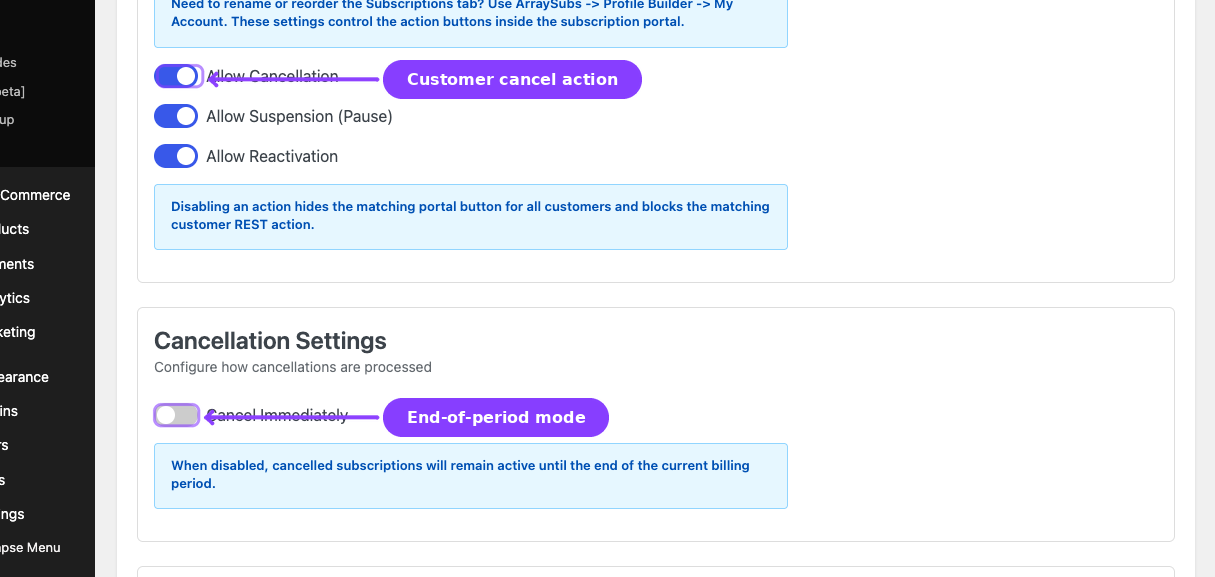
- Navigate to ArraySubs → Settings → General.
- Scroll to the Customer Actions section.
- Find the Cancel Immediately toggle.
- Enable for immediate cancellation, or disable for end-of-period cancellation.
- Click Save Settings.
Cancellation Reasons
Cancellation reasons are the predefined options customers choose from when cancelling. They serve two purposes: helping customers articulate why they are leaving, and giving you structured data to analyze in Retention Analytics.
Require Cancellation Reason
When enabled, the customer must select a reason before they can proceed with cancellation. The Continue button in the cancellation modal stays disabled until a reason is selected.
When disabled, the reason selector still appears in the modal but is optional. Customers can skip it and cancel without selecting a reason. Cancellations without a reason appear as not_provided in analytics.
Requiring a reason is recommended. It provides critical data for understanding churn and targeting retention offers effectively. Most customers don't mind a single selection — it takes less than 3 seconds.
Default Reasons
ArraySubs ships with 7 predefined cancellation reasons:
| Reason Key | Display Label |
|---|---|
too_expensive |
Too expensive |
not_using |
Not using it enough |
found_alternative |
Found a better alternative |
missing_features |
Missing features I need |
technical_issues |
Technical issues |
temporary_pause |
Just need a temporary break |
other |
Other |
These defaults cover the most common cancellation reasons across subscription businesses. You can edit, reorder, add, or remove reasons on the Retention Flow page.
Custom Reasons
You can add as many custom reasons as you need. Each reason has two fields:
| Field | Purpose | Example |
|---|---|---|
| Reason Key | A unique lowercase identifier used internally and in analytics. No spaces. | shipping_issues |
| Display Label | The customer-facing text shown in the cancellation modal | Shipping or delivery problems |
The "Other" Reason
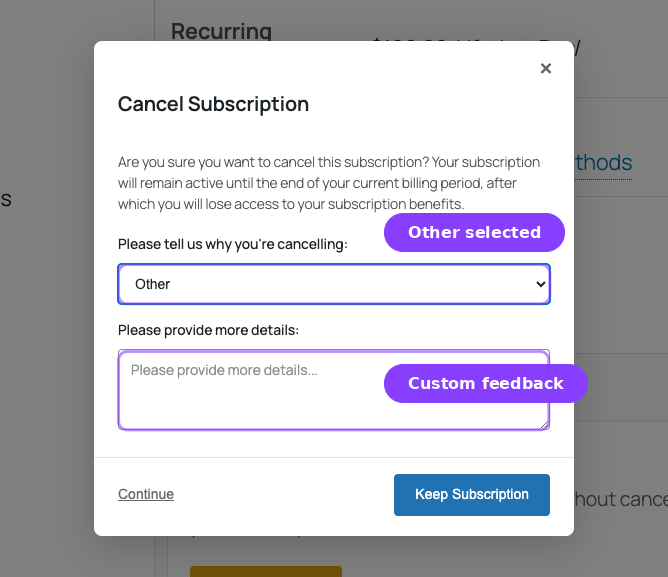
When the customer selects a reason with the key other, a free-text textarea appears in the cancellation modal. This lets customers provide custom feedback that doesn't fit the predefined options.
Always include an "Other" option. It acts as a safety net for reasons you haven't anticipated, and the free-text responses often contain the most actionable feedback.
How Reasons Feed Other Features
Cancellation reasons are not just data points — they actively influence the retention system:
- Retention offers can be targeted to specific reasons. For example, a discount offer shown only when the customer selects "Too expensive."
- Retention analytics shows a pie chart breakdown of reasons, helping you identify the biggest churn drivers.
- Activity logs record the reason for every cancellation event, making it searchable and filterable.
- Subscription notes include the cancellation reason in the admin subscription detail view.
The Retention Flow Admin Page
The Retention Flow page is the central admin interface for managing cancellation reasons and retention offers. It combines all cancellation and retention settings into a single configuration screen.
Navigate to ArraySubs → Retention Flow in the WordPress admin sidebar.
Page Sections
The page has two main areas:
1. Cancellation Reasons — Configure whether reasons are required and manage the list of predefined reasons.
2. Retention Offers — Enable and configure each retention offer type with trigger reasons, offer parameters, and custom messaging. See Retention Offers for full details on this section.
Managing Cancellation Reasons
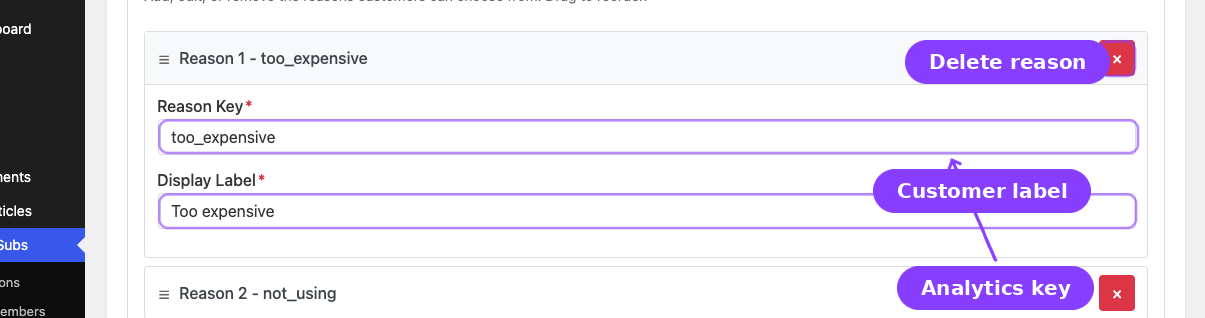
The reasons section shows a repeatable list of reason rows. Each row contains:
- A Reason Key text field — the internal identifier
- A Display Label text field — the customer-facing text
- A delete button to remove the reason
- A drag handle to reorder reasons
Below the list, an Add Reason button lets you add new rows.
Saving Changes
After making changes to reasons or retention offers, click the Save Settings button at the bottom of the page. A success toast message confirms the save.
Changing reason keys after you have collected cancellation data can cause analytics discrepancies. The old key's data remains in the log under the old key, and new cancellations will use the new key. If you need to rename a reason, consider adding a new reason and deactivating the old one instead of editing the key.
The Customer Cancellation Modal
When a customer clicks Cancel Subscription in the portal, this is what they see step by step.
Step 1: Cancellation Reason
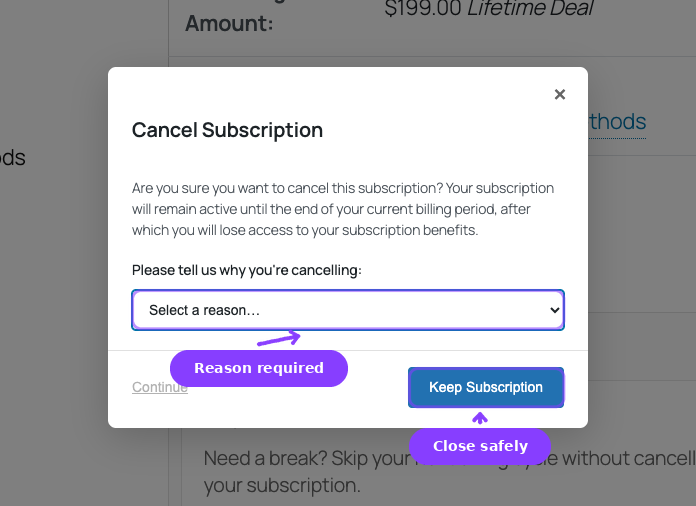
The first modal appears with:
- A warning message that explains what will happen (wording adjusts based on immediate vs end-of-period setting)
- A reason dropdown — required or optional based on your setting
- A free-text field (appears only when "Other" is selected)
- A Keep Subscription button to close the modal and take no action
- A Continue button to proceed
Step 2: Retention Offers (if enabled)
If retention offers are enabled and the customer is eligible for at least one offer, a second modal appears. See Retention Offers for the full flow.
Step 3: Cancellation Confirmation
If the customer declines all offers (or if offers are not enabled), the cancellation proceeds:
- Immediate mode: Status changes to Cancelled → success message shown
- End-of-period mode: Pending cancellation flag set → scheduled cancellation message shown
What the Customer Sees After Cancellation
| Mode | Status shown | Access | Undo option |
|---|---|---|---|
| Immediate | Cancelled | Revoked immediately | None |
| End-of-period | Active with "Scheduled for cancellation" notice | Continues until period ends | Undo Cancellation button visible |
Undo Scheduled Cancellation
When a subscription is scheduled for end-of-period cancellation, both the customer and the admin can reverse the decision.
Customer Undo
The customer sees an Undo Cancellation button on the subscription detail page in the customer portal. Clicking it:
- Removes the pending cancellation flag
- Clears all cancellation-related metadata (reason, scheduled date)
- Returns the subscription to normal active renewal behavior
- Shows: "Scheduled cancellation removed successfully. Your subscription will continue renewing normally."
Admin Undo
The admin sees the same option in the Cancellation Details card on the admin subscription detail page. The admin can also manually change the subscription status away from a pending cancellation state.
Settings Reference
| Setting | Location | Default | What It Controls |
|---|---|---|---|
| Allow Cancellation | Settings → General → Customer Actions | Enabled | Whether customers see the Cancel button in the portal |
| Cancel Immediately | Settings → General → Customer Actions | Enabled | Whether cancellation is immediate or end-of-period |
| Require Cancellation Reason | Retention Flow page | Enabled | Whether a reason is required before cancellation can proceed |
| Cancellation Reasons | Retention Flow page | 7 defaults | The list of reasons shown in the cancellation modal |
| Enable Retention Offers | Retention Flow page | Enabled | Whether retention offers appear after reason selection |
Edge Cases and Important Notes
- Admin-initiated cancellations bypass the customer modal entirely. Admins change the subscription status directly from the subscription detail page. Admin cancellations still record the initiator (
admin) and are logged in retention analytics. - System-initiated cancellations (from expired grace periods, full refunds, or scheduled expirations) also bypass the modal. These are logged with an initiator of
system. - Multiple subscriptions: Cancellation is always per-subscription. If a customer has three subscriptions and cancels one, the other two are unaffected.
- Waiting cancellation and renewals: End-of-period cancellations do not process any further renewals. The existing scheduled renewal for the current period is removed.
- Retention offers and end-of-period: Retention offers are shown regardless of cancellation timing. If a customer accepts a retention offer during an end-of-period cancellation, the pending cancellation is cleared.
Troubleshooting
| Problem | Likely Cause | What to Do |
|---|---|---|
| Customer does not see the Cancel button | Cancellation is disabled in settings, or the subscription status is already cancelled/expired | Check Settings → General → Customer Actions → Allow Cancellation and the subscription status |
| Customer cancels without selecting a reason | Require Cancellation Reason is disabled | Enable it on the Retention Flow page |
| Cancellation reason data is missing in analytics | Reasons were not configured or required before the cancellation occurred | Configure reasons and enable the require toggle — only future cancellations will capture reasons |
| End-of-period cancellation still shows as Active | This is expected behavior — the subscription stays active until the period ends, with a pending cancellation flag | Check the subscription detail page for the Cancellation Details card |
| Undo Cancellation button not visible | The subscription was cancelled immediately (not end-of-period), or the period has already ended | Undo is only available for pending end-of-period cancellations that haven't yet executed |
Related Guides
- Retention Offers — Configure discount, pause, downgrade, and contact support offers
- Retention Analytics — Track cancellation trends and offer performance
- Refund Management — Configure refund policies after cancellation
- Subscription Self-Service Actions — The complete customer portal actions guide
- Lifecycle Management — How subscription statuses transition
FAQ
Does this affect existing subscriptions?
Changing the cancellation timing setting affects all future cancellations. Existing pending cancellations that are already scheduled for end-of-period will complete as originally scheduled.
What happens if I switch from immediate to end-of-period cancellation?
All cancellations from that point forward will be scheduled instead of immediate. Previously cancelled subscriptions are not restored.
Can I have different cancellation policies for different products?
No. Cancellation timing is a global setting that applies to all subscription products. However, retention offers can be configured to trigger on specific reasons, giving you product-level control over the retention step.
What happens if a customer has a retention discount and then tries to cancel again?
The discount offer will not be shown again for the same subscription if it was already used. The system checks the offer history to prevent duplicate discounts.
Do admin-initiated cancellations trigger retention offers?
No. Retention offers only appear in the customer portal cancellation flow. Admin status changes bypass the modal entirely.
Can I customize the cancellation modal text?
The modal messages adjust automatically based on your cancellation timing setting. For the retention offer step, you can configure custom headlines, descriptions, and button text for each offer type on the Retention Flow page.