
Purchase Product
ProCreate a WooCommerce product that lets customers buy store credit directly — with fixed or custom amounts and optional bonus incentives.
Availability: Pro
Page Navigation
- Current guide: Purchase Product
- Where to open it: WordPress Admin → Products → Add New or Edit Product → Product data: Store Credit
- Section overview: Open overview
- Previous guide: emails
- Next guide: README
- Troubleshooting: Audits, Logs, and Troubleshooting
Overview
The Store Credit Purchase Product is a special WooCommerce product type (arraysubs_store_credit) that allows customers to buy credit for their store account. When the order completes, the purchased credit (plus any configured bonus) is automatically added to the customer's balance.
You can set up products with a fixed credit amount or let customers enter their own amount within configurable limits. An optional bonus percentage rewards larger purchases — for example, "Buy $100, get $110 in credit."
When to Use This
- You want customers to pre-pay for subscription renewals at a discount.
- You want to offer a "Buy credit, get bonus credit" promotion.
- You want to give customers a flexible spending balance they control.
- You want to offer store credit as a gift option.
Prerequisites
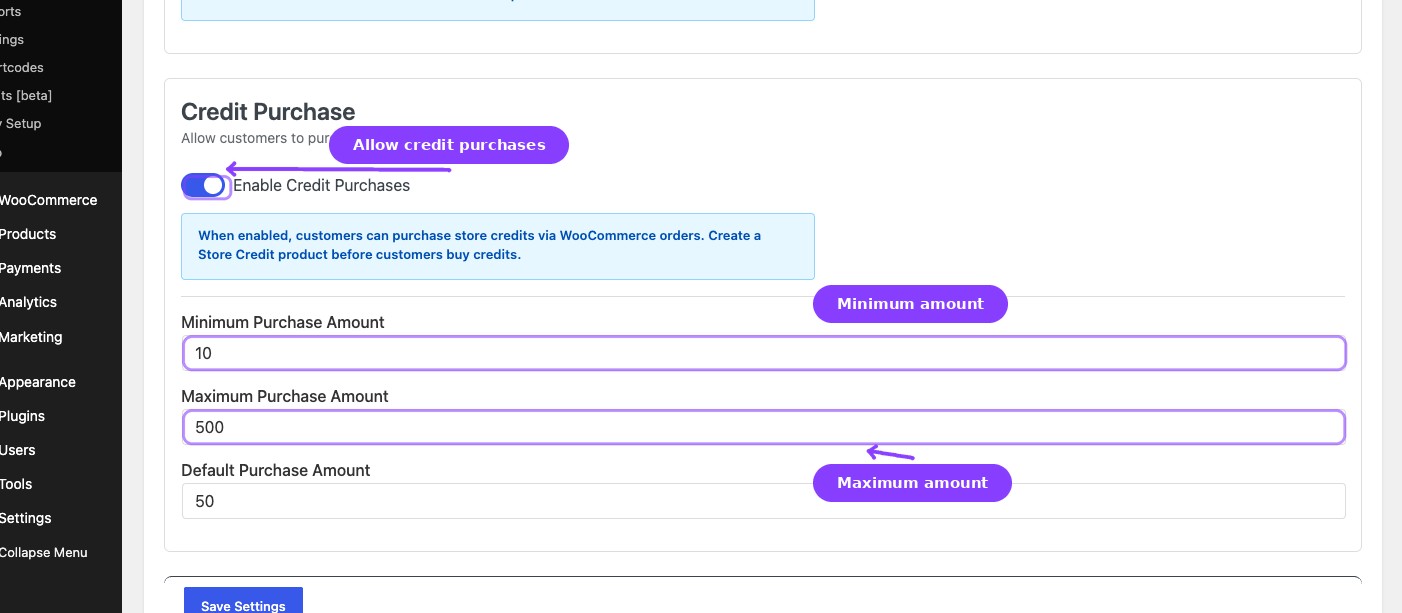
- ArraySubs Pro active
- Store Credit enabled in ArraySubs → Store Credit → Settings
- Enable Credit Purchases toggled on in Store Credit Settings
- Admin or Shop Manager access to create WooCommerce products
How It Works
- You create a WooCommerce product and select Store Credit as the product type.
- You configure whether the amount is fixed or customer-chosen, and optionally set a bonus percentage.
- Customers add the product to their cart and check out normally.
- When the order reaches
processingorcompletedstatus, the credit is immediately added to the customer's account. - The customer receives a Credit Added email showing the amount credited and their new balance.
The product is automatically treated as virtual (no shipping required) and sold individually (one per order).
Steps
Create a Store Credit Product
- Go to Products → Add New.
- In the Product data dropdown, select Store Credit.
- Several standard tabs are hidden automatically (Attributes, Linked Products, Shipping, Inventory) since they do not apply to credit products.
Configure Credit Options
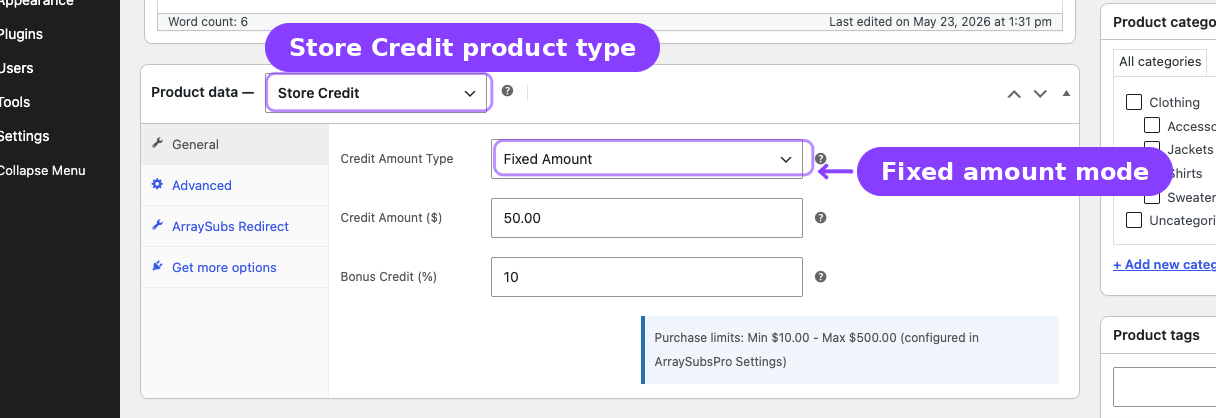
In the General tab, you will see the Store Credit fields:
| Field | Options | What it controls |
|---|---|---|
| Credit Amount Type | Fixed or Custom |
Whether the credit amount is set by you or entered by the customer. |
| Credit Amount | Number (currency) | The fixed amount of credit granted when purchased. Only visible when type is Fixed. |
| Bonus Credit (%) | Number (0–100) | Optional extra credit percentage on top of the purchase amount. For example, 10 means buying $100 grants $110 in credit. |
Fixed amount products: The customer pays the product's regular price and receives the configured credit amount. The price and credit amount can differ if you want to sell "$50 of credit for $45."
Custom amount products: The customer enters their own amount on the product page. The amount must fall between the Minimum Purchase Amount and Maximum Purchase Amount configured in Store Credit Settings. The Default Purchase Amount from settings is pre-filled in the input field.
Set the Product Price
- For Fixed products: Set the regular price in the standard WooCommerce pricing fields. This is what the customer pays.
- For Custom products: The price is dynamically set based on what the customer enters. You do not need to set a regular price.
Publish the Product
Click Publish to make the credit product available in your store.
Product Page Display
On the storefront, a Store Credit product page shows:
- The product title and description (whatever you entered).
- Credit information depending on the amount type:
- Fixed: The amount of credit the customer will receive, formatted in store currency.
- Custom: A currency input field where the customer enters their desired amount, with min/max validation.
- Bonus badge: If a bonus percentage is set, a visible badge shows the bonus (e.g., "+10% Bonus").
- Add to Cart / Buy button: The button text changes to "Buy Credits" instead of the standard "Add to Cart".
Bonus Calculation
When a bonus percentage is configured, the customer receives extra credit on top of their purchase:
| Purchase Amount | Bonus % | Credit Granted | Effective Value |
|---|---|---|---|
| $50 | 0% | $50.00 | $50.00 |
| $50 | 10% | $55.00 | $55.00 |
| $100 | 15% | $115.00 | $115.00 |
| $200 | 20% | $240.00 | $240.00 |
The bonus is calculated and added automatically when the order is processed. The customer pays the base amount; the bonus is "free" extra credit.
Shortcode: [arraysubs_buy_credits]
You can display a credit purchase form anywhere on your site using the shortcode:
[arraysubs_buy_credits]
Attributes:
| Attribute | Required | Default | Description |
|---|---|---|---|
product_id |
No | — | Specify a particular Store Credit product to display. If omitted, shows all available credit products. |
Examples:
[arraysubs_buy_credits]
[arraysubs_buy_credits product_id="123"]
The shortcode renders a form showing the product(s) with their credit amount, bonus badge (if applicable), and an add-to-cart action. For custom-amount products, it includes the currency input field with min/max validation.
Cart and Checkout Behavior
- The Store Credit product appears in the cart like any other product.
- For custom-amount products, the cart displays the customer-entered amount as the line item price.
- The cart item data shows the credit amount that will be granted.
- The product is treated as a subscription checkout product for routing purposes.
- Standard WooCommerce checkout and payment processing apply.
Order Processing
When the order status reaches processing or completed:
- The system scans order items for Store Credit products.
- For each credit item, it calculates the base credit amount plus any bonus.
- Credit is added to the customer's account via
CreditManager::addCustomerCredit()with sourcepurchase. - An order note is added confirming the credit grant and amount.
- The order is marked with a
_arraysubs_credit_purchase_processedflag to prevent duplicate processing. - The Credit Added email is triggered.
Credit is processed once per order. Even if the order status changes multiple times (e.g., processing → on-hold → completed), the credit is only granted on the first qualifying status change.
Real-Life Use Cases
Use Case 1: Pre-Paid Subscription Credit
A SaaS merchant offers annual subscriptions at $120/year ($10/month). They want to sell credit bundles:
- Product A: "12-Month Credit Pack" — Fixed $100, grants $120 in credit. Customer saves $20.
- Product B: "6-Month Credit Pack" — Fixed $55, grants $60 in credit.
With Auto-Apply to Renewals enabled, the credit automatically pays for renewals until it runs out.
Use Case 2: Bonus Credit Promotion
A subscription box merchant creates a custom-amount credit product with a 15% bonus:
- Customer buys $100 of credit → receives $115 in their account.
- Customer buys $200 of credit → receives $230 in their account.
This incentivizes larger upfront purchases while keeping the customer balance active in the store.
Use Case 3: Gift Credit Landing Page
A merchant creates a dedicated page with the [arraysubs_buy_credits product_id="456"] shortcode where visitors can buy gift credit for their own account.
Edge Cases and Important Notes
- One per order. Store Credit products are sold individually — customers cannot add multiple quantities to the cart.
- Virtual product. The product is always virtual and never requires shipping, regardless of any shipping settings.
- Custom amount validation. If a customer enters an amount below the minimum or above the maximum, the add-to-cart action is blocked with an error notice.
- Order must reach processing or completed. Credit is not granted for pending, on-hold, or failed orders. If a payment fails, no credit is issued.
- No subscription created. Purchasing store credit does not create a subscription. It is a one-time purchase that adds credit to the customer's balance.
- Refunding a credit purchase. If you refund a credit purchase order through WooCommerce, the credit that was granted is not automatically reversed. You would need to manually deduct the credit from the customer's account via the Store Credit Management page.
Troubleshooting
| Problem | Likely Cause | What to Do |
|---|---|---|
| "Store Credit" product type not shown in dropdown | Enable Credit Purchases is off in settings, or Pro plugin is not active | Enable Credit Purchases in Store Credit Settings and verify Pro is active |
| Customer enters amount but gets an error | Amount is below the minimum or above the maximum | Check the min/max limits in Store Credit Settings |
| Credit not added after purchase | Order status has not reached processing or completed | Wait for payment to clear or manually change the order status |
| Credit added twice | Rare edge case with concurrent status changes | The _arraysubs_credit_purchase_processed flag should prevent this; check order meta |
| Bonus not appearing on product page | Bonus percentage is set to 0 or not configured | Edit the product and set a bonus percentage value greater than 0 |
Related Guides
- Store Credit Settings — Configure purchase limits and enable the purchase system.
- Store Credit Management — View and adjust customer balances.
- Store Credit Overview — How the full credit system works.
FAQ
Can I create multiple Store Credit products with different amounts?
Yes. You can create as many Store Credit products as you want — for example, a $25 fixed product, a $50 fixed product, and a custom-amount product. Each operates independently.
Does the bonus count toward the customer's purchase total?
No. The bonus is "free" credit. The customer pays only the base amount. The bonus is added on top when the credit is granted.
Can I use coupons on Store Credit products?
Standard WooCommerce coupon rules apply. If a coupon is valid for the Store Credit product, it can be used at checkout. However, the credit amount granted is based on the product's credit settings, not the discounted price — unless the credit amount type is "Custom" (in which case the purchase amount equals the price paid).
What happens if I delete a Store Credit product?
Existing orders and already-granted credits are not affected. The product simply becomes unavailable for future purchases.
Can guests buy store credit?
Store credit requires a customer account. If your store allows guest checkout, the customer would need to create an account to receive and use the credit.