
Import / Export Settings
Download your entire ArraySubs configuration as a JSON file or restore a previously exported configuration — with granular control over which sections get imported.
Availability: Free
Page Navigation
- Current guide: Import / Export Settings
- Where to open it: WordPress Admin -> ArraySubs -> Easy Setup
- Direct admin route:
/wp-admin/admin.php?page=arraysubs-mainadmin#/easy-setup - Section overview: Open overview
- Previous guide: first-time-setup
- Next guide: README
- Troubleshooting: Audits, Logs, and Troubleshooting
Overview
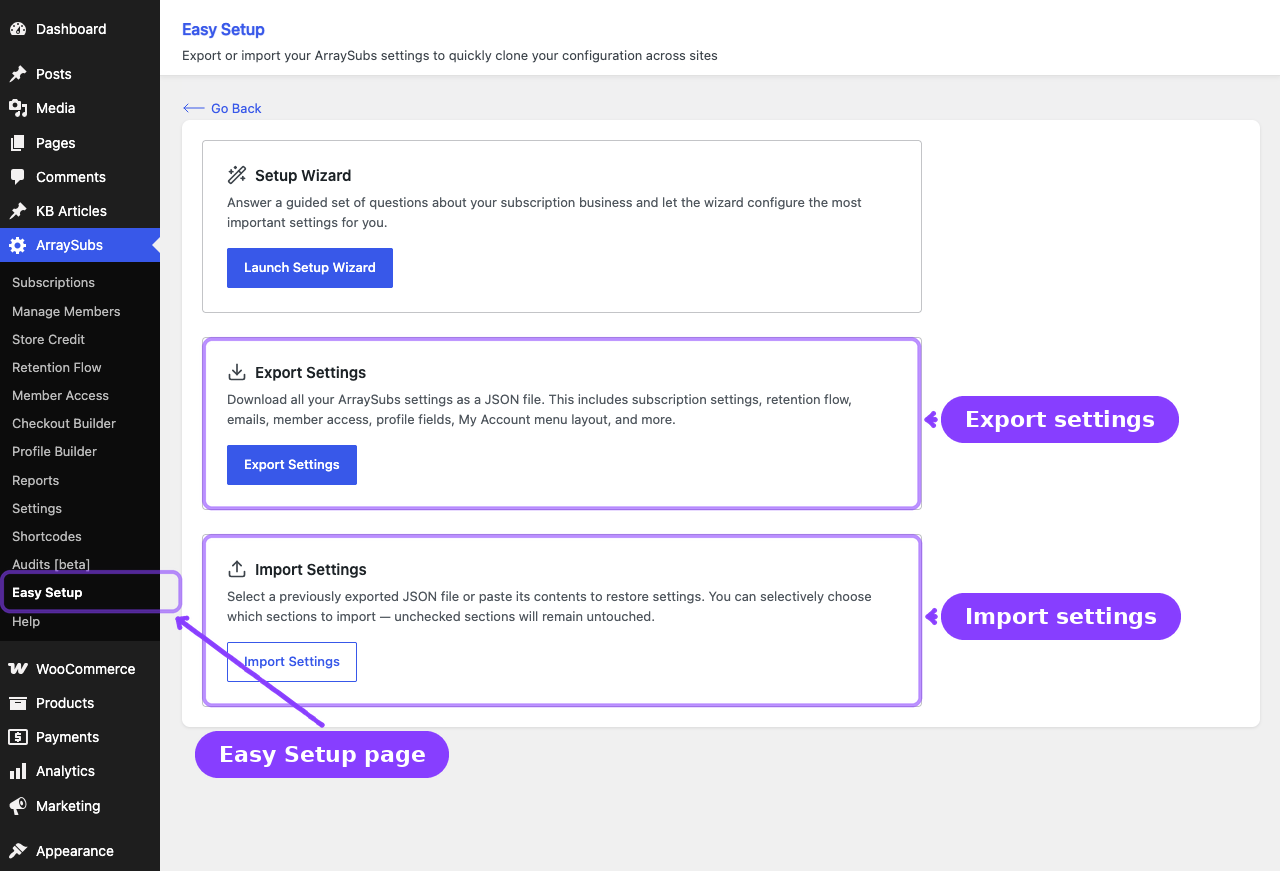
The Import / Export tools let you back up your ArraySubs configuration and restore it on the same site or a different one. Export produces a single JSON file containing all plugin settings, email templates, profile fields, My Account menu layout, and more. Import reads that file back and lets you choose exactly which sections to apply — unchecked sections remain untouched.
Both tools live on the ArraySubs → Easy Setup page alongside the Setup Wizard.
When to Use This
- You are migrating an ArraySubs configuration from a staging site to production.
- You want a backup of your current settings before making major changes.
- You manage multiple stores and want identical subscription configurations across all of them.
- You are restoring a known-good configuration after an experiment or misconfiguration.
- You are sharing your configuration with another team member or support agent for troubleshooting.
Prerequisites
- ArraySubs core plugin installed and activated.
- Admin access (manage_options capability) to the WordPress dashboard.
- For importing Pro-specific settings, ArraySubs Pro should be active on the target site (imports still work without Pro, but Pro settings remain dormant).
How It Works
Export reads the ArraySubs configuration options, strips sensitive data (payment gateway API keys and webhook secrets), attaches metadata (version numbers, site URL, export date), and returns the result as a downloadable JSON file.
Import is a multi-step process: you provide a JSON file or paste its contents, the system parses and validates the structure, shows you which sections were found, and lets you check or uncheck sections before applying. A confirmation step warns that selected sections will be replaced. After import, you see a summary of what was imported, what was skipped, and any warnings.
Importing is destructive for the sections you select. The existing values for those sections are wiped and replaced with the imported values. Unchecked sections stay untouched. This cannot be undone — export your current settings first if you want a safety net.
Real-Life Use Cases
Use Case 1: Staging to Production Migration
A store owner finishes configuring ArraySubs on a staging site — billing rules, retention offers, email preferences, access control, and custom profile fields. They export the settings as JSON, upload that file on the production site, select all sections, and import. The production site is now configured identically without re-entering a single setting.
Use Case 2: Pre-Change Safety Backup
Before experimenting with new cancellation and retention settings, a merchant exports their current configuration. If the experiment does not work out, they import the backup file and select only the Retention Flow Builder section to restore just that part.
Use Case 3: Multi-Store Consistency
A franchise operates five WooCommerce stores that all use the same subscription model. The admin configures one store, exports the settings, and imports the same file on the other four stores. Each store gets the same billing rules, email setup, and access control instantly.
Exporting Settings
- Go to ArraySubs → Easy Setup.
- Find the Export Settings card.
- Click Export Settings.
- A JSON file downloads automatically with the name
arraysubs-settings-YYYY-MM-DD.json. - A success toast confirms: "Settings exported successfully!"
That is all — no configuration or section selection is needed for export. The file includes everything.
What Gets Exported
The export file contains these WordPress options:
| Option Key | Contents |
|---|---|
arraysubs_settings |
All core and Pro subscription settings: billing, renewal sync, grace periods, checkout, trials, plan switching, proration, refunds, cancellation, access control, emails, store credit, and more |
arraysubs_profile_fields_config |
Custom profile field definitions and validation rules |
arraysubs_avatar_settings |
Avatar upload configuration |
arraysubs_myaccount_menu_config |
My Account page menu structure, labels, and positions |
wc_email_settings |
WooCommerce email template settings (subject, heading, content) for all ArraySubs email types |
What Gets Stripped
For security, the export removes any payment gateway API keys and webhook secrets that are stored inside ArraySubs settings before writing the file:
- Stripe secret keys, publishable keys, and webhook secrets
- PayPal client ID, client secret, and webhook IDs
- Paddle API keys, client tokens, and webhook secrets
WooCommerce Stripe gateway settings and ArraySubs Stripe secondary webhook secrets are managed in WooCommerce/Pro gateway options and are not exported by this tool. Credentials must be re-entered or re-provisioned manually on any target site.
Export File Structure
The JSON file has two top-level keys:
{
  "meta": {
    "plugin_version": "1.8.0",
    "pro_version": "1.2.0",
    "module_version": "1.1.0",
    "export_date": "2026-04-04T12:34:56+00:00",
    "site_url": "https://example.com",
    "php_version": "8.1.0",
    "wp_version": "6.7.0",
    "wc_version": "9.0.0"
  },
  "options": {
    "arraysubs_settings": { ... },
    "arraysubs_profile_fields_config": { ... },
    "arraysubs_avatar_settings": { ... },
    "arraysubs_myaccount_menu_config": { ... },
    "wc_email_settings": { ... }
  }
}
The meta block records the source site URL, export date, and version numbers so you can confirm compatibility before importing.
Importing Settings
Step 1 — Provide the JSON Data
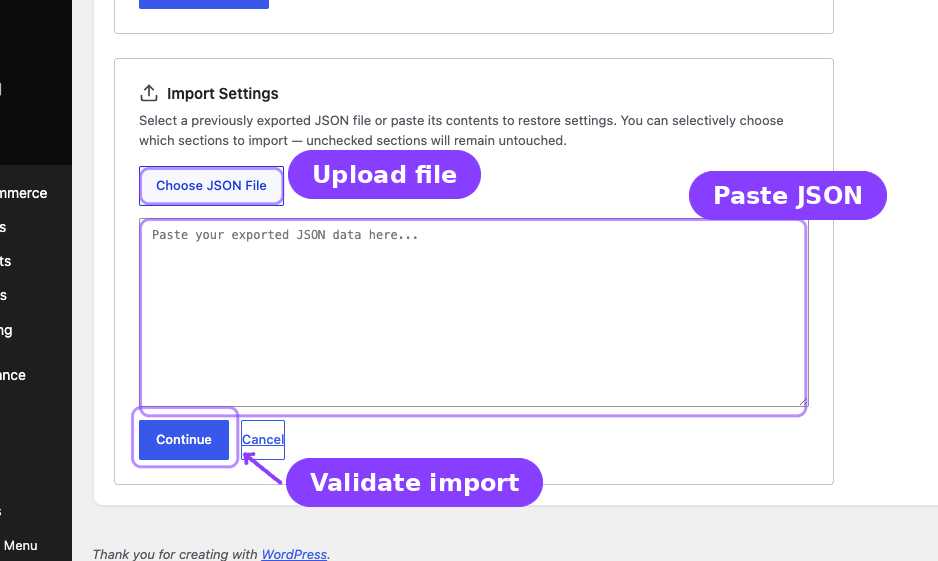
- Go to ArraySubs → Easy Setup.
- Click Import Settings on the Import card.
- Choose one of two methods:
- Click Choose JSON File and select a previously exported
.jsonfile from your computer. - Or paste the raw JSON text into the textarea below the file picker.
- Click Choose JSON File and select a previously exported
- Click Continue.
The system validates the file structure. If valid, you move to section selection. If invalid, an error message explains the problem:
| Error | Meaning |
|---|---|
| "Please paste your exported JSON data or select a file" | No input was provided |
| "Invalid export format — missing required structure (meta and options)" | The JSON does not contain the expected meta and options keys |
| "Invalid export format — options must be an object" | The options key is not a valid object |
| "No recognized settings found in this export file" | The file has the right structure but no sections the importer knows about |
| "Invalid JSON format — please check the pasted data" | The text is not valid JSON |
Step 2 — Select Sections
After validation, the importer shows:
- Source site URL and export date from the file metadata.
- Plugin version from the export.
- A list of available sections found in the file, each with a checkbox.
Use the Select All toggle or individually check the sections you want to import. Unchecked sections are left completely untouched on your current site.
Settings that reference site-specific IDs (products, pages, categories, users) may need to be re-mapped manually after import. For example, if a redirect URL points to a page ID on the source site, that ID may not exist on the target site.
Available Sections
| Section | Label | What It Contains |
|---|---|---|
subscription_settings |
Subscription & Others | Billing, renewals, checkout, trials, plan switching, proration, refunds, and all core/pro subscription settings |
retention_flow |
Retention Flow Builder | Cancellation reasons, retention offers, and cancellation flow settings |
store_credit |
Store Credit | Store credit feature configuration and related settings |
myaccount_builder |
My Account Builder | My Account page menu items, labels, and positions |
checkout_builder |
Checkout Builder | Custom checkout field layout and configuration |
members_access |
Member Access | Content restriction rules, role mapping, and access control settings |
emails |
Emails | Email notification on/off preferences and WooCommerce email template settings (subject, heading, content) |
profile_fields |
Profile Fields | Custom profile field definitions, validation rules, and avatar settings |
Only sections that have matching data in the import file appear. If the export file does not contain Member Access data, for example, that section does not show up in the list.
Step 3 — Confirm the Import
After selecting your sections, click Import Selected. A confirmation modal appears:
"The selected settings will be wiped out and replaced with the imported values. Unchecked sections will remain untouched. This action cannot be undone."
- Click Confirm Import to proceed.
- Click Cancel to go back to section selection.
Step 4 — View Results
After the import completes, a result screen shows:
- Imported — The list of sections that were successfully applied.
- Skipped — Sections that were not selected or not found in the file.
- Warnings — Any compatibility notes, such as Pro settings imported while Pro is not active.
Click Dismiss to close the result view and return to the Easy Setup page.
Settings Reference
| Setting | What It Controls | Details |
|---|---|---|
| Export file name | Automatic download naming | arraysubs-settings-YYYY-MM-DD.json using the current date |
| Sensitive data stripping | Which keys are removed from export | Stripe keys/webhook secrets, PayPal credentials, and Paddle credentials are always stripped when present |
| Section-level import | Granularity of import | 8 virtual sections that map to specific settings keys and WordPress options |
| Module version check | Format compatibility | The importer validates that the file format version is compatible with the current plugin |
What Happens After Saving
- Export: A JSON file downloads to your browser's default download location. No settings on your site are changed.
- Import: The selected sections are replaced immediately. Changes take effect for future subscription actions.
- Existing subscriptions are not modified. Imported settings only affect future actions, new subscriptions, and new renewal cycles.
- Configuration cache is refreshed automatically after import.
- You can verify imported values by visiting the relevant settings pages (ArraySubs → Settings, Retention Flow, Profile Builder, etc.).
Edge Cases / Important Notes
- Selective import is safe. If you only check one section, every other section remains exactly as it was. This is useful for restoring a single area of configuration.
- Site-specific IDs may need re-mapping. Settings that reference page IDs, product IDs, category IDs, or user IDs from the source site may point to non-existent records on the target site. Review redirect URLs, access rules, and product references after importing.
- Pro settings imported without Pro. If the exported file contains Pro-specific settings (Store Credit, Feature Manager, Automatic Payments, Audit Logging) but the target site does not have ArraySubs Pro active, the import still succeeds. Those settings are stored but remain dormant until Pro is activated. A warning is shown in the result summary.
- Payment gateway keys are never exported. Stripe, PayPal, and Paddle API credentials must be re-entered on the target site. This is a deliberate security measure.
- Renewal Sync settings are included.
renewals.sync_to_billing_cycleandrenewals.sync_first_charge_modeare part of the Subscription & Others section, so importing that section can change future checkout pricing and first renewal dates. - WooCommerce email templates are included. The Emails section imports both the ArraySubs email toggle preferences and the WooCommerce email template overrides (subject, heading, content) for all ArraySubs email types.
- Importing replaces, does not merge. For selected sections, the entire section is replaced — not merged field by field. If the imported file has fewer entries than your current configuration for that section, the extra entries are lost.
- File size is minimal. Export files are typically a few kilobytes since they contain settings only — no media, products, or subscription data.
Troubleshooting
| Problem | Likely Cause | What to Do |
|---|---|---|
| Export button does nothing | JavaScript error or REST API is blocked | Open the browser console, check for errors, and verify your REST API is accessible |
| "Invalid export format" on import | The file was modified, corrupted, or is not an ArraySubs export | Re-export from the source site and try again without editing the file |
| Sections are missing from the import list | The source site did not have those sections configured | Only sections with actual data in the export file appear. If a section was empty on the source site, it won't be in the file |
| Pro settings warning after import | ArraySubs Pro is not active on this site | Activate Pro to use those settings, or ignore the warning — they are stored safely and activate when Pro is installed |
| Imported settings look wrong | Site-specific IDs do not match | Check settings that reference pages, products, or categories. Re-map them to the correct IDs on this site |
| Nothing changed after import | All sections were unchecked, or the imported values are identical to existing ones | Verify you selected the correct sections in Step 2 and that the export file contains different values |
Related Guides
- Easy Setup Wizard — Use the guided wizard for initial configuration instead of importing from a file.
- First-Time Setup — A manual step-by-step checklist for new installations.
- General Settings — The full reference for individual settings the import may overwrite.
- Retention Offers — Verify your retention flow after importing the Retention Flow Builder section.
- Email Configuration — Review email settings after importing the Emails section.
FAQ
Does exporting affect my current settings?
No. Exporting is a read-only operation. It downloads a copy of your settings as a file. Nothing on your site changes.
Can I import just one section and leave everything else alone?
Yes. The import flow lets you check or uncheck individual sections. Only the sections you select are replaced. Everything else stays untouched.
Is the export file safe to share?
Yes, with one caveat. Payment gateway API keys (Stripe, PayPal) are automatically stripped from the export. The file contains only plugin settings, email templates, and configuration data — no customer data, orders, or subscription records.
What if I import settings from a newer version of ArraySubs?
The importer checks the module version in the file metadata. If the format is incompatible, the import is rejected with an error. Keep both sites on similar plugin versions for best results.
Will importing create or delete my subscriptions, products, or orders?
No. Import only affects plugin settings and configuration. Subscriptions, products, orders, customers, and all other WooCommerce data are completely unaffected.
Can I import settings from an ArraySubs Pro export on a site that only has the free plugin?
Yes. The import processes the entire file, but Pro-specific settings remain dormant without Pro active. A warning appears in the result summary. If you later activate Pro, those settings will already be in place.
How often should I export as a backup?
Export whenever you are about to make significant settings changes. The file is small and downloads instantly, so there is no cost to exporting frequently.