
Member Lookup and Profiles
ProSearch for any customer by name, username, or email, then view their complete profile with contact info, roles, lifetime stats, and one-click admin impersonation.
Availability: Pro
Page Navigation
- Current guide: Member Lookup and Profiles
- Where to open it: WordPress Admin -> ArraySubs -> Manage Members
- Section overview: Open overview
- Previous guide: member-commerce-overview
- Next guide: member-operations
- Troubleshooting: Audits, Logs, and Troubleshooting
Overview
The top of the Manage Members page is built around a fast member search and a rich profile card. Type at least two characters, pick a customer from the dropdown, and the page loads their full profile, stats, and commerce data. The profile card puts the customer's identity, contact information, and key metrics front and center so you can assess the account at a glance without opening any other screen.
When to use this
- A customer contacts support and you need to quickly pull up their account.
- You want to verify a subscriber's status before making a manual change.
- You need to log in as a customer to troubleshoot a checkout or portal issue.
- You want to compare a customer's spending and subscription history in one view.
How it works
Searching for a member
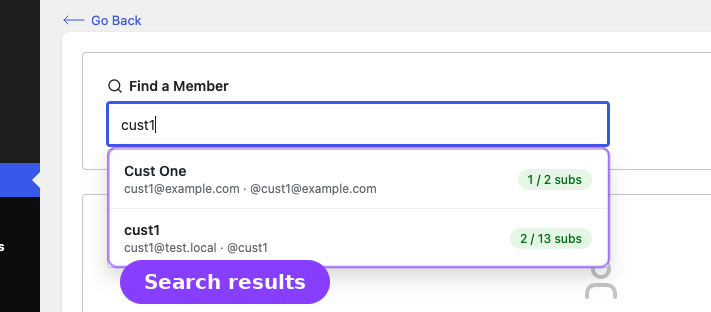
- Open ArraySubs → Manage Members.
- Click the search field labeled Find a Member.
- Type at least 2 characters of the customer's name, username, or email address.
- The system searches after a short pause (300 ms debounce) and displays a dropdown of matching users.
Each result in the dropdown shows:
| Field | Example |
|---|---|
| Display name | Jane Cooper |
| Email and username | [email protected] · @janecooper |
| Subscription count | 2 / 3 subs (active / total) |
Click a result to select the member and load their full profile. The URL updates to include the user ID (for example, #/manage-members/42), so you can bookmark or share the link.
The search returns up to 20 results, ordered by display name. If you don't find the customer, try a more specific term such as their exact email address.
Reading the profile card
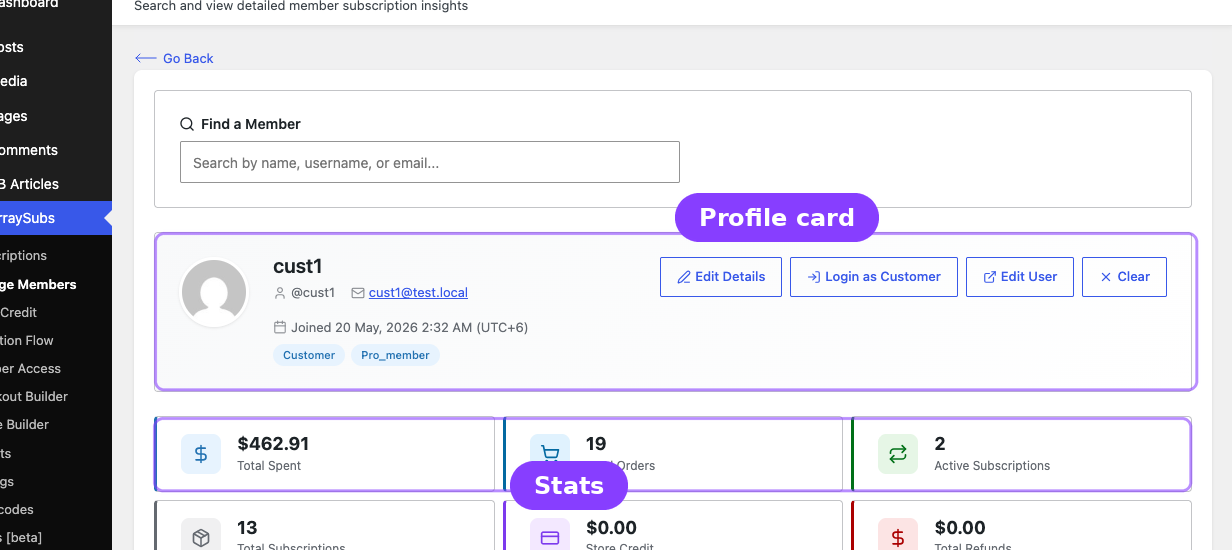
Once you select a member, a profile card appears with four areas:
Identity and contact
| Detail | Source |
|---|---|
| Avatar | Gravatar linked to the customer's email |
| Full name | WordPress user profile |
| Username | Displayed as @username |
| WordPress user email | |
| Phone | WooCommerce billing phone, if set |
| Joined date | WordPress registration date, formatted for your site's locale |
| Roles | All WordPress roles assigned to the user (shown as badges) |
Action buttons (top-right of the profile card)
| Button | What it does |
|---|---|
| Login as Customer | Opens the customer's frontend session so you can see exactly what they see. See the Login as Customer section below. |
| Edit User | Opens the WordPress user edit page in a new tab. |
| Clear | Deselects the current member and returns to the search view. |
Stats grid
Below the profile card, six stat cards summarize the customer's commerce activity:
| Stat | What it shows | Color |
|---|---|---|
| Total Spent | Lifetime order total across all WooCommerce orders | Blue |
| Total Orders | Count of all WooCommerce orders | Cyan |
| Active Subscriptions | Number of subscriptions currently in active status |
Green |
| Total Subscriptions | Number of subscriptions in any status | Gray |
| Store Credit | Current store credit balance (requires Store Credit feature) | Purple |
| Total Refunds | Sum of all refunded amounts across orders | Red |
All currency values use your store's configured currency format.
The Store Credit card shows a balance only when the Pro Store Credit feature is active. If Store Credit is not enabled, the value displays as zero.
Login as Customer
The Login as Customer button lets an administrator temporarily impersonate a customer's frontend session. This is invaluable for troubleshooting checkout issues, verifying portal behavior, or testing what a specific subscriber sees.
Prerequisites
- Login as User must be enabled in ArraySubs → Settings → Toolkit. See Toolkit Settings for configuration details.
- The admin must have the
edit_usercapability for the target user. - You cannot impersonate yourself or another administrator.
How the impersonation flow works
- On the member profile card, click Login as Customer.
- The system securely switches your session to the customer's account and redirects you to the site frontend.
- A notification bar appears at the top of every frontend page showing:
- "You are logged in as {customer name}"
- A Go back as {admin name} button to end the session.
- The WordPress admin bar (if visible) also shows a switch-back link.
- Click the switch-back button to return to your admin session. You are redirected to the page you were on before impersonating.
What happens during impersonation
- Your original admin session is preserved in a secure cookie stack.
- The customer's existing sessions are not interrupted.
- WooCommerce cart data is preserved — the system prevents automatic cart clearing during the session switch.
- Nested impersonation is supported: you can switch from one customer to another without returning to the admin account first (the cookie stack keeps track of each level).
When the button is disabled
If the Login as Customer button appears grayed out, hover over it to see the reason in the tooltip. Common reasons:
| Reason | What to do |
|---|---|
| Login as User feature is disabled | Enable it in ArraySubs → Settings → Toolkit |
| Target user is an administrator | Impersonating other admins is blocked for security |
| Insufficient permissions | Your account needs the edit_user capability |
Security safeguards
- Every switch request is protected by a WordPress nonce.
- The impersonated user's session token is destroyed when you switch back.
- Admin-to-admin impersonation is blocked regardless of capability.
- The cookie stack respects SSL settings on your site.
- Logging out normally while impersonating clears all impersonation cookies.
Troubleshooting
| Problem | Likely cause | What to do |
|---|---|---|
| No results appear when searching | Search query is shorter than 2 characters, or no users match | Enter at least 2 characters; try the customer's exact email |
| Member profile shows zero for all stats | The Pro REST endpoint is unreachable | Confirm the Pro plugin is active and there are no REST API errors in the browser console |
| Login as Customer button is disabled | The feature is turned off or the target user is an admin | Check Toolkit settings; verify the target is not an administrator |
| Impersonation bar does not appear after switching | JavaScript or CSS conflict | Check for console errors; ensure no caching plugin is serving a stale page |
| Cannot switch back to admin account | Cookie was cleared or session expired | Log out from the frontend; log back in with your admin credentials directly at /wp-login.php |
Related guides
- Manage Members — Overview — All entry points and a summary of the Manage Members page.
- Member Commerce Overview — Subscription history, purchased products, store credit, and addresses.
- Member Operations — Quick links, admin shortcuts, and insight metrics.
- Toolkit Settings — Configure Login as User and other administration tools.
- Advanced Analytics — Customers Report Pro — Member details quick link in WooCommerce Analytics.
FAQ
Does the search include inactive or banned users?
The search queries all WordPress users regardless of role or status. Any user account that matches the query will appear in the results along with their subscription counts.
Can I search by phone number or address?
No. The search currently matches only the display name, username, and email address fields.
Is the Login as Customer action logged?
The session switch fires the arraysubs_login_as_user_started and arraysubs_login_as_user_ended actions, which audit-capable features can capture. If the Pro Activity Audits feature is active, the impersonation event may appear in the audit log.
What do the subscription counts in search results mean?
The two numbers shown as active / total subs indicate how many of the customer's subscriptions are currently in active status versus how many exist in any status (including cancelled, expired, etc.). This gives you a quick health check before even opening the full profile.
Can multiple admins impersonate the same customer at the same time?
Yes, each admin maintains their own independent cookie stack. However, switching back destroys the impersonated session token, which may log out the customer from their current session.