
Create and Configure Subscription Products
Turn any WooCommerce product into a recurring subscription with billing schedules, free trials, signup fees, and tiered renewal pricing.
Availability: Free
Page Navigation
- Current guide: Create and Configure Subscription Products
- Where to open it: WordPress Admin -> Products -> Add/Edit Product
- Section overview: Open overview
- Previous guide: Coupons
- Next guide: plan-switching-and-relationships
- Troubleshooting: Audits, Logs, and Troubleshooting
Overview
ArraySubs adds a Subscription checkbox to the WooCommerce product editor. When enabled, a new Subscription tab appears with fields for billing period, billing interval, subscription length, free trials, signup fees, and different renewal pricing. Both simple products and variable products are supported — variable products allow each variation to have its own independent subscription configuration.
When to Use This
- You want to sell a product or service that bills customers on a recurring schedule.
- You need to offer free trials before billing begins.
- You want to charge a one-time setup or activation fee at checkout.
- You need tiered pricing where the renewal price changes after a set number of payments.
- You want to offer multiple plan options (monthly, annual, etc.) under a single product using variations.
Prerequisites
- WooCommerce installed and active.
- ArraySubs core plugin installed and active.
- Admin or Shop Manager access.
How It Works
Subscriptions use the product's regular price as the recurring charge. There is no separate "subscription price" field — the standard WooCommerce price fields control what customers pay each billing cycle. Sale prices also apply: if a sale is active within the scheduled sale dates, the sale price becomes the recurring amount for new subscriptions.
Once a customer subscribes, the price is locked in at the time of purchase. Changing the product price afterward does not affect existing subscriptions — only new subscriptions use the updated price.
Simple Subscription Products
Step-by-Step Setup
- Go to Products → Add New in WooCommerce.
- Enter a product name and set the Regular price in the General tab.
- In the Product data area, check the Subscription checkbox (next to Virtual and Downloadable).
- A new Subscription tab appears in the product data panel. Open it.
- Configure the billing fields described below.
- Click Publish to save the product.
Subscription Tab Fields
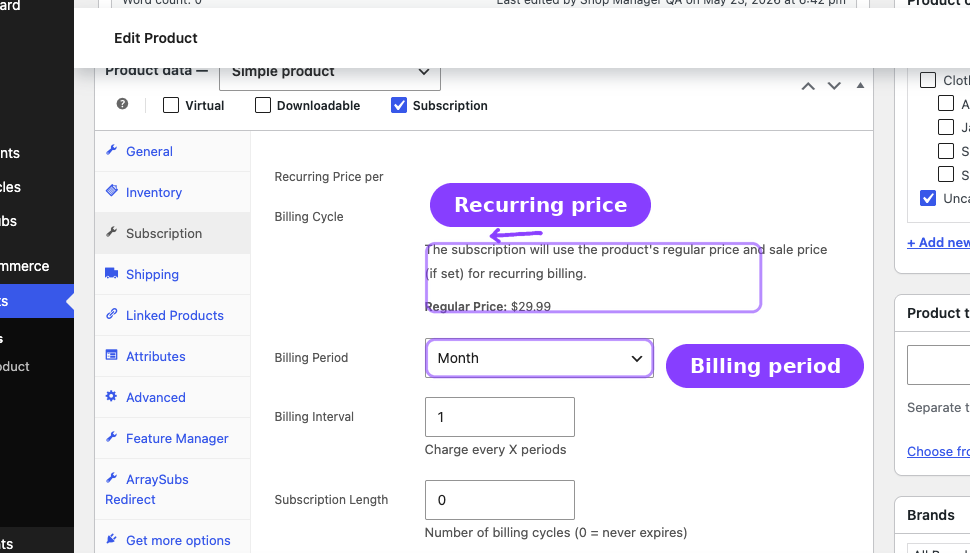
Recurring Price per Billing Cycle
This read-only section displays the product's current regular price and sale price (if applicable), along with any scheduled sale dates. It confirms what customers will be charged each billing cycle.
The recurring price is controlled by the WooCommerce Regular price and Sale price fields in the General tab — not by any field inside the Subscription tab.
Billing Period
The unit of time between each charge.
| Option | Example |
|---|---|
| Day | Charge daily |
| Week | Charge weekly |
| Month | Charge monthly |
| Year | Charge annually |
| Lifetime Deal | One-time purchase, no renewals |
Default: Month
Billing Interval
How many billing periods pass between each charge. Enter a number from 1 to 12.
| Period | Interval | Result |
|---|---|---|
| Month | 1 | Charge every month |
| Month | 3 | Charge every 3 months (quarterly) |
| Week | 2 | Charge every 2 weeks (biweekly) |
| Year | 1 | Charge once per year |
| Day | 7 | Charge every 7 days |
Default: 1
When the billing period is set to Lifetime Deal, the interval is automatically set to 1 and cannot be changed.
Subscription Length
The total number of billing cycles before the subscription ends automatically. Set to 0 for a subscription that continues indefinitely until manually cancelled.
| Value | Meaning |
|---|---|
| 0 | Never expires — renews until cancelled |
| 1 | Charges once and ends after one cycle |
| 6 | Charges 6 times then expires |
| 12 | Charges 12 times then expires |
Default: 0 (never expires)
Range: 0 – 365
Free Trial
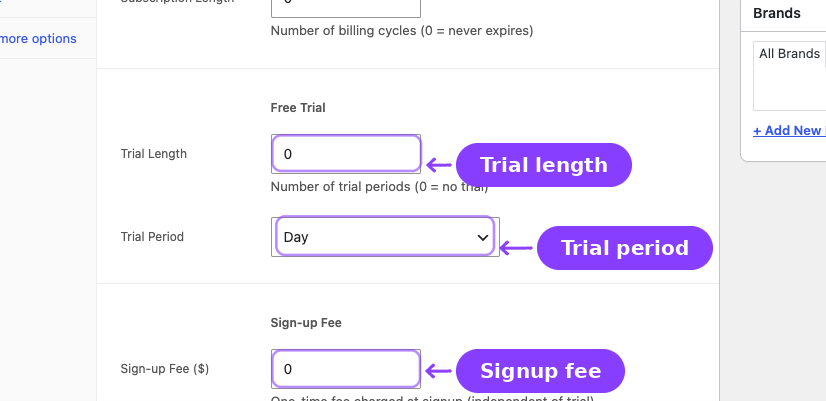
A trial gives customers access before their first payment. During the trial, no recurring charge is collected. When the trial ends, normal billing begins.
| Field | Description | Default |
|---|---|---|
| Trial Length | Number of trial periods. Set to 0 for no trial. | 0 |
| Trial Period | Unit for the trial length: Day, Week, Month, or Year. | Day |
Examples:
| Trial Length | Trial Period | Result |
|---|---|---|
| 7 | Day | 7-day free trial |
| 14 | Day | 14-day free trial |
| 1 | Month | 1-month free trial |
| 0 | (any) | No trial |
The signup fee (if configured) is still charged at checkout during a trial. Only the recurring price is delayed until the trial ends. See the Sign-up Fee section below.
Sign-up Fee
A one-time fee charged at checkout, independent of the trial period. Use this for activation fees, setup costs, or enrollment charges.
| Field | Description | Default |
|---|---|---|
| Sign-up Fee | One-time amount charged on the initial order | 0 |
The signup fee is added to the first order as a separate WooCommerce fee line item labeled Subscription Signup Fee. It does not affect the recurring price and is not charged on renewal orders.
Example: A $29.99/month subscription with a $9.99 signup fee charges $39.98 on the first order ($29.99 + $9.99), then $29.99 on each subsequent renewal.
Different Renewal Price
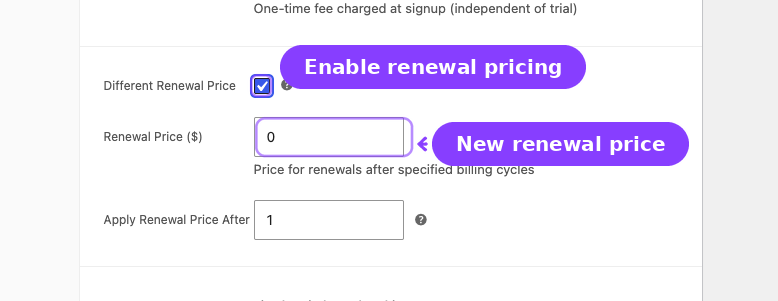
Enable this to charge a different price after a specified number of billing cycles. Useful for introductory pricing, promotional periods, or graduated pricing models.
| Field | Description | Default |
|---|---|---|
| Different Renewal Price | Checkbox to enable this feature | Off |
| Renewal Price | The new recurring amount after the threshold | (empty) |
| Apply Renewal Price After | Number of billing periods before the new price takes effect (minimum: 1) | 1 |
Example: $19.99/month for the first 3 months, then $29.99/month afterward.
- Regular price: $19.99
- Different Renewal Price: enabled
- Renewal Price: $29.99
- Apply Renewal Price After: 3
Customers see this pricing breakdown on the product page, cart, and checkout.
When the different renewal price is enabled, both the Renewal Price (must be greater than 0) and Apply Renewal Price After (must be at least 1) fields are required. Saving with invalid values will show a validation error.
Variable Subscription Products
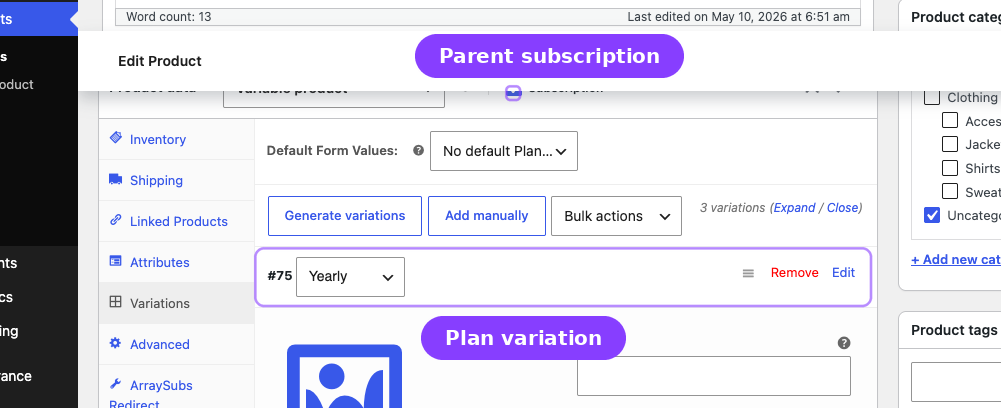
Variable products let you offer multiple plans under a single product page. Each variation gets its own independent subscription configuration — different prices, billing periods, trial lengths, and more.
Step-by-Step Setup
- Go to Products → Add New in WooCommerce.
- Select Variable product as the product type.
- Check the Subscription checkbox in the product data area.
- Go to the Attributes tab and create an attribute (e.g., "Plan" with values "Monthly" and "Annual").
- Check Used for variations and save the attributes.
- Go to the Variations tab and click Generate variations (or add them manually).
- Open each variation and configure:
- Regular price (required)
- All subscription fields (billing period, interval, length, trial, signup fee, different renewal price)
- Click Save changes on the variations, then Update the product.
How Variation Subscription Fields Work
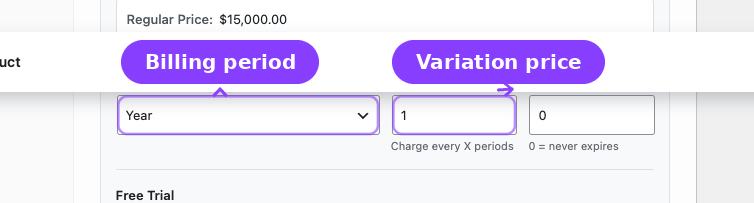
When you check the Subscription checkbox on the parent product, all variations are automatically marked as subscriptions. The per-variation subscription checkbox is disabled and shows "(controlled by product-level setting)" — you cannot make individual variations non-subscription while the parent is a subscription product.
Each variation has its own complete set of subscription fields:
| Field | Per-variation? | Notes |
|---|---|---|
| Regular price | Yes | Standard WooCommerce variation price |
| Sale price | Yes | Standard WooCommerce sale price with schedule |
| Billing Period | Yes | Each variation can have a different period |
| Billing Interval | Yes | Each variation can have a different interval |
| Subscription Length | Yes | Each variation can have a different length |
| Trial Length | Yes | Each variation can have a different trial |
| Trial Period | Yes | Each variation can have a different trial unit |
| Sign-up Fee | Yes | Each variation can have a different fee |
| Different Renewal Price | Yes | Each variation can have its own renewal pricing |
Real-Life Use Case: Monthly vs Annual Plans
A project management tool offers two subscription tiers:
| Variation | Price | Period | Trial | Signup Fee |
|---|---|---|---|---|
| Monthly Plan | $29.99 | Month (every 1) | 14-day free trial | $0 |
| Annual Plan | $249.99 | Year (every 1) | 30-day free trial | $0 |
Both variations live under one product. On the product page, customers select their plan from the dropdown, and the subscription details update dynamically.
Validation Rules
ArraySubs validates subscription fields when you save a product:
| Rule | Error shown if violated |
|---|---|
| Regular price must be greater than 0 | "Subscription products must have a valid regular price greater than zero." |
| Billing interval must be 1–12 | "Billing interval must be between 1 and 12." |
| If different renewal price is enabled, renewal price must be > 0 | "If different renewal price is enabled, you must set a valid renewal price." |
| If different renewal price is enabled, apply-after must be ≥ 1 | "Renewal price after period must be at least 1." |
Lifetime subscriptions have their billing interval automatically set to 1.
Settings Reference
All billing fields below appear in the Subscription tab of the WooCommerce product editor when the Subscription checkbox is enabled.
| Setting | Type | Default | What It Controls |
|---|---|---|---|
| Billing Period | Select | Month | Time unit between charges (Day, Week, Month, Year, Lifetime Deal) |
| Billing Interval | Number (1–12) | 1 | Number of billing periods between each charge |
| Subscription Length | Number (0–365) | 0 | Total billing cycles before auto-expiry (0 = never expires) |
| Trial Length | Number | 0 | Number of trial periods before billing begins (0 = no trial) |
| Trial Period | Select | Day | Time unit for the trial length (Day, Week, Month, Year) |
| Sign-up Fee | Currency | 0 | One-time fee on the initial order |
| Different Renewal Price | Checkbox | Off | Enable a different renewal price after N cycles |
| Renewal Price | Currency | (empty) | Recurring amount after the threshold |
| Apply Renewal Price After | Number (≥ 1) | 1 | Number of billing periods before the renewal price takes effect |
Edge Cases and Important Notes
- Price lock-in: Subscription prices are locked at the time of purchase. Changing the product price does not retroactively update existing subscriptions.
- Sale dates: If a WooCommerce sale schedule is active when the customer subscribes, the sale price becomes the locked-in recurring price. When the sale ends on the product, existing subscriptions continue at the sale price.
- Lifetime Deal: A Lifetime subscription collects one payment and never renews. The billing interval is forced to 1 and cannot be changed. Subscription length is ignored.
- Variable product sync: Toggling the subscription checkbox on a variable product affects all variations at once. You cannot have a mix of subscription and non-subscription variations under the same product.
- Signup fee in cart: The signup fee appears as a separate fee line in the cart and checkout totals, not as part of the product price. It is labeled "Subscription Signup Fee."
- Signup fee on renewals: The signup fee is only charged on the initial order. It is never applied to renewal orders.
Troubleshooting
| Problem | Likely Cause | What to Do |
|---|---|---|
| No Subscription tab appears after checking the checkbox | Cache or JavaScript conflict | Refresh the page, clear browser cache. Check for JavaScript errors in the browser console. |
| Validation error about regular price | Price field is empty or set to 0 | Enter a price greater than 0 in the General tab's Regular price field |
| Variable product variations don't show subscription fields | Subscription checkbox not checked on the parent product | Check the Subscription checkbox on the parent product data area, then save |
| Signup fee not appearing in cart | Product does not have a signup fee value | Open the Subscription tab and enter a value in the Sign-up Fee field |
| Different renewal price fields are hidden | The "Different Renewal Price" checkbox is not enabled | Check the "Different Renewal Price" checkbox to reveal the price and threshold fields |
Related Guides
- First-Time Setup — Quick walkthrough for creating your first subscription product.
- Plan Switching and Product Relationships — Configure upgrade, downgrade, and crossgrade paths.
- Product Experience and Display — How pricing appears on the product page, cart, and checkout.
- Coupon Integration — Apply WooCommerce coupons to subscription renewals.
FAQ
Can I change a regular product into a subscription product?
Yes. Open the product, check the Subscription checkbox, fill in the billing fields, and save. The product will appear as a subscription in the catalog. This does not affect past orders — only new purchases will create subscriptions.
Can I have both subscription and non-subscription products in my store?
Yes. Only products with the Subscription checkbox enabled are treated as subscriptions. Regular WooCommerce products continue to work normally. Customers can even mix both in the same cart (if the "Allow mixed cart" setting is enabled in General Settings).
What happens if I set the billing period to Lifetime Deal?
The product becomes a one-time purchase with no recurring billing. The customer pays once and gets permanent access. The billing interval is automatically set to 1 and cannot be changed.
Does the trial length count toward the subscription length?
No. The trial period is separate from the billing cycle count. If you set a 7-day trial and a 12-cycle subscription length, the customer gets 7 days free, then 12 paid billing cycles.
Can each variation of a variable product have a different trial?
Yes. Every variation has its own independent trial length and trial period fields. One variation can have a 7-day trial while another has a 30-day trial.
Is the signup fee taxed?
The signup fee is added as a WooCommerce fee. Whether it is taxed depends on your WooCommerce tax settings for fees.