
My Account Editor
Rearrange, rename, show or hide WooCommerce My Account menu items, and add custom endpoint pages linked to any WordPress page or post — all without writing code.
Availability: Free — Pro features like My Features and Store Credit automatically add their own menu items that can also be managed here
Page Navigation
- Current guide: My Account Editor
- Where to open it: WordPress Admin -> ArraySubs -> Profile Builder
- Direct route:
/wp-admin/admin.php?page=arraysubs-mainadmin#/profile-builder/my-account - Section overview: Open overview
- Previous guide: login-limit
- Next guide: profile-form
- Troubleshooting: Audits, Logs, and Troubleshooting
Overview
The My Account Editor gives you full control over the WooCommerce My Account sidebar navigation. By default, WooCommerce shows a fixed set of menu items (Dashboard, Orders, Downloads, Addresses, Account Details, Logout). ArraySubs and its Pro extensions add more items (Subscriptions, My Features, Store Credit). The editor lets you:
- Reorder any menu item using drag-and-drop.
- Rename any menu item's label.
- Hide menu items you don't need.
- Add custom endpoint pages linked to existing WordPress pages or custom post types.
The editor runs at a late priority (99) in the WooCommerce menu filter, so it respects items added by other plugins and always applies last.
This editor is the source of truth for the Subscriptions tab label and menu order. General Settings no longer includes separate Menu Title or Menu Position fields for the customer portal.
When to Use This
- You want to change the order of My Account menu items (for example, put Subscriptions first).
- You want to rename "Orders" to "Purchase History" or "Downloads" to "My Files."
- You want to hide menu items like "Downloads" if your store doesn't use downloadable products.
- You want to add a custom page (FAQ, Help Center, Terms of Service, Resources) inside the My Account area without writing code.
- You want to control whether linked custom pages can be visited directly or only through My Account.
Prerequisites
- ArraySubs installed and active.
- WooCommerce My Account page set up.
- Admin or Shop Manager access.
- For Pro menu items (My Features, Store Credit): ArraySubs Pro installed and active with those features enabled.
How It Works
WooCommerce lets plugins add menu items to the My Account sidebar via the woocommerce_account_menu_items filter. Normally, you'd need code to change the order or labels. The My Account Editor stores your custom configuration and applies it automatically.
When you save a configuration:
- The saved order, labels, and visibility settings are stored in the
arraysubs_myaccount_menu_configoption. - On every My Account page load, the editor reorders and filters the menu according to your saved config.
- Any custom endpoint pages are registered as WordPress rewrite endpoints, so they get clean URLs like
/my-account/resources/. - Rewrite rules are automatically flushed after saving changes.
Menu items added by other plugins that are not in your saved config are automatically appended to the end of the menu, so new plugins won't lose their menu entries.
Steps / Configuration
Opening the My Account Editor
- Go to ArraySubs → Profile Builder → My Account.
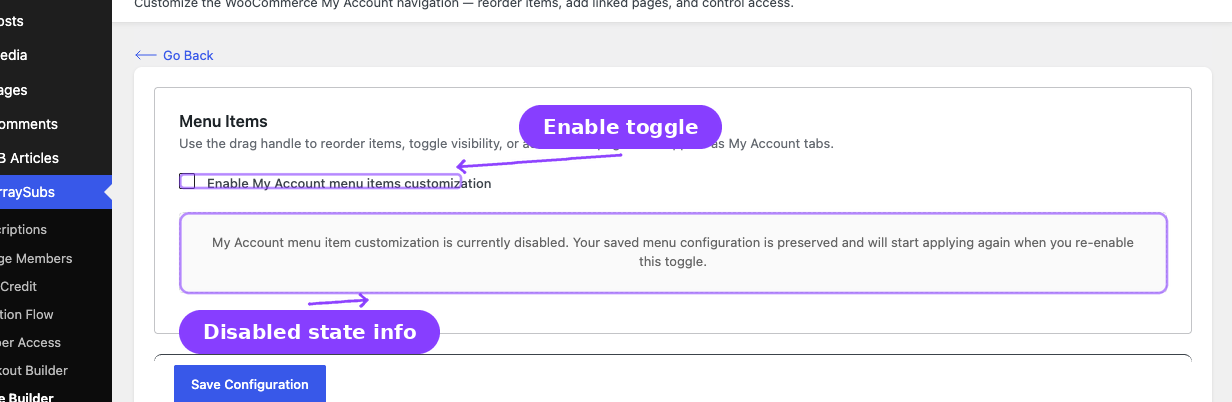
- The page shows a toggle at the top and a list of all current menu items below.
Enabling or Disabling Menu Customization
Toggle Enable My Account menu items customization at the top of the page.
- On — Your saved configuration controls the menu order, labels, and visibility.
- Off — WooCommerce uses its default menu order and labels. Your saved configuration is preserved but not applied.
Turning this off does not delete your saved configuration. You can re-enable it at any time and your previous setup will be restored.
Managing Default Menu Items
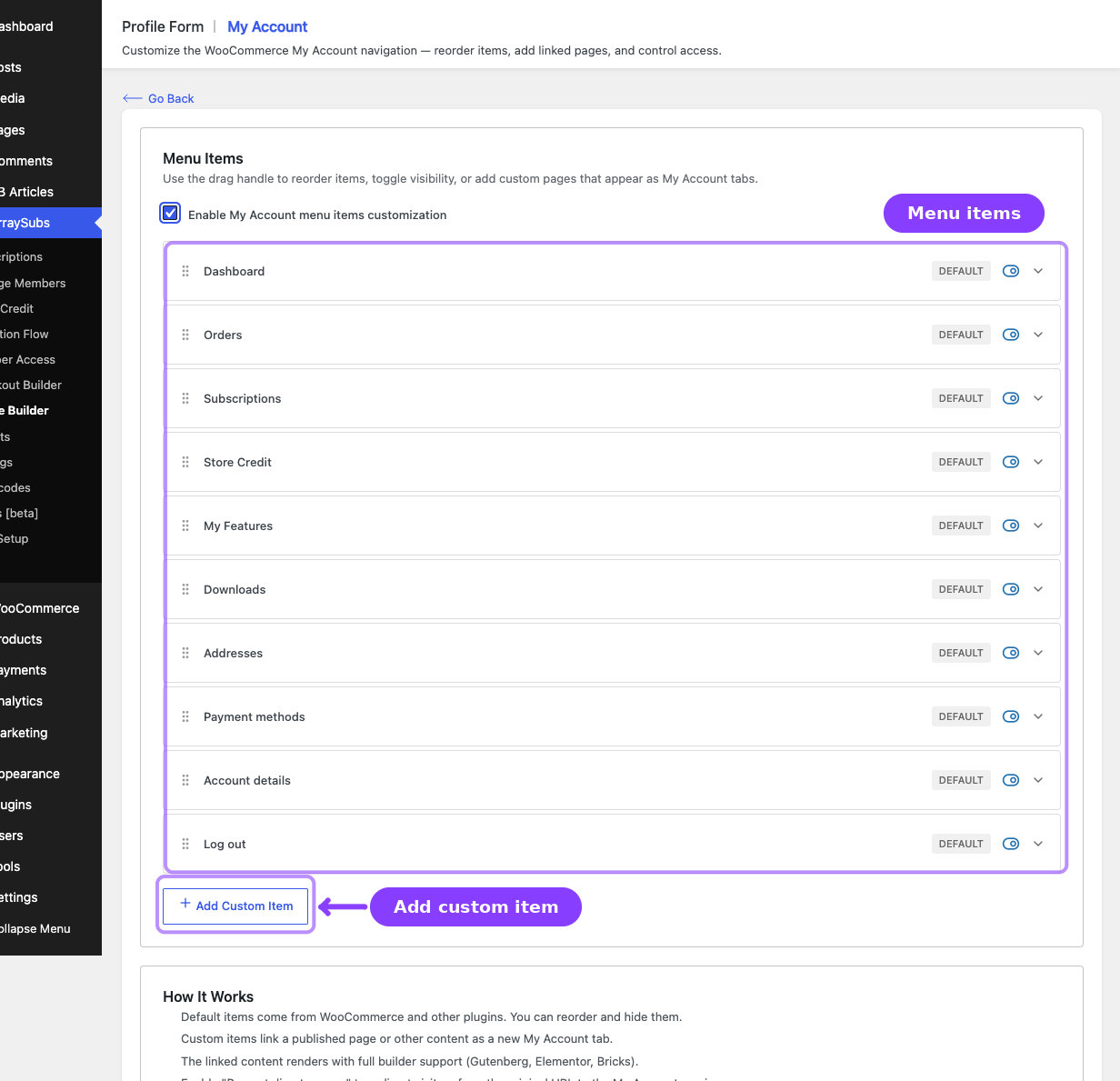
Default items are the standard WooCommerce and ArraySubs menu entries. They cannot be deleted, only reordered, renamed, or hidden.
Reordering Items
Drag any item by its grip handle (the vertical dots icon on the left) and drop it in the desired position. The order from top to bottom matches the order in the My Account sidebar.
Alternatively, use the Move Up and Move Down arrow buttons on each item.
Renaming Items
- Click the expand arrow on the right side of a default item.
- Enter a new label in the Custom label field.
- Leave the field empty to use the original label.
- Click Save Configuration.
The original label is shown as a reference so you can always see what the default name was.
Hiding Items
Click the toggle button on any item to disable it. Disabled items:
- Appear dimmed in the editor.
- Do not appear in the customer-facing My Account menu.
- Keep their WooCommerce functionality intact — they are just hidden from the navigation.
Hiding a menu item does not disable the underlying endpoint. A customer who knows the URL (for example, /my-account/orders/) can still access it directly. This feature controls menu visibility only, not access control.
Adding Custom Endpoint Pages
Custom endpoint pages let you place any WordPress page or post inside the My Account area. The content is rendered inside the My Account layout, so it inherits your theme's account page styling.
Creating a Custom Endpoint
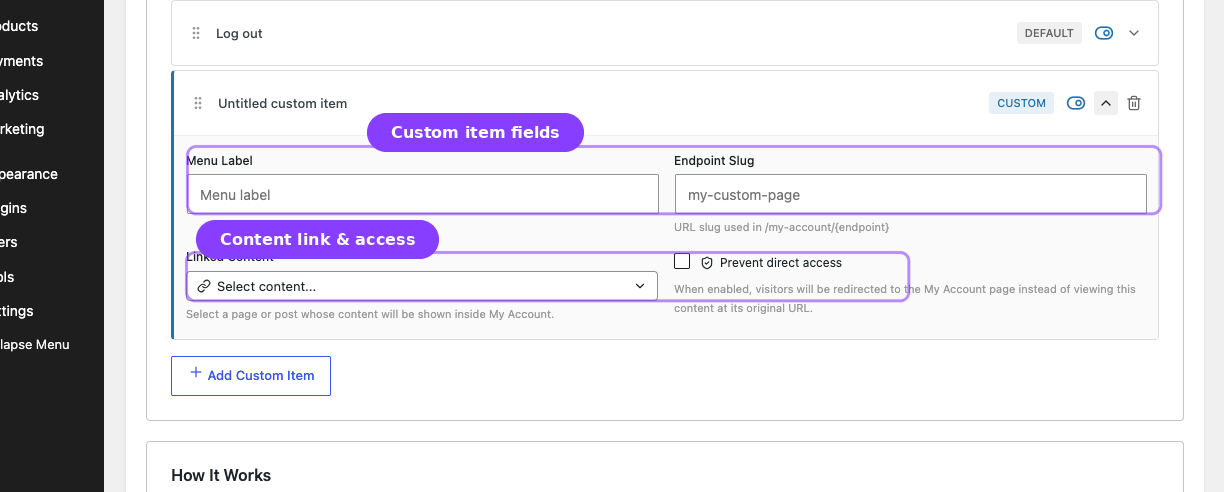
- Click Add Custom Item at the bottom of the item list.
- A new item appears at the end of the list. Click the expand arrow to open its settings.
- Fill in the required fields:
| Field | Description | Required |
|---|---|---|
| Menu Label | The text shown in the My Account sidebar | Yes |
| Endpoint Slug | The URL segment appended to /my-account/. Auto-generated from the label but can be edited manually. Must be lowercase with dashes, no spaces. |
Yes |
| Linked Content | The WordPress page or post whose content is displayed. Click the search dropdown, type to search, and select a result. | Yes |
| Prevent direct access | When checked, direct visits to the linked page redirect to the My Account endpoint version instead. | No |
- Click Save Configuration.
Linked Content Search
The content dropdown searches all public post types on your site (pages, posts, custom post types) except attachments. It loads results as you type with a short delay.
- Results show the post title and post type label (Page, Post, etc.).
- The search is limited to the first 100 results (5 pages of 20). Refine your search term if you don't see the page you need.
- Only published content can be linked.
Endpoint Slug Rules
- Auto-generated from the menu label: lowercase, spaces become dashes, special characters removed.
- Can be manually edited after creation.
- Must not conflict with existing WooCommerce endpoints (orders, downloads, edit-address, edit-account, customer-logout, etc.). The system validates this on save and rejects duplicates.
- Must be unique across all custom endpoints.
How Custom Content Is Rendered
When a customer visits a custom endpoint (for example, /my-account/resources/), the system uses a WordPress query to fetch the linked page and renders its content inside the My Account wrapper. This means:
- Page builder content works. Gutenberg blocks, Elementor widgets, Bricks Builder elements, and other builder plugins render correctly because the system uses the native WordPress post loop.
- Theme styling applies. The content inherits My Account page styles from your theme.
- No full-page override. The My Account sidebar, header, and footer remain in place.
Prevent Direct Access
When Prevent direct access is checked for a custom item:
- Visits to the linked page's original URL (for example,
/resources/) are automatically redirected to the My Account endpoint version (/my-account/resources/). - This is a 302 redirect, so search engines won't index the original page URL.
- The redirect only applies when the custom item is enabled. If you disable the item, direct access is restored.
This is useful when you want content to be exclusively inside the My Account area — for example, a members-only FAQ or resource library that should only be visible within the logged-in account context.
Pro Feature Menu Items
When ArraySubs Pro is active and certain features are enabled, additional menu items appear automatically:
My Features Pro
- Default label: My Features
- Endpoint:
features - Appears when: Feature Manager is enabled (
feature_manager.enabled = true) and My Account display is on (feature_manager.show_in_my_account = true). - Shows: A list of the customer's subscription entitlements — feature names, types, values, and usage (if usage tracking is enabled).
- Customizable: Label can be renamed and position can be changed via the My Account Editor.
Store Credit Pro
- Default label: Store Credit
- Endpoint:
store-credit - Appears when: Store Credit is enabled (
store_credit.enabled = true). - Shows: The customer's current credit balance, transaction history, and any credits expiring in the next 30 days.
- Customizable: Label can be renamed and position can be changed via the My Account Editor.
Subscriptions (Core)
- Default label: Subscriptions
- Endpoint:
subscriptions - Always present: Added by the core Customer Portal feature.
- Shows: The customer's subscription list with status, next payment date, and billing cycle.
- Customizable: Label can be renamed and position can be changed here in the My Account Editor.
If you deactivate the Pro plugin, the My Features and Store Credit menu items disappear from the customer-facing menu automatically. They also stop appearing in the My Account Editor list. Your saved configuration is preserved — if you reactivate Pro, the items return to their configured positions.
Real-Life Use Cases
Use Case 1: Subscriptions-First Navigation
A SaaS membership site wants Subscriptions to be the first item customers see. Open the My Account Editor, drag Subscriptions to the top of the list, and hide Dashboard since it shows minimal useful content. Save. Customers now land on the subscriptions page by default.
Use Case 2: Adding a Help Center Inside My Account
A store has a "Help Center" WordPress page with FAQ content built in Gutenberg. Add a custom endpoint with label "Help Center," endpoint slug help-center, and link it to the Help Center page. Check Prevent direct access so the page is only available inside My Account. Customers now have a Help Center tab in their account sidebar.
Use Case 3: Renaming Menu Items for Clarity
An education platform calls their products "Courses" and their orders "Enrollments." Rename the Orders item to "My Enrollments" and the Subscriptions item to "My Courses." Customers see language that matches the brand.
Use Case 4: Hiding Unused Endpoints
A digital-only store has no physical products and no downloadable files. Hide both Downloads and Addresses from the My Account menu to keep the navigation clean. The endpoints still work if accessed directly, but customers won't see unnecessary links.
Edge Cases and Important Notes
- Rewrite rules flush. After saving the My Account Editor, rewrite rules are automatically flushed on the next page load. In rare cases (caching, object cache issues), you may need to visit Settings → Permalinks and click Save Changes to force a flush.
- New plugin items auto-append. If you install a new plugin that adds a My Account menu item, it will appear at the bottom of your saved list. Open the editor to reposition it.
- Custom endpoint slugs are permanent-ish. Changing an endpoint slug updates the rewrite rule, but any bookmarked URLs using the old slug will return a 404. Customers may need to update their bookmarks.
- Content must be published. Only published pages and posts can be linked as custom endpoint content. Draft or private pages cannot be selected.
- Priority 99 means the editor always wins. If another plugin adds My Account items at a lower priority (e.g., 10 or 15), the My Account Editor's ordering takes precedence.
- No access control on endpoints. The My Account page itself requires a logged-in user (standard WooCommerce behavior), but the My Account Editor does not add additional permission checks beyond that. All logged-in users see all enabled menu items.
Troubleshooting
| Problem | Likely Cause | What to Do |
|---|---|---|
| Menu order not changing on the frontend | Customization is disabled or cache is showing old content | Check that the Enable My Account menu items customization toggle is on. Clear any page or object cache. |
| Custom endpoint shows a 404 | Rewrite rules not flushed | Go to Settings → Permalinks and click Save Changes to flush rewrite rules |
| "Endpoint conflicts with reserved name" error on save | The custom endpoint slug matches an existing WooCommerce endpoint | Choose a different endpoint slug that does not overlap with built-in endpoints like orders, downloads, or edit-account |
| Custom page content appears unstyled or broken | Page builder content not rendering inside My Account | Ensure the linked page uses standard WordPress content. Most page builders work, but some shortcodes or widgets may behave differently inside the My Account wrapper |
| Pro menu items (My Features, Store Credit) not appearing | Pro plugin deactivated or feature disabled | Activate ArraySubs Pro and enable the feature in its settings |
| Direct access redirect not working | The Prevent direct access checkbox is off, or the custom item is disabled | Open the custom item in the editor and check that both the item is enabled and Prevent direct access is checked |
| Menu items appear in wrong order after plugin update | Another plugin changed the menu at a higher priority (above 99) | This is rare. Check with the other plugin's documentation. You can re-save the My Account Editor to re-apply your order. |
Related Guides
- Profile Form — Configure custom profile fields and avatar upload
- Shortcodes — Shortcodes for login links, visibility gating, and content restriction
- Customer Portal — Portal Pages — The Subscriptions and View Subscription pages in My Account
- Store Credit — Store Credit customer portal page Pro
- Settings — General Settings — Customer self-service actions, cancellation timing, and portal behavior
FAQ
Does hiding a menu item prevent customers from accessing that endpoint directly?
No. Hiding an item removes it from the My Account sidebar menu, but the endpoint URL still works. For example, hiding "Orders" means /my-account/orders/ still loads if a customer types the URL directly. This feature controls visibility, not access.
Can I add more than one custom endpoint page?
Yes. You can add multiple custom endpoints, each linked to a different page or post. Each one gets its own menu item and URL slug.
What happens to custom endpoints if I deactivate ArraySubs?
Custom endpoints stop working because the rewrite rules and endpoint registration are handled by the plugin. WooCommerce reverts to its default menu. Re-activating ArraySubs restores your configuration.
Can I link the same page to multiple custom endpoints?
Technically yes, but it's not recommended. Each endpoint creates a separate URL path, so you'd have the same content available at multiple My Account URLs. This can confuse customers and cause SEO issues.
Does the drag-and-drop editor work on mobile?
The editor uses pointer-based drag-and-drop. On touch devices, the Move Up and Move Down buttons are more reliable for reordering.
How do I reset the menu to WooCommerce defaults?
Turn off the Enable My Account menu items customization toggle and save. WooCommerce will use its default menu order and labels. Your saved configuration is preserved if you re-enable it later.
Will this work with third-party My Account plugins?
The My Account Editor applies WooCommerce's standard woocommerce_account_menu_items filter. If a third-party plugin adds items via the same filter at any priority below 99, those items will be included and can be reordered. Plugins that bypass the WooCommerce filter or use a completely custom My Account template may not be affected by the editor.