
Scheduled-Job Logs
ProExecution history for every automated subscription job — renewals, status transitions, email sends, and maintenance tasks.
Availability: Pro
Page Navigation
- Current guide: Scheduled-Job Logs
- Where to open it: WordPress Admin -> ArraySubs -> Audits [beta]
- Direct route:
/wp-admin/admin.php?page=arraysubs-mainadmin#/audits/scheduled-job-logs - Section overview: Open overview
- Previous guide: renewal-failures
- Next guide: README
- Troubleshooting: Audits, Logs, and Troubleshooting
Overview
ArraySubs uses Action Scheduler to run background jobs that process renewals, convert trials, send email reminders, transition subscription statuses, and perform maintenance. The Scheduled-Job Logs screen shows you the outcome of every job execution — whether it succeeded or failed, which subscription it affected, and what error occurred if something went wrong.
Use this screen when you need to:
- Confirm that a renewal was actually processed
- Find out why a subscription was not cancelled on schedule
- Diagnose why a reminder email was not sent
- Verify that maintenance jobs are running on time
- Investigate failed jobs and their error messages
How to Access
Navigate to ArraySubs → Audits [beta] → Scheduled-Job Logs.
The page requires the Pro plugin to be active. Without Pro, a placeholder message appears.
How It Works
The Pro plugin hooks into Action Scheduler's execution lifecycle. Every time a scheduled job completes — whether successfully or with an error — a log entry is automatically created. This happens for every ArraySubs scheduled hook, with no way to disable it. Job logging is always on.
Each log entry captures:
| Data | Description |
|---|---|
| Timestamp | When the job executed, in your site timezone |
| Status | Success or Failed |
| Hook name | The Action Scheduler hook that ran (displayed as a human-readable label) |
| Group | The scheduling group (renewals, billing, emails, status, maintenance, gateway) |
| Arguments | The arguments passed to the job (usually a subscription ID) |
| Error message | The exception message if the job failed |
| Subscription link | A direct link to the related subscription, if the job was subscription-specific |
Reading the Job Log Table
The table displays entries in reverse chronological order (newest first) with four columns:
| Column | What It Shows |
|---|---|
| Date | Timestamp converted to your site timezone |
| Status | A green Success badge (with checkmark) or red Failed badge (with X icon). Failed rows are highlighted with a red background |
| Job | The human-readable job label (e.g., "Process Renewal") and a linked subscription number if the job relates to a specific subscription |
| Details | A two-line summary of what happened — the first line shows the status indicator and label, the second line provides context |
Job Labels
Raw Action Scheduler hook names are converted to readable labels:
| Hook | Display Label |
|---|---|
arraysubs_process_renewal |
Process Renewal |
arraysubs_process_trial_conversion |
Trial Conversion |
arraysubs_process_trial_conversions |
Batch Trial Conversions |
arraysubs_generate_upcoming_renewals |
Generate Upcoming Renewals |
arraysubs_check_overdue_renewals |
Check Overdue Renewals |
arraysubs_cancel_subscription |
Cancel Subscription |
arraysubs_hold_subscription |
Hold Subscription |
arraysubs_expire_subscription |
Expire Subscription |
arraysubs_resume_subscription |
Resume Subscription |
arraysubs_process_skipped_cycle |
Process Skipped Cycle |
arraysubs_send_renewal_reminder |
Renewal Reminder Email |
arraysubs_send_payment_failed |
Payment Failed Email |
arraysubs_send_expiring_soon |
Expiring Soon Email |
arraysubs_send_credit_expiring |
Credit Expiring Email |
arraysubs_cleanup_old_data |
Cleanup Old Data |
arraysubs_expire_store_credits |
Expire Store Credits |
arraysubs_cleanup_webhook_events |
Cleanup Webhook Events |
arraysubs_gateway_reconcile |
Gateway Reconcile |
arraysubs_backfill_retention_logs |
Backfill Retention Logs |
Subscription Links
When a job relates to a specific subscription (the first argument is a valid subscription ID), the Job column shows a clickable #123 link that opens the subscription detail page. Global batch jobs (like "Check Overdue Renewals") do not have a subscription link.
Filtering Job Logs
The filter bar provides date range controls:
| Control | Description |
|---|---|
| From | Start date (inclusive) |
| To | End date (inclusive) |
| Reset | Clears both date fields |
| Refresh | Reloads the current page with active filters |
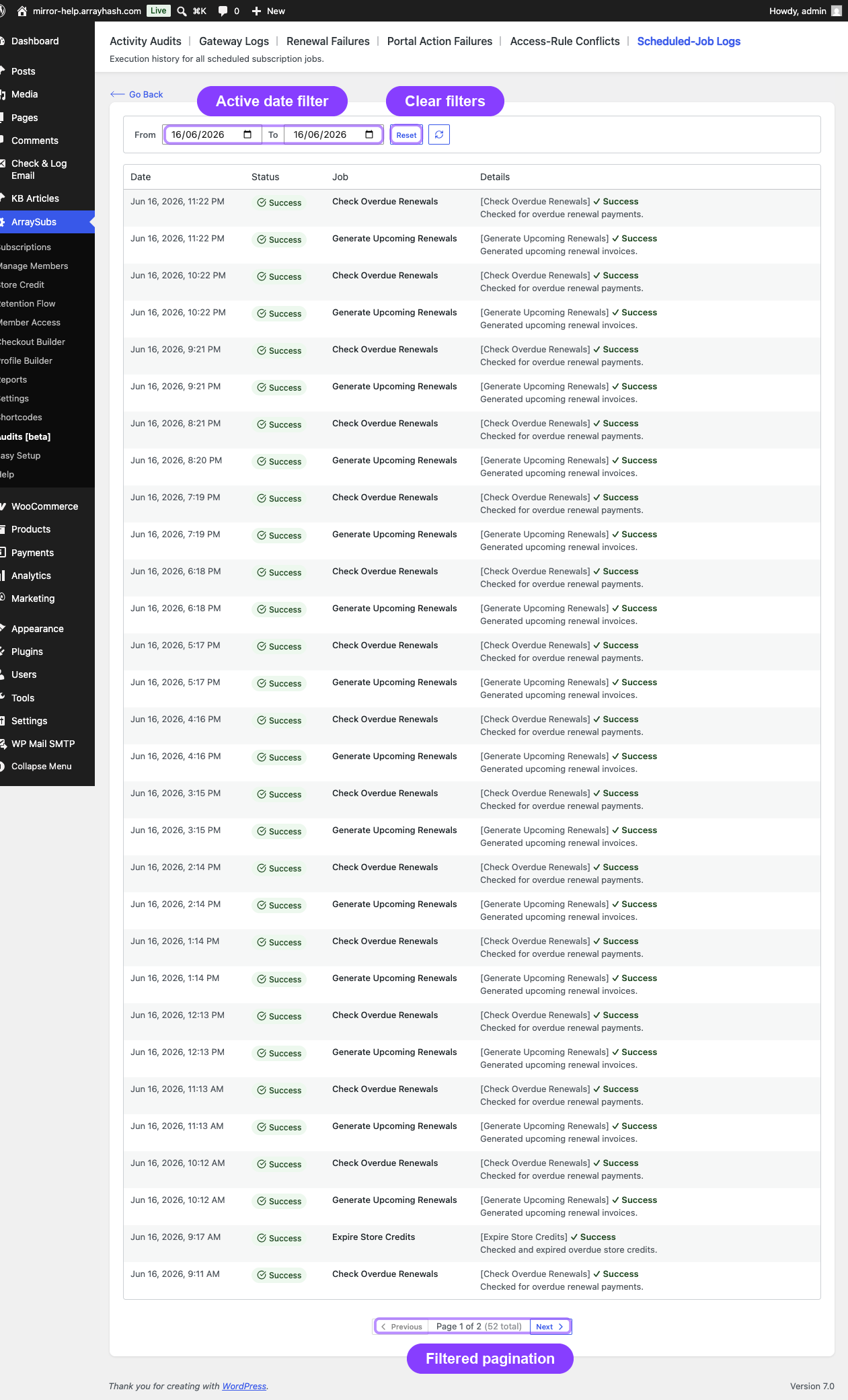
Pagination
The table displays 30 entries per page. The bottom shows Page X of Y (Z total) with Previous and Next navigation buttons.
Job Categories Explained
Jobs fall into six groups based on what they do:
Renewal Processing
| Job | What It Does |
|---|---|
| Process Renewal | Creates a renewal invoice and attempts payment for a single subscription |
| Generate Upcoming Renewals | Batch job that creates renewal invoices ahead of due dates |
| Check Overdue Renewals | Batch job that finds subscriptions past their grace period and transitions them to on-hold or cancelled |
Subscription Lifecycle
| Job | What It Does |
|---|---|
| Trial Conversion | Converts a single trial subscription to paid status |
| Batch Trial Conversions | Batch job that checks all trial subscriptions for conversion |
| Cancel Subscription | Cancels a subscription at a scheduled time (end-of-period cancellation) |
| Hold Subscription | Places a subscription on hold after the active grace period expires |
| Expire Subscription | Expires a subscription that has reached its defined end date or subscription length |
| Resume Subscription | Resumes a paused subscription when the pause period ends |
| Process Skipped Cycle | Processes a skipped renewal cycle and advances the next payment date |
Email and Notification
| Job | What It Does |
|---|---|
| Renewal Reminder Email | Sends a reminder to the customer before a renewal is due |
| Payment Failed Email | Sends a notification after a renewal payment fails |
| Expiring Soon Email | Sends a warning when a subscription is approaching its end date |
| Credit Expiring Email | Sends a notification when store credit is about to expire |
Maintenance
| Job | What It Does |
|---|---|
| Cleanup Old Data | Removes stale transients, expired locks, and orphaned data |
| Expire Store Credits | Batch job that expires store credit balances past their expiration date |
| Cleanup Webhook Events | Removes webhook event records older than 30 days |
Gateway
| Job | What It Does |
|---|---|
| Gateway Reconcile | Syncs subscription state with the payment gateway's records |
Retention
| Job | What It Does |
|---|---|
| Backfill Retention Logs | One-time migration job that populates retention analytics from historical data |
Real-Life Use Cases
Use Case 1: Verifying a Renewal Was Processed
A customer asks why they were charged. Open the Scheduled-Job Logs, set the date range to the billing date, and look for a Process Renewal entry with the customer's subscription number. The Details column shows whether the renewal succeeded and the invoice was created.
Use Case 2: Diagnosing a Missing Cancellation
A subscription should have been cancelled at the end of the period but is still active. Search the logs for Cancel Subscription entries around the expected cancellation date. If the job failed, the error message tells you why. If no entry exists, the cancellation job was never scheduled — check the subscription's _waiting_cancellation flag.
Use Case 3: Confirming Email Delivery
A customer says they did not receive a renewal reminder. Filter the logs around the expected send date and look for Renewal Reminder Email entries. A failed status with an error message points to the email system issue.
Edge Cases and Important Notes
- Job logging cannot be disabled. Every ArraySubs scheduled action is logged automatically.
- Logs persist indefinitely. There is no automatic cleanup for job log entries.
- Failed jobs are visually distinct. Rows with failed status have a red background highlight, making them easy to spot when scrolling.
- Duplicate prevention. The underlying Action Scheduler system prevents the same job from running concurrently using execution locks. If you see a job logged as failed with a lock-related message, it means another instance was already running.
- Batch jobs vs. single jobs. Some hooks run once per subscription (Process Renewal, Cancel Subscription) while others run once for all subscriptions (Check Overdue Renewals, Batch Trial Conversions). Batch jobs will not show a subscription link.
Troubleshooting
| Problem | Likely Cause | What to Do |
|---|---|---|
| No job logs appear | Pro plugin not active, or no scheduled jobs have run yet | Verify Pro is active; wait for the next scheduled job to execute |
| A job shows as "Failed" | The job encountered an error during execution | Read the error message in the Details column; common causes include missing subscriptions, gateway errors, or invalid payment data |
| Expected job is missing from the log | The job was not scheduled, or the date filter is too narrow | Widen the date range; check that the subscription has the correct next payment date and that Action Scheduler is running |
| Many failed jobs in a row | A systemic issue like a down gateway, database error, or plugin conflict | Check the error messages for a pattern; verify gateway connectivity; check server error logs |
Related Guides
- Activity Audits — full activity log for all subscription actions
- Gateway Health Dashboard — gateway connection and webhook status
- Renewal Failures and Billing Issues — diagnosing why renewals fail
FAQ
Can I manually run a failed job again?
The Scheduled-Job Logs screen is read-only. To retry a failed job, use the Action Scheduler admin screen provided by WooCommerce at WooCommerce → Status → Scheduled Actions. If no relevant action is queued, review the subscription's billing configuration and scheduler health instead of trying to edit renewal dates manually.
Do job logs include jobs from other plugins?
No. Only hooks prefixed with arraysubs_ are logged. Jobs from WooCommerce, other plugins, or custom code are not included.
How do I know if Action Scheduler is working?
If you see regular entries in the Scheduled-Job Logs, Action Scheduler is running correctly. If the log is empty and subscriptions have been active for a while, check WooCommerce → Status → Scheduled Actions to verify the scheduler queue is being processed.
What does a lock-related failure mean?
ArraySubs uses execution locks to prevent the same job from running twice simultaneously. If a job shows a lock failure, it means another instance of the same job was already in progress. This is a safety mechanism, not an error — the job will be retried on its next scheduled run.