
Payment and Shipping Actions
How customers manage payment methods, toggle automatic billing, and update shipping addresses from the subscription detail page.
Availability: Free + Pro
Page Navigation
- Current guide: Payment and Shipping Actions
- Where to open it: Storefront -> My Account -> Subscriptions
- Section overview: Open overview
- Previous guide: subscription-checkout
- Next guide: portal-pages
- Troubleshooting: Audits, Logs, and Troubleshooting
Overview
The subscription detail page includes payment and shipping controls that help customers keep their billing and delivery information up to date. The free plugin provides a link to manage payment methods and a shipping address update form. The Pro plugin adds gateway-specific card details, an auto-renew toggle, and enhanced payment method update flows.
When to Use This
Refer to this guide when:
- You want to understand what payment and shipping options customers see in their portal
- A customer asks how to update their credit card or turn off automatic payments
- You need to configure shipping address update behavior for your subscription products
- You are troubleshooting payment method or shipping update issues
Prerequisites
- ArraySubs installed and active
- The subscription must have an associated payment method or shipping address
- For Pro features: ArraySubs Pro installed and active with an automatic payment gateway configured
Manage Payment Methods
Every customer with a subscription can access their WooCommerce payment methods from the subscription detail page.
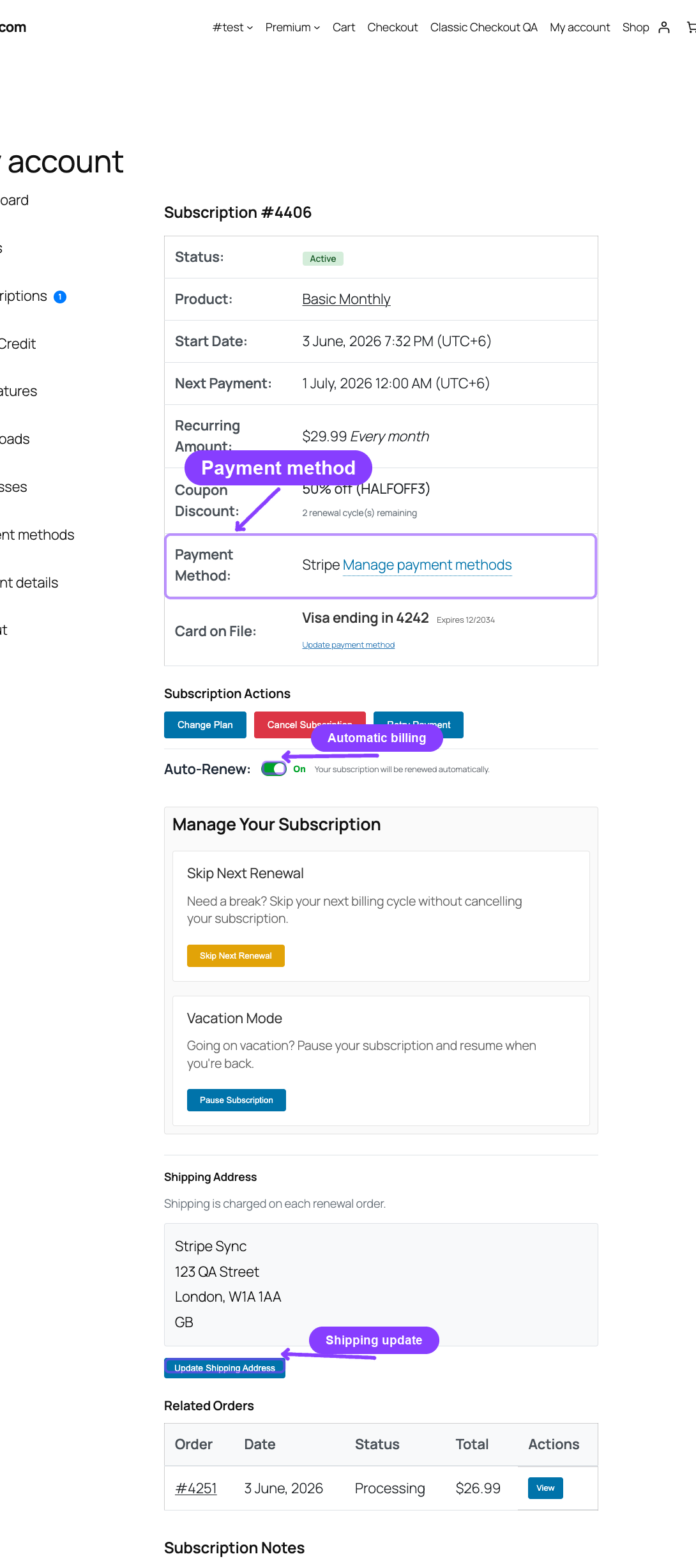
What the Customer Sees
In the subscription overview table, the Payment Method row shows:
- The payment method title (for example, "Direct bank transfer" or "Credit Card")
- A link labeled Manage payment methods that navigates to My Account → Payment methods
This link goes to the standard WooCommerce payment methods page, where the customer can add, remove, or set a default payment method.
When It Appears
The payment method row appears when:
- A payment method is associated with the subscription, or
- The subscription is in Active, On-Hold, or Trial status
If no payment method is set and the subscription is in a non-active status (such as Cancelled), the row shows "Not set" in italics.
Card on File Details Pro
With the Pro plugin active and an automatic payment gateway (such as Stripe, PayPal, or Paddle) configured, the subscription detail page displays additional card-on-file information directly below the payment method row.
What the Customer Sees
The payment method details section shows:
- Card brand and last 4 digits — for example, "Visa ending in 4242"
- Expiry date — the card's expiration month and year
- Expired badge — a visible indicator if the card has expired
- Gateway name — the payment gateway processing this subscription
- An Update payment method link (if the gateway supports payment method updates)
Update Payment Method Flow
When the customer clicks Update payment method, the behavior depends on the specific payment gateway:
- Stripe: Redirects the customer to a Stripe-hosted session where they can enter a new card. After completion, the customer is redirected back to the subscription detail page.
- PayPal: Redirects the customer to PayPal to update their billing agreement.
- Paddle: Redirects the customer to the Paddle update payment portal.
After a successful update, the subscription's stored payment method is replaced with the new one. The card details shown on the subscription page update accordingly.
The Update payment method link only appears for gateways that support payment method updates. If the gateway does not support this capability, only the current card details are shown.
Auto-Renew Toggle Pro
The auto-renew toggle lets customers control whether their subscription renews automatically or switches to manual invoice mode.
When It Appears
The toggle appears below the payment method details when all of these are true:
- The Pro plugin is active
- The auto-renew toggle is enabled globally: General Settings → Automatic Payments → Allow Auto-Renew Toggle
- The subscription has an automatic payment gateway configured
- The subscription status is Active, On-Hold, or Trial
- The subscription does not have a pending cancellation
- The subscription's billing period is not
lifetime
What the Customer Sees
The toggle button shows the current state:
| State | Display | Description |
|---|---|---|
| On | Toggle labeled "On" | "Your subscription will be renewed automatically." |
| Off (can re-enable) | Toggle labeled "Off" | "You will receive an invoice for manual payment at your next renewal." |
| Off (cannot re-enable) | Toggle labeled "Off" with note | "Auto-renew is off. To turn it back on, refresh your payment method or billing authorization first." |
Turning Auto-Renew Off
- The customer clicks the toggle.
- A confirmation prompt appears explaining the change.
- If confirmed, the toggle switches to "Off."
- The subscription's billing method changes from automatic to manual.
- At the next renewal, the customer receives an invoice and must pay manually instead of being charged automatically.
The behavior also depends on the payment gateway:
- Stripe: The subscription is kept on file but automatic charges stop.
- PayPal: The billing agreement is cancelled at PayPal's side.
- Paddle: The subscription is paused at Paddle's side.
Turning Auto-Renew Back On
When auto-renew is off and the customer clicks the toggle to re-enable it:
- If the existing payment method is still valid, auto-renew is turned back on.
- If the payment method has expired or been removed, the toggle shows an error message: "Auto-renew is off. To turn it back on, refresh your payment method or billing authorization first." The customer needs to update their payment method before automatic billing can resume. See Card on File Details above.
Turning off auto-renew does not cancel the subscription. The subscription remains active and renewals continue — but the customer must pay each renewal invoice manually. If the customer does not pay, the standard grace period applies.
The auto-renew action works with both pretty permalink and plain permalink WordPress REST URLs. Customers should not need to change any settings based on permalink mode.
Update Shipping Address
For subscriptions that require shipping, customers can update the delivery address used for future renewal orders.
When It Appears
The shipping address section and Update Shipping Address button appear when:
- The subscription product is flagged as requiring shipping
- The subscription status is Active, On-Hold, or Trial
- The next payment date is more than 3 days away
What the Customer Sees
The shipping section shows:
- The current shipping address on file, formatted as a standard mailing address
- A note about shipping charges:
- "Shipping is charged on each renewal order." — for recurring shipping products
- "Shipping was charged on the initial order only." — for one-time shipping products
- The Update Shipping Address button
If no shipping address is on file, the section shows: "No shipping address on file."
Address Update Flow
- The customer clicks Update Shipping Address.
- A modal opens with a shipping address form.
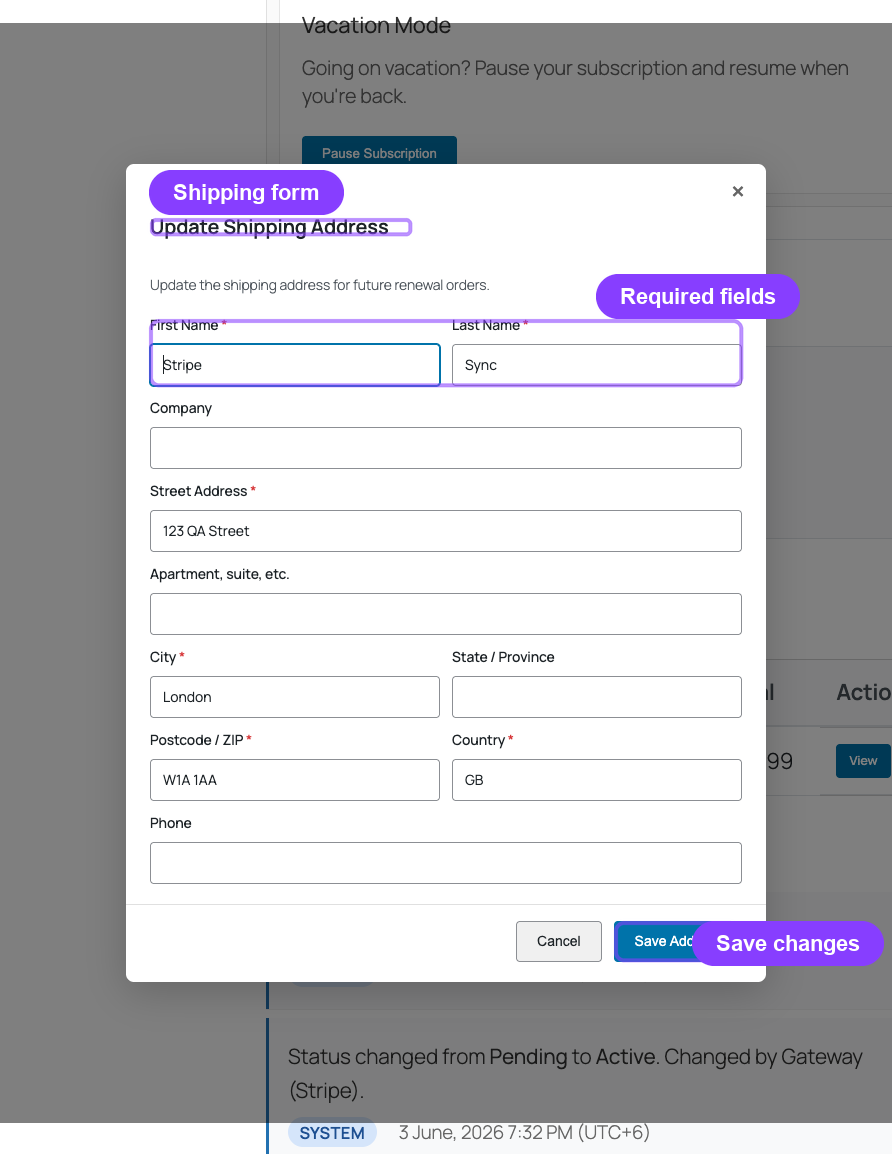
Shipping Address Form
The form includes these fields:
| First Name (required) | Last Name (required) |
| Company (optional) | |
| Street Address (required) | Apartment / Suite (optional) |
| City (required) | State / Province (optional) |
| Postcode / ZIP (required) | Country (required) |
| Phone (optional) |
All fields are pre-filled with the current address data.
- The customer makes changes and clicks Save Address.
- The address is validated and saved to the subscription.
- Future renewal orders will use the updated address.
- A subscription note is added recording the change.
Cutoff Period
Shipping address changes are blocked when the next payment date is 3 days away or closer. This prevents last-minute changes from disrupting order fulfillment, as the renewal order may already be in preparation.
When the cutoff prevents updates, the Update Shipping Address button is hidden and the customer sees a message explaining that the address cannot be changed this close to the next renewal.
The 3-day cutoff is the default. Developers can customize this window using the arraysubs_shipping_address_cutoff_days filter.
Shipping and Plan Changes Pro
When a customer changes plans, Pro Subscription Shipping follows the target plan's shipping rules:
- Immediate plan switches recalculate the subscription's saved shipping settings after the switch is paid.
- Apply at Renewal switches use the target product's shipping amount on the next renewal invoice, even before the subscription permanently changes plans.
- Switching from a physical product to a virtual product clears recurring shipping for future renewals.
- Switching from a virtual product to a physical product enables shipping when the target product requires it.
Edge Cases and Important Notes
- Payment method update requires a redirect. Unlike other portal actions that complete in-page, updating a payment method may redirect the customer to a third-party gateway portal (Stripe, PayPal, or Paddle). The customer is returned to the subscription detail page after completing the update.
- Auto-renew off does not delay renewals. When auto-renew is turned off, renewal invoices are still generated on the normal schedule. The only difference is that the payment is not automatically collected — the customer must pay manually.
- Shipping updates only affect future orders. Changing the shipping address does not modify orders that have already been placed. The new address applies starting with the next renewal order.
- Country changes may affect tax and shipping costs. If the customer changes their shipping country, future renewal orders may have different tax and shipping amounts applied by WooCommerce.
Troubleshooting
| Problem | Likely Cause | What to Do |
|---|---|---|
| Customer does not see card-on-file details | The subscription does not use an automatic payment gateway, or the Pro plugin is not active | Verify the payment gateway type and check that ArraySubs Pro is installed |
| Auto-renew toggle is missing | The toggle is disabled in settings, the subscription uses a manual gateway, or the subscription is in a non-eligible status | Check General Settings → Automatic Payments → Allow Auto-Renew Toggle and the payment gateway type |
| Customer cannot turn auto-renew back on | The stored payment method has expired or been removed | The customer needs to update their payment method first using the gateway's update flow |
| Shipping update button is hidden | The next payment is within 3 days, or the subscription is in a non-eligible status | Check the next payment date relative to today. The cutoff period blocks updates close to renewal |
| "Update payment method" link is missing | The specific gateway does not support payment method updates | Not all gateways support this feature. Check the gateway capability comparison in the Automatic Payments documentation |
Related Guides
- Checkout and Payments — Gateway configuration and checkout behavior
- General Settings — Auto-renew toggle and customer action settings
- Subscription Detail Cards — Admin-side gateway and shipping cards
FAQ
Does updating the payment method affect the current billing cycle?
No. Updating the payment method only affects future charges. The current cycle's payment (if already processed) is not affected.
Can a customer switch from manual to automatic payments?
Yes, if the customer has been issued a manual invoice and later adds an automatic payment method, they can turn auto-renew on using the toggle. Starting with the next renewal, the subscription will be charged automatically.
What happens if the customer removes all payment methods?
The subscription continues as normal, but automatic renewals will fail at the next billing date. The subscription will enter the standard grace period. The customer can add a new payment method and pay the invoice at any time.
Can shipping be changed on one-time shipping subscriptions?
The shipping address form is still available for one-time shipping subscriptions, but the change only matters if there are future orders that could use it. Since one-time shipping means the shipping was charged only on the initial order, address changes primarily matter for product delivery tracking rather than billing.
Is the 3-day shipping cutoff configurable?
The cutoff is 3 days by default. It can be customized by developers using the arraysubs_shipping_address_cutoff_days filter. Store admins cannot change this from the settings UI.