
Easy Setup Wizard
Answer a guided set of questions about your subscription business and let the wizard configure the most important settings for you — no manual hunting through settings pages required.
Availability: Free (Pro options appear when ArraySubs Pro is active)
Page Navigation
- Admin screen: WordPress Admin → ArraySubs → Easy Setup
- Direct admin route:
/wp-admin/admin.php?page=arraysubs-mainadmin#/easy-setup - Use this first: First-Time Setup
- Review settings after saving: General Settings, Toolkit Settings, Plan Switching and Product Relationships
- Need to move settings between sites? Use the Export and Import cards on this same screen.
Overview
The Easy Setup Wizard is a 9-step guided interview that walks you through the key decisions for your subscription business and automatically configures matching settings. Instead of visiting each settings page individually, you answer plain-language questions about your billing model, customer experience, cancellation policy, access control, emails, and optional tools. The wizard translates your answers into the correct plugin settings and applies them in one click.
The wizard lives on the ArraySubs → Easy Setup page alongside the Export and Import tools.
The same screen is also the safest place to back up or restore an ArraySubs configuration. Export before major changes, then import the JSON file on another site or after a reset.
When to Use This
- You just installed ArraySubs and want a fast, guided initial configuration.
- You are launching a new subscription model and want the plugin configured to match your business type.
- You want smart defaults based on your industry — SaaS, membership, physical box, content, services, or nonprofit.
- You prefer answering questions in plain language over navigating individual settings fields.
Prerequisites
- ArraySubs core plugin installed and activated.
- ArraySubs Pro installed and activated (optional — Pro-only wizard options appear only when Pro is active).
- Admin access to the WordPress dashboard.
How It Works
The wizard presents 9 steps of questions grouped by topic. Each step has a title, an explanation, and one or more questions. Some questions only appear based on your earlier answers — for example, trial payment settings only show up if you said you offer free trials.
When you reach the final step, a review screen summarizes every answer organized by step. You can edit any step before applying. When you click Apply Settings, the wizard maps your answers to the matching ArraySubs settings, merges them with your current configuration, and saves everything at once.
The wizard only configures settings it can map to. It does not create products, define cancellation reasons, build access rules, or write email body content. Those tasks still need to be done manually after the wizard finishes.
Real-Life Use Cases
Use Case 1: New SaaS Launch
A software company installs ArraySubs and chooses SaaS / Digital Software as their business type. The wizard pre-selects strict grace periods, multiple plan tiers, free trials with payment method required, access control enabled, and Feature Manager on. The team reviews the defaults, adjusts the trial length, and clicks Apply. In under two minutes, the core subscription engine is configured.
Use Case 2: Physical Subscription Box
A snack box company selects Physical Subscription Box. The wizard pre-selects lenient grace periods, skip and pause flexibility, and contact-support retention offers. The merchant adjusts the max pause duration from 30 to 60 days and applies. The box billing model is ready.
Use Case 3: Membership Community
A community platform picks Membership / Community and immediately gets multiple plans, pause support, access control, multi-login prevention, and Feature Manager defaults. The admin enables Store Credit as an additional feature, sets credits to expire after 365 days, and applies. The membership engine is configured.
Steps / Configuration
Launching the Wizard
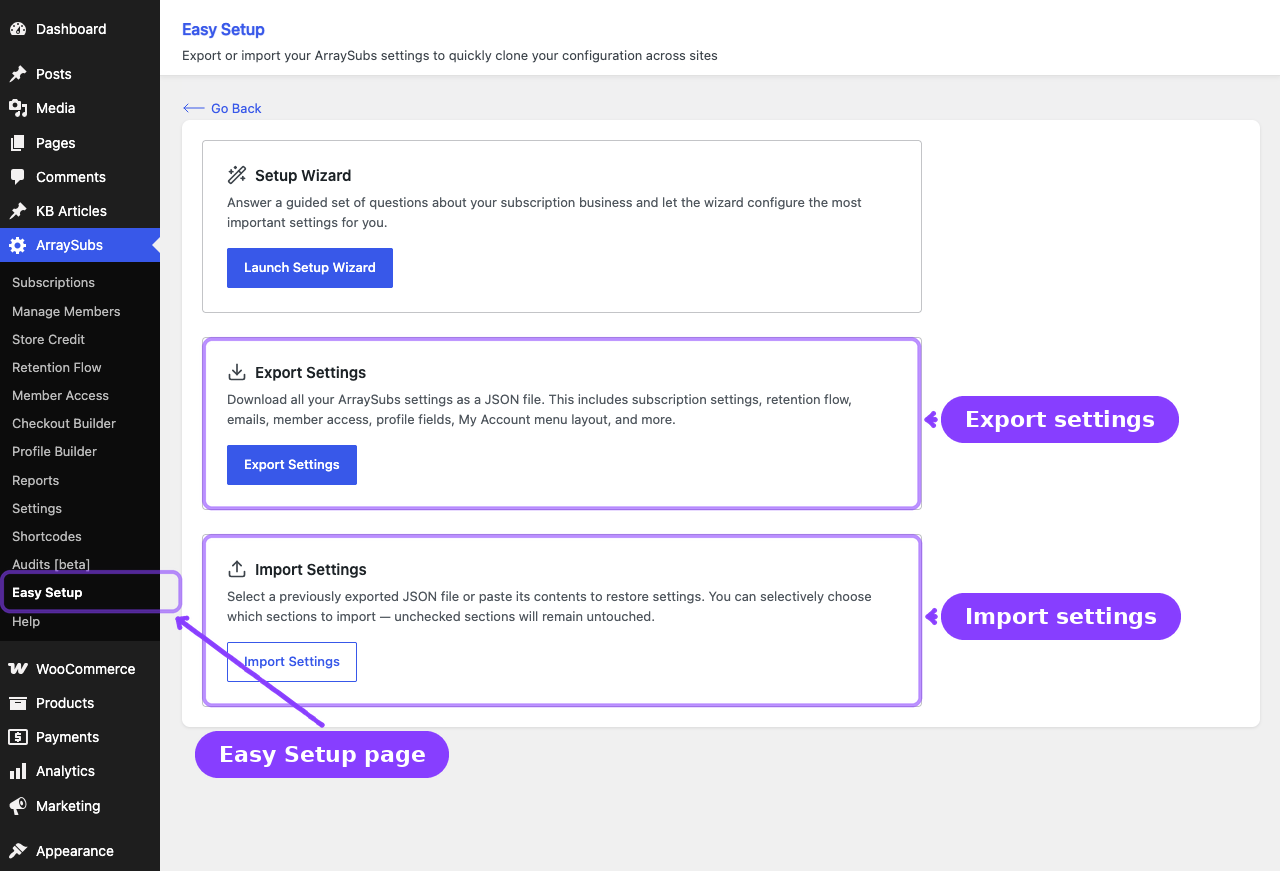
- Go to ArraySubs → Easy Setup.
- Find the Setup Wizard card on the page.
- Click Launch Setup Wizard.
- The wizard opens as a full-screen modal. It cannot be closed by clicking outside or pressing Escape — you must explicitly close it or finish the wizard.
If ArraySubs Pro is not active, a small note at the top of the wizard reads: "ArraySubs Pro is not active, so Pro-only wizard options are hidden for now."
Navigation
- Next — Validates the current step's visible questions and moves forward.
- Back — Returns to the previous step without losing answers.
- Skip with defaults — Accepts the pre-loaded default values for the current step and moves forward. Useful when a step does not apply to your business.
- Apply Settings — Appears on the final review step. Sends all answers to the server and configures the plugin.
If you try to close the wizard before applying, a confirmation dialog appears:
"Closing the wizard will discard the answers from this session. Your current plugin settings will stay unchanged."
You can choose Keep working to stay in the wizard or Discard wizard to close without saving.
Step 1 — Your Business
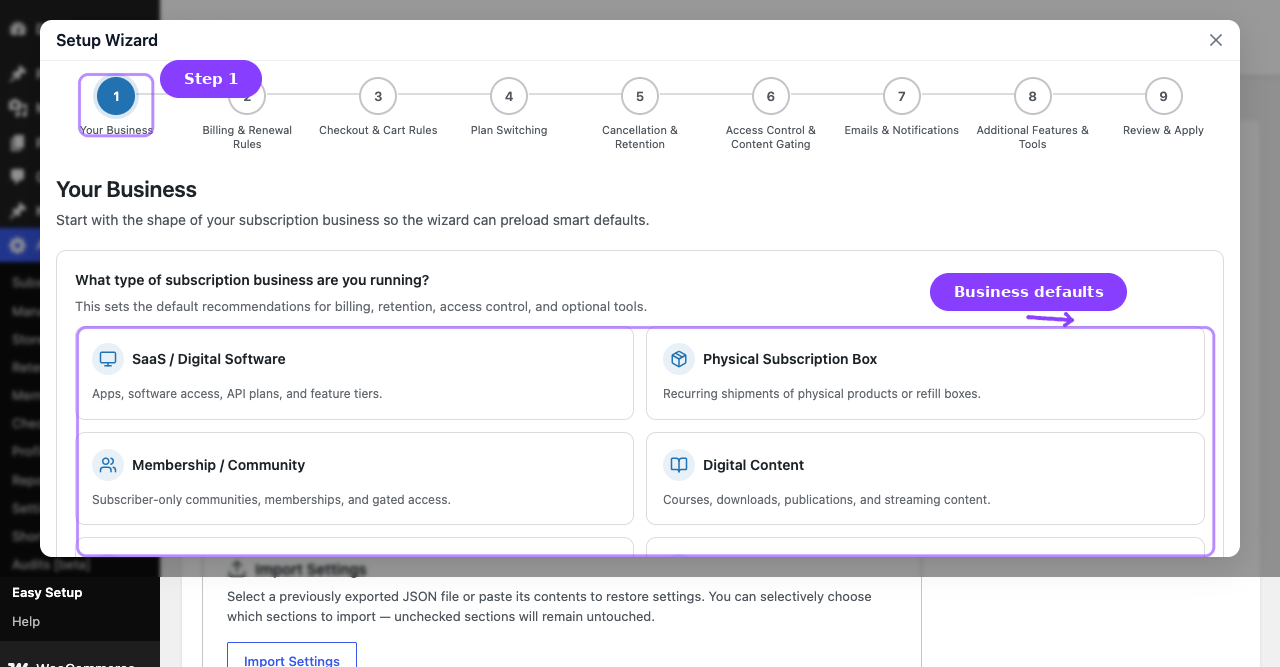
Defines the shape of your subscription business. Your choice here sets smart defaults for every later step.
| Question | Type | Options |
|---|---|---|
| What type of subscription business are you running? | Radio cards | SaaS / Digital Software · Physical Subscription Box · Membership / Community · Digital Content · Professional Services · Nonprofit / Donations · Other / Custom |
| What is your primary billing cycle? | Radio | Weekly · Monthly · Yearly · Custom |
| Every how many billing periods? | Number (1–365) | Only shown when billing cycle is Custom |
| Which period should that custom interval use? | Select | Day · Week · Month · Year |
| How many subscription plans do you offer? | Radio | One plan · Multiple plans / tiers |
| Do you offer free trials? | Radio | Yes · No |
| Should a payment method be required for a free trial? | Radio | Yes · No (only shown when trials are enabled) |
| Limit free trials to one per customer? | Radio | Yes · No (only shown when trials are enabled) |
Business Type Profiles
When you choose a business type, the wizard preloads recommended defaults for all subsequent steps. You can override any default as you go.
| Profile | Key Defaults |
|---|---|
| SaaS / Digital Software | Multiple plans, trials with payment required, strict grace (1 active / 3 hold days), one subscription per customer, all-direction plan switching, immediate proration, access control enabled, Feature Manager and Audit Logging on |
| Physical Subscription Box | Lenient grace (5/14 days), skip and pause enabled, contact-support retention offer, Store Credit enabled |
| Membership / Community | Multiple plans, pause flexibility, one per customer, access control, Feature Manager, Audit Logging, Multi-Login prevention |
| Digital Content | Multiple plans, trials, upgrade-only plan switching, end-of-period cancellation and refund, access control |
| Professional Services | Pause enabled, contact-support retention, immediate prorated refund, custom profile fields |
| Nonprofit / Donations | Lenient grace, hide admin bar, minimal defaults |
| Other / Custom | Monthly billing, single plan, standard grace, manual renewals, minimal configuration |
Step 2 — Billing & Renewal Rules
Controls grace periods, invoice timing, renewal sync, and skip/pause flexibility.
| Question | Type | Options |
|---|---|---|
| How strict should unpaid renewals be handled? | Radio | Strict (1 active / 3 hold days) · Standard (3 / 7) · Lenient (5 / 14) · Custom |
| How many days should the subscription stay active after a failed payment? | Number (0–30) | Only shown for Custom grace |
| How many days should it remain on-hold before cancellation? | Number (1–60) | Only shown for Custom grace |
| When should renewal invoices be generated? | Radio | 6 hours before due date · 1 day before · 3 days before |
| Should new subscriptions renew on the next billing-cycle boundary? | Radio | Yes · No |
| How should the first checkout charge work? | Radio | Prorate until the synced renewal date · Charge the full recurring amount (only shown when renewal sync is enabled) |
| What billing flexibility should customers have? | Checkboxes | Allow skipping the next renewal · Allow pausing the subscription |
| Maximum consecutive skips allowed | Select | 1 · 2 · 3 · 5 (only when skip is enabled) |
| How many days before renewal can a skip still be requested? | Select | Any time · 2 days before · 5 days before · 7 days before (only when skip is enabled) |
| Maximum pause duration | Select | 14 · 30 · 60 · 90 days (only when pause is enabled) |
| Maximum pauses per subscription | Select | 1 · 2 · 3 · 5 (only when pause is enabled) |
Step 3 — Checkout & Cart Rules
Shapes how subscriptions behave in the cart, at checkout, and during account creation.
| Question | Type | Options |
|---|---|---|
| Can customers have multiple active subscriptions? | Radio | Allow multiple subscriptions · Only one subscription per customer · One subscription per product |
| Should checkout auto-migrate an existing subscription? | Radio | Yes — automatically replace the old subscription · No — block checkout until they cancel first (only when one-per-customer is selected) |
| Allow subscription and non-subscription products in the same cart? | Radio | Yes · No (hidden when one-per-customer) |
| How should one-click checkout behave? | Radio | Standard cart and checkout flow · One-click checkout for subscription items · One-click checkout for all products |
| Should one-click items skip the cart page entirely? | Radio | Yes · No (only when one-click is not "Standard") |
| Automatically create customer accounts at checkout? | Radio | Yes · No |
Step 4 — Customer Portal & Self-Service
Chooses which self-service actions customers can use from My Account → Subscriptions.
| Question | Type | Options |
|---|---|---|
| Which actions should customers be able to do from the portal? | Checkboxes | Cancel subscription · Reactivate cancelled subscription · Suspend / hold subscription |
| Should customers be able to switch plans from the portal? | Radio | Allow all switching directions · Only upgrades and downgrades · Only upgrades · Disable plan switching (only when multiple plans selected in Step 1) |
| How should price differences be handled during plan switching? | Radio | Prorate immediately · Apply the change at renewal · No proration (only when plan switching is not disabled) |
Step 5 — Cancellation & Retention
Decides what happens when a customer tries to cancel and how aggressively the system works to save the subscription.
| Question | Type | Options |
|---|---|---|
| When should a cancellation take effect? | Radio | Immediately · At the end of the billing period |
| Should customers be required to provide a cancellation reason? | Radio | Yes · No |
| Show retention offers during the cancellation flow? | Radio | Yes · No |
| Which retention offers should be enabled? | Checkboxes | Discount offer · Pause offer · Downgrade offer · Contact support (only when retention offers are enabled) |
| Retention discount percentage | Select | 10% · 20% · 30% · 50% off (only when discount offer is enabled) |
| How many billing cycles should that discount last? | Select | 1 · 2 · 3 · 6 cycles (only when discount offer is enabled) |
| What should the default refund behavior be on cancellation? | Radio | Immediate prorated refund · Refund at end of period · No automatic refund |
Step 6 — Access Control & Content Gating
Configures how non-subscribers and expired members are handled when they hit restricted content.
| Question | Type | Options |
|---|---|---|
| Do you need subscription-based content restriction? | Radio | Yes · No (only shown for business types where access control is not implied) |
| What should non-subscribers see when they hit restricted content? | Radio | Redirect to a pricing or signup page · Show a restricted content message · Ask the visitor to log in first |
| Where should restricted visitors be redirected? | Text | A relative path like /pricing (only when redirect is selected) |
| Require login before checking subscription access rules? | Radio | Yes · No |
For SaaS, Membership, and Digital Content business types, access control is assumed to be needed and the "Do you need content restriction?" question is skipped — the wizard jumps directly to the redirect behavior question.
Step 7 — Emails & Notifications
Picks how chatty the subscription system is with customers and admins.
| Question | Type | Options |
|---|---|---|
| How many customer email notifications should be sent? | Radio | All notifications · Essential only · Minimal · Let me choose |
| Choose the customer emails to enable | Checkboxes | 14 email types (see table below) — only shown when "Let me choose" is selected |
| How many days before renewal should customers get a reminder? | Select | 1 · 3 · 5 · 7 days before (shown when renewal reminder is enabled) |
| Which admin notifications should stay enabled? | Checkboxes | New subscription created · Subscription cancelled · Payment failed |
Customer Email Options
| New Subscription Confirmation | Subscription Activated |
| Subscription On-Hold | Subscription Cancelled |
| Subscription Expired | Renewal Reminder |
| Renewal Invoice | Payment Successful |
| Payment Failed | Trial Started |
| Trial Ending Soon | Trial Converted to Paid |
| Subscription Expiring Soon | Auto-Downgrade |
The wizard only toggles the enabled/disabled state of each email. Subject lines, body content, and template customization are still managed from the email settings page.
Step 8 — Additional Features & Tools
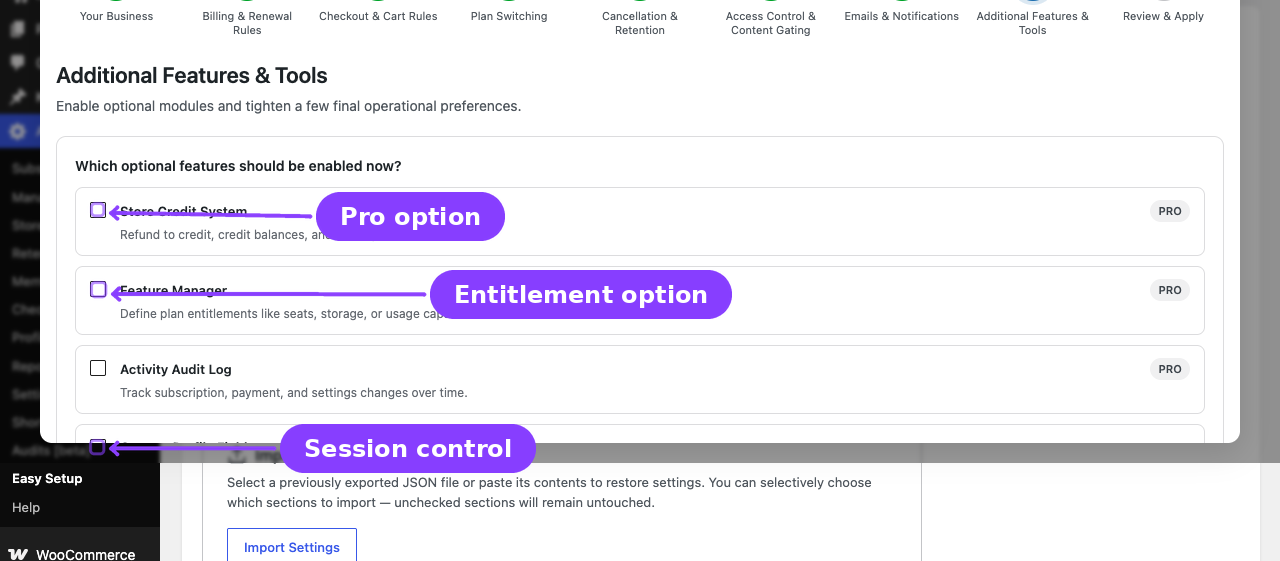
Enables optional modules and operational preferences.
| Question | Type | Options |
|---|---|---|
| Which optional features should be enabled now? | Checkboxes | See feature list below |
| Should store credit automatically apply to renewal payments? | Radio | Yes · No (only when Store Credit is enabled) |
| When should store credits expire? | Select | Never expire · After 90 days · After 180 days · After 365 days (only when Store Credit is enabled) |
| Show Feature Manager highlights on product pages? | Radio | Yes · No (only when Feature Manager is enabled) |
| Maximum concurrent login sessions per customer | Select | 1 · 2 · 3 · 5 sessions (only when Multi-Login is enabled) |
| Where should blocked dashboard users be sent? | Radio | My Account page · Show a 404 page (only when Restrict Dashboard is enabled) |
Available Features
| Feature | Availability | Description |
|---|---|---|
| Store Credit System | Pro | Refund to credit, credit balances, and credit purchases |
| Feature Manager | Pro | Define plan entitlements like seats, storage, or usage caps |
| Activity Audit Log | Pro | Track subscription, payment, and settings changes over time |
| Multi-Login Prevention | Pro | Limit concurrent sessions to reduce shared-account abuse |
| Custom Profile Fields | Free | Collect extra customer details like company, phone, or ID fields |
| My Account Page Editor | Free | Customize, reorder, and manage customer account menu items |
| Hide Admin Bar for Customers | Free | Keep the frontend cleaner for non-admin customer accounts |
| Restrict WP Dashboard Access | Free | Block non-admin users from reaching the WordPress dashboard |
Step 9 — Review & Apply
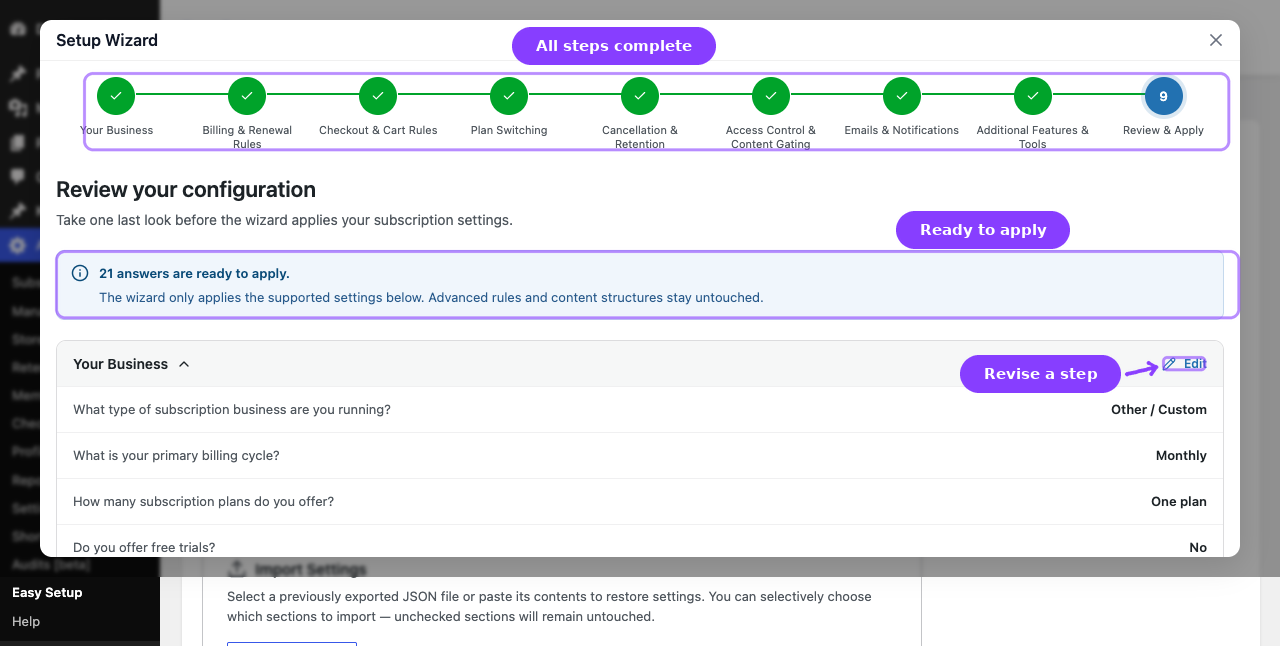
The final step shows a complete summary of every answer you provided, organized by step. Each step section is collapsible and includes an Edit button that jumps you back to that step to make changes.
At the top, you see a count of how many answers are ready to apply and a note:
"The wizard only applies the supported settings below. Advanced rules and content structures stay untouched."
At the bottom, a Still configure manually after the wizard section lists tasks the wizard cannot automate:
- Cancellation reasons and advanced retention copy
- Detailed member access rules, role mappings, URLs, CPT rules, and download restrictions
- Custom profile field definitions and My Account menu item structure
- Checkout Builder field layouts and advanced email subject/body content
Click Apply Settings to save. The wizard maps your answers to the corresponding plugin settings, merges them with your existing configuration, and applies them. A success message confirms how many settings were configured.
What Happens After Saving
- The wizard maps your answers into the
arraysubs_settingsoption and saves them immediately. - Settings take effect for future subscription actions. Existing subscriptions keep their current state.
- If Renewal Sync is enabled, it applies only to future non-trial, non-lifetime subscriptions paid through manual/offline gateways or Stripe.
- The wizard merges with existing settings — any setting you did not configure in the wizard stays unchanged.
- You can run the wizard again at any time. Re-running it overwrites the settings it touches, leaving manual-only settings intact.
- The wizard does not create, edit, or delete products, subscriptions, access rules, email templates, or cancellation reasons.
Edge Cases / Important Notes
- Pro features hidden when Pro is inactive. If ArraySubs Pro is not active, Pro-only options (Store Credit, Feature Manager, Audit Logging, Multi-Login) are hidden from the wizard entirely.
- Conditional questions. Many questions only appear based on earlier answers. If you change an answer on a previous step, the wizard may show or hide questions on later steps. Previously answered conditional questions that are now hidden are not sent to the server.
- Skip with defaults uses business profile values. When you skip a step, the wizard fills in the defaults for your selected business type — not empty values.
- Wizard does not delete data. It only adds or updates settings. It never removes products, subscriptions, access rules, or other data from your site.
- Re-running is safe. You can run the wizard multiple times. Each run overwrites the settings it touches without affecting settings outside the wizard's scope.
Troubleshooting
| Problem | Likely Cause | What to Do |
|---|---|---|
| Wizard does not appear in the menu | EasySetup feature is not loaded | Verify ArraySubs core is activated and up to date |
| Pro-only options are not showing | ArraySubs Pro is not active | Activate the Pro addon, then re-open the wizard |
| "Apply Settings" fails with an error | Validation error on one or more answers | Check the error message shown in the wizard footer, fix the flagged answer, and try again |
| Settings did not change after applying | Wizard may have merged with existing identical values | Open ArraySubs → Settings and verify the values. The wizard only updates what differs |
| Conditional questions disappeared | An earlier answer was changed | Go back to the step that changed and re-answer the dependent questions |
Related Guides
- Import / Export Settings — Back up and restore your full ArraySubs configuration across sites.
- First-Time Setup — A manual step-by-step checklist if you prefer configuring settings one by one.
- General Settings — Detailed reference for every individual setting the wizard configures.
- Retention Offers — Set up the retention flow the wizard enabled.
- Member Access — Configure detailed access rules after the wizard enables access control.
FAQ
Does the wizard replace all my existing settings?
No. The wizard merges its answers with your current settings. Any setting the wizard does not cover remains unchanged. Settings the wizard does cover are overwritten with the new values.
Can I run the wizard more than once?
Yes. You can re-run the wizard at any time. Each run reconfigures the settings it covers. This is useful when switching business models or starting fresh.
What happens if I close the wizard without applying?
Nothing changes. A confirmation dialog warns you that your answers will be discarded, and your current plugin settings stay exactly as they were.
Does the wizard create my subscription products?
No. The wizard only configures plugin settings. You still need to create subscription products manually through Products → Add New in WooCommerce.
Will Pro features break if I deactivate Pro later?
Pro-specific settings that were applied by the wizard remain stored, but they become dormant when Pro is deactivated. The core plugin continues working with its free feature set. Reactivating Pro restores the Pro settings automatically.
Does the wizard configure email subject lines and body content?
No. The wizard only toggles which emails are enabled or disabled. Subject lines, body text, and template customization are managed from ArraySubs → Settings or the WooCommerce email settings screen.