
WooCommerce Analytics Extension
ProFilter and analyze your WooCommerce reports by subscription type, view subscription revenue breakdowns, and jump to member profiles — all inside the native WooCommerce Analytics screens.
Availability: Pro
Page Navigation
- Current guide: WooCommerce Analytics Extension Pro
- Where to open it: WordPress Admin -> WooCommerce -> Analytics -> Orders, Revenue, Products, Variations, and Customers
- Section overview: Open overview
- Previous guide: subscription-performance
- Next guide: access-rule-conflicts
- Troubleshooting: Audits, Logs, and Troubleshooting
Overview
The WooCommerce Analytics Extension adds subscription-aware columns, filters, and metrics to five native WooCommerce Analytics reports:
| Report | What's added |
|---|---|
| Orders | Order type column, quick type filter, advanced type filter (include/exclude) |
| Revenue | Three subscription revenue summary cards |
| Products | Subscription products only filter |
| Variations | Subscription variations only filter |
| Customers | Member details quick link |
These additions appear automatically when ArraySubs Pro is active. No setup is required — the extensions integrate directly into the existing WooCommerce Analytics UI.
When to Use This
- Segment your order reports to see only renewal orders, trial orders, or plan switch orders.
- Measure how much revenue comes from subscription renewals versus upgrades versus credit purchases.
- Analyze product performance for subscription products only, excluding one-time purchases.
- Navigate from a customer row in the analytics report to their full member profile in ArraySubs.
- Build advanced filters to exclude specific order types from your analysis (for example, exclude "Other" to focus purely on subscription-related orders).
How It Works
When WooCommerce Analytics loads a report page, the Pro plugin injects additional UI components using WooCommerce Admin's JavaScript filter system. On the backend, custom query parameters are passed to the WooCommerce Analytics data store, where SQL WHERE clauses filter results by the computed order type meta.
The system supports both HPOS (High-Performance Order Storage / Custom Orders Table) and legacy post-type order storage modes automatically.
Orders Report
Navigate to WooCommerce → Analytics → Orders to see the enhanced orders report.
Type Column
A Type column appears after the Status column in the orders table. Each order displays a label showing its classified type:
- Subs Purchase — Initial subscription checkout
- Subs Trial — Initial checkout with a trial period
- Subs Renew — Renewal order
- Subs Upgrade — Plan switch (upgrade, downgrade, or crossgrade)
- Credit Purchase — Store Credit product purchase
- Other — Regular WooCommerce order
Quick Type Filter
A single-select Type dropdown appears in the filters bar above the orders table. Select any type to show only orders of that classification.
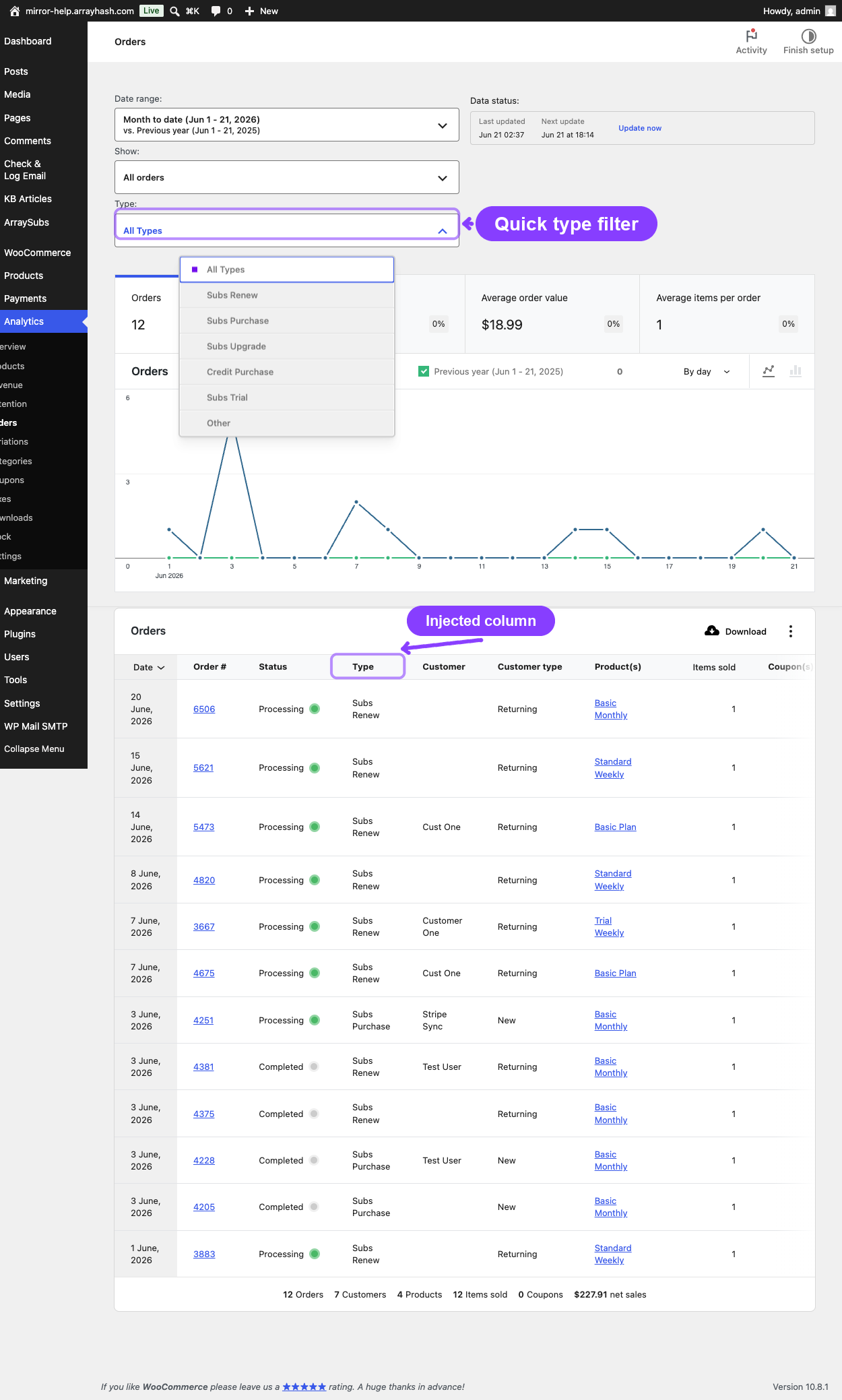
Filter options:
| Filter value | Shows |
|---|---|
| All Types | No type filtering applied |
| Subs Renew | Renewal orders only |
| Subs Purchase | Initial subscription purchases only |
| Subs Upgrade | Plan switch orders only |
| Credit Purchase | Store Credit purchase orders only |
| Subs Trial | Trial subscription orders only |
| Other | Regular WooCommerce orders only |
Advanced Type Filter
For more complex analysis, the advanced filters panel includes a multi-select Type filter with two modes:
- Type Is — Include only the selected types (show orders matching any of the checked types).
- Type Is Not — Exclude the selected types (show all orders except the checked types).
This lets you build precise segments like "show renewal and upgrade orders but not trials" using the Type Is rule with Subs Renew and Subs Upgrade selected.
When advanced type filters are active, a warning label appears in the filter bar to remind you that results are filtered.
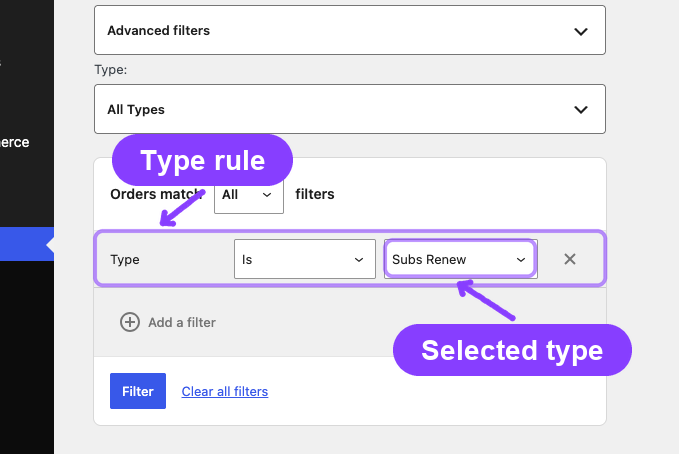
The quick filter and advanced filter serve different use cases. The quick filter is for fast single-type views. The advanced filter supports multi-type include/exclude logic. Only one mode is active at a time — setting an advanced filter overrides the quick filter.
Revenue Report
Navigate to WooCommerce → Analytics → Revenue to see the enhanced revenue report.
Subscription Revenue Cards
Three additional summary cards appear alongside the standard WooCommerce revenue cards:
| Card | What it shows |
|---|---|
| Total Subs Renew Amount | Total order revenue from all Subs Renew type orders in the period |
| Total Subs Upgrade Amount | Total order revenue from all Subs Upgrade type orders in the period |
| Total Credit Purchase Amount | Total order revenue from all Credit Purchase type orders in the period |
These cards help you understand how subscription-specific revenue breaks down without leaving the standard Revenue report.
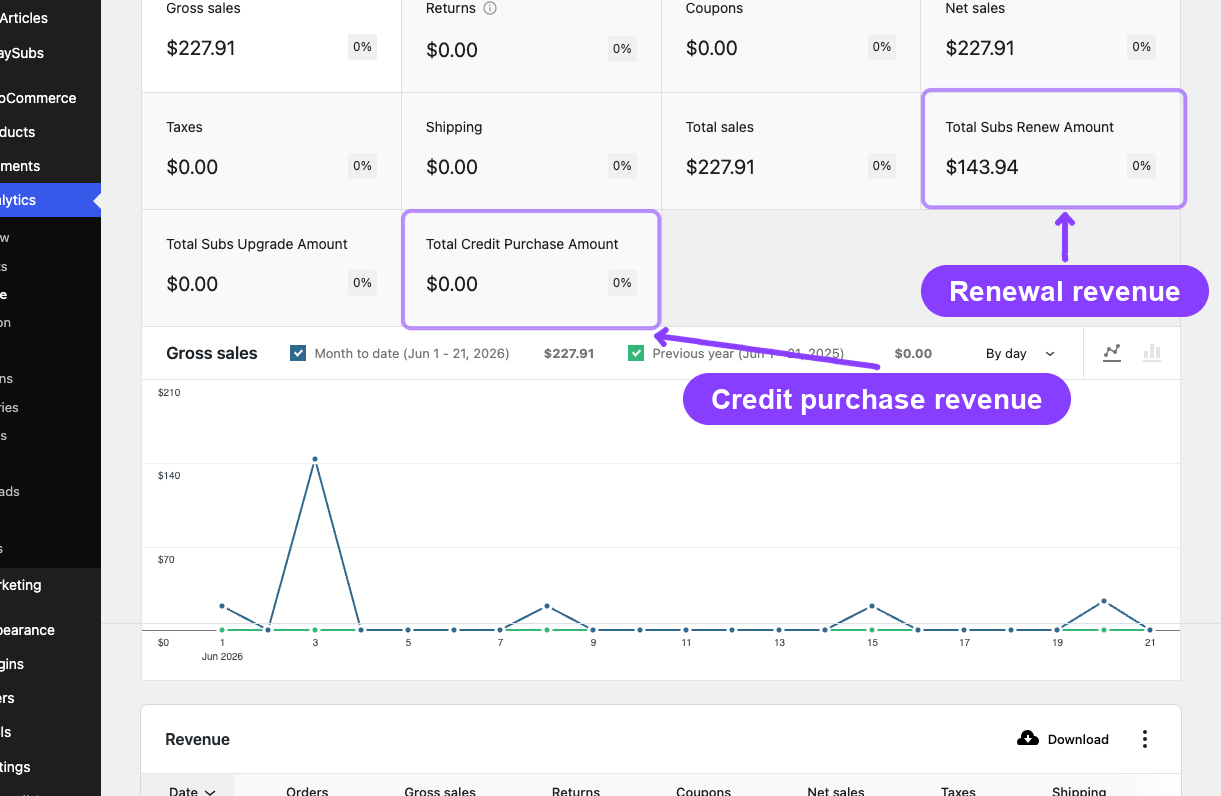
When you click a summary card, the report table updates to show the corresponding metric column for the selected interval, making it easy to see how that revenue type trends over time.
Products Report
Navigate to WooCommerce → Analytics → Products to see the enhanced products report.
Subscription Products Only Filter
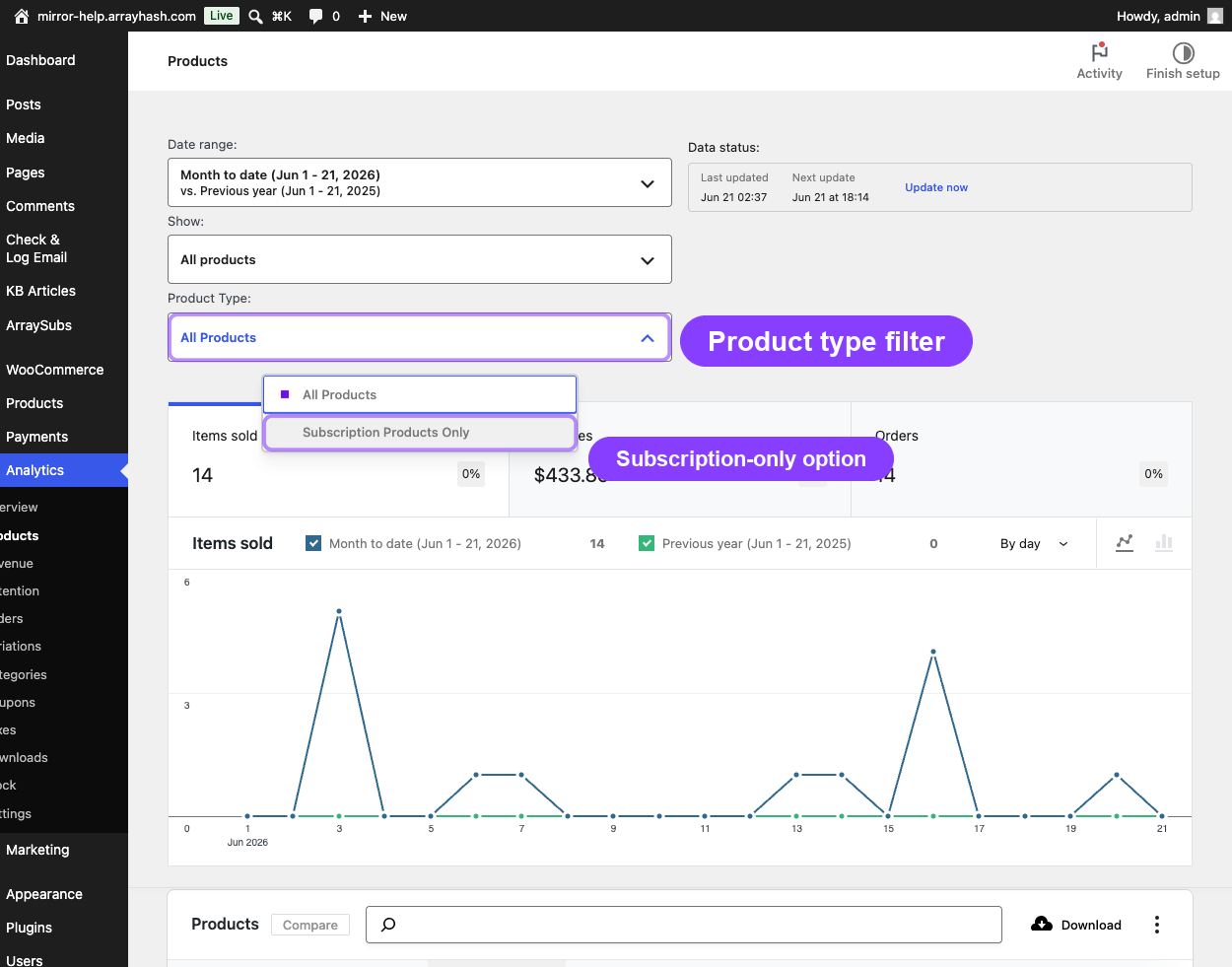
A Product Type dropdown appears in the filters bar with two options:
| Option | Behavior |
|---|---|
| All Products | Show all products (default) |
| Subscription Only | Show only products flagged as subscription products |
This filter uses the _is_subscription product meta to include only subscription-type products in the report. One-time products, downloadable products, and other non-subscription product types are excluded.
Variations Report
Navigate to WooCommerce → Analytics → Variations to see the enhanced variations report.
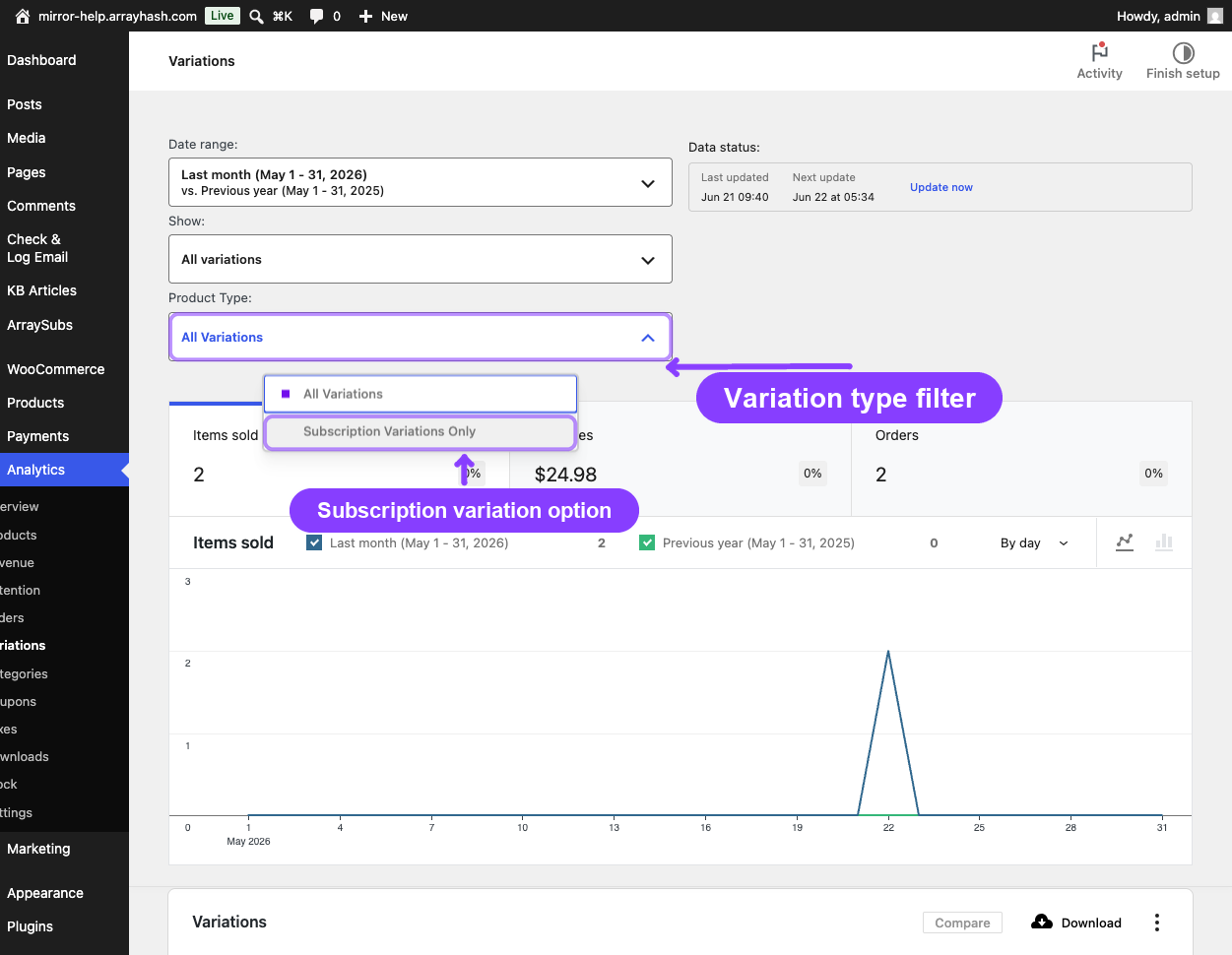
Subscription Variations Only Filter
A Product Type dropdown appears in the filters bar, identical to the Products report filter:
| Option | Behavior |
|---|---|
| All Variations | Show all variations (default) |
| Subscription Only | Show only variations belonging to subscription products |
The filter checks both the variation's own meta and the parent product's subscription flag to ensure complete coverage.
Customers Report
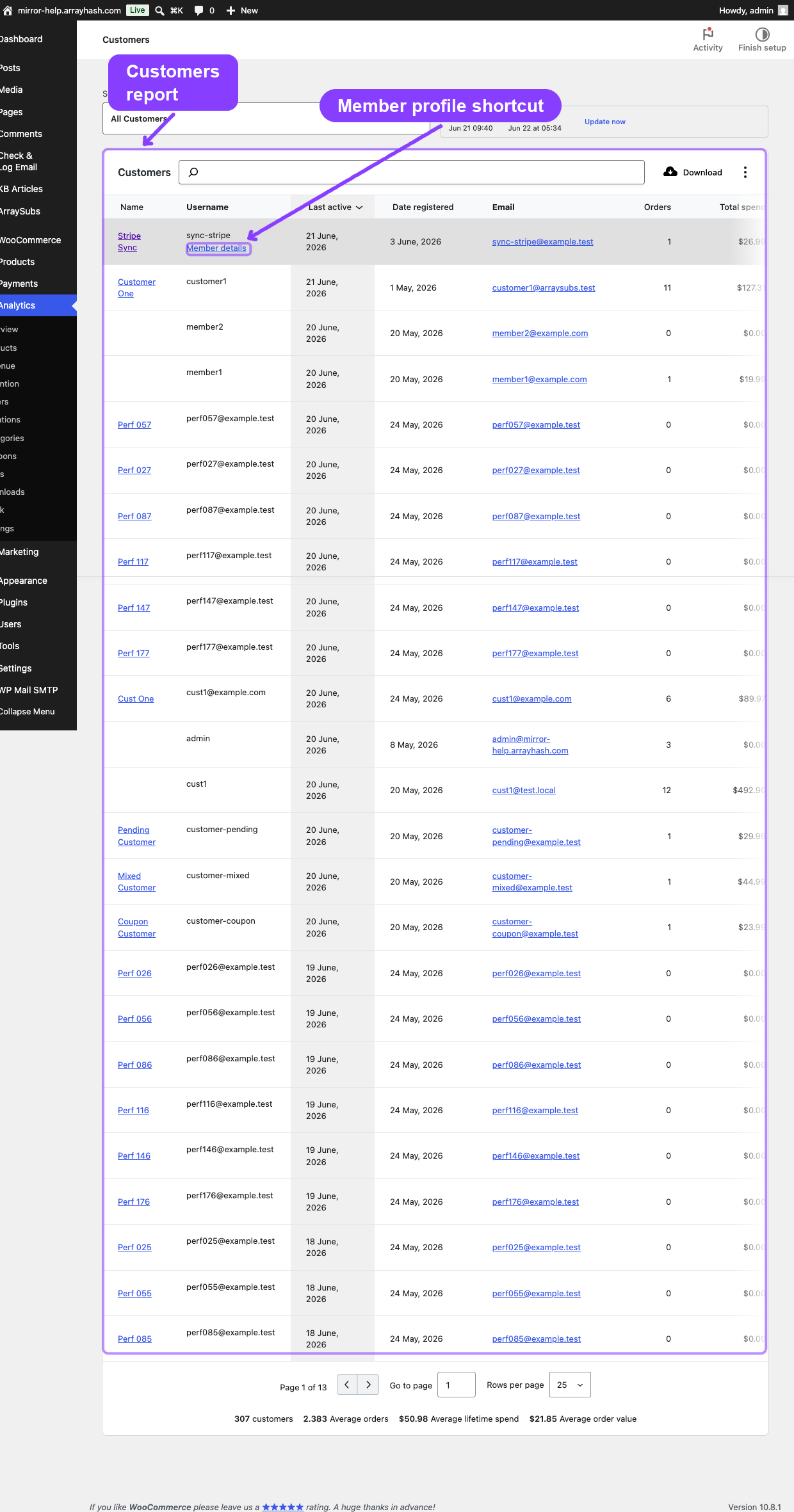
Navigate to WooCommerce → Analytics → Customers to see the enhanced customers report.
Member Details Link
Below each customer's username in the report table, a Member details link appears. Clicking it navigates directly to the customer's full member profile in the ArraySubs admin panel, where you can view their subscription history, order history, store credit balance, and more.
This quick link saves time when you spot interesting customer patterns in the analytics data and want to investigate further.
Real-Life Use Cases
Measuring Renewal Revenue Trend
A store owner wants to know if renewal revenue is growing month over month. They navigate to Analytics → Revenue, check the Total Subs Renew Amount card, then compare it across months using the date range picker to spot the trend.
Identifying Plan Switch Volume
A product manager launches new pricing tiers and wants to track how many customers switch plans. They navigate to Analytics → Orders, select Subs Upgrade from the Type quick filter, and view the order count trend to measure adoption.
Analyzing Subscription Product Performance
A merchant with 50 products (20 subscription, 30 one-time) wants to see how their subscription products are performing relative to each other. They navigate to Analytics → Products, select Subscription Only from the Product Type filter, and compare items sold, net revenue, and orders across subscription products only.
Deep-Diving into a Customer
While reviewing the Customers report, a store owner notices a high-value customer. They click Member details beneath the username to jump straight to the ArraySubs member profile, where they can see active subscriptions, total spending, store credit balance, and more.
Edge Cases and Important Notes
- Order type is computed, not manually assigned. You cannot override an order's type. The classification is determined automatically based on order meta (renewal flag, subscription IDs, trial dates, plan switch flag, credit product flag).
- Backfill required for pre-existing orders. Orders created before the Pro plugin was activated will not have type metadata. Use the backfill tool on the WooCommerce Orders page — see Order List Enhancements — to classify them.
- HPOS and legacy storage are both supported. The extension automatically detects your store's order storage mode and adjusts its queries accordingly. No configuration is needed.
- Advanced filters use AND logic by default. When combining a Type filter with a Coupon filter or Subscription-Only filter, all conditions must match. Add
match=anyto the URL to switch to OR logic. - Revenue cards show completed and processing orders only. Pending, failed, and refunded orders are excluded from the subscription revenue calculations.
Related Guides
- Reports Hub — Central directory of all analytics and data screens.
- Subscription Performance Dashboard — KPI cards, charts, and leaderboards on the Analytics Overview page.
- Retention Analytics — Churn reasons, retention offer effectiveness, and trend charts.
- Order List Enhancements — Type column and filters on the WooCommerce Orders list page.
- Member Lookup and Profiles — The member profile page linked from the Customers report.
- Admin Tools and Records — Subscription data export.
FAQ
Do these filters affect the standard WooCommerce metrics?
Yes. When you apply a Type or Subscription-Only filter, all the standard WooCommerce totals (orders, net revenue, average order value, etc.) recalculate to reflect only the filtered set. This is by design — it lets you analyze subscription order segments with full metric coverage.
Can I combine multiple filters?
Yes. You can set a Type filter, a Subscription-Only filter, and a date range simultaneously. All conditions are combined with AND logic by default — orders must match every active filter to appear in the results.
Why don't I see the Type column in my Orders report?
Make sure ArraySubs Pro is activated. The Type column is injected automatically; there is no toggle to enable it. If the Pro plugin is active but the column is missing, clear your browser cache and reload the page — WooCommerce Admin caches JavaScript aggressively.
What if an order qualifies for multiple types?
The classification uses a strict priority: Credit Purchase → Subs Trial → Subs Renew → Subs Upgrade → Subs Purchase → Other. The first matching type wins. An order is always assigned exactly one type.
Do the Revenue cards include refunded amounts?
No. Only orders with completed or processing status are included. Fully refunded orders are excluded from the subscription revenue card totals.