
Gateway Health
ProMonitor payment gateway connections, track subscription counts per gateway, find webhook URLs, review gateway capabilities, and browse the webhook event log — all from one admin screen.
Availability: Pro
Page Navigation
- Current guide: Gateway Health
- Where to open it: WordPress Admin -> ArraySubs -> Audits [beta] -> Gateway Logs
- Direct route:
/wp-admin/admin.php?page=arraysubs-mainadmin#/settings/gateways - Section overview: Open overview
- Previous guide: Auto-Renew and Manual Fallback
- Next guide: Payment Recovery
- Troubleshooting: Audits, Logs, and Troubleshooting
Overview
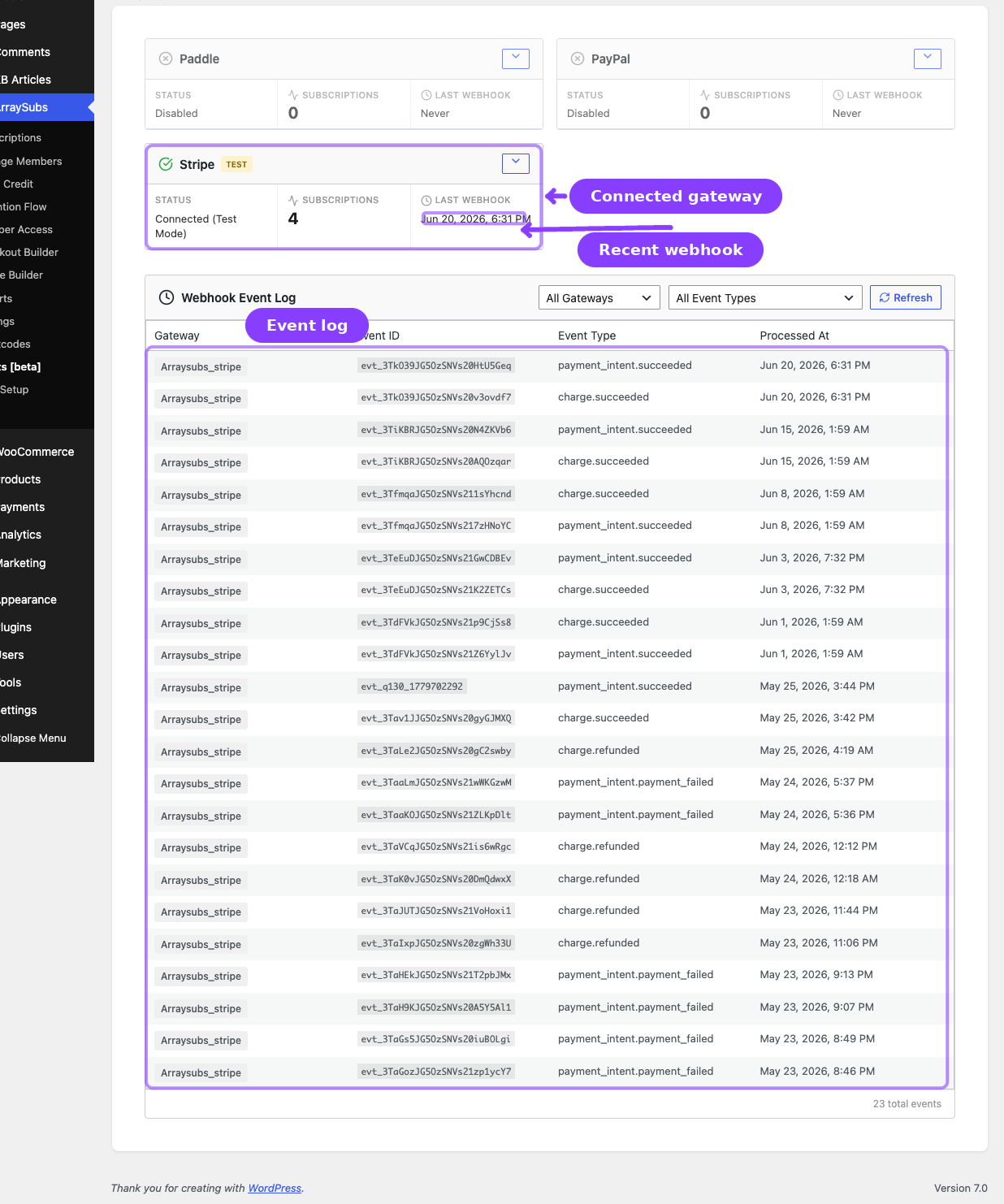
The Gateway Health Dashboard gives you a single view of every payment gateway's status, connection health, and recent webhook activity. Use it to verify your gateway setup is working, confirm Stripe's auto-provisioned ArraySubs webhook status, find provider webhook URLs where manual setup is still required, and diagnose webhook delivery issues.
Navigation: ArraySubs → Audits [beta] → Gateway Logs. The admin page title is Payment Gateways.
Gateway Status Cards
The top section displays a card for each registered gateway (Stripe, PayPal, Paddle) in a responsive grid.
Card Summary
Each card shows three key metrics at a glance:
| Metric | Description | Example |
|---|---|---|
| Status | Connection state | Connected, Connected (Test Mode), Needs Setup, Disabled, Unavailable |
| Subscriptions | Count of active subscriptions using this gateway | 42 |
| Last Webhook | Timestamp of the most recent webhook received | Apr 2, 2026, 3:30 PM or Never |
A Test Mode badge appears next to the gateway title when the gateway is running in sandbox/test mode.
Expanded Details
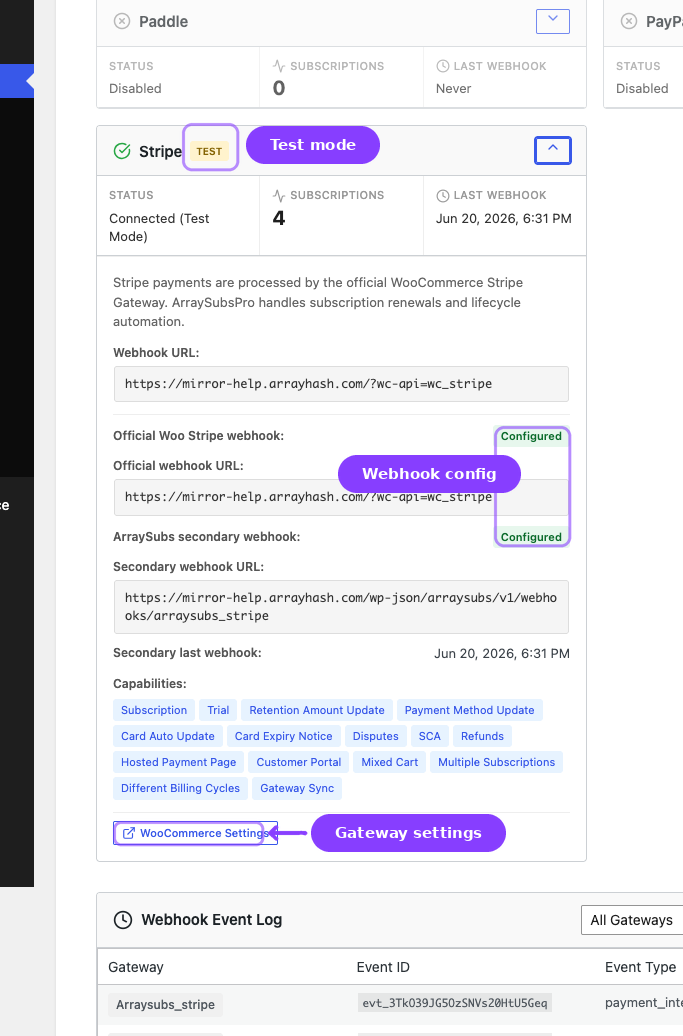
Click the expand button on any card to reveal:
- Description — Brief text explaining what the gateway does
- Webhook URL — The provider webhook URL displayed in a monospace code block for easy copying. For Stripe, regular payment/refund/dispute events use the official WooCommerce Stripe Gateway webhook, and the expanded Stripe details also show the auto-provisioned ArraySubs secondary endpoint:
https://yoursite.com/wp-json/arraysubs/v1/webhooks/arraysubs_stripe - Capabilities — Tag badges showing what features the gateway supports:
subscription,trial,pause,refunds,card_auto_update,sca,mixed_cart,multiple_subscriptions,different_billing_cycles, etc. - WooCommerce Settings — A button that links directly to the gateway's WooCommerce payment settings page for quick access to API keys and configuration
Status Values
| Status | Meaning | Action Needed |
|---|---|---|
Connected |
Gateway is enabled, configured, and receiving webhooks | None |
Connected (Test Mode) |
Gateway is working but using sandbox credentials | Switch to live keys before going live |
Needs Setup |
Gateway is enabled but missing required configuration | Enter API keys in WooCommerce payment settings. For Stripe, connect WooCommerce Stripe first so ArraySubsPro can create/repair its secondary webhook automatically |
Disabled |
Gateway is not enabled in WooCommerce | Enable in WooCommerce → Settings → Payments if you want to use it |
Unavailable |
Gateway extension or class is missing | Ensure ArraySubs Pro is active and the gateway class is loaded |
Webhook Event Log
Below the gateway cards, the Webhook Event Log shows a paginated table of every webhook event received from all gateways.
Filters
| Filter | Options |
|---|---|
| Gateway | All Gateways, or a specific gateway (Stripe, PayPal, Paddle) |
| Refresh | Manual refresh button with loading spinner |
Table Columns
| Column | Description | Example |
|---|---|---|
| Gateway | Badge showing the gateway slug | stripe |
| Event ID | The unique event identifier from the gateway | evt_1234abc |
| Event Type | The normalized event type | payment_succeeded, payment_failed, dispute_created |
| Processed At | Timestamp when ArraySubs processed the webhook | Apr 2, 2026, 3:30 PM |
Pagination
The log displays up to 50 events per page with previous/next navigation and a "Page X of Y" indicator. The total event count is shown in the footer.
Data Retention
Webhook events are stored in the wp_arraysubs_webhook_events database table. Events older than 30 days are automatically cleaned up by a scheduled maintenance job.
How to Use This Dashboard
Step 1: Check Gateway Status
After configuring a new gateway, visit this dashboard to verify the status shows Connected. If it shows Needs Setup, click the WooCommerce Settings link and complete the configuration.
Step 2: Confirm Webhook Setup
Expand the gateway card and review the webhook configuration:
- Stripe: the official WooCommerce Stripe webhook URL should be configured by WooCommerce Stripe, and the ArraySubs secondary webhook should show as configured automatically. No manual Stripe Dashboard endpoint is normally required for the ArraySubs URL. If the secondary webhook is missing or was deleted in Stripe, open WooCommerce -> Settings -> Payments -> ArraySubs Stripe Configs and click Refresh to check and recreate it.
- PayPal: Developer Dashboard → My Apps & Credentials → REST API apps → Webhooks
- Paddle: Vendor Dashboard → Developer Tools → Notifications → New destination
Step 3: Test the Connection
After the webhook is configured or auto-provisioned:
- Use the gateway's "Test" or "Send test webhook" feature (if available)
- Return to the ArraySubs Gateway Health Dashboard
- Check the Webhook Event Log for the test event
- Verify the "Last Webhook" timestamp on the gateway card updated
Step 4: Monitor Ongoing Health
Periodically check:
- Subscription counts — ensure they match your expected numbers
- Last webhook timestamps — a gateway that hasn't received a webhook in days may indicate a configuration issue
- Event log — look for
payment_failedevents that might indicate widespread billing problems
Real-Life Use Cases
Post-Setup Verification
After connecting Stripe for the first time, the merchant visits the dashboard, verifies the status shows Connected (Test Mode), confirms the official Woo Stripe webhook and ArraySubs secondary webhook both show configured, sends a test webhook, and confirms it appears in the event log before switching to live mode. If the ArraySubs secondary webhook was deleted from the Stripe Dashboard, the merchant opens ArraySubs Stripe Configs and clicks Refresh so ArraySubs recreates the endpoint and saves the new signing secret.
Debugging Missing Renewals
Customers report their subscriptions cancelled unexpectedly. The merchant checks the event log, finds no payment_succeeded events for the last 3 days, and realizes the provider webhook URL changed during a site migration. For Stripe, saving WooCommerce Stripe settings or revisiting admin after credentials are available lets ArraySubsPro repair the secondary endpoint; for PayPal/Paddle, update the provider dashboard URL manually.
Edge Cases and Important Notes
- The dashboard shows all registered gateways, even those that are disabled. This helps you see the full picture and quickly enable a gateway when needed.
- Subscription counts reflect active subscriptions with that gateway stored as
_payment_gateway. Subscriptions that were detached from a gateway are not counted. - Webhook events are deduplicated by event ID per gateway. If the same event is sent twice (retry), only one entry appears in the log.
- If your site uses plain permalinks (no pretty URLs), the webhook URL format changes accordingly. The dashboard always shows the correct URL for your site configuration.
Related Docs
- Automatic Payments Overview — How payment gateways work and capability comparison.
- Stripe Gateway — Stripe webhook events reference.
- PayPal Gateway — PayPal webhook events reference.
- Paddle Gateway — Paddle webhook events reference.
- Audits and Logs — Related troubleshooting pages for renewals, portal failures, and payment issues.
FAQ
How often should I check the Gateway Health Dashboard? A weekly glance is sufficient for a healthy store. Check immediately after any site migration, URL change, SSL certificate update, or gateway configuration change.
What does "Never" mean for Last Webhook? The gateway has not sent any webhooks that ArraySubs has processed. Either no transactions have occurred yet, the provider webhook is not configured, or for Stripe the secondary endpoint has not received an ArraySubs-specific event yet.
Can I clear the webhook event log? Events older than 30 days are automatically cleaned. There is no manual clear button — the log is designed as an audit trail.
The dashboard shows "Needs Setup" but I've configured the gateway — what's wrong?
The gateway may be enabled in WooCommerce but missing a required field like an API key. For Stripe, confirm the official WooCommerce Stripe gateway is connected in the active test/live mode, then open WooCommerce -> Settings -> Payments -> ArraySubs Stripe Configs. If the Webhook status is not Enabled, click Refresh to check and recreate the ArraySubs secondary endpoint.