
Subscription Operations
Browse, create, edit, and inspect every subscription from a single set of screens.
Availability: Free
Page Navigation
- Admin screen: WordPress Admin → ArraySubs → Subscriptions
- Direct admin route:
/wp-admin/admin.php?page=arraysubs-mainadmin#/subscriptions - Create manually:
/wp-admin/admin.php?page=arraysubs-mainadmin#/subscriptions/form - Open one subscription: use View Details from a row, then continue with Subscription Detail Cards
- Lifecycle concepts: Lifecycle Management
- Customer-facing version: Customer Portal Pages
Overview
ArraySubs gives you four main screens for working with subscriptions:
- All Subscriptions — a filterable, searchable list of every subscription in your store.
- Create Subscription — a full form for building a subscription from scratch.
- Edit Subscription — a focused form for changing invoice, address, and status details on an existing subscription.
- Subscription Detail — the read-only dashboard for a single subscription, showing every piece of information, timeline events, order history, and admin notes.
Prerequisites
- At least one subscription product published in your store.
- Admin or Shop Manager access (manage_woocommerce or manage_options capability).
All Subscriptions List
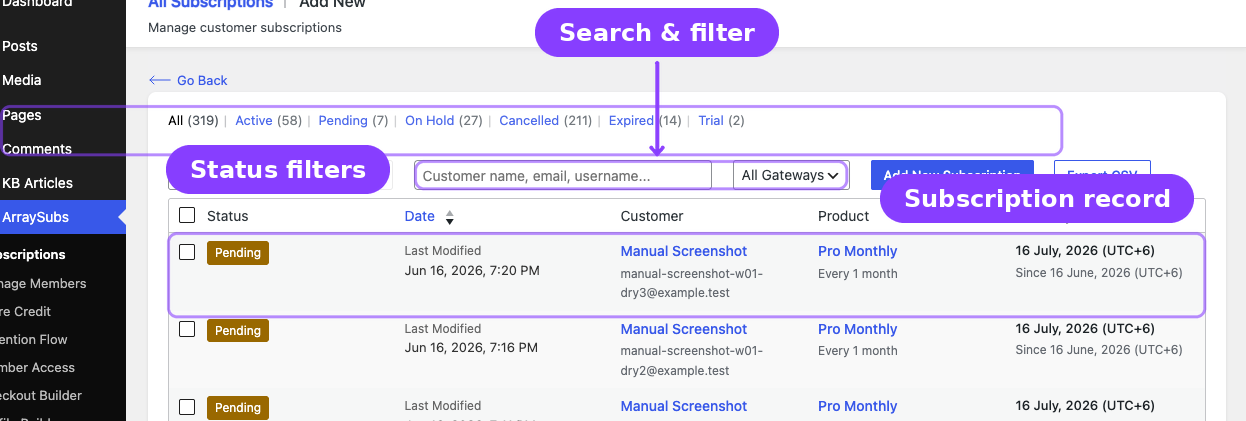
Open ArraySubs → Subscriptions to see every subscription in your store.
Use this screen as the daily support desk for active customers. It is the fastest place to answer "Who owns this subscription?", "When is the next payment?", "Which product is it for?", and "Should I view details or edit the record?"
What the List Shows
The list displays five columns:
| Column | What It Shows |
|---|---|
| Status | Color-coded badge — Active (green), Pending (orange), On Hold (yellow), Cancelled (red), Expired (red), Trial (cyan) |
| Date | When the subscription was created |
| Customer | Customer name and email, stacked |
| Product | Product name and variation, stacked |
| Next Payment | The next scheduled renewal date |
Filtering by Status
Use the status tabs at the top of the list to narrow results:
- All — every subscription regardless of status
- Active — currently billing
- Pending — created but not yet activated
- On Hold — paused due to unpaid renewal or manual hold
- Cancelled — permanently cancelled
- Expired — reached their billing cycle limit or end date
- Trial — in a free trial period
Searching
The search bar accepts customer name, email address, or username. Type at least a few characters and press Enter to refresh the list with matching records.
Row Actions
Hover over any subscription row (or use the action column) to see:
| Action | What It Does |
|---|---|
| View Details | Opens the read-only detail screen with full subscription information, timeline, orders, and notes |
| Edit | Opens the edit form where you can update the invoice email, addresses, and status-related details |
| Delete | Permanently removes the subscription — only available for Pending, On Hold, Cancelled, and Expired subscriptions |
You cannot delete Active or Trial subscriptions. Cancel the subscription first, then delete it if needed.
Exporting Subscriptions
Click the Export CSV button at the top of the list to download all subscriptions as a CSV file. The export includes 15 fields:
| Subscription ID | Status |
| Customer Name | Customer Email |
| Product Name | Recurring Amount |
| Currency | Billing Cycle |
| Start Date | Next Payment Date |
| Last Payment Date | End Date |
| Total Payments | Payment Method |
| Created Date |
The file is UTF-8 encoded with a BOM header for Excel compatibility. The filename includes the current date and time — for example, subscriptions-export-2026-04-01-143022.csv.
The export downloads all subscriptions matching the current status filter. To export only active subscriptions, switch to the Active tab first.
You can also export in JSON format by calling the REST endpoint directly: GET /arraysubs/v1/subscriptions/export?format=json.
Pagination
The list shows 20 subscriptions per page. Use the page controls at the bottom to navigate.
Create a Subscription
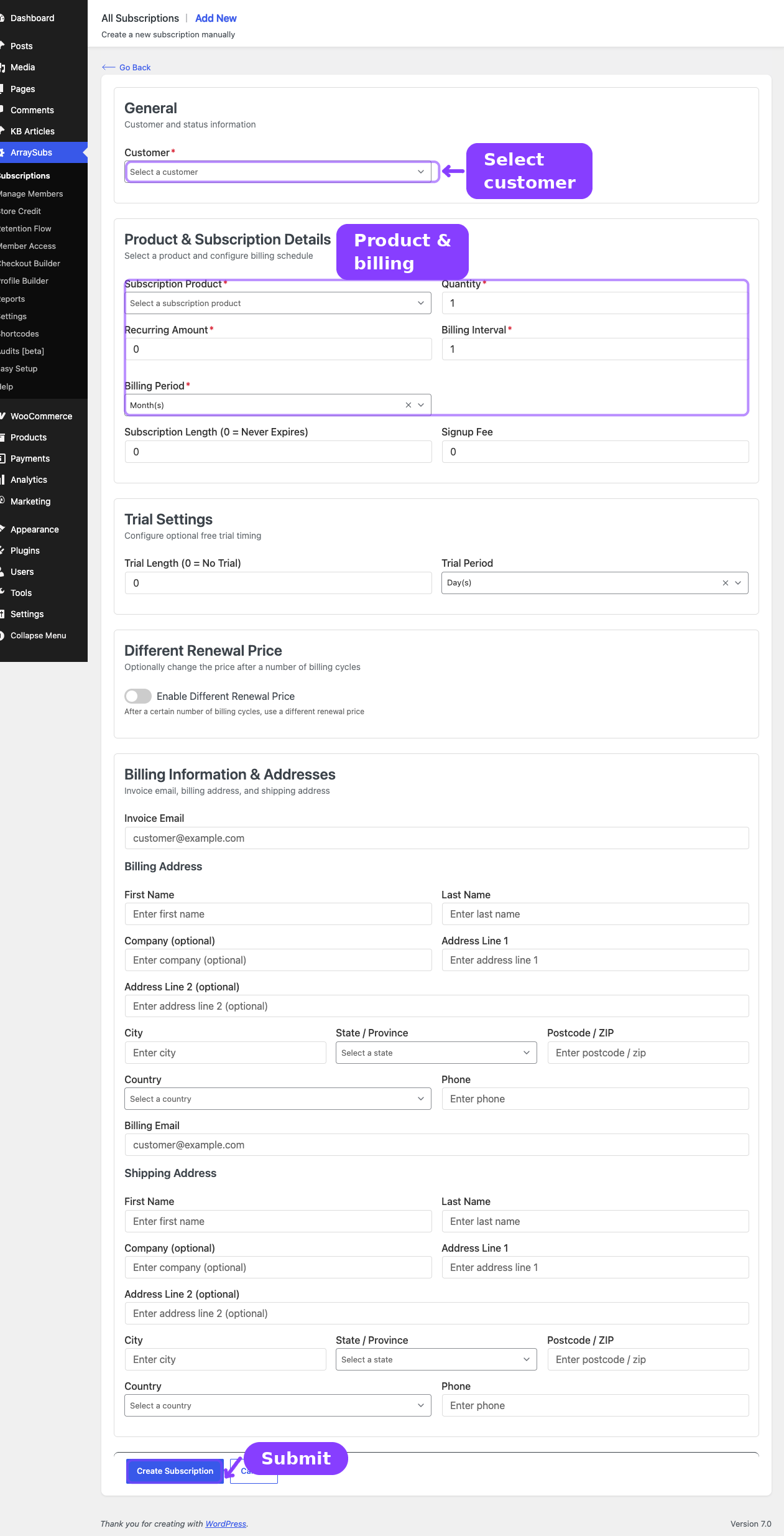
Navigate to ArraySubs → Subscriptions and click Add New at the top of the list. This opens a blank subscription form.
When to Use This
- Phone orders — a customer calls and you need to set up their subscription manually.
- Migrations — you are moving subscriptions from another system and need to create records.
- Exceptions — you want to give a customer a custom billing schedule or price that does not match any existing product.
Form Sections
The creation form has five sections:
1. General
| Field | Type | Required | Notes |
|---|---|---|---|
| Customer | Searchable select | Yes | Type a name or email to search. Results load on demand (AJAX). Select the customer who will own this subscription. |
2. Product & Subscription Details
| Field | Type | Required | Notes |
|---|---|---|---|
| Subscription Product | Select | Yes | Lists only products with subscription data (simple and variable). |
| Product Variation | Select | Conditional | Appears only when a variable product is selected and it has subscription variations. |
| Quantity | Number | Yes | Minimum 1. Appears after selecting a simple product or a variation. |
| Recurring Amount | Number | Yes | Pre-filled from the product, but you can override it. This is the amount charged each billing cycle. |
| Billing Interval | Number | Yes | How often the billing cycle repeats — for example, 1 for every month, 2 for every two months. Disabled for Lifetime Deal products. |
| Billing Period | Select | Yes | The cycle unit: Day(s), Week(s), Month(s), Year(s), or Lifetime Deal. |
| Subscription Length | Number | No | Total number of billing cycles. 0 means the subscription never expires. |
| Signup Fee | Number | No | A one-time fee charged at the time of signup. |
When you select a product or variation, the form auto-fills the recurring amount, billing interval, billing period, subscription length, trial settings, signup fee, and different renewal price from the product's configuration. You can override any of these values.
3. Trial Settings
| Field | Type | Notes |
|---|---|---|
| Trial Length | Number | Number of trial periods. 0 means no trial. |
| Trial Period | Select | Day(s), Week(s), Month(s), or Year(s). |
4. Different Renewal Price
| Field | Type | Notes |
|---|---|---|
| Enable Different Renewal Price | Toggle | Turn on to charge a different amount after a certain number of payments. |
| Different Renewal Price | Number | The new recurring amount. Only visible when the toggle is on. |
| After How Many Payments | Number | How many completed payments before the price switches. Minimum 1. Only visible when the toggle is on. |
5. Billing Information & Addresses
| Field | Type | Notes |
|---|---|---|
| Invoice Email | Text | Email address for renewal invoices. Defaults to the customer's account email if left blank. |
Billing Address — a two-column card with fields for First Name, Last Name, Company, Phone, Address Line 1, Address Line 2, City, State/Province, Postcode/ZIP, and Country.
Shipping Address — same layout as billing, without the Phone field.
What Happens When You Save
Clicking Create Subscription sends the data to the server. The subscription is created with Pending status and a temporary title like Subscription #1743500000. After creation you are redirected to the subscriptions list.
Manually created subscriptions start as Pending. To activate the subscription (and start billing), open the subscription, change the status to Active, and confirm.
Edit a Subscription
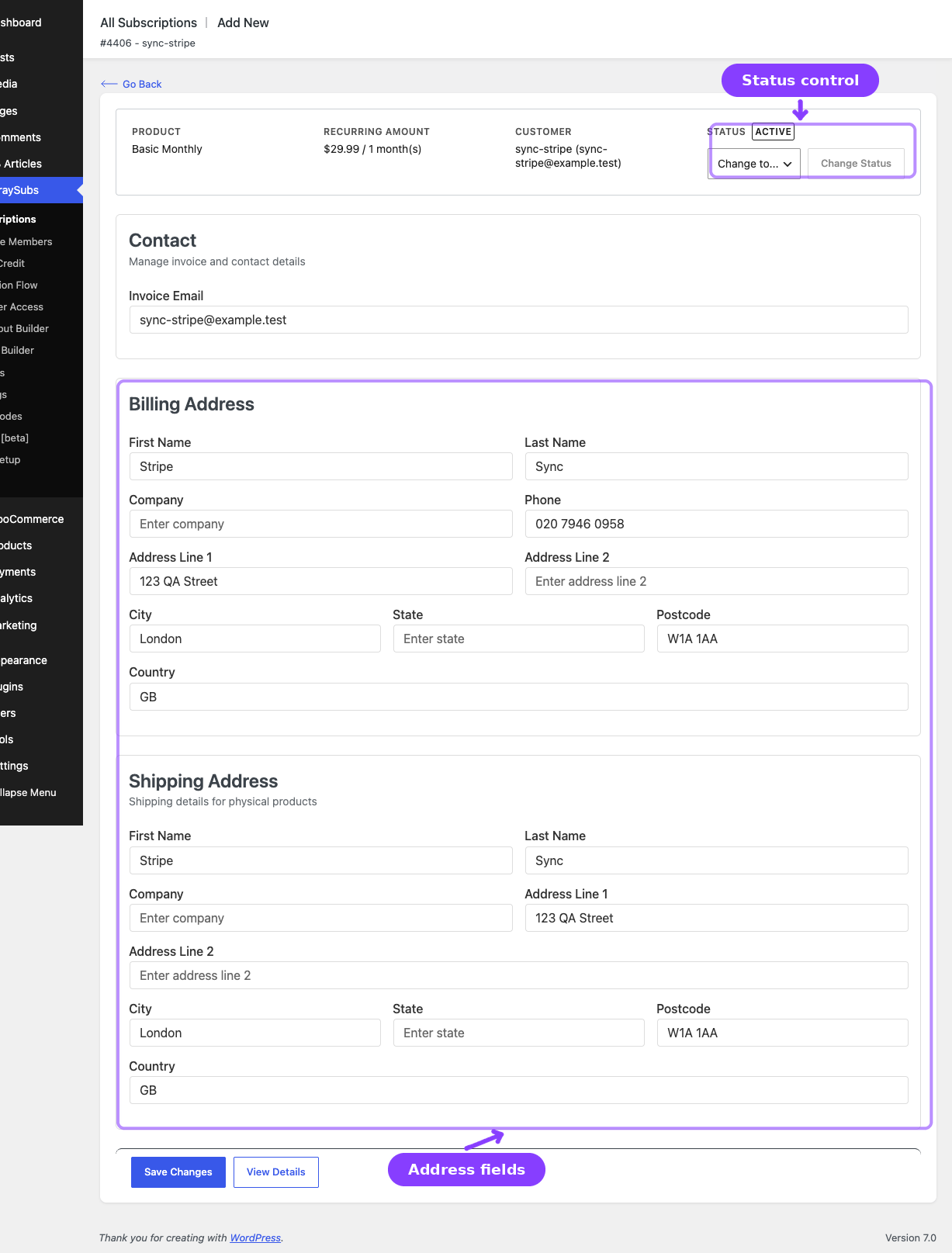
From the subscriptions list, click the Edit action on any row (or click Edit Subscription from the detail screen). The edit page loads a focused form with a read-only summary at the top.
Subscription Summary (Read-Only)
The top of the edit page shows four items that cannot be changed from this screen:
| Item | What It Shows |
|---|---|
| Product | Product name and variation attributes (e.g., "Monthly Plan — Size: Large, Color: Blue") |
| Recurring Amount | Current recurring price and billing schedule (e.g., "$50.00 / 1 month(s)") |
| Customer | Customer display name and email |
| Status | Current status badge with an inline status change control |
Editable Fields
Contact
| Field | Type | Notes |
|---|---|---|
| Invoice Email | Text | Override the email address where renewal invoices are sent. |
The next payment date is no longer editable from the admin subscription form. ArraySubs calculates it automatically from the billing schedule, renewal processing, and lifecycle events such as reactivation, skip, or pause flows.
Billing Address
All ten address fields (First Name, Last Name, Company, Phone, Address Line 1, Address Line 2, City, State, Postcode, Country) are editable.
Shipping Address
All nine fields (same as billing, without Phone) are editable.
Changing Status
The status change control sits in the summary card. Select a new status from the dropdown and click Change Status. A confirmation dialog appears with a message specific to the status you chose:
| Target Status | Confirmation Message |
|---|---|
| Cancelled | "This will cancel the subscription immediately. All scheduled renewals will be removed. Continue?" |
| On Hold | "This will put the subscription on hold. Scheduled renewals will be paused until the subscription is reactivated. Continue?" |
| Active | "This will activate the subscription and schedule renewal payments. Continue?" |
| Any other status | "Are you sure you want to change the status?" |
Changing status to Cancelled from this screen performs an immediate cancellation. All future scheduled renewals are removed. This cannot be undone from the same control — you would need to reactivate the subscription manually.
What Happens When You Save
Clicking Update Subscription saves the edited contact and address fields and redirects you to the subscription detail page.
Subscription Detail Screen
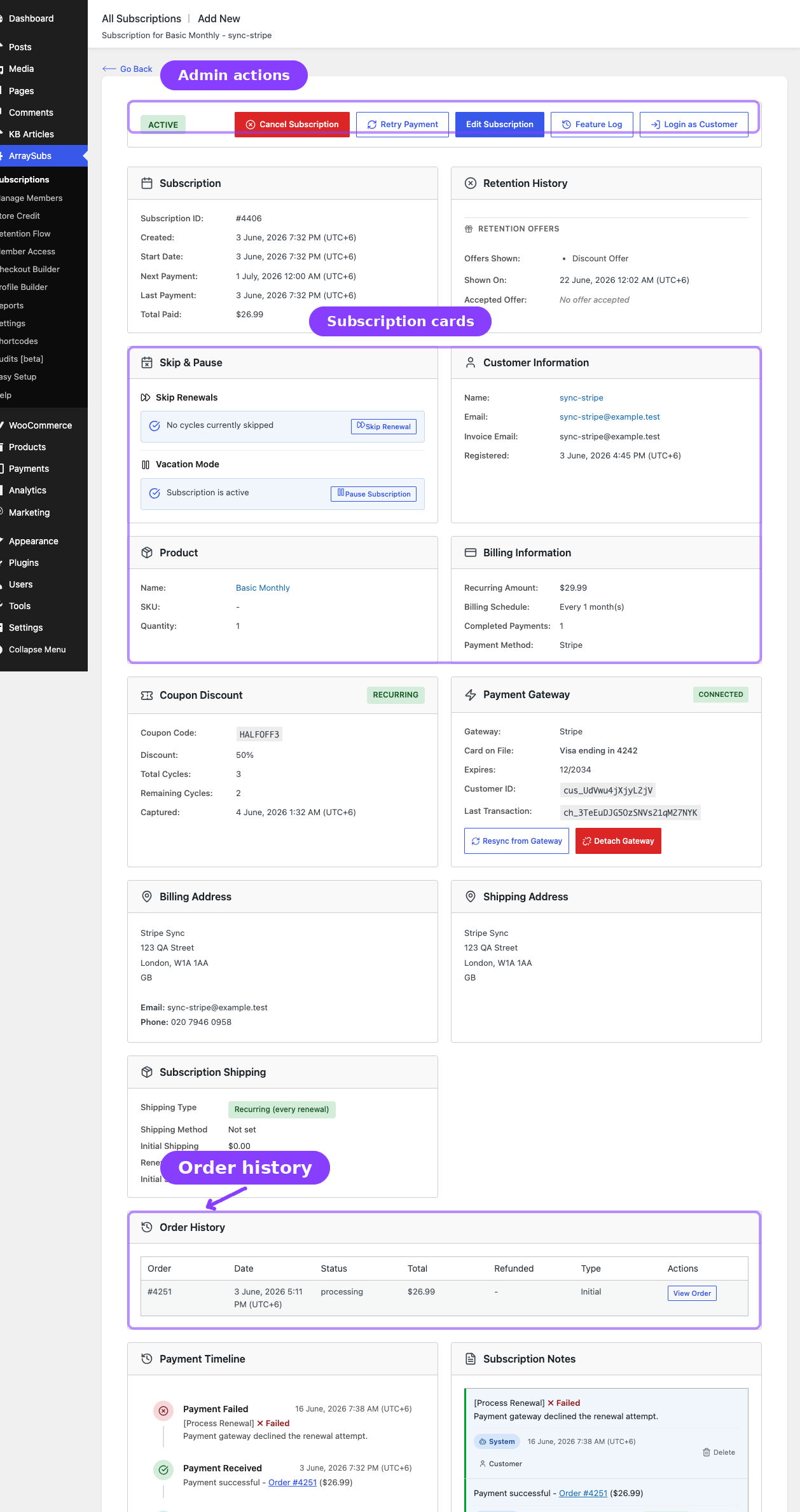
From the subscriptions list, click the View Details action on any row. This opens the full read-only dashboard for a single subscription.
Header
The header shows:
- Title: "Subscription #123"
- Subtitle: The subscription display title
- Status badge: Color-coded current status
- "Cancels at end of period" notice (only if a scheduled cancellation is pending)
Header Action Buttons
The header actions change depending on the subscription's state and available modules:
| Button | When It Appears | What It Does |
|---|---|---|
| Undo Scheduled Cancellation | When a cancellation is scheduled for end-of-period | Removes the scheduled cancellation and resumes normal renewals. Asks for confirmation first. |
| Cancel Subscription | When the subscription is Active, On Hold, Trial, or Pending and no cancellation is already scheduled | Opens a cancellation modal where you choose Immediate or End of Period and optionally enter a reason. |
| Retry Payment | When the subscription has a failed renewal available for retry | Starts a retry flow that verifies with the payment gateway before attempting the renewal payment again. |
| Edit Subscription | Always | Navigates to the edit form. |
| Feature Log | When Feature Manager data is available for the customer | Opens the customer's entitlement and usage log. |
| Login as Customer | When the subscription has a valid customer | Opens the store frontend logged in as that customer (requires the Login as User module). Includes a back-URL so you can return to the admin. |
Cancel Subscription Modal
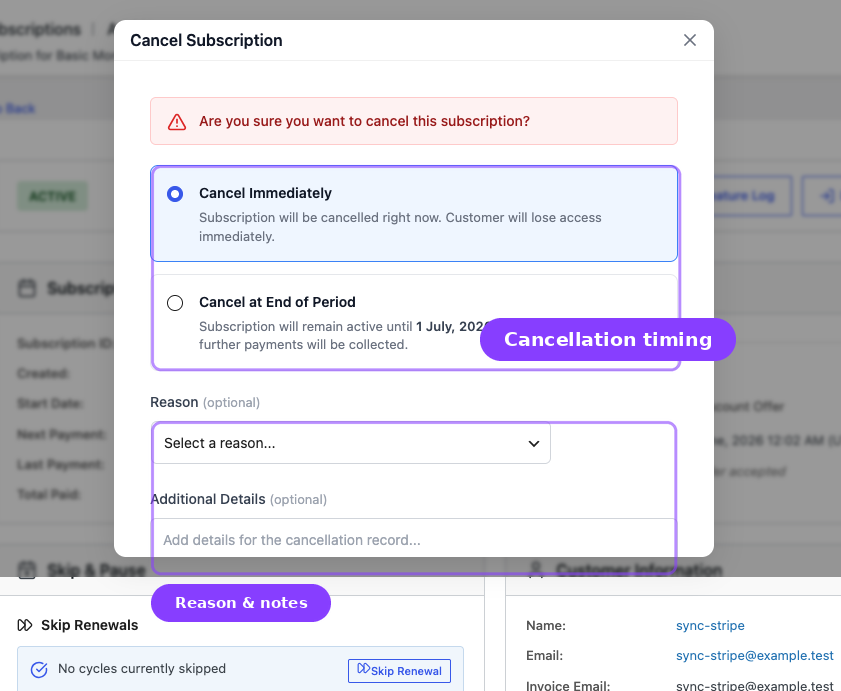
When you click Cancel Subscription, a modal appears with:
- Two radio options:
- Cancel Immediately — the subscription is cancelled right now and the customer loses access.
- Cancel at End of Period — the subscription stays active until the next payment date, then cancels automatically. No further payments are collected.
- An optional Reason dropdown.
- An optional Additional Details field.
- Two buttons: Keep Subscription (closes the modal) and Confirm Cancellation (executes the cancellation).
Information Cards
The detail screen displays up to 16 card sections in this order:
| # | Card | Always Visible? |
|---|---|---|
| 1 | Subscription Info | Yes |
| 2 | Cancellation Details | Only if the subscription has cancellation data |
| 3 | Skip & Pause | Yes (shows disabled state if features not enabled) |
| 4 | Customer Information | Yes |
| 5 | Product | Yes |
| 6 | Billing Information | Yes |
| 7 | Checkout Builder Fields | Only if custom checkout fields exist (Pro) |
| 8 | Coupon Discount | Only if a coupon is applied |
| 9 | Payment Gateway | Only if an automatic payment gateway is attached (Pro) |
| 10 | Billing Address | Yes |
| 11 | Shipping Address | Yes |
| 12 | Subscription Shipping | Only if the product requires shipping (Pro) |
| 13 | Order History | Yes |
| 14 | Payment Timeline | Yes |
| 15 | Subscription Notes | Yes |
Each conditional card is covered in detail in the Subscription Detail Cards guide. The always-visible cards are described below.
Subscription Info Card
| Field | What It Shows |
|---|---|
| Subscription ID | The internal post ID (e.g., #1234) |
| Created | Date the subscription was created |
| Start Date | When the subscription became active |
| Next Payment | Next scheduled renewal date, or "No recurring payment" for lifetime deals |
| Last Payment | Date of the most recent successful payment (if any) |
| Total Paid | Cumulative amount paid across all renewals. Uses the stored total or calculates it as recurring amount × completed payments. |
| Trial Length | Trial duration (only shown if the subscription has a trial) |
| Trial End Date | When the trial ends (only shown if applicable) |
| End Date | When the subscription ended (only shown for cancelled or expired subscriptions) |
Customer Information Card
| Field | What It Shows |
|---|---|
| Customer Name | Linked to the customer's profile in the Manage Members screen |
| Clickable mailto link | |
| Invoice Email | The email where invoices are sent, or "Same as customer email" if not overridden |
| Date Registered | When the customer's WordPress account was created |
Product Card
| Field | What It Shows |
|---|---|
| Product Image | Thumbnail from the WooCommerce product |
| Product Name | Linked to the product's WooCommerce edit page |
| Parent Product | Shown only for variations — the parent variable product name |
| Variation Attributes | Each attribute displayed as name: value (e.g., "Size: Large") |
| SKU | Product SKU if set |
| Quantity | Number of units per renewal |
Billing Information Card
| Field | What It Shows |
|---|---|
| Recurring Amount | The amount charged each cycle. If a retention discount is active, shows the effective (discounted) amount. |
| Base Renewal Amount | The original amount before retention discount (only shown when a discount is active) |
| Retention Discount | Discount type (percentage or fixed), amount, and remaining renewal count (only shown when active) |
| Different Renewal Price | The price that applies after a set number of payments (only shown when enabled) |
| Applies After | Number of payments before the different renewal price takes effect |
| Billing Schedule | Formatted as "Every X day(s)/week(s)/month(s)/year(s)" or "Lifetime Deal" |
| Signup Fee | One-time fee charged at subscription creation (only shown if greater than zero) |
| Completed Payments | Total number of successful renewal payments |
| Payment Method | The payment method title (e.g., "Direct bank transfer", "Stripe - Visa ending in 4242") |
Billing Address Card
Shows the full formatted billing address: name, company, street address, city, state, postcode, country, email, and phone.
Shipping Address Card
Shows the full formatted shipping address (same layout as billing, without phone).
Order History Card
A table showing every order linked to this subscription:
| Column | What It Shows |
|---|---|
| Order | Order ID linked to the WooCommerce order edit screen |
| Date | When the order was placed |
| Status | WooCommerce order status (Processing, Completed, etc.) |
| Total | Order total with currency |
| Refunded | Refund amount (red text), or a dash if no refunds |
| Type | "Initial" for the signup order, "Renewal" for all subsequent orders |
| Actions | "View Order" link to the WooCommerce order |
When an order has refunds, each refund appears as an indented sub-row below the parent order showing the refund ID, date, amount, and reason.
If the subscription has any refunded amount, the card header shows a red Total Refunded badge with the cumulative refund total.
Payment Timeline
A vertical timeline that combines order events and subscription notes into a single chronological view. Each event shows:
- A colored icon marker (green for success, red for failure, gray for informational)
- Event title (e.g., "Renewal Payment", "Status Change", "Payment Failed")
- Timestamp
- Description with relevant context (e.g., "Order #1234 — $99.99")
- A View Order link for payment-related events
Events are sorted newest-first. The timeline shows the 5 most recent events by default, with a Show All button to expand the full history.
Renewal events are classified from structured system metadata, not from the wording of the note. This keeps the timeline accurate when notes are translated or reworded:
| Timeline Label | Meaning |
|---|---|
| Renewal Invoice Created | A renewal order was generated and is waiting for payment. This is pending, not paid. |
| Renewal Payment Successful | The renewal order was paid or safely reconciled from the gateway. |
| Renewal Payment Failed | A renewal payment attempt failed. |
| Payment Retry Scheduled | A retry attempt was scheduled after a failed automatic renewal. |
Subscription Notes
The notes panel sits at the bottom of the detail page and includes:
- A chronological list of all notes, newest first
- Each note shows: the content, author badge (System, Admin, Customer, or Gateway), date, and note type indicator (Private or Customer-visible)
- An Add Note form with a rich text editor (bold, italic, underline, links, lists) and a type selector:
- Private — visible to admins only
- Customer — visible to the customer in their My Account area as well
- A Delete button on each note (admin only)
System-generated notes are created automatically for events like status changes, payment completions, payment failures, renewal invoice creation, trial conversion, product changes, quantity or amount changes, plan switches, payment method changes, and reactivation.
Real-Life Use Cases
Use Case 1: Phone Order for an Existing Customer
A long-time customer calls to add a second subscription. Go to ArraySubs → Subscriptions → Add New, search for the customer by email, select the product, review the auto-filled billing schedule, enter their shipping address, and save. Then open the subscription and change the status to Active.
Use Case 2: Updating the Invoice Recipient
A customer wants renewal invoices sent to a different address than their account email. Go to the subscription's Edit page, update Invoice Email, and save.
Use Case 3: Reviewing a Disputed Charge
A customer disputes a payment. Open the subscription's View Details screen, scroll to Order History to find the disputed order and its refund status, check the Payment Timeline for the sequence of events, and read the Subscription Notes for any system or admin notes related to the charge.
Use Case 4: Cancelling a Subscription at End of Period
A customer asks to stop their subscription but wants to keep access until their current billing period ends. From the detail screen, click Cancel Subscription, choose Cancel at End of Period, optionally enter a reason, and confirm. The subscription remains active until the next payment date, then cancels automatically.
Troubleshooting
| Problem | Likely Cause | What to Do |
|---|---|---|
| Cannot find a subscription in the list | Wrong status filter selected, or searching by product name instead of customer | Switch to the All tab and search by customer name, email, or username |
| Cannot delete a subscription | The subscription is Active or in Trial | Cancel the subscription first, then delete it |
| Product fields do not auto-fill when selecting a product | The product does not have subscription data configured | Verify the product is a subscription product with billing period, interval, and price set |
| Status change to Active does not schedule renewals | The scheduler is not running, or the subscription billing configuration is invalid | Check WooCommerce → Status → Scheduled Actions, confirm the billing interval and period are correct, and verify the detail screen shows a valid automatically calculated next payment date |
| Export CSV opens garbled in Excel | Excel not detecting UTF-8 encoding | The CSV includes a BOM header for Excel compatibility. Try opening with "Import from CSV" instead of double-clicking the file. |
Related Guides
- Subscription Detail Cards — deep dive into every conditional card on the detail screen
- Admin Tools and Records — notes, export, feature log, and order history
- Lifecycle Management — the complete status transition system
- Subscription Products — Create and Configure — setting up products before creating subscriptions
- Settings — General Settings — grace periods, email timing, and customer portal options
FAQ
Can I create a subscription without a product?
No. Every subscription must be linked to a subscription product. The product determines the default billing schedule, trial settings, and pricing. You can override these values in the form, but the product association is required.
Can I change the product on an existing subscription?
Not from the Edit screen. The product and variation are part of the subscription summary and are read-only on the edit page. To change the product, you would create a new subscription and cancel the old one — or use the Plan Switching feature if configured.
What is the difference between Edit and View Details?
View Details is the read-only dashboard with all subscription information, timeline, order history, and notes. Edit is a focused form where you can update the invoice email, addresses, and subscription status.
Can I export only certain statuses?
The Export CSV button exports all subscriptions matching the current status filter. Switch to the status tab you want (e.g., Active) before clicking export to download only those subscriptions.
What does "Login as Customer" do?
It opens the store frontend in a new session logged in as that customer. This requires the Login as User module to be enabled. The button includes a back-URL so you can return to the admin dashboard.
Why is the Delete button missing on some subscriptions?
Active and Trial subscriptions cannot be deleted directly. Cancel the subscription first, then the delete action will become available.