
Emails
ProFour automated email notifications keep customers informed about their store credit — when it is added, used, about to expire, and after it expires.
Availability: Pro
Page Navigation
- Current guide: Emails
- Where to open it: WordPress Admin → WooCommerce → Settings → Emails
- Section overview: Open overview
- Previous guide: credit-history
- Next guide: purchase-product
- Troubleshooting: Audits, Logs, and Troubleshooting
Overview
The Store Credit system includes four dedicated WooCommerce emails that are automatically triggered by credit events. These emails use the standard WooCommerce email framework, which means they inherit your store's email template styling and can be customized from WooCommerce → Settings → Emails.
All four emails are customer-facing (sent to the customer, not the admin) and enabled by default.
Email Summary
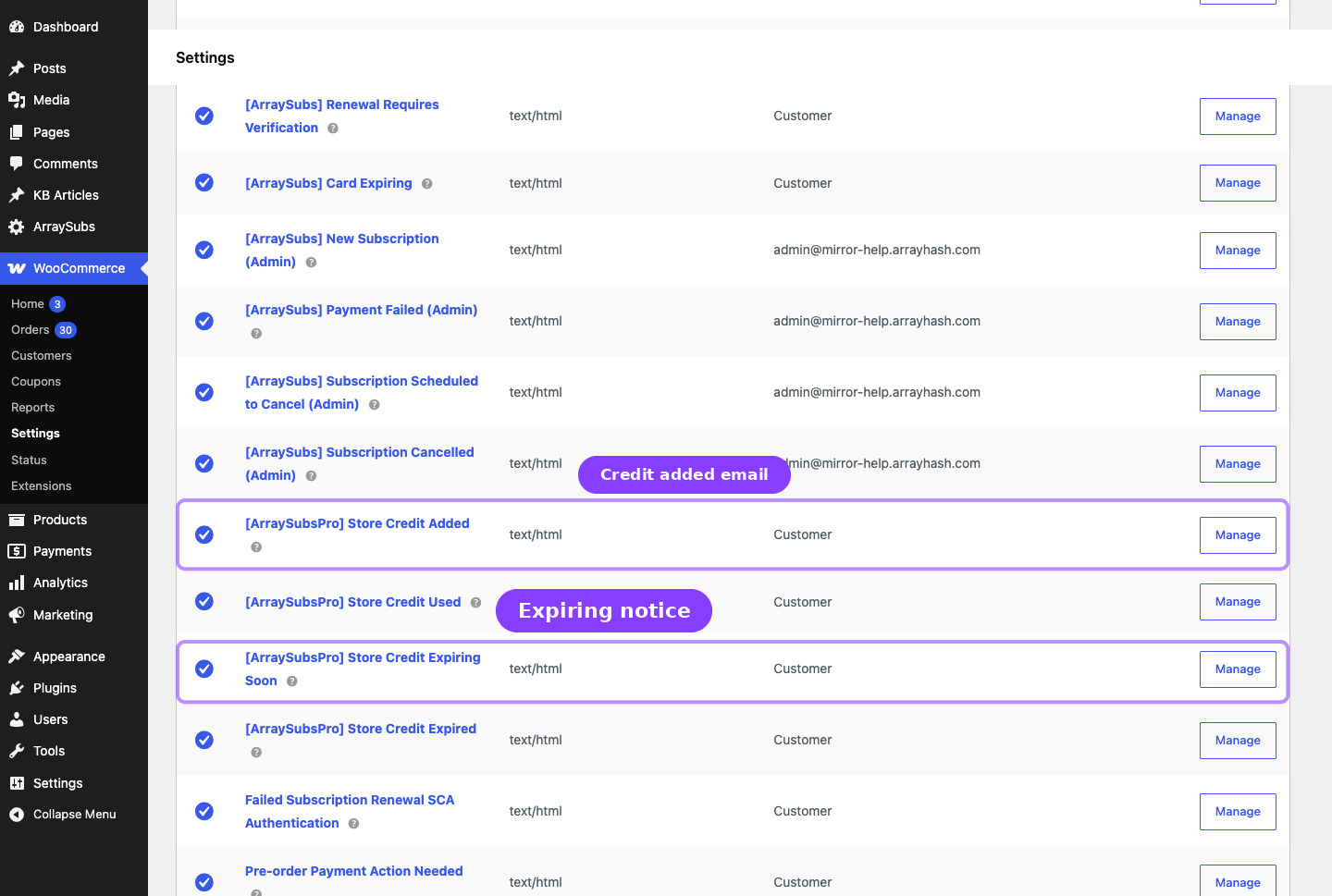
| ID | Triggered when | Default state | |
|---|---|---|---|
| Store Credit Added | arraysubs_credit_added |
Credit is added to the customer's account (from any source except renewal application, order application, or expiration) | Enabled |
| Store Credit Used | arraysubs_credit_used |
Credit is applied to an order (renewal or checkout) | Enabled |
| Store Credit Expiring | arraysubs_credit_expiring |
A credit entry is 7 days away from its expiration date | Enabled |
| Store Credit Expired | arraysubs_credit_expired |
A credit entry passes its expiration date and the balance is deducted | Enabled |
How to Configure
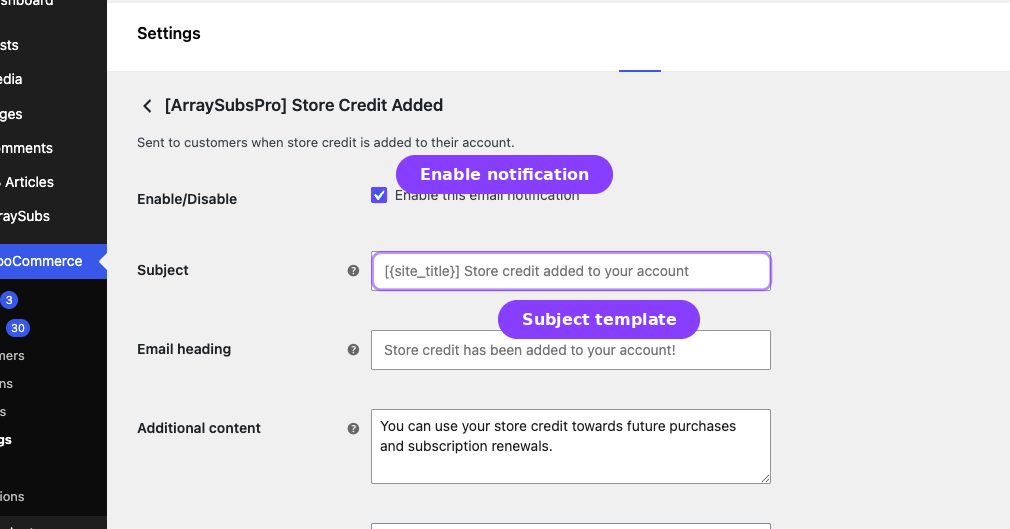
- Go to WooCommerce → Settings → Emails.
- Find the ArraySubsPro Store Credit emails in the list.
- Click Manage on the email you want to configure.
- Adjust the subject, heading, additional content, and email type (HTML or Plain Text).
- Click Save changes.
Each email supports the same customization options as any other WooCommerce email:
| Option | What it controls |
|---|---|
| Enable/Disable | Toggle this specific email on or off. |
| Subject | The email subject line. Supports placeholders. |
| Email heading | The main heading inside the email body. Supports placeholders. |
| Additional content | Extra text appended after the main content. |
| Email type | Choose between HTML, Plain text, or Multipart. |
Store Credit Added
Sent when credit is added to a customer's account from sources like admin adjustments, refund conversions, plan downgrades, promotional grants, or credit purchases.
This email is not sent when credit is deducted (applied to renewals, applied to orders, or expired). It only fires for credit additions.
Default subject: [{site_title}] Store credit added to your account
Default heading: Store credit has been added to your account!
Email content includes:
- Customer greeting
- Amount of credit added
- Information table:
- Credit Added — the amount
- New Balance — updated total (bold)
- Source — human-readable source label (e.g., "Admin Adjustment", "Plan Downgrade", "Refund", "Promotional Credit", "Credit Purchase")
- Explanation that the credit can be used for purchases or renewals
- Link to view the customer's Store Credit page in My Account
Placeholders:
| Placeholder | Value |
|---|---|
{site_title} |
Your site name |
{site_address} |
Your site URL |
{site_url} |
Your site URL |
{store_email} |
Your store email address |
{customer_name} |
The customer's display name |
{credit_amount} |
The amount of credit added |
{new_balance} |
The customer's updated balance |
{credit_source} |
The source label |
{my_account_url} |
Link to the Store Credit page in My Account |
Store Credit Used
Sent when credit is applied to an order — whether it is a subscription renewal or a checkout purchase.
Default subject: [{site_title}] Store credit used for Order #{order_id}
Default heading: Store credit applied to your order
Email content includes:
- Customer greeting
- Notification that credit was applied to order #X
- Information table:
- Credit Applied — the amount used
- Remaining Balance — what is left (bold)
- Order — linked to the order details page
- Link to view order details in My Account
Placeholders:
| Placeholder | Value |
|---|---|
{site_title} |
Your site name |
{site_address} |
Your site URL |
{site_url} |
Your site URL |
{store_email} |
Your store email address |
{customer_name} |
The customer's display name |
{credit_used} |
The amount of credit applied |
{remaining_balance} |
The customer's remaining balance |
{order_id} |
The WooCommerce order number |
{order_url} |
Link to the order in My Account |
{my_account_url} |
Link to the Store Credit page in My Account |
Store Credit Expiring
Sent 7 days before a credit entry is scheduled to expire. This gives the customer advance notice to use their remaining credit before it disappears.
This email only fires when the Expiration Period in Store Credit Settings is set to a value greater than 0. If credits never expire, this email is never sent.
Default subject: [{site_title}] Your store credit expires soon
Default heading: Your store credit is expiring soon!
Email content includes:
- Customer greeting
- Urgency message about expiring credit
- Information table:
- Expiring Credit — the amount about to expire (bold, highlighted in red)
- Expiration Date — formatted date
- Days Remaining — countdown (pluralized: "day" vs "days")
- Warning not to let the credit go to waste
- "Shop Now" call-to-action button linking to the shop page
- Link to view the Store Credit balance in My Account
Placeholders:
| Placeholder | Value |
|---|---|
{site_title} |
Your site name |
{site_address} |
Your site URL |
{site_url} |
Your site URL |
{store_email} |
Your store email address |
{customer_name} |
The customer's display name |
{expiring_amount} |
The amount about to expire |
{expires_at} |
The expiration date |
{days_remaining} |
Number of days until expiration |
{my_account_url} |
Link to the Store Credit page in My Account |
{shop_url} |
Link to the shop page |
Store Credit Expired
Sent after a credit entry has expired and the balance has been deducted from the customer's account.
Default subject: [{site_title}] Your store credit has expired
Default heading: Your store credit has expired
Email content includes:
- Customer greeting
- Notification that credit has expired
- Information table:
- Expired Credit — the amount removed (strikethrough, grayed out)
- Explanation that the credit is no longer available with a suggestion to contact support
- "Visit Our Shop" call-to-action button linking to the shop page
- Link to view the Store Credit balance in My Account
Placeholders:
| Placeholder | Value |
|---|---|
{site_title} |
Your site name |
{site_address} |
Your site URL |
{site_url} |
Your site URL |
{store_email} |
Your store email address |
{customer_name} |
The customer's display name |
{expired_amount} |
The amount that expired |
{my_account_url} |
Link to the Store Credit page in My Account |
{shop_url} |
Link to the shop page |
Real-Life Use Cases
Use Case 1: Expiration Urgency Campaign
You set a 90-day expiration period on all credits. When a customer receives a Credit Expiring email 7 days before their $25 credit vanishes, the urgency prompts them to place an order, visit the store, or renew early — recovering revenue that might otherwise have gone unused.
Use Case 2: Transparent Renewal Credit Deductions
A customer with $40 in credit has their $29.99 subscription renewal auto-applied. The Credit Used email immediately shows them the $29.99 deduction, their new $10.01 balance, and a direct link to the order — keeping the experience transparent and building trust.
Use Case 3: Downgrade Credit Notification
A customer downgrades from a $99/month plan to a $49/month plan. The $50 difference is added as subscription credit and the Credit Added email arrives showing the $50 grant, the source "Plan Downgrade", and their updated balance. The customer understands exactly what happened and where the money went.
Edge Cases and Important Notes
- Credit Added skips debit sources. The "Credit Added" email does not fire when credit is applied to a renewal, applied to an order, or expired. Only actual additions trigger it.
- Expiring email fires once per credit entry. Each expiring credit is notified only once, 7 days before expiration. The notification is tracked with an internal flag to prevent duplicates.
- Expiring email requires the background job. The daily expiration batch (3:00 AM server time) processes both expirations and queues expiring notifications. If the background job is not running, neither emails nor expirations will process.
- All emails use WooCommerce's template system. You can override templates by copying them to your theme's
woocommerce/emails/directory, following the standard WooCommerce email template override pattern. - Email type affects formatting. HTML emails include styled tables, colored amounts, and CTA buttons. Plain text emails present the same information without formatting.
Troubleshooting
| Problem | Likely Cause | What to Do |
|---|---|---|
| Customer not receiving credit emails | The specific email is disabled in WooCommerce settings | Go to WooCommerce → Settings → Emails and enable the relevant credit email |
| Expiring email not sent | Expiration period is 0 (no expiration), or the background job has not run yet | Set an expiration period > 0 and wait for the 3:00 AM batch cycle |
| Email shows wrong balance | Balance changed between the credit event and email sending (e.g., concurrent transactions) | This is rare; the balance shown reflects the state at the time of the triggering event |
| Email subject or heading not updated | Changes not saved in WooCommerce email settings | Re-open the email settings, verify your changes, and click Save changes |
| Emails going to spam | General email deliverability issue, not specific to Store Credit | Configure a proper SMTP plugin or transactional email service for your WordPress site |
Related Guides
- Email Overview — How ArraySubs emails work, placeholder reference, and template overrides.
- Store Credit Settings — Configure the expiration period that triggers Expiring and Expired emails.
- Store Credit Management — Admin adjustments trigger the Credit Added email.
- Refund to Credit — Refund conversions trigger the Credit Added email.
- Purchase Product — Credit purchases trigger the Credit Added email.
FAQ
Can I customize the email templates?
Yes. Like any WooCommerce email, you can override the HTML and plain text templates by copying them from the plugin's template directory to your active theme's woocommerce/emails/ folder and editing them there.
Can I disable just one email?
Yes. Each of the four emails has its own enable/disable toggle in WooCommerce → Settings → Emails. You can keep some active and disable others.
Do admin adjustments trigger an email?
Yes. When you add credit via the Store Credit Management page, the Credit Added email fires. Deductions do not trigger any email.
Is there an admin notification email for credit events?
No. All four Store Credit emails are customer-facing. There is no admin notification when credit is added, used, or expired. Admins can monitor activity through the Credit History page.
When exactly is the "expiring soon" email sent?
The expiration notification is queued during the daily batch job (3:00 AM server time) for credits that will expire within the next 7 days. The email is scheduled to send approximately 60 seconds after being queued.