
Refund to Credit
ProProcess refunds as store credit instead of sending money back through the payment gateway — keep the revenue in your store while still making the customer whole.
Availability: Pro
Page Navigation
- Current guide: Refund to Credit
- Where to open it: WordPress Admin → WooCommerce → Orders → Edit Order → Refund
- Section overview: Open overview
- Previous guide: README
- Next guide: store-credit-management
- Troubleshooting: Audits, Logs, and Troubleshooting
Overview
The Refund to Credit integration adds a new refund method directly inside the WooCommerce order edit screen. Instead of issuing a traditional gateway refund (which sends money back to the customer's card or PayPal), you can convert the refund amount into store credit that is deposited into the customer's account.
This is a powerful retention tool. The customer receives their money back in a form they can spend in your store, and you keep the cash in your business.
When to Use This
- A customer is unhappy with a renewal charge and wants a refund, but you would rather keep the revenue in-store.
- You want to offer a "soft refund" that maintains the customer relationship.
- You want to reduce payment gateway refund fees (some gateways do not return processing fees on refunds).
- A customer asks for a partial refund that you would prefer to issue as credit.
Prerequisites
- ArraySubs Pro active
- Store Credit enabled in ArraySubs → Store Credit → Settings
- Admin or Shop Manager access with
edit_shop_orderscapability - The order must belong to a registered customer (not a guest order)
How It Works
When you open a WooCommerce order that is eligible for a refund, the standard refund interface now includes a refund method selector. You choose between:
- Refund via Payment Gateway (or manual) — Standard WooCommerce refund through the original payment method or manual refund handling.
- Refund as Store Credit — Converts the refund amount into customer account credit.
When you select "As Store Credit" and process the refund, the system:
- Validates the refund amount against the maximum refundable amount.
- Adds the credit to the customer's account via
CreditManager. - Records the refund-as-credit amount in order meta.
- Adds an order note documenting the credit refund and reason.
- Triggers the Credit Added email to the customer (source: "Refund").
The order's refundable amount decreases by the credited amount, preventing the same money from being refunded twice — once as credit and once through the gateway.
Steps
Process a Refund as Store Credit
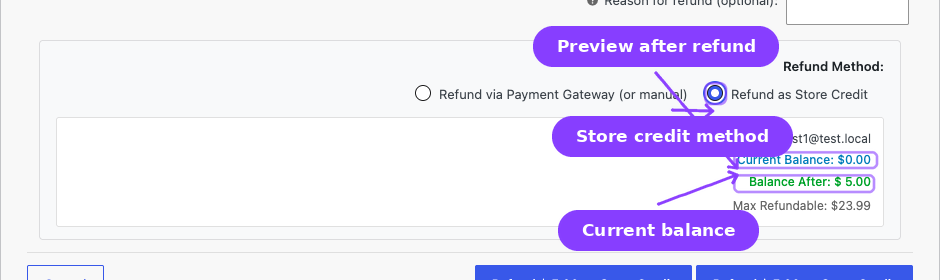
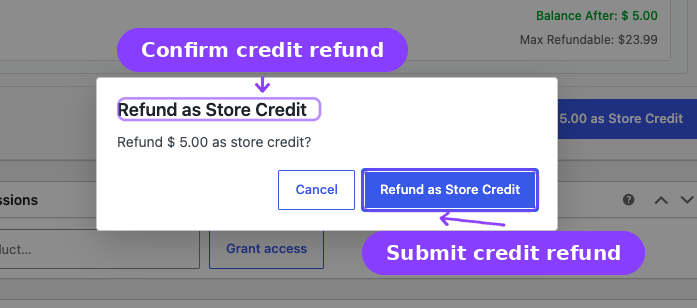
- Go to WooCommerce → Orders and open the order you want to refund.
- Scroll to the order items section.
- Click Refund.
- In the refund interface, you will see the Refund Method radio buttons:
- Refund via Payment Gateway (or manual) (default)
- Refund as Store Credit
- Select Refund as Store Credit.
- Enter the refund amount.
- Optionally enter a refund reason.
- Click the refund button to process.
The interface shows the customer's current credit balance and a preview of what their balance will be after the refund, so you can confirm the numbers before proceeding.
Check Refund Eligibility
The maximum refundable-as-credit amount is calculated as:
Max refundable = Order total − Gateway refunds already issued − Credit refunds already issued
If the order has already been fully refunded (through any combination of gateway and credit refunds), no further refund is possible.
You can check an order's refund eligibility status — the system provides the total paid, gateway refunds, credit refunds, and remaining refundable amounts.
View Credit Refund History
After a credit refund is processed, it appears in:
- The order's notes — An order note shows the amount, reason, and that it was processed as store credit.
- The order edit page — The credit refund history is displayed alongside standard WooCommerce refund records.
- Credit History — The transaction appears in the global Credit History page with source "Refund".
- Customer's transaction history — Visible in the customer's Store Credit Management view and their My Account Store Credit page.
Real-Life Use Cases
Use Case 1: Disputed Renewal Charge
A customer contacts support saying they forgot to cancel before their $49.99 renewal processed. Instead of a full gateway refund:
- Open the renewal order.
- Select As Store Credit and enter $49.99.
- Add the reason: "Customer forgot to cancel — refund as credit."
- Process the refund.
The customer receives $49.99 in credit, which they can use if they decide to resubscribe. You keep the revenue.
Use Case 2: Partial Refund for Service Issue
A $99/month subscriber experienced 3 days of downtime. You want to credit them for the affected period:
- Calculate the prorated amount: ($99 / 30) × 3 = $9.90.
- Open the latest renewal order.
- Select As Store Credit and enter $9.90.
- Reason: "Prorated credit for 3 days of service downtime."
- Process the refund.
The $9.90 credit automatically applies to the next renewal, reducing it to $89.10.
Use Case 3: Mixed Refund
A customer wants $25 back on their card and $25 as store credit from a $50 order:
- First, process a $25 Via Gateway refund through WooCommerce's standard refund flow.
- Then, process a $25 As Store Credit refund.
- Both are tracked separately on the order, and the total refundable amount drops to $0.
Edge Cases and Important Notes
- Guest orders are not eligible. The "As Store Credit" option only appears for orders placed by registered customers with a WordPress account. Guest orders can only be refunded via gateway.
- Does not create a WooCommerce refund record. A credit refund does not appear in the standard WooCommerce refund reporting because it is not a gateway refund. It is tracked separately in order meta (
_refunded_as_credit). - Cannot exceed remaining refundable. The system prevents you from refunding more than the remaining refundable amount (after accounting for both gateway and credit refunds).
- Credit is customer-level. Refund credit is always added to the customer's account balance, not to a specific subscription's balance.
- Reversing a credit refund. If you issue credit by mistake, you need to manually deduct the amount through the Store Credit Management page. There is no "undo" button on the credit refund.
- Order total remains unchanged. The WooCommerce order total does not change when a credit refund is issued. The credit refund is tracked in a separate meta field alongside the original order.
- Does not cancel the subscription. Issuing a refund as store credit does not automatically change the subscription status. The subscription continues unless you separately cancel it.
Troubleshooting
| Problem | Likely Cause | What to Do |
|---|---|---|
| "As Store Credit" option not visible | Store Credit is disabled, Pro is not active, or the order belongs to a guest | Enable Store Credit in settings, verify Pro is active, and confirm the order has a registered customer |
| Refund amount validation fails | Entered amount exceeds the maximum refundable | Check how much has already been refunded (both gateway and credit) and reduce the amount |
| Credit added but no email sent | The Credit Added email is disabled in WooCommerce | Enable it in WooCommerce → Settings → Emails |
| Order notes not showing the credit refund | The page needs a refresh after the AJAX refund completes | Refresh the order page to see the updated notes and refund history |
| Customer's balance not updated | Rare processing error | Check the Credit History for the transaction. If it is missing, the refund may have failed silently — try again |
Related Guides
- Store Credit Management — View and adjust the credited balance after a refund.
- Credit History — Find refund-sourced credits in the global transaction log.
- Emails — The Credit Added email notifies the customer about the refund credit.
- Store Credit Settings — Enable the credit system that powers refund-to-credit.
- Refund Management — Complete refund policies, prorated refunds, and gateway refund configuration.
FAQ
Does the customer know the refund was issued as credit instead of a gateway refund?
Yes. They receive the Credit Added email showing the refund amount with source "Refund" and their updated balance. The email includes a link to view their credit in My Account.
Can I use this for subscription refunds specifically?
Yes. The refund-to-credit option appears on any WooCommerce order — including initial subscription orders and renewal orders.
Does this reduce the order's total in WooCommerce reports?
No. The order total stays the same in WooCommerce reports. The credit refund is tracked separately in order meta. Standard WooCommerce refund reporting only reflects gateway refunds.
What if the customer wants a real refund later?
If you issued credit and the customer insists on a gateway refund, you would need to:
- Deduct the credit from their account via Store Credit Management.
- Process a standard WooCommerce gateway refund for the same amount.
Can I refund the full order as credit?
Yes, as long as the full amount has not already been refunded through another method. Enter the full order total, select "As Store Credit", and process.