
Product Experience and Display
How subscription pricing, billing details, and entitlements appear across your store — from the product page to the order confirmation.
Availability: Free (pricing display), Pro (Redirect Product Page, Feature Manager, Subscription Shipping)
Page Navigation
- Current guide: Product Experience and Display
- Where to open it: WordPress Admin -> Products -> Add/Edit Product
- Section overview: Open overview
- Previous guide: plan-switching-and-relationships
- Next guide: product-lifecycle
- Troubleshooting: Audits, Logs, and Troubleshooting
Overview
ArraySubs automatically extends WooCommerce's product display to show subscription-specific information wherever products appear. Customers see the recurring price, billing schedule, trial details, signup fees, and different renewal pricing on the product page, in the cart, at checkout, in the mini-cart, and on order confirmation screens.
This guide focuses on the shared storefront and checkout display behavior. The product-level Pro modules now have their own dedicated guides: Redirect Product Page, Subscription Shipping, and Feature Manager.
Frontend Pricing Display
Product Page
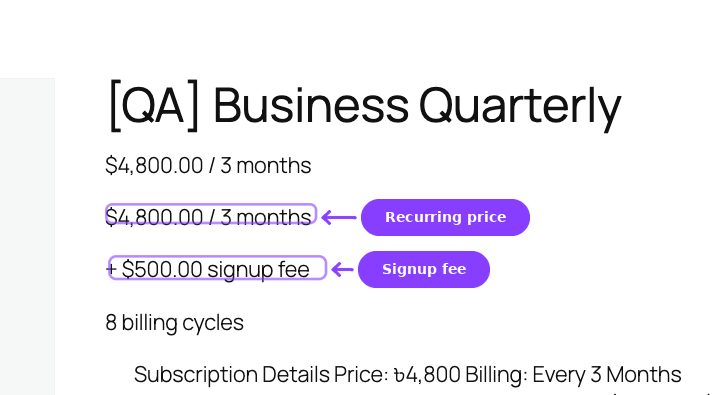
On the single product page, subscription information appears below the product title (or below the variation selector for variable products). The display includes:
| Element | When shown | Example |
|---|---|---|
| Recurring price + billing schedule | Always | $29.99 / month |
| Sale pricing | When product is on sale | $19.99 / month (was $29.99) |
| Different renewal price | When enabled | $19.99 / month for the first 3 payments, then $29.99 / month |
| Signup fee | When fee > 0 | + $9.99 signup fee |
| Trial info | When trial length > 0 | 14-day free trial |
| Subscription length | When length > 0 | 5 billing cycles |
| (no length note) | When length = 0 | Continues until cancelled (no text shown) |
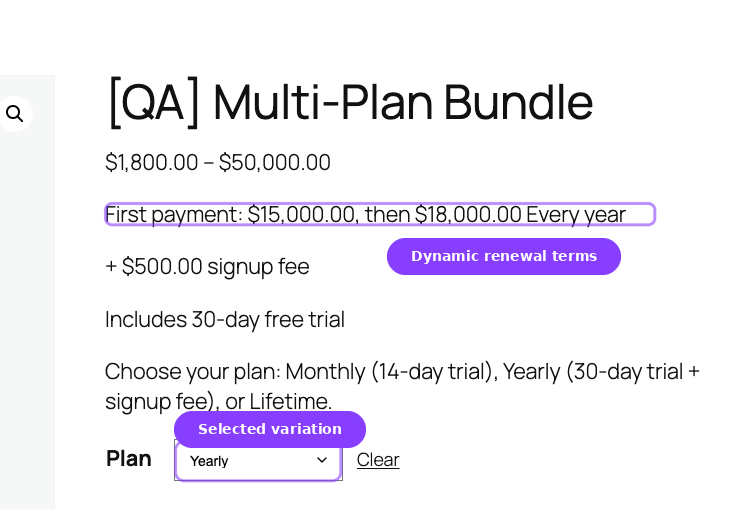
For variable products, the subscription info area starts empty. When the customer selects a variation, the billing details populate dynamically via JavaScript with the selected variation's pricing and schedule.
Cart
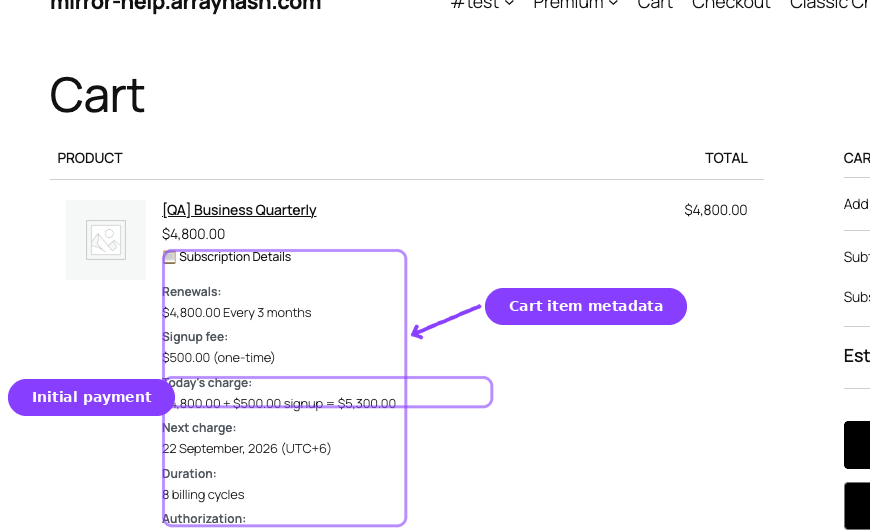
In the cart, subscription information is integrated into the standard WooCommerce cart display:
| Location | What changes |
|---|---|
| Item price column | Shows price with billing schedule (e.g., "$29.99 / month") |
| Item subtotal | Shows detailed subscription info with renewal details |
| Item name | Adds a billing schedule badge |
| Item metadata | Adds structured subscription details (period, trial, signup fee) as cart meta rows |
| Fees section | Signup fee appears as a separate fee line labeled "Subscription Signup Fee" |
The signup fee is not part of the product price. It is added as a WooCommerce cart fee, which means it appears in the fees section of the cart totals — not in the line item price.
Mini-Cart
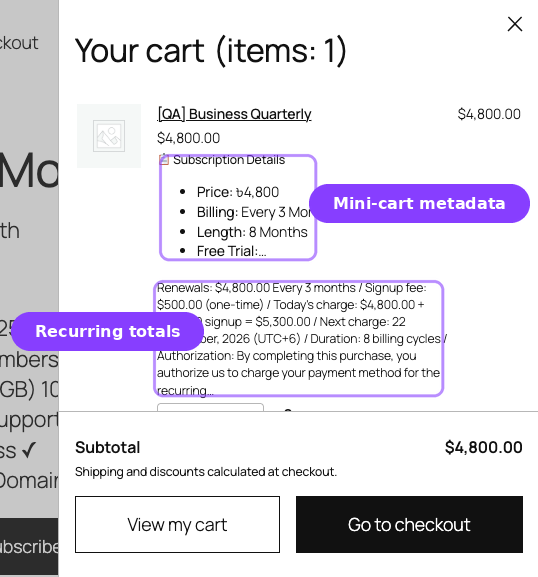
The WooCommerce mini-cart (widget cart) also displays subscription information next to the item quantity. Each subscription item receives the CSS class arraysubs-mini-cart-item for styling purposes.
Checkout
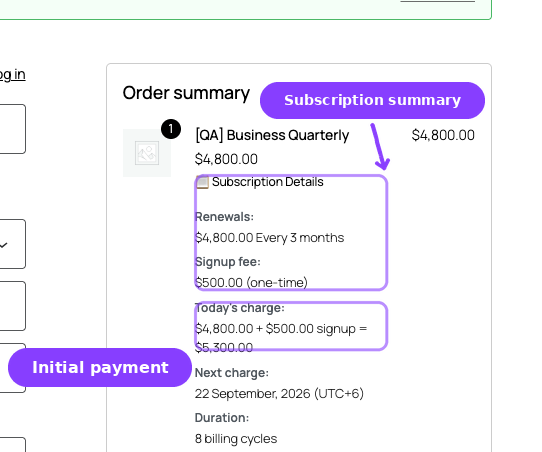
At checkout, subscription details appear in two places:
- Order review table — Item names, prices, and subtotals include billing schedule information, matching the cart display.
- Subscription summary section — A dedicated summary block appears after the order total, showing:
- Recurring amount and billing schedule
- Different renewal price and threshold (if set)
- Signup fee (if set)
- Trial duration (if set)
- Total duration (if subscription length > 0)
Order Confirmation
After checkout, the order confirmation (thank you) page includes a Subscriptions table showing all subscriptions created from that order:
| Column | Content |
|---|---|
| Subscription ID | Clickable link to the customer portal subscription detail page |
| Status | Status badge (e.g., Active, Trial) |
| Next payment | Date of the next scheduled renewal |
| Total | Recurring amount with billing schedule |
Order Item Display
On WooCommerce order pages (admin and customer-facing), the subscription billing schedule is appended to the item name in parentheses (e.g., "Monthly Membership (Every month)").
Dedicated Product Modules
Product-level Pro controls are documented as their own modules:
| Module | Availability | Use It For |
|---|---|---|
| Redirect Product Page | Pro | Redirect direct product URLs to sales pages or return 404 responses |
| Subscription Shipping | Pro | Charge physical-product shipping once or on every renewal |
| Feature Manager | Pro | Define feature entitlements and display "What's Included" content |
Feature Manager Pro
This feature requires ArraySubs Pro.
Feature Manager lets you define product entitlements — named features with specific values that customers receive when they subscribe. Features are displayed in the customer's My Account area and can be used to communicate what each plan includes.
Product Configuration
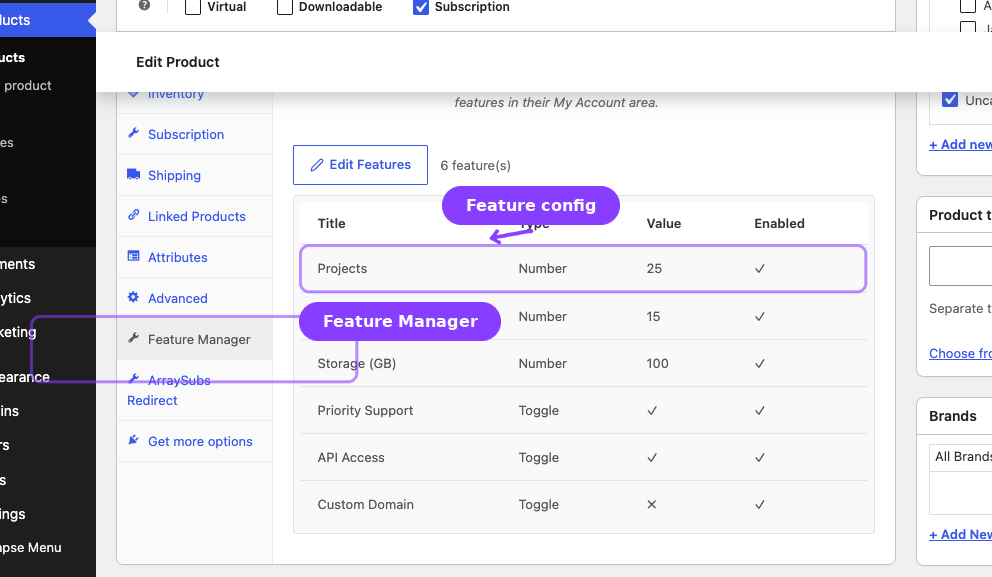
The Feature Manager appears as a separate Feature Manager tab in the WooCommerce product data panel (next to General, Inventory, Shipping, etc.). The tab is available for simple products and variations.
Inside the tab, you define features using a React-based interface. Each feature has:
| Property | Description |
|---|---|
| Name | The feature's display name (e.g., "Storage Space", "API Calls", "Priority Support") |
| Type | toggle (Yes/No), number (numeric value or "Unlimited"), or text (free text) |
| Value | The entitlement value for this product (e.g., "Yes", "100", "Unlimited", "Custom domain included") |
| Enabled | Whether this feature is active on the product |
| Order | Display order (drag to reorder) |
You can add multiple features to a single product or variation. Features can also be saved as templates for reuse across products.
Feature Types
| Type | Input | Customer Display |
|---|---|---|
| Toggle | Yes / No | ✓ or ✗ |
| Number | Numeric value (supports "Unlimited") | The number or "Unlimited" |
| Text | Free text | The text value |
Customer Portal Display
Customers see their entitled features in the My Features page in My Account. The display supports two aggregation modes:
- Per subscription: Separate feature table for each active subscription.
- Combined: All features merged across subscriptions into a single table.
Each feature shows the feature name, type, entitlement value, and optionally the usage (used / limit).
Storefront Display
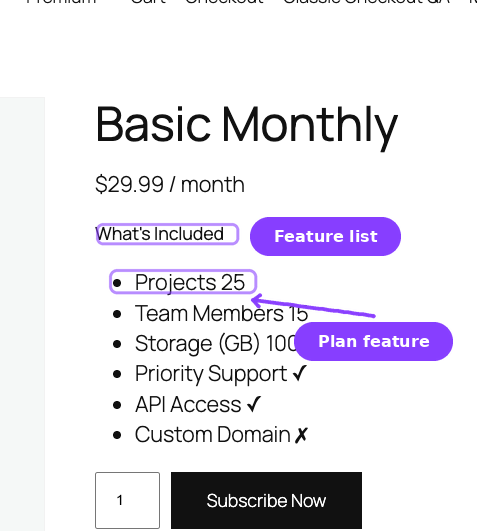
When enabled in the Feature Manager settings, a "What's Included" section appears on the product page listing the product's enabled features. This displays as a styled feature list with type-specific formatting (checkmarks for toggles, values for numbers, text for text features).
The storefront display currently renders on simple product pages only.
For the complete Feature Manager guide — including step-by-step product setup, all display settings, the admin Feature Log, usage tracking, and templates — see the dedicated Feature Manager section.
Real-Life Use Cases
Use Case 1: Sales Page with Product Redirect Pro
A fitness membership is sold through a dedicated landing page at /join-now/ with custom design, testimonials, and a prominent call-to-action button. The actual WooCommerce product page at /product/fitness-membership/ is plain and not customer-facing.
- Enable Redirect Product Page on the product.
- Set action to 301 Redirect and select the
/join-now/page as the target. - Keep the add-to-cart button on the landing page using a direct add-to-cart link (
?add-to-cart=123).
Anyone who visits the product URL directly is redirected to the polished sales page.
Use Case 2: Tiered Feature Comparison Pro
A SaaS tool offers three plans with different feature limits:
| Feature | Basic | Pro | Enterprise |
|---|---|---|---|
| Storage | 5 GB | 50 GB | Unlimited |
| API Calls | 1,000/month | 10,000/month | Unlimited |
| Priority Support | No | Yes | Yes |
| Custom Domain | No | No | Yes |
Define these as Feature Manager entries on each product. Customers see their entitled features in My Account → My Features, and the product page shows "What's Included" for each plan.
Use Case 3: Subscription Box with One-Time Shipping Pro
A monthly snack box charges $39.99/month with free shipping on the first box and $5.99 shipping on subsequent boxes.
- Set Shipping Type to Recurring.
- Set Initial Shipping Override to 0 (free shipping on first order via a WooCommerce coupon or free shipping method).
- Set Renewal Shipping Override to 5.99.
Alternatively, for a supplement subscription where shipping is only charged once:
- Set Shipping Type to One-time.
- Leave overrides empty — WooCommerce calculates the initial shipping normally.
- Renewal orders have no shipping charge.
Edge Cases and Important Notes
- Price lock-in applies to display too. The subscription summary shown in the customer portal uses the locked-in price from the time of purchase, not the current product price.
- Variable product display. For variable products, subscription info is hidden until a variation is selected. The info updates dynamically when the customer changes their selection.
- Redirect does not affect add-to-cart. Even when a product page is redirected, direct add-to-cart links work normally. Customers can still purchase the product through buttons on other pages, shortcodes, or custom landing pages.
- Feature Manager on variations. Each variation can define different feature entitlements. When a customer subscribes to a specific variation, they get that variation's features.
- Shipping on plan switch. When a customer switches plans, the shipping settings from the new product are applied to the subscription going forward.
Troubleshooting
| Problem | Likely Cause | What to Do |
|---|---|---|
| Subscription info not showing on product page | Product is not marked as a subscription | Check the Subscription checkbox in the product editor |
| Variable product shows no subscription info | No variation is selected yet | Subscription info appears after selecting a variation — this is expected behavior |
| Redirect not working | Caching is serving the old page | Clear your site cache and CDN cache after saving redirect changes |
| Admin sees the product page instead of redirect | Expected behavior — admins are not redirected | Admin users with manage_options capability always see the product page |
| Feature Manager tab not visible | Pro plugin is not active or product type is unsupported | Ensure ArraySubs Pro is active. Feature Manager is available for simple products and variations only (not grouped or external). |
| Subscription Shipping section not visible | Product is virtual/downloadable or Pro module inactive | Uncheck Virtual/Downloadable on the product, and verify the Pro Subscription Shipping module is active |
| Signup fee not showing in cart | Signup fee is 0 or empty | Enter a value greater than 0 in the Sign-up Fee field |
Related Guides
- Create and Configure Subscription Products — Set up the billing fields that drive pricing display.
- Plan Switching and Product Relationships — Configure upgrade/downgrade paths shown to customers.
- Coupons — Coupons that affect displayed pricing on renewals.
- Redirect Product Page — Product URL redirects and 404 handling.
- Subscription Shipping — One-time and recurring shipping behavior.
FAQ
Does the product page show the sale price or regular price?
If a WooCommerce sale is active (within the sale schedule dates), the product page shows the sale price as the recurring amount, often with the regular price shown as a strikethrough. New subscriptions use the sale price. Existing subscriptions keep whatever price they were locked in at.
Can I customize the subscription price format?
The price format follows your WooCommerce currency settings (currency symbol, position, decimal places). The billing schedule text (e.g., "/ month", "Every 3 weeks") is generated automatically from the billing period and interval.
Does the subscription summary appear on the Block Checkout?
Yes. ArraySubs supports both the classic WooCommerce checkout and the Block Checkout (Store API). Subscription summary information is displayed in both.
Can I hide the Feature Manager "What's Included" section on the product page?
Yes. The storefront display is controlled by a Feature Manager setting. When disabled, features are still available in the customer portal — they just don't display on the product page.
Does 301 redirect affect the product's search engine ranking?
A 301 redirect tells search engines that the product URL has permanently moved to the target page. Search engines transfer the original page's ranking authority to the target page, which is generally a positive SEO outcome when you're consolidating pages.
What does the shipping note on the product page look like?
For recurring shipping, customers see a note indicating that shipping is charged on every renewal. For one-time shipping, the note says shipping is charged only on the first order. The exact wording depends on the current translation.