
Plan Switching and Product Relationships
Configure upgrade, downgrade, and crossgrade paths between subscription products. Set automatic fallback plans and fixed membership periods.
Availability: Free (plan switching), Pro (fixed-period membership)
Page Navigation
- Current guide: Plan Switching and Product Relationships
- Where to open it: WordPress Admin -> Products -> Add/Edit Product
- Section overview: Open overview
- Previous guide: create-and-configure
- Next guide: product-experience
- Troubleshooting: Audits, Logs, and Troubleshooting
Overview
Plan switching lets customers move between subscription plans — upgrading to a higher tier, downgrading to a lower one, or crossgrading to a similar plan. You define the available paths on each product, and ArraySubs handles proration, order creation, pending-switch tracking, and subscription updates automatically.
This guide also covers auto-downgrade (automatic plan fallback when a subscription expires or is cancelled) and Fixed Period Membership Pro, which lets you set subscriptions to end on a specific calendar date instead of running indefinitely.
When to Use This
- You offer multiple subscription tiers (e.g., Basic, Pro, Enterprise) and want customers to switch between them.
- You want a free-tier fallback when a paid subscription expires or is cancelled.
- You need a membership that ends on a fixed date (e.g., academic year, annual membership with a specific renewal date).
- You want to control enrollment windows for time-bound membership products.
Prerequisites
- At least two subscription products (or variations) to define switching paths between.
- For auto-downgrade: a target product that acts as the fallback plan.
- For fixed-period membership: ArraySubs Pro plugin active.
Linked Products Configuration
Plan switching paths are configured on the Linked Products tab in the WooCommerce product editor. When a product has the Subscription checkbox enabled, a Subscription Plan Switching section appears in this tab.
Simple Products
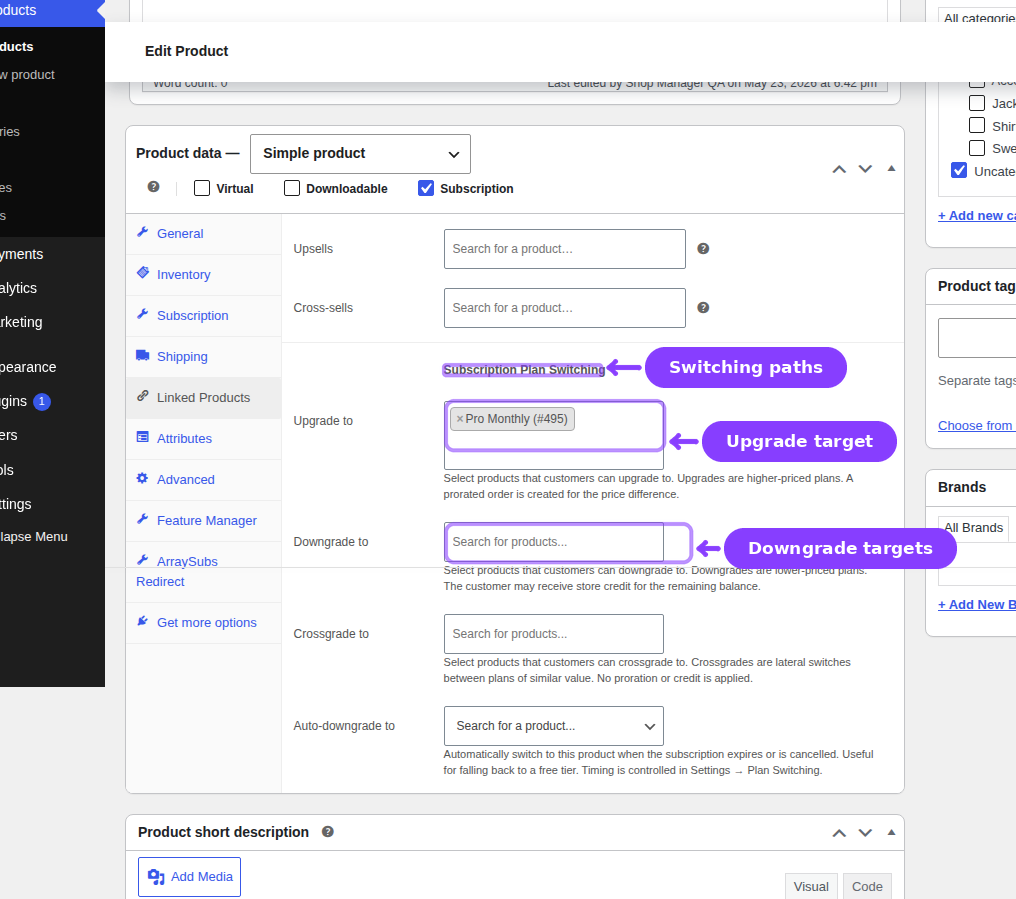
Open the Linked Products tab and scroll to the Subscription Plan Switching section. You will see four searchable select fields:
| Field | Type | Description |
|---|---|---|
| Upgrade to | Multi-select (product search) | Products customers can upgrade to. Upgrades are higher-priced plans. A prorated order is created for the price difference. |
| Downgrade to | Multi-select (product search) | Products customers can downgrade to. Downgrades are lower-priced plans. The customer may receive store credit for the remaining balance. |
| Crossgrade to | Multi-select (product search) | Products customers can crossgrade to. Crossgrades are lateral switches between plans of similar value. No proration or credit is applied by default. |
| Auto-downgrade to | Single-select (product search) | Automatically switch to this product when the subscription expires or is cancelled. Useful for falling back to a free tier. Timing is controlled in the plan switching settings. |
All fields use AJAX product search — type to search for subscription products by name or SKU.
Variable Products
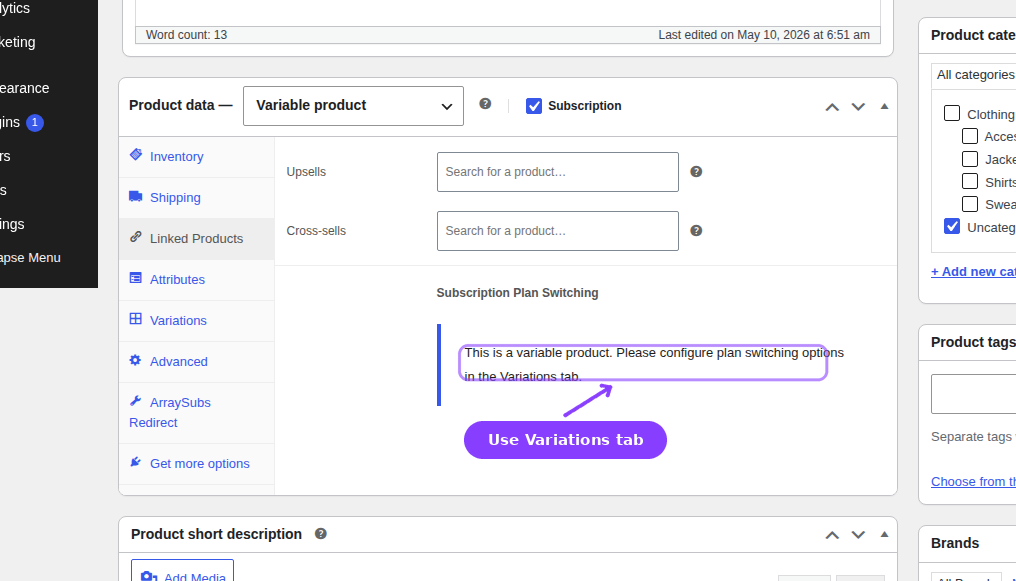
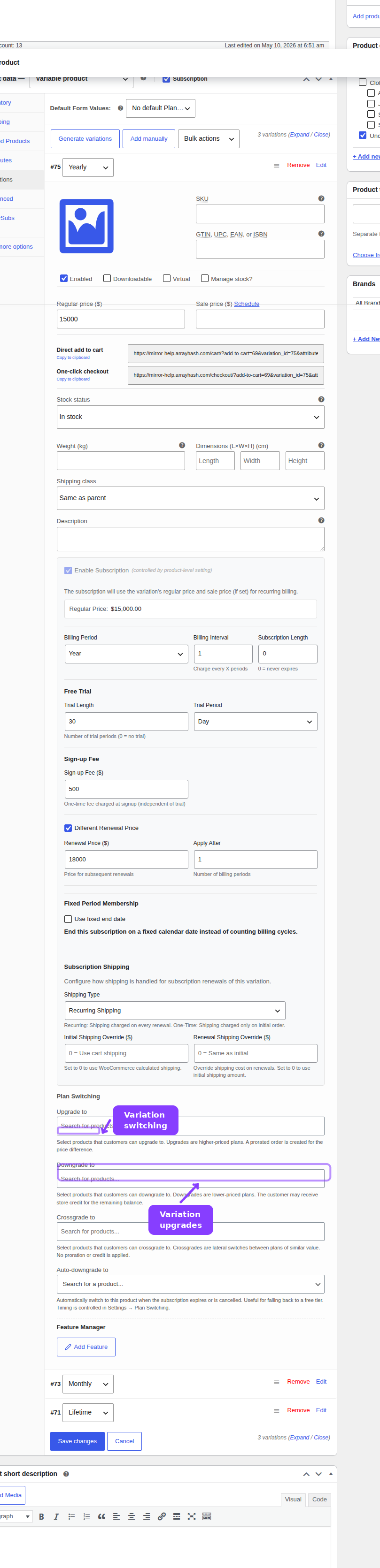
For variable products, the Linked Products tab shows a notice directing you to configure plan switching options in the Variations tab instead. Each variation gets its own set of upgrade, downgrade, crossgrade, and auto-downgrade fields.
This means the Monthly variation of Product A can upgrade to the Annual variation of Product B, while the Annual variation of Product A might not offer any upgrades at all.
How Switch Direction Is Determined
ArraySubs determines whether a switch is an upgrade, downgrade, or crossgrade by comparing normalized daily rates between the current and target products. The system accounts for different billing periods — a $30/month plan and a $365/year plan are compared on a per-day basis.
| Comparison | Direction |
|---|---|
| New daily rate is higher (beyond 5% tolerance) | Upgrade |
| New daily rate is lower (beyond 5% tolerance) | Downgrade |
| Daily rates are within 5% of each other | Crossgrade |
This automatic detection works alongside your configured paths. Even if you place a product in the "Upgrade to" field, the system verifies the pricing direction and classifies the switch accordingly.
Proration
When a customer switches plans, ArraySubs calculates proration to ensure fair pricing for the remaining time on the current plan.
Proration Types
The proration method is controlled in the plan switching settings (ArraySubs → Settings or the plan switching settings area):
| Type | Behavior |
|---|---|
| Prorate immediately | Calculate credit for unused time on the current plan and charge the difference for the new plan right away. A proration order is created. This is the default. |
| Apply at renewal | Keep the current subscription unchanged until the next renewal. ArraySubs stores a pending switch, shows the pending details in admin/customer views, builds the next renewal invoice with the target plan price, and applies the plan change only after that renewal order is paid. |
| No proration | Charge the full new plan price immediately, regardless of time remaining on the current plan. |
What the Proration Calculation Includes
| Component | Description |
|---|---|
| Current plan daily rate | Current price divided by the number of days in the billing cycle |
| Days used | Days elapsed since the last payment or subscription start |
| Days remaining | Days left until the next scheduled payment |
| Credit amount | Value of unused time on the current plan |
| New plan charge | Price of the new plan (prorated for the remaining period, if applicable) |
| Net amount | Charge minus credit — this is what the customer pays (or receives as credit for downgrades) |
| Switch fee | Optional per-direction fee added on top of the proration |
Switch Fees
You can configure a flat fee for each switch direction:
| Fee | Default | Purpose |
|---|---|---|
| Upgrade fee | $0 | Additional charge on top of proration when upgrading |
| Downgrade fee | $0 | Additional charge when downgrading |
| Crossgrade fee | $0 | Additional charge when crossgrading |
For immediate switches, the fee is shown as part of the proration order. For Apply at Renewal switches, the fee is stored with the pending switch and added to the next renewal invoice. This means a later settings change does not unexpectedly change the fee already shown to the customer.
Pending Switch Details
When a switch is scheduled for the next renewal, ArraySubs stores a pending switch instead of changing the subscription immediately.
Admins and customers can see:
- target plan and variation
- effective renewal date
- quantity
- target unit price
- future renewal line total
- switch fee
- who requested the change and when
If a customer tries to schedule another Apply at Renewal switch while one is already pending, ArraySubs asks for explicit confirmation before replacing it. The existing future change is not silently overwritten.
Rounding
The proration rounding method controls how fractional amounts are handled:
| Method | Behavior |
|---|---|
| Round | Standard rounding (default) |
| Round up | Always round up (in the customer's disfavor) |
| Round down | Always round down (in the customer's favor) |
Auto-Downgrade
Auto-downgrade automatically switches a subscription to a fallback product when the subscription reaches a specific lifecycle event. This is useful for offering a free tier that customers fall back to when they stop paying.
Configuring Auto-Downgrade
- On the subscription product's edit page, go to the Linked Products tab.
- In the Auto-downgrade to field, search for and select the fallback product.
- The timing of the auto-downgrade is controlled globally in the plan switching settings.
Auto-Downgrade Timing
The global setting auto_downgrade_timing determines when the auto-downgrade fires:
| Timing | Behavior |
|---|---|
| On expire | Auto-downgrade when the subscription reaches its end date. This is the default. |
| On cancel | Auto-downgrade when an end-of-period cancellation takes effect. Does not apply to immediate cancellations. |
| On trial expire | Auto-downgrade when a trial ends, before the subscription would convert to paid. Useful for forcing trial users to a free tier unless they choose to upgrade. |
How Auto-Downgrade Works
- The triggering event occurs (expiration, cancellation, or trial end).
- ArraySubs checks if the current product has an auto-downgrade target configured.
- If the customer already has an active subscription to the target product, the system reuses that existing subscription instead of creating a duplicate.
- The subscription's product, pricing, and billing schedule are updated to match the target product.
- A subscription note is added documenting the auto-downgrade.
Auto-downgrade does not create a proration order. The subscription simply switches to the target product at no cost. This makes it ideal for free-tier fallback scenarios where no payment is expected.
Plan Switching Settings
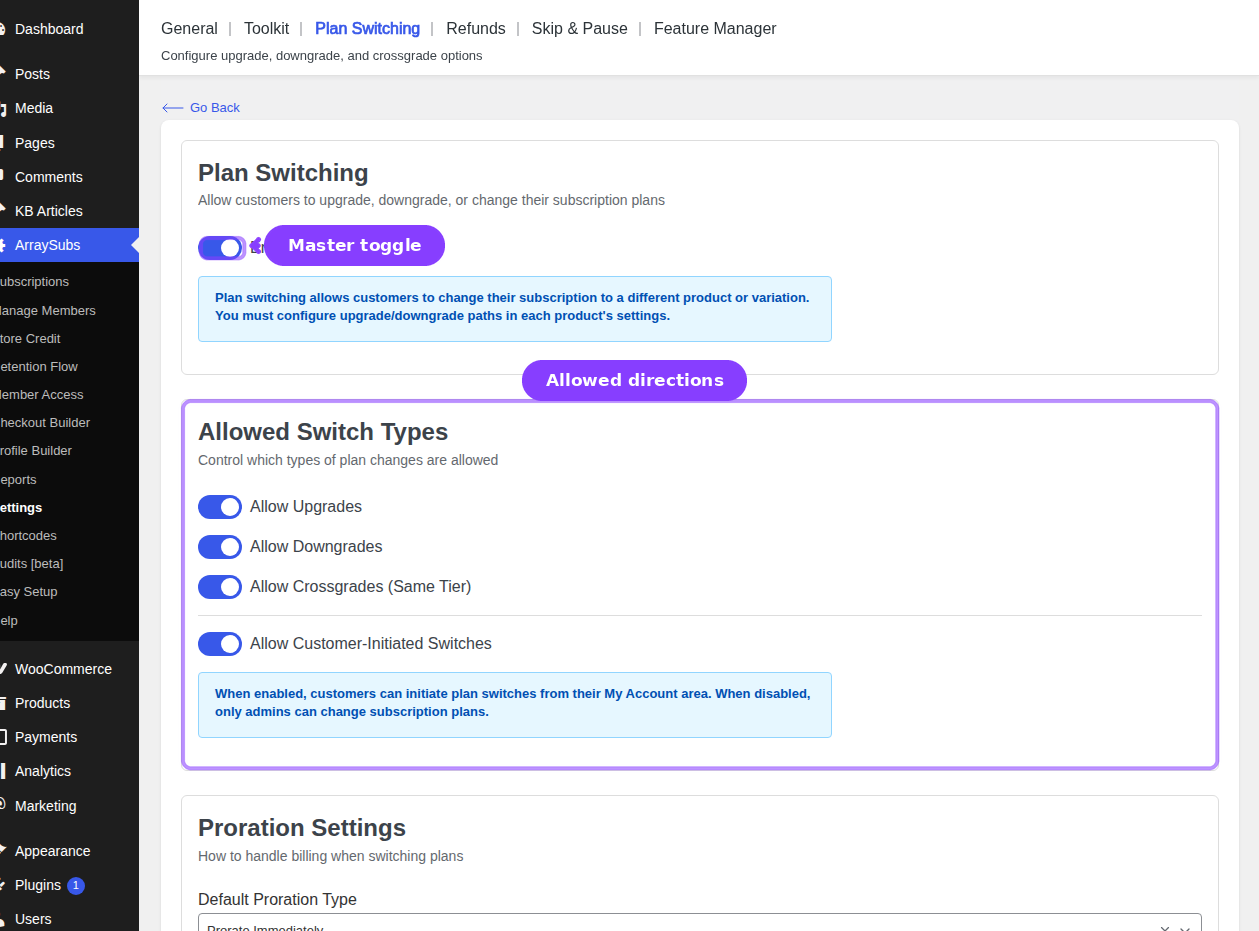
These settings control plan switching behavior globally. They can be found in ArraySubs → Settings under the plan switching section.
| Setting | Default | Options | What It Controls |
|---|---|---|---|
| Enabled | On | On / Off | Master toggle for plan switching |
| Allow upgrades | On | On / Off | Whether upgrade switches are available |
| Allow downgrades | On | On / Off | Whether downgrade switches are available |
| Allow crossgrades | On | On / Off | Whether crossgrade switches are available |
| Allow customer switch | On | On / Off | Whether customers can initiate switches from the portal (when off, only admins can switch) |
| Proration type | Prorate immediately | Prorate immediately / Apply at renewal / No proration | How pricing is handled during switches |
| Auto-downgrade timing | On expire | On expire / On cancel / On trial expire | When auto-downgrade fires |
Fixed Period Membership Pro
This feature requires ArraySubs Pro.
Fixed Period Membership lets you create subscriptions that end on a specific calendar date instead of running for a set number of billing cycles. This is useful for academic programs, annual memberships with fixed renewal dates, seasonal access, or any scenario where all members share the same end date.
How It Works
When enabled on a product, the standard subscription length field is overridden. Instead of counting billing cycles, the subscription ends on the configured date. All customers who purchase this product get the same end date (or the next occurrence of a recurring date).
Product Configuration
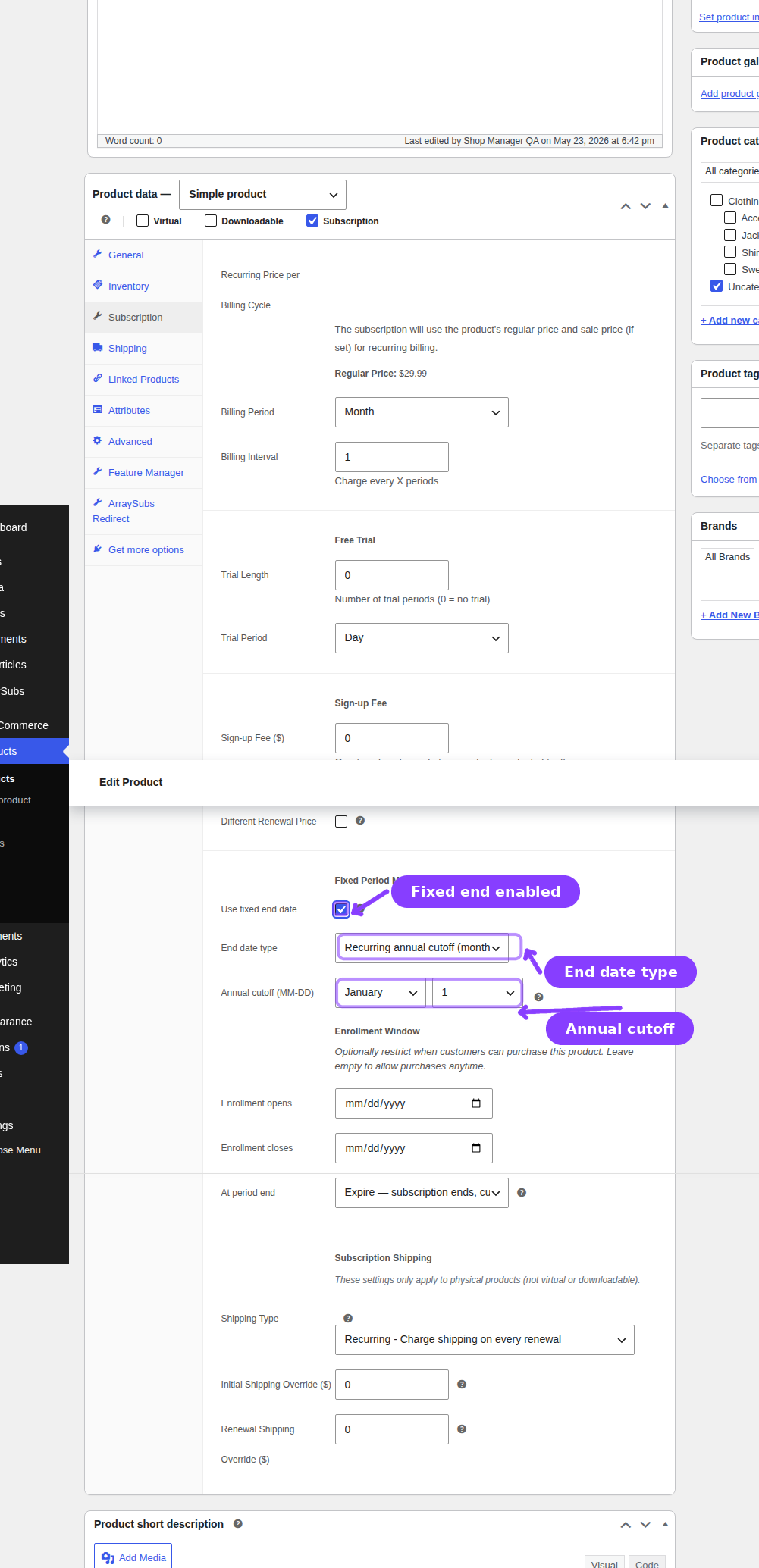
The Fixed Period Membership fields appear in the Subscription tab of the product editor, below the standard billing fields. Check Use fixed end date to enable the feature.
End Date Type
| Type | Behavior |
|---|---|
| Absolute date | A specific calendar date (e.g., December 31, 2026). All subscriptions end on that exact date. Once the date passes, the product becomes unpurchasable. |
| Recurring annual cutoff | A month-and-day combination (e.g., June 30). The subscription ends on that date each year. If the cutoff has already passed in the current year, the end date rolls to the next year. |
Absolute Date Fields
| Field | Description |
|---|---|
| End date | A specific calendar date (YYYY-MM-DD format). The subscription ends on this date. |
Recurring Annual Fields
| Field | Description |
|---|---|
| Month | The month of the annual cutoff (January through December) |
| Day | The day of the month (1–31) |
Example: Setting month to June and day to 30 means all subscriptions end on June 30 each year. A customer who subscribes on March 15 gets access until June 30 of the same year. A customer who subscribes on July 1 gets access until June 30 of the following year.
Enrollment Window
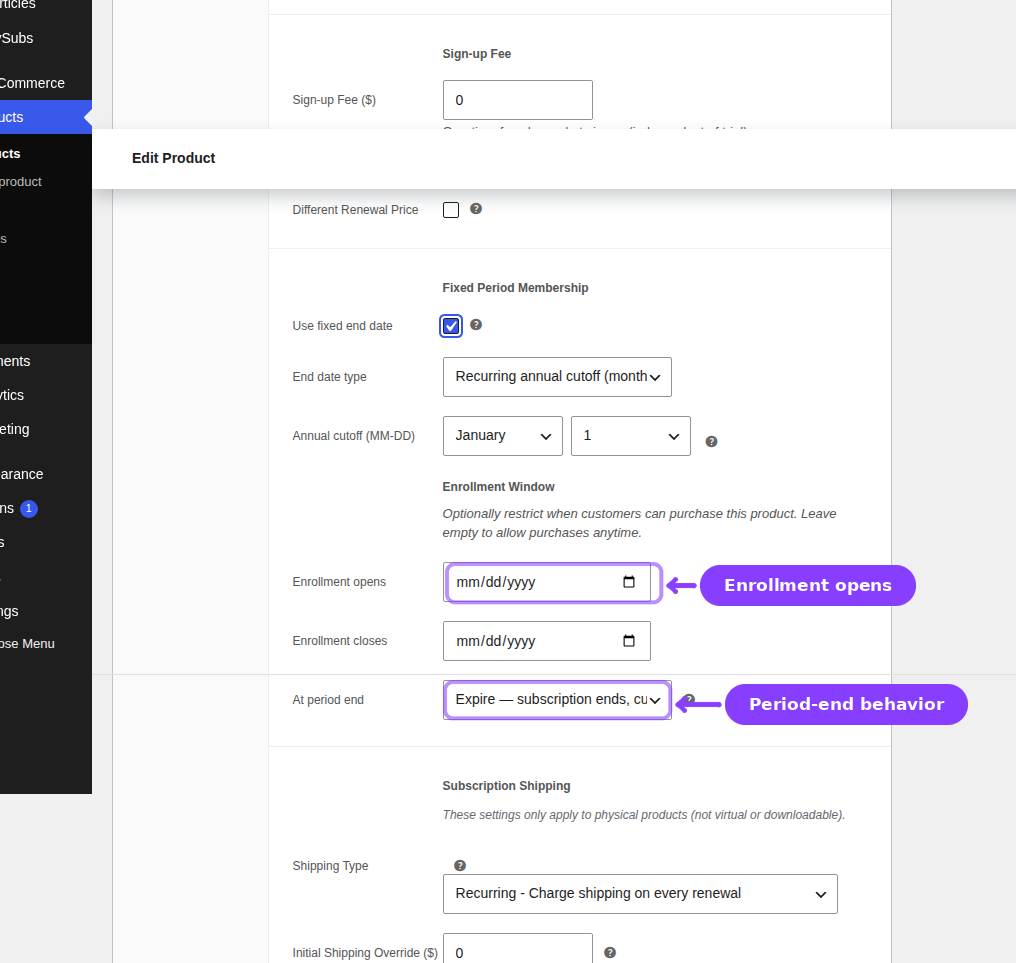
Restrict when the product can be purchased using the enrollment window fields:
| Field | Description |
|---|---|
| Enrollment opens | Date when the product becomes available for purchase |
| Enrollment closes | Date when the product stops accepting new subscriptions |
Both fields are optional. Leave them empty to allow purchases at any time. When set, customers who try to purchase outside the window will be blocked.
For absolute end dates, the product also becomes unpurchasable once the end date has passed.
Period End Behavior
The At period end setting controls what happens when the fixed end date arrives:
| Option | Behavior |
|---|---|
| Expire | The subscription expires. The customer must repurchase to continue. |
| Renew | The subscription automatically starts a new period with a new end date. Only available for the recurring annual type. |
Frontend Display
When fixed period membership is enabled, the product page shows additional information:
- Membership ends: the formatted end date
- Auto-renews into the next membership period (shown when renewal behavior is set to "Renew")
- Enrollment window: the open and close dates (when set)
For variable products, this information updates dynamically when the customer selects a variation.
When fixed period membership is enabled, the Subscription Length field is ignored. The subscription length is determined entirely by the fixed end date. The standard length field is cleared to 0 automatically.
Real-Life Use Cases
Use Case 1: Three-Tier SaaS Plans
A SaaS product offers Basic ($19/month), Professional ($49/month), and Enterprise ($99/month) plans.
- On the Basic product: set Upgrade to → Professional, Enterprise
- On the Professional product: set Upgrade to → Enterprise; Downgrade to → Basic
- On the Enterprise product: set Downgrade to → Professional, Basic
- On Professional and Enterprise: set Auto-downgrade to → Basic
When Enterprise customers let their subscription expire, they automatically fall back to the Basic free tier.
Use Case 2: Academic Year Membership Pro
A university library offers annual digital access from September to August.
- Create a subscription product priced at $99/year.
- Enable Fixed Period Membership with Recurring annual cutoff: Month = August, Day = 31.
- Set At period end to Expire.
- Set Enrollment opens to August 1 and Enrollment closes to October 31.
All members get access until August 31, regardless of when they subscribe during the enrollment window. After August 31, subscriptions expire and members must repurchase for the next academic year.
Use Case 3: Free Trial to Free Tier Fallback
An app offers a 14-day trial on its Pro plan, then auto-downgrades non-converters to a Free plan.
- Create a Free plan product ($0/month) and a Pro plan product ($29/month with a 14-day trial).
- On the Pro plan: set Auto-downgrade to → Free plan.
- Set the auto-downgrade timing to On trial expire.
When the trial ends, if the customer has not upgraded or explicitly chosen to continue, they are automatically moved to the Free plan.
Edge Cases and Important Notes
- Bidirectional paths are not automatic. If Product A can upgrade to Product B, Product B does not automatically get a downgrade path to Product A. You must configure paths on both products.
- Auto-downgrade reuses existing subscriptions. If the customer already has an active subscription to the fallback product, the system reuses it instead of creating a duplicate.
- Plan switch orders. When proration creates an order, it is recorded with type
plan_switchand includes metadata tracking the old product, new product, switch type, and full proration calculation. - Checkout migration is always immediate. If a customer buys a replacement subscription product through WooCommerce checkout while they already have a live subscription, ArraySubs treats that checkout as an immediate paid replacement. It does not defer the change even when the global proration type is Apply at Renewal.
- Pending switches clear on cancellation. If the subscription is cancelled before the next renewal, any pending switch is removed because there will no longer be a renewal where it can apply.
- Fixed period + plan switching. If a customer switches from a fixed-period product to a non-fixed product, the fixed-period metadata is cleared. If they switch to another fixed-period product, the end date is recalculated from the switch date.
- Gateway interactions. When a plan switch occurs, automatic payment metadata stays aligned so future renewals continue through the correct gateway path. Gateway behavior depends on each gateway's capabilities.
- Shipping interactions (Pro). If Subscription Shipping is active, immediate switches recalculate shipping settings from the target product. Apply at Renewal switches use the target product's shipping rules on the renewal invoice before the subscription is permanently switched.
- Customer-facing switch. When "Allow customer switch" is enabled, customers see switch options on their subscription detail page in the customer portal. When disabled, only admins can initiate switches.
Troubleshooting
| Problem | Likely Cause | What to Do |
|---|---|---|
| Plan switching fields not visible on Linked Products tab | Product is not marked as a subscription | Check the Subscription checkbox on the product |
| Auto-downgrade not firing | Auto-downgrade timing does not match the event | Check Settings → Plan Switching → Auto-downgrade timing |
| Customer cannot see switch options in portal | "Allow customer switch" is off or plan switching is disabled | Enable both in Settings → Plan Switching |
| Customer sees a pending-switch replacement prompt | The subscription already has a future switch scheduled | Confirm replacement only if the customer wants the new target plan to replace the existing pending change |
| Fixed Period fields not visible | Pro plugin is not active | Install and activate ArraySubs Pro |
| Product is unpurchasable | Enrollment window has closed or absolute end date has passed | Check the enrollment window dates and fixed end date |
| Proration order has unexpected amount | Rounding method or switch fee is configured differently than expected | Review proration type, rounding method, and switch fees in Settings |
Related Guides
- Create and Configure Subscription Products — Set up the products that your switching paths will connect.
- Product Experience and Display — How pricing and plan details appear to customers.
- General Settings — Grace period and customer portal settings that affect plan switching behavior.
FAQ
Can customers switch between variations of the same product?
Yes. You can configure switching paths between individual variations of a variable product, just like you would between separate products.
What happens to the coupon on a subscription when the customer switches plans?
The coupon tracking is carried over to the new plan. If the coupon still has remaining cycles, it continues to apply to renewals of the switched subscription.
Does auto-downgrade work with immediate cancellations?
No. Auto-downgrade with "On cancel" timing only applies to end-of-period cancellations. Immediate cancellations do not trigger auto-downgrade.
Can I configure different proration types for different products?
No. The proration type is a global setting that applies to all plan switches across your store. You cannot set per-product proration methods.
What happens if the auto-downgrade target product is deleted?
The auto-downgrade will not fire. The subscription will proceed with its normal lifecycle (expire or cancel). An admin note is recorded indicating the target product could not be found.
Do fixed-period memberships support trials?
Yes. A trial period runs from the purchase date, and when it ends, billing begins. The subscription still ends on the fixed date regardless of when the trial started.