
Emails and Notifications
ArraySubs sends automated emails at every key point of the subscription lifecycle — from signup to renewal, cancellation, and beyond.
Availability: Free (core emails) / Pro (Store Credit emails, gateway emails)
Page Navigation
- Current guide: Emails and Notifications
- Where to open it: WordPress Admin -> WooCommerce -> Settings -> Emails
- Section overview: Open overview
- Previous guide: customer-emails
- Next guide: store-credit-emails
- Troubleshooting: Audits, Logs, and Troubleshooting
Overview
ArraySubs includes a full email notification system built on top of the WooCommerce email framework. Every email inherits your store's design, can be toggled on or off, and supports rich placeholders that pull live subscription data into the subject line and body. No custom mailer setup is needed — everything works through the same WooCommerce → Settings → Emails page your store already uses.
The system covers three audiences:
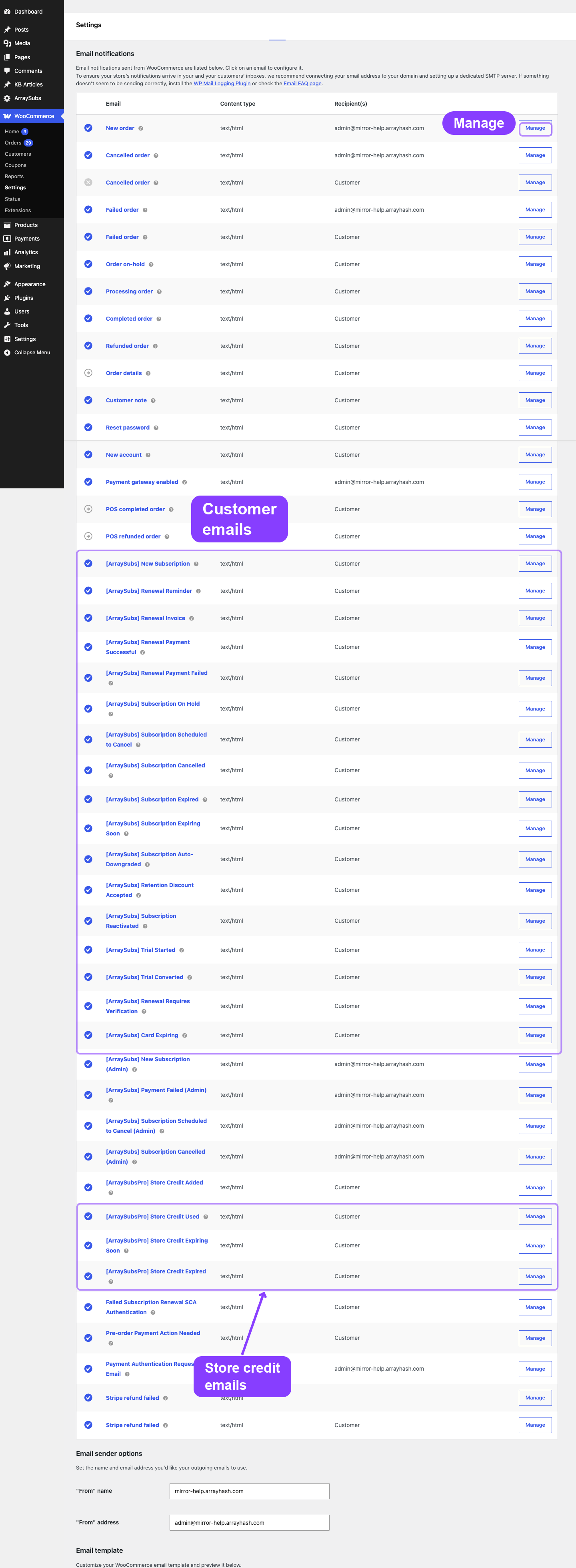
- Customer emails — 17 emails about subscription status, billing, trials, retention, card expiry, and gateway verification events
- Admin emails — 4 emails that alert the store admin about new subscriptions, payment failures, scheduled cancellations, and completed cancellations
- Store Credit emails Pro — 4 emails about credit balance changes, usage, and expiration
How ArraySubs Emails Work
ArraySubs registers its email classes with WooCommerce using the standard woocommerce_email_classes filter. This means every ArraySubs email:
- Appears in the WooCommerce email list alongside built-in WooCommerce emails (order confirmation, refund, etc.).
- Inherits your store's email styling — header logo, colors, footer text, and layout all follow the same settings you configure for WooCommerce emails.
- Supports HTML and Plain Text — each email ships with both an HTML template (styled tables, buttons, color highlights) and a plain text variant. You choose the format per email.
- Can be overridden by your theme — copy a template to
yourtheme/woocommerce/emails/and customize the layout without modifying the plugin.
Where Emails Are Configured
All email customization happens in one place:
WooCommerce → Settings → Emails
ArraySubs emails are listed with the prefix [ArraySubs] so they are easy to spot. Click Manage on any email to open its settings page.
ArraySubs does not have its own standalone email settings page. All email customization — toggling, subject lines, headings, content, and email type — happens inside the standard WooCommerce email settings.
What You Can Customize Per Email
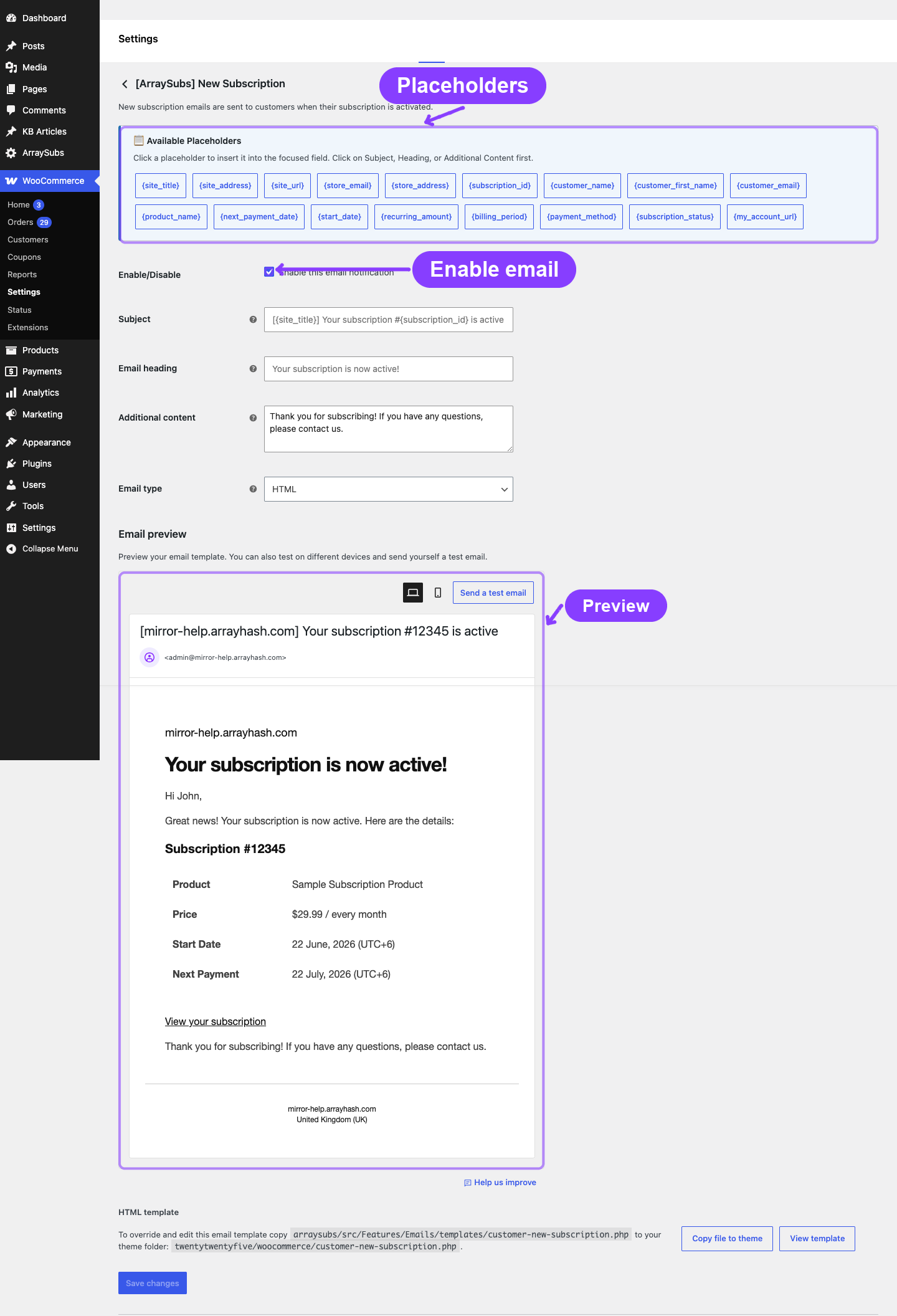
Each ArraySubs email exposes the same options as any WooCommerce email:
| Option | What It Controls |
|---|---|
| Enable / Disable | Toggle this specific email on or off. When disabled, the email will not be sent even when its trigger event occurs. |
| Subject | The email subject line. Supports placeholders such as {site_title} and {subscription_id}. |
| Email heading | The main heading inside the email body. Supports the same placeholders as the subject. |
| Additional content | Extra text appended after the main email content. Use it for a custom footer message, a promotion link, or a support note. |
| Email type | Choose HTML, Plain text, or Multipart (sends both HTML and plain text). |
Admin emails additionally show a Recipient(s) field — a comma-separated list of email addresses that will receive the notification. Defaults to the site admin email.
When Emails Are Sent
Emails are triggered automatically by subscription lifecycle events:
| Event | Emails Sent |
|---|---|
| Subscription activated | New Subscription (customer) + Admin New Subscription (admin) |
| Trial started | Trial Started (customer) |
| Trial converted to paid | Trial Converted (customer) |
| Renewal reminder (scheduled) | Renewal Reminder (customer) |
| Renewal invoice created | Renewal Invoice (customer) |
| Renewal payment successful | Payment Successful (customer) |
| Payment failed | Payment Failed (customer) + Admin Payment Failed (admin) |
| Subscription on hold | Subscription On Hold (customer) |
| Subscription scheduled for end-of-period cancellation | Subscription Pending Cancellation (customer) + Admin Subscription Pending Cancellation (admin) |
| Subscription cancelled | Subscription Cancelled (customer) + Admin Subscription Cancelled (admin) |
| Subscription expired | Subscription Expired (customer) |
| Fixed-length subscription ending soon | Subscription Expiring Soon (customer) |
| Subscription reactivated | Subscription Reactivated (customer) |
| Plan auto-downgraded | Auto-Downgrade (customer) |
| Retention discount accepted | Retention Discount Accepted (customer) |
| Saved Stripe card expiring | Card Expiring (customer) |
| Renewal requires 3D Secure/SCA verification | Renewal Requires Verification (customer) |
| Store credit added Pro | Credit Added (customer) |
| Store credit applied to order Pro | Credit Used (customer) |
| Store credit expiring soon Pro | Credit Expiring (customer) |
| Store credit expired Pro | Credit Expired (customer) |
Email Reminder Schedule
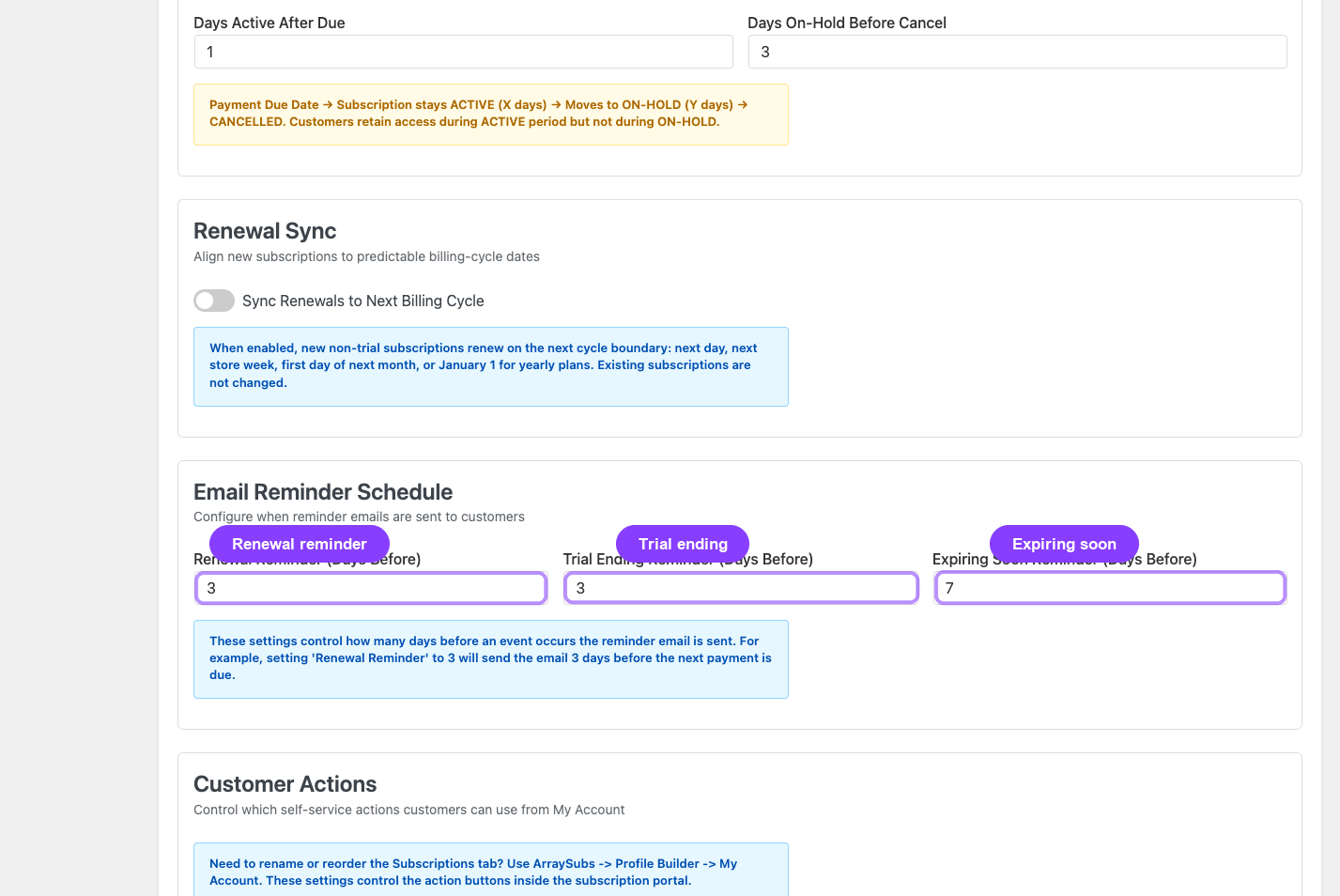
Three emails use timed scheduling rather than immediate delivery. You configure the timing in ArraySubs → Settings → General Settings under the Email Reminder Schedule card:
| Setting | What It Controls | Default | Range |
|---|---|---|---|
| Renewal Reminder (Days Before) | How many days before the next payment date the Renewal Reminder email is sent | 3 | 1 – 30 |
| Trial Ending Reminder (Days Before) | How many days before the trial end date the Trial Ending email is sent | 3 | 1 – 30 |
| Expiring Soon Reminder (Days Before) | How many days before the subscription expiration the Expiring Soon email is sent | 7 | 1 – 60 |
The Renewal Reminder is the only scheduled reminder that is fully active in the current release. Trial Ending and Expiring Soon reminders have their settings exposed but are not yet wired to a sending implementation.
Email Placeholders Reference
Placeholders are dynamic tokens that you can use in the Subject, Email heading, and Additional content fields of any ArraySubs email. When the email is sent, each placeholder is replaced with live data from the subscription, customer, or order.
How to Use Placeholders
- Open WooCommerce → Settings → Emails.
- Click Manage on the ArraySubs email you want to edit.
- In the Subject or Heading field, type a placeholder such as
{customer_name}or{subscription_id}. - Save. When the email fires, the live value will appear in place of the placeholder.
A clickable Placeholder Helper panel appears on every ArraySubs email settings page. It lists all available placeholders with short descriptions. Click any placeholder to insert it at the cursor position in the focused field.
Base Placeholders (Available in All Subscription Emails)
These placeholders work in every customer and admin subscription email:
| Placeholder | Description | Example Value |
|---|---|---|
{site_title} |
Your website name | My Subscription Store |
{site_address} |
Your site URL (domain) | mystore.com |
{site_url} |
Full site URL | https://mystore.com |
{store_email} |
Your store contact email | [email protected] |
{subscription_id} |
Subscription ID number | 1234 |
{customer_name} |
Customer's full name | Jane Smith |
{customer_first_name} |
Customer's first name | Jane |
{customer_email} |
Customer's email address | [email protected] |
{product_name} |
Subscription product name | Premium Monthly Plan |
{next_payment_date} |
Next payment due date (formatted in site timezone) | May 2, 2026 |
{recurring_amount} |
Recurring payment amount (formatted with currency) | $29.99 |
{billing_period} |
Billing period description | every month |
{subscription_status} |
Current subscription status label | Active |
{my_account_url} |
Link to the customer's My Account page | https://mystore.com/my-account/ |
Email-Specific Placeholders
Some emails include additional placeholders beyond the base set:
Renewal and Payment Emails
| Placeholder | Available In | Description |
|---|---|---|
{order_id} |
Renewal Invoice, Payment Successful, Payment Failed | WooCommerce order number |
{order_total} |
Renewal Invoice, Payment Successful, Payment Failed | Order total formatted with currency |
{order_pay_url} |
Renewal Invoice, Payment Failed | Direct link for the customer to pay the order |
{payment_method} |
Payment Successful | Payment method used (e.g., "Visa ending in 4242") |
{retry_url} |
Payment Failed | Direct link to retry the failed payment |
Trial Emails
| Placeholder | Available In | Description |
|---|---|---|
{trial_end_date} |
Trial Started | When the trial period ends |
{trial_length} |
Trial Started | Human-readable trial length (e.g., "14 days") |
{subscription_price} |
Trial Converted | Price of the new paid subscription |
Reminder Emails
| Placeholder | Available In | Description |
|---|---|---|
{days_before} |
Renewal Reminder | Number of days until the next payment |
Status Change Emails
| Placeholder | Available In | Description |
|---|---|---|
{cancellation_date} |
Subscription Cancelled | When the subscription was cancelled |
{scheduled_cancel_date} |
Subscription Pending Cancellation, Admin Subscription Pending Cancellation | End-of-period cancellation date |
{cancellation_reason} |
Subscription Pending Cancellation, Subscription Cancelled, Admin Subscription Pending Cancellation, Admin Subscription Cancelled | Customer-provided cancellation reason |
{expiration_date} |
Subscription Expired | When the subscription expired |
{subscription_end_date} |
Subscription Expiring Soon | When the fixed-length subscription ends |
Retention and Plan Change Emails
| Placeholder | Available In | Description |
|---|---|---|
{discount_value} |
Retention Discount Accepted | The discount percentage |
{discount_duration} |
Retention Discount Accepted | How many renewal cycles the discount applies |
{base_recurring_amount} |
Retention Discount Accepted | Original price before discount |
{discounted_recurring_amount} |
Retention Discount Accepted | New price after discount |
{savings_per_renewal} |
Retention Discount Accepted | Amount saved per renewal cycle |
{old_product_name} |
Auto-Downgrade | The previous plan name |
{new_product_name} |
Auto-Downgrade | The new (downgraded) plan name |
Store Credit Placeholders Pro
| Placeholder | Available In | Description |
|---|---|---|
{credit_amount} |
Credit Added | Amount of credit added |
{new_balance} |
Credit Added | Customer's updated credit balance |
{credit_source} |
Credit Added | Source label (e.g., "Admin Adjustment", "Refund") |
{credit_used} |
Credit Used | Amount of credit applied to the order |
{remaining_balance} |
Credit Used | Remaining credit balance |
{order_id} |
Credit Used | Order number the credit was applied to |
{order_url} |
Credit Used | Link to the order details |
{expiring_amount} |
Credit Expiring | Amount about to expire |
{expires_at} |
Credit Expiring | Expiration date |
{days_remaining} |
Credit Expiring | Days until expiration |
{expired_amount} |
Credit Expired | Amount that expired |
{shop_url} |
Credit Expiring, Credit Expired | Link to the shop page |
Email Templates
Each email includes both an HTML and a Plain Text template.
HTML Templates
HTML templates are styled and include:
- WooCommerce email header — your store logo, site title, and background color
- Personalized greeting — addresses the customer by first name
- Information table — subscription details, pricing, dates, and links in a structured table
- Call-to-action buttons — "Pay Now", "View Subscription", "Shop Now" (where relevant)
- Additional content area — your custom footer message
- WooCommerce email footer — store address and unsubscribe text
Plain Text Templates
Plain text alternatives present the same information without formatting:
- Text-based separators (dashes) for visual structure
- Key-value pairs for subscription data
- Clickable URLs instead of buttons
- No tables, images, or styling
How to Override Templates
You can customize any email template by copying it to your theme:
-
Find the template file in the plugin directory:
- Core emails:
wp-content/plugins/arraysubs/src/Features/Emails/templates/ - Store Credit emails Pro:
wp-content/plugins/arraysubspro/src/Features/StoreCredit/templates/emails/
- Core emails:
-
Copy to your theme's WooCommerce emails directory:
- Create (if it does not exist)
wp-content/themes/your-theme/woocommerce/emails/ - Copy the template file into that directory
- Create (if it does not exist)
-
Edit the copied file. Your customized version takes priority over the plugin's original.
Only edit the copy in your theme directory — never modify the plugin files directly. Plugin updates will overwrite your changes to plugin files, but theme overrides are preserved.
Example:
To customize the New Subscription email:
- Source:
arraysubs/src/Features/Emails/templates/customer-new-subscription.php - Destination:
your-theme/woocommerce/emails/customer-new-subscription.php
For the plain text version:
- Source:
arraysubs/src/Features/Emails/templates/plain/customer-new-subscription.php - Destination:
your-theme/woocommerce/emails/plain/customer-new-subscription.php
Template File Reference
Core Customer Email Classes / Templates (17 emails):
Subscription Expiring Soon uses the Renewal Reminder template files with a different reminder context.
| Template File | |
|---|---|
customer-new-subscription.php |
New Subscription |
customer-trial-started.php |
Trial Started |
customer-trial-converted.php |
Trial Converted |
customer-renewal-reminder.php |
Renewal Reminder / Subscription Expiring Soon |
customer-renewal-invoice.php |
Renewal Invoice |
customer-payment-successful.php |
Payment Successful |
customer-payment-failed.php |
Payment Failed |
customer-subscription-on-hold.php |
Subscription On Hold |
customer-subscription-pending-cancellation.php |
Subscription Pending Cancellation |
customer-subscription-cancelled.php |
Subscription Cancelled |
customer-subscription-expired.php |
Subscription Expired |
customer-subscription-reactivated.php |
Subscription Reactivated |
customer-auto-downgrade.php |
Auto-Downgrade |
customer-retention-discount-accepted.php |
Retention Discount Accepted |
customer-card-expiring.php |
Card Expiring |
customer-renewal-requires-verification.php |
Renewal Requires Verification |
Core Admin Email Templates (4):
| Template File | |
|---|---|
admin-new-subscription.php |
Admin New Subscription |
admin-payment-failed.php |
Admin Payment Failed |
admin-subscription-pending-cancellation.php |
Admin Subscription Pending Cancellation |
admin-subscription-cancelled.php |
Admin Subscription Cancelled |
Store Credit Email Templates (4 — Pro):
| Template File | |
|---|---|
credit-added.php |
Credit Added |
credit-used.php |
Credit Used |
credit-expiring.php |
Credit Expiring |
credit-expired.php |
Credit Expired |
Every HTML template has a matching plain text version in a plain/ subdirectory.
Troubleshooting
| Problem | Likely Cause | What to Do |
|---|---|---|
| Customer not receiving emails | The email is disabled in WooCommerce settings, or the email address is incorrect | Go to WooCommerce → Settings → Emails, find the email, and confirm it is enabled. Check the customer's email address on the subscription. |
| Email subject shows raw placeholders | Placeholder syntax is incorrect (e.g., missing braces) or the subscription data is empty | Re-check the placeholder spelling in the email settings. Ensure the subscription has the relevant data populated. |
| Admin not getting notifications | The admin email recipient is not set or is incorrect | Open the admin email settings and confirm the recipient address. Multiple addresses can be comma-separated. |
| Renewal Reminder not arriving | The scheduled Action Scheduler job has not run, or the days-before setting is too low | Check ArraySubs → Settings → General Settings for the Renewal Reminder days-before value. Verify the Action Scheduler is processing pending jobs. |
| Emails look unstyled | The email type is set to Plain Text, or your email client is not rendering HTML | Check the Email Type setting in WooCommerce email settings. Switch to HTML or Multipart. |
| Template override not working | The file was placed in the wrong directory or named incorrectly | Confirm the file exists at your-theme/woocommerce/emails/ with the exact filename from the plugin template. |
| Store Credit emails not appearing Pro | The ArraySubs Pro plugin is not active | Activate ArraySubs Pro. Store Credit emails are registered by the Pro plugin. |
Related Guides
- Customer Emails — Detailed reference for all 17 customer-facing subscription emails.
- Admin Emails — Detailed reference for the 4 admin notification emails.
- Store Credit Emails — Detailed reference for the 4 Store Credit emails Pro.
- General Settings — Configure the email reminder schedule.
- Store Credit Settings — Configure credit expiration (affects expiring/expired emails).
FAQ
Where do I configure ArraySubs emails?
Go to WooCommerce → Settings → Emails. All ArraySubs emails are listed there with an [ArraySubs] prefix. Click Manage on any email to change its subject, heading, content, or toggle.
Can I disable a specific email?
Yes. Open the email in WooCommerce → Settings → Emails and uncheck the Enable this email notification toggle.
Do ArraySubs emails use my WooCommerce email styling?
Yes. ArraySubs emails use the standard WooCommerce email header and footer, which means they automatically pick up your store logo, header color, footer text, and overall template design from WooCommerce → Settings → Emails → Email sender options and Email template.
Can I add custom text to an email?
Yes. Every email has an Additional content field in its WooCommerce settings. Text entered there appears at the bottom of the email, before the footer.
How do I know which placeholders are available?
When you open any ArraySubs email's settings page in WooCommerce, a Placeholder Helper panel appears. It lists every available placeholder with a description. Click a placeholder to insert it into the currently focused field.
Are Store Credit emails available in the free version?
No. The four Store Credit emails (Credit Added, Credit Used, Credit Expiring, Credit Expired) require ArraySubs Pro.
Can I customize the email HTML layout?
Yes. Copy the template file to your theme's woocommerce/emails/ directory (see the "How to Override Templates" section above) and edit it. The overridden template takes priority over the plugin default.
What happens if the Pro plugin is deactivated?
The 4 Store Credit emails will stop appearing in WooCommerce settings and will no longer be sent. All 21 core subscription/admin emails continue to work normally.