
Defining Product Features
ProAdd named entitlements to your subscription products so customers know exactly what each plan includes.
Availability: Pro
Page Navigation
- Current guide: Defining Product Features
- Where to open it: WordPress Admin -> Products -> Edit Product and ArraySubs -> Settings -> Feature Manager
- Section overview: Open overview
- Previous guide: customer-and-storefront-display
- Next guide: feature-manager-settings
- Troubleshooting: Audits, Logs, and Troubleshooting
Overview
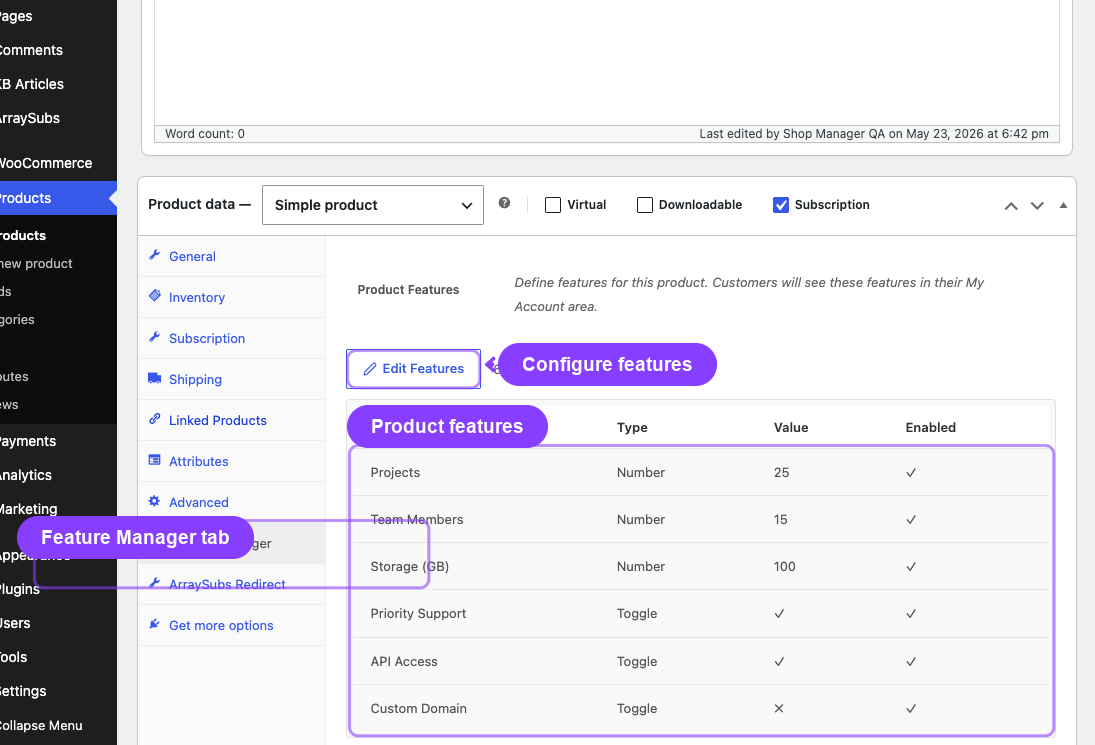
Features are defined inside the WooCommerce product editor on a dedicated Feature Manager tab. Each feature has a name, a type, a value, and an enabled state. You can add as many features as needed, reorder them, and save feature sets as reusable templates.
Simple products have a single feature set. Variable products support per-variation features, so each pricing tier can define its own entitlements independently.
Opening the Feature Manager Tab
- Go to Products → Edit Product for any subscription product.
- In the product data panel (below the price fields), click the Feature Manager tab.
The tab appears after Attributes and before Advanced in the product data panel. For variable products, the tab does not appear at the product level — feature fields appear inside each variation's options panel instead.
The Feature Manager tab only appears when the module is enabled in ArraySubs → Settings → Feature Manager.
Adding Features (Simple Product)
- Click the Feature Manager tab in the product data panel.
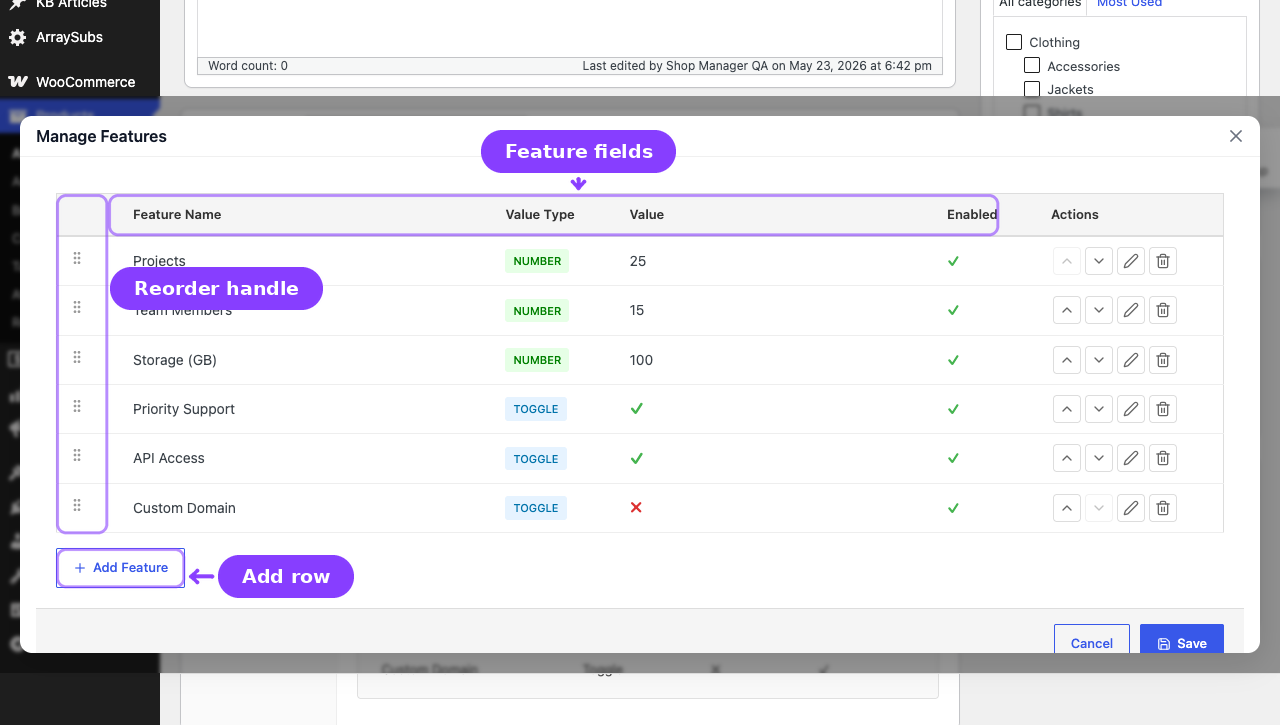
- Click Add Feature (shown when no features exist yet) or Edit Features (shown when features already exist) to open the Manage Features modal.
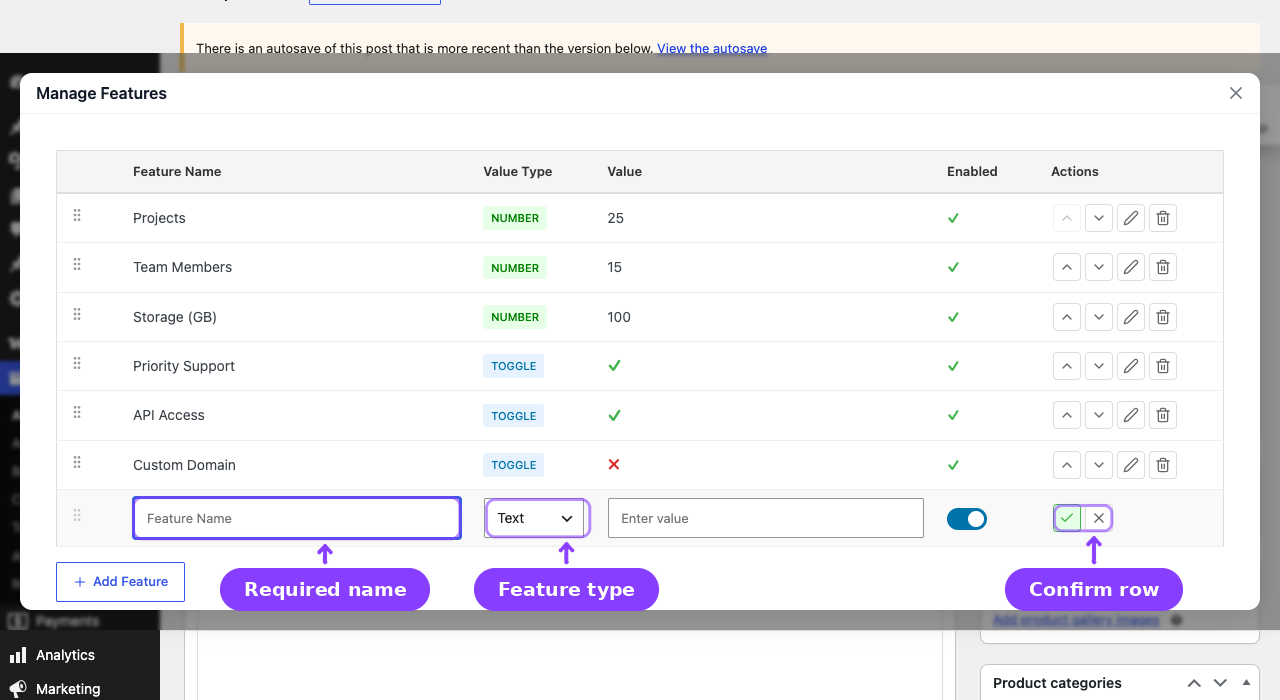
- Click Add Feature inside the modal. A new blank row appears in editing mode.
- Fill in the feature details:
- Name — Required. The display name customers see (e.g., "Storage Space", "Priority Support", "API Calls").
- Type — Choose
Toggle,Number, orText(see Feature Types below). - Value — The entitlement value for this feature (depends on the type).
- Enabled — Toggle on or off. Disabled features are saved but not displayed to customers.
- Click the ✓ (check) icon on the row to confirm the feature, or ✗ to cancel.
- Add more features by clicking Add Feature again.
- When finished, click Save at the bottom of the modal.
- Click Update on the product to save all changes.
After saving, a preview table appears inside the Feature Manager tab showing all defined features at a glance. The table has four columns: Title, Type, Value, and Enabled.
Adding Features (Variable Product)
For variable products, features are defined per variation rather than at the product level.
- Go to the Variations tab in the product data panel.
- Expand any variation.
- Scroll down to the Feature Manager section within the variation.
- Click Add Feature (when no features exist) or Edit Features (when features already exist) to open the Manage Features modal for that variation.
- Define features the same way as for simple products.
- Repeat for each variation that needs features.
- Click Save changes on the variations panel.
Each variation maintains its own independent feature list. This lets you differentiate "Basic" from "Premium" from "Enterprise" on the same variable product.
Feature Types
Every feature must have a type. The type controls what values are accepted and how the feature is displayed to customers.
Toggle
A binary yes/no entitlement.
| Property | Details |
|---|---|
| Input | Dropdown with "Yes" and "No" options |
| Customer display | ✓ Yes or ✗ No |
| Use for | Binary features like "Priority Support", "Custom Domain", "Ad-Free Experience" |
Number
A numeric limit that can optionally be "Unlimited."
| Property | Details |
|---|---|
| Input | Text field accepting whole numbers or the word "Unlimited" (case-insensitive) |
| Customer display | The number (e.g., "500") or "Unlimited" |
| Use for | Countable quotas like "API Calls", "Storage (GB)", "Team Seats", "Downloads/month" |
| Usage tracking | Only number-type features support usage tracking (used / limit display) |
Text
A free-form text entitlement.
| Property | Details |
|---|---|
| Input | Open text field |
| Customer display | The exact text value |
| Use for | Descriptive entitlements like "Email Support", "48-hour Response Time", "Gold Badge" |
Reordering Features
Features appear in the order you define them. You can reorder features inside the modal in two ways:
- Drag handle — Grab the grip icon on the left side of any feature row and drag it to a new position.
- Move Up / Move Down buttons — Use the arrow buttons in the Actions column to shift a feature one position at a time.
The order is saved when you click Save at the bottom of the modal.
Editing and Deleting Features
Editing
- Open the modal by clicking Edit Features on the Feature Manager tab.
- Click the Edit (pencil) icon on the feature you want to change.
- The row switches to edit mode — modify the name, type, value, or enabled state.
- Click the ✓ (check) icon on the row to confirm, then click Save at the bottom of the modal.
Deleting
- Open the modal by clicking Edit Features on the Feature Manager tab.
- Click the Delete (trash) icon on the feature row.
- Confirm the deletion in the Delete Feature confirmation modal.
- Click Save at the bottom of the modal to finalize.
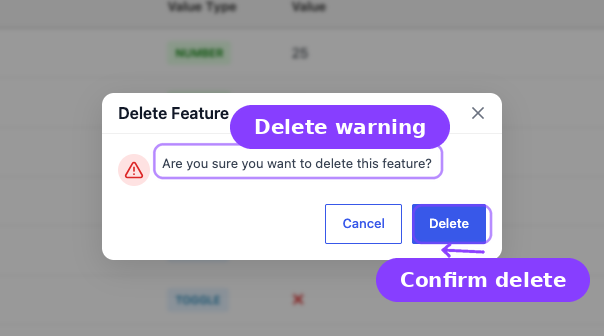
Deleting a feature removes it from the product. Customers who already purchased this product will no longer see that feature in their My Features page once the product is updated.
Feature Templates
Templates let you save a feature set and reuse it across multiple products, so you don't have to re-enter the same features on every product manually.
Saving a Template
Templates are managed through the REST API. When a reusable feature set is saved through the API, it is stored as a named template with all its features.
Using a Template
The current product editor does not expose a template picker. Saved templates are available for integrations through the Feature Manager REST API, while product features are still added or edited directly in the Manage Features modal.
Template Storage
Templates are stored in the WordPress options table under the arraysubs_feature_templates option. Each template has a unique ID, a name, the feature array, and a creation timestamp.
Feature Data Model
Each feature is stored as a JSON object inside the product's _arraysubs_features post meta. The complete structure:
| Field | Type | Description |
|---|---|---|
id |
string | Auto-generated unique identifier |
name |
string | Display name (required) |
type |
string | toggle, number, or text |
value |
string | The entitlement value |
enabled |
boolean | Whether displayed to customers |
order |
integer | Sort position |
For variable products, each variation stores its own _arraysubs_features meta independently.
Validation Rules
The modal enforces these rules before saving:
- Name is required — A feature with an empty name cannot be saved.
- Value is required — All types except toggle require a non-empty value.
- Number type validation — Must be a valid number or the word "Unlimited" (case-insensitive). Other text is rejected.
- Toggle default — If no value is set for a toggle, it defaults to "No."
Real-Life Use Cases
SaaS Subscription Tiers
A project management SaaS defines three plans:
| Feature | Starter | Professional | Enterprise |
|---|---|---|---|
| Projects | 5 | 25 | Unlimited |
| Team Members | 3 | 15 | Unlimited |
| Storage (GB) | 10 | 100 | Unlimited |
| Priority Support | ✗ | ✓ | ✓ |
| Custom Domain | ✗ | ✗ | ✓ |
| API Access | ✗ | ✓ | ✓ |
Each tier is a variation on a variable product. Each variation gets its own feature set reflecting the limits above.
Membership Box Levels
A wine subscription uses features to communicate what each tier includes:
- Basic — 3 bottles/month, Standard Shipping, Tasting Notes (text)
- Premium — 6 bottles/month, Free Shipping, Tasting Notes + Pairing Guide, Priority Support
- Collector — 12 bottles/month, Free Express Shipping, All Guides, Priority Support, Exclusive Vintages
Content Platform
An online learning platform uses features to differentiate access:
- Free Trial — 5 courses, No downloads, Community access
- Standard — Unlimited courses, 10 downloads/month, Community access, Email support
- Premium — Unlimited courses, Unlimited downloads, Community + Live Q&A, Priority support, Certificates
FAQ
Can I add features to non-subscription products? No. The Feature Manager tab only appears on subscription products (simple or variable with the subscription product type).
Do feature changes affect existing subscribers immediately? Yes. Features are always read from the current product meta. When you change a feature's value or remove a feature, the change is reflected the next time the customer views their My Features page.
Can two features have the same name? Technically yes, but it's not recommended. In Combined aggregation mode, features are merged by name — duplicate names could produce unexpected results.
Is there a limit to how many features I can add? No hard limit. Add as many features as needed. Keep in mind that very long feature lists may affect the readability of the storefront display and My Features page.
What happens to features if I switch a product from simple to variable? Simple product features are stored on the product itself. When you convert to a variable product, you will need to define features on each variation individually — the simple product's features are not automatically migrated to variations.
Related Docs
- Customer and Storefront Display — How features appear to customers on the product page and in My Account.
- Feature Manager Settings — All settings for the Feature Manager module.
- Product Experience and Display — Broader storefront product display options.