
Login as User
Let administrators open a customer's frontend session for support, verification, and troubleshooting.
Availability: Free
Page Navigation
- Current guide: Login as User
- Where to open it: WordPress Admin -> ArraySubs -> Settings -> Toolkit
- Direct route:
/wp-admin/admin.php?page=arraysubs-mainadmin#/settings/toolkit - Section overview: Manual Home
- Previous guide: WordPress Login Page
- Next guide: Login Limit
- Troubleshooting: Audits, Logs, and Troubleshooting
What This Tool Does
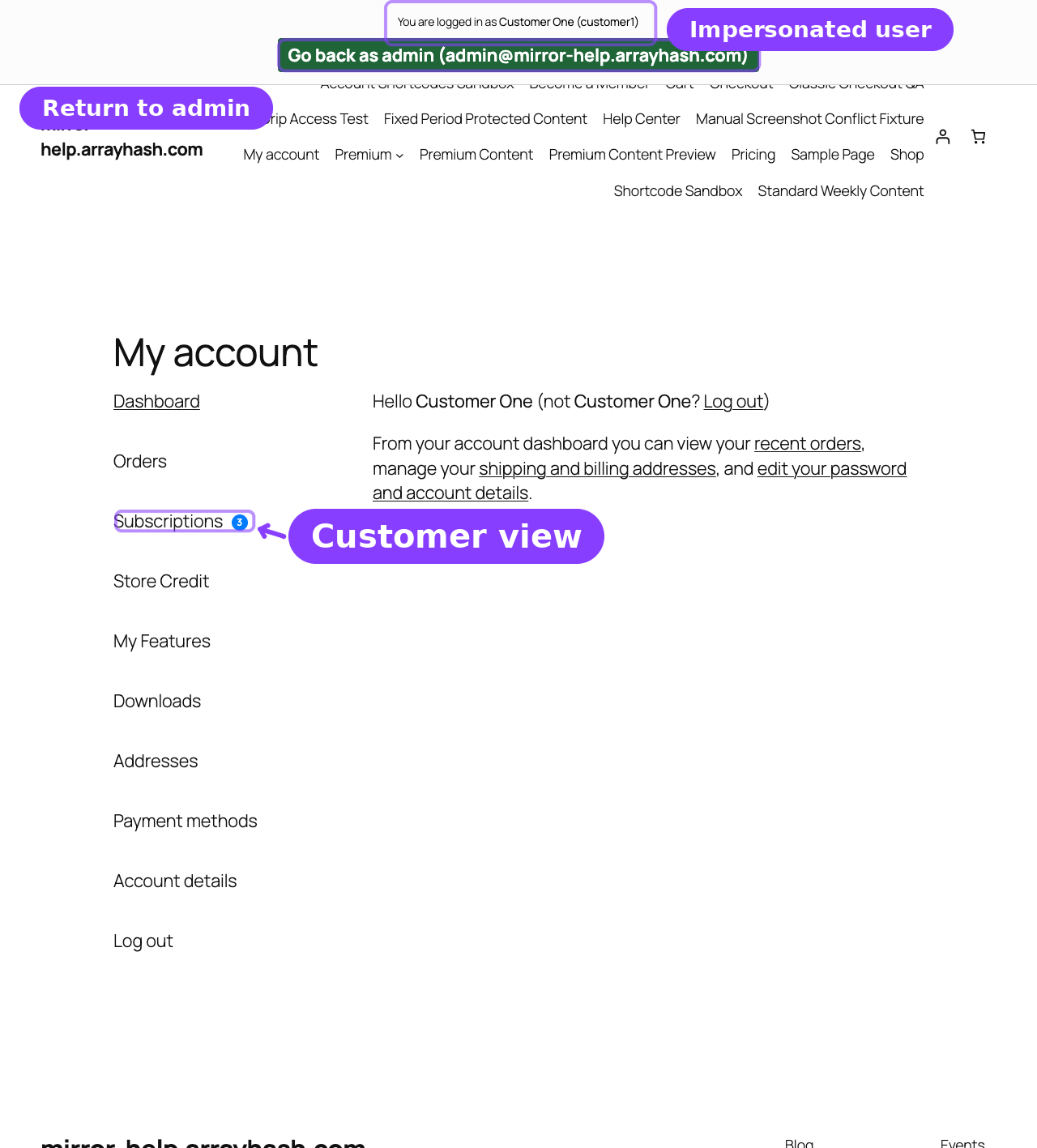
Enable Login as User lets an administrator impersonate a non-admin customer account without knowing the customer's password. This is useful when a customer reports that they cannot see a subscription, update payment details, use member-only content, or access a feature.
While impersonating, ArraySubs shows a visible frontend bar so the administrator knows they are acting as the customer and can return to the admin account.
Where the Action Appears
When enabled, administrators can start impersonation from:
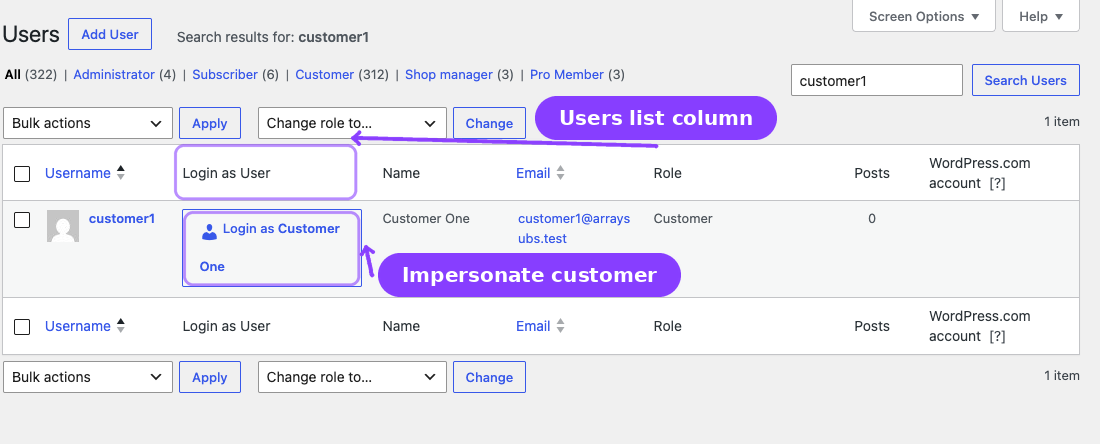
- WordPress Users list.
- Individual WordPress user profile screens.
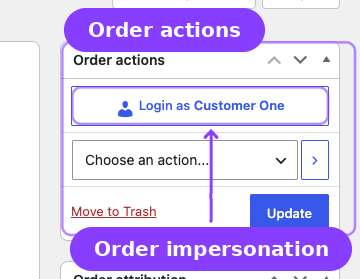
- WooCommerce order detail pages.
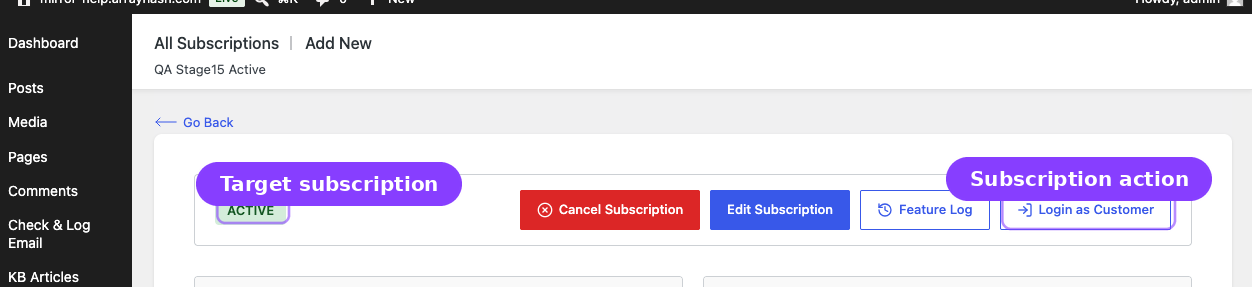
- ArraySubs subscription detail pages.
- Manage Members profile screens Pro.


When to Use This
- A customer reports that their portal does not match your admin records.
- You need to confirm whether a subscription, feature, store credit balance, or member-only page is visible to that customer.
- You need to verify a support fix from the customer's point of view.
- You want support staff to troubleshoot without asking for a customer password.
How to Configure It

- Go to ArraySubs -> Settings -> Toolkit.
- Turn on Enable Login as User.
- Click Save Settings.
- Open a customer, order, subscription, or member profile.
- Click Login as Customer or the available Login as User action.
- Use the frontend impersonation bar to return to your admin account when finished.
Settings Reference
| Setting | Default | Type | Notes |
|---|---|---|---|
| Enable Login as User | On | Toggle | Enables admin-to-customer impersonation actions |
Safety Rules
- Only administrators can impersonate customers.
- Administrators cannot impersonate other administrators.
- Impersonated sessions do not count toward Multi-Login Prevention limits.
- A visible frontend bar remains active during impersonation.
- Use this only for support and verification workflows.
Troubleshooting
| Problem | Likely Cause | What to Do |
|---|---|---|
| Login as Customer button is missing | Toolkit setting is off | Enable Login as User and save |
| Button is disabled for a user | Target user is an administrator | Choose a non-admin customer account |
| Customer portal still looks empty | Customer has no active records or the portal page is misconfigured | Check the subscription, order, and My Account page |
Related Guides
- Manage Members — Member Lookup and Profiles — Member profile workflow and Login as Customer usage Pro.
- Customer Portal Pages — What the customer sees after impersonation.