
Subscription Self-Service Actions
Everything a customer can do from the subscription detail page — cancel, undo a scheduled cancellation, accept retention offers, skip renewals, pause, resume, change plan, and reactivate.
Availability: Free + Pro
Page Navigation
- Current guide: Subscription Self-Service Actions
- Where to open it: Storefront -> My Account -> Subscriptions
- Section overview: Open overview
- Previous guide: README
- Next guide: admin-emails
- Troubleshooting: Audits, Logs, and Troubleshooting
Overview
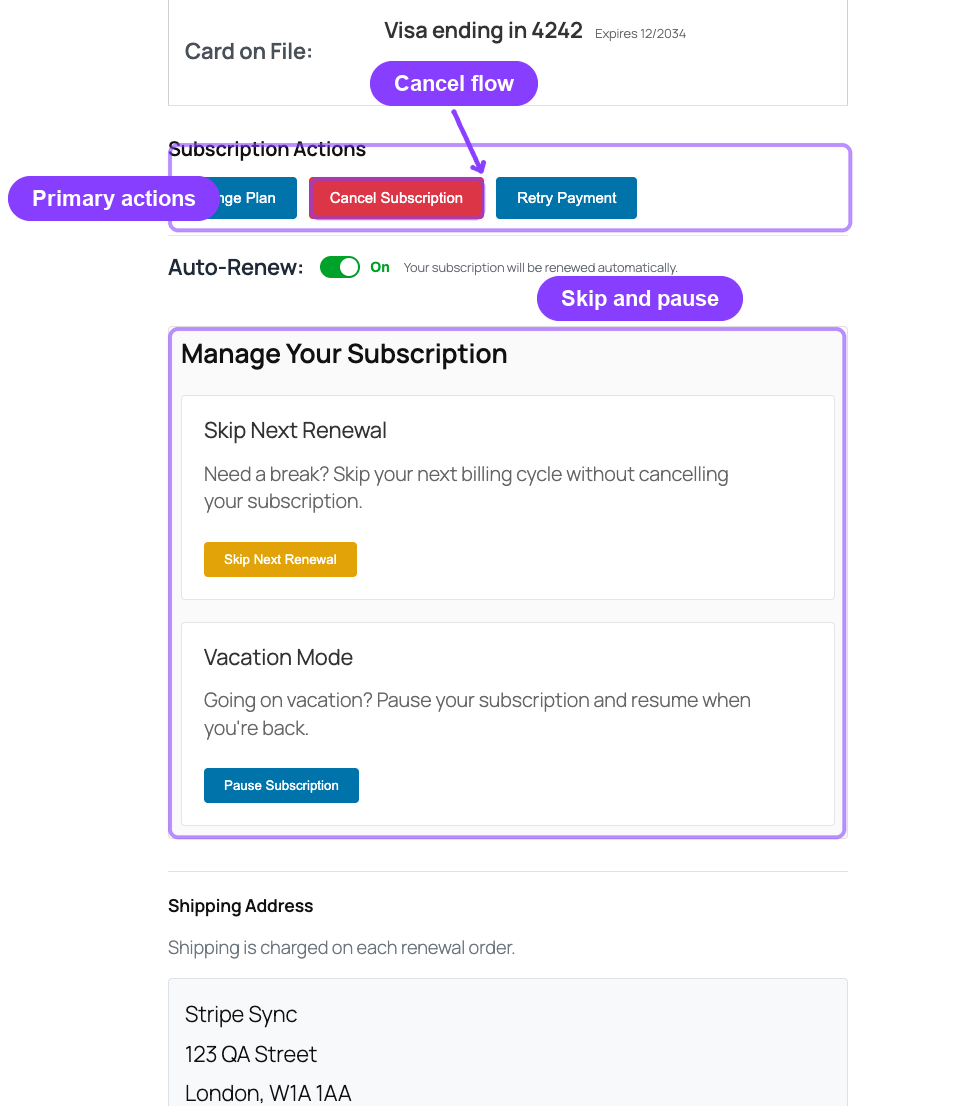
The subscription detail page in the customer portal shows action buttons and controls based on the subscription's current status and your store settings. Customers can only see actions they are actually permitted to take. If you disable a feature in settings, the corresponding button simply does not appear.
This guide covers every self-service action, when it is available, what the customer experiences, and what happens to the subscription afterward.
When to Use This
Refer to this guide when:
- You want to understand what customers can do from their account
- You are configuring which actions to enable or disable in General Settings → Customer Actions
- A customer contacts support about an action they expected to see but could not find
- You need to explain the cancellation or retention flow to your team
Prerequisites
- ArraySubs installed and active
- Customer must have an active WooCommerce account and at least one subscription
- The relevant action must be enabled in ArraySubs → Settings → General Settings
Cancel Subscription
Cancellation lets customers end their subscription. Depending on your settings, cancellation can happen immediately or at the end of the current billing period.
When It Appears
The Cancel Subscription button appears on the detail page when all of these are true:
- Customer cancellation is enabled: General Settings → Customer Actions → Allow Cancellation
- The subscription status is Active, Trial, or Pending
- There is no pending cancellation already scheduled for this subscription
Cancellation Flow
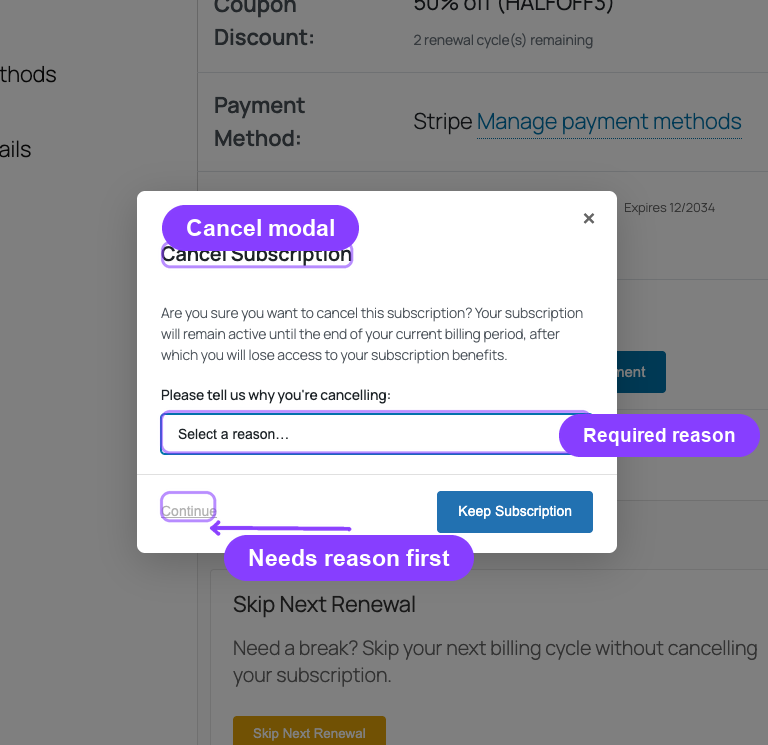
- The customer clicks Cancel Subscription.
- A modal dialog opens.
Cancel Modal
The modal includes:
- A warning message explaining what will happen
- A reason selector (required or optional, based on your settings)
- A free-text field for additional details when the customer selects "Other"
- A Keep Subscription button to close the modal without cancelling
- A Continue button to proceed
-
If retention offers are enabled and the subscription supports them, the customer sees a retention offers modal before the cancellation completes. See Retention Offers below.
-
If the customer confirms cancellation, the outcome depends on the Cancellation Timing setting in General Settings:
Immediate Cancellation
When Cancel Immediately is enabled (the default):
- The subscription status changes to Cancelled right away
- All future scheduled renewals are removed
- Access to subscription benefits ends immediately
- The customer sees: "Subscription cancelled successfully."
End-of-Period Cancellation
When Cancel Immediately is disabled:
- The subscription stays Active until the next payment date
- A pending cancellation flag is set
- Future renewal billing jobs are removed so the customer is not charged again during the pending-cancellation window
- Any pending plan switch is cleared
- The customer continues to have access until the period ends
- The customer sees: "Subscription scheduled for cancellation at the end of your current billing period."
Cancellation Reasons
If Require Reason is enabled in your Retention Flow settings, the customer must select a reason before they can proceed. The available reasons are configured on the Retention Flow admin page. If the customer selects "Other," a free-text field appears for additional details.
Even when reasons are not required, the selector is shown as optional to encourage feedback.
Undo Scheduled Cancellation
When a subscription has been scheduled for end-of-period cancellation — but has not yet actually cancelled — the customer can reverse the decision.
When It Appears
This action is available when:
- The subscription is still Active
- A pending cancellation exists (the
_waiting_cancellationflag is set)
Flow
- The customer clicks Undo Cancellation on the subscription detail page.
- The pending cancellation is removed.
- The subscription continues renewing as normal.
- The customer sees: "Scheduled cancellation removed successfully. Your subscription will continue renewing normally."
All cancellation-related metadata is cleared: the cancellation reason, the scheduled date, and the pending flag.
Retention Offers
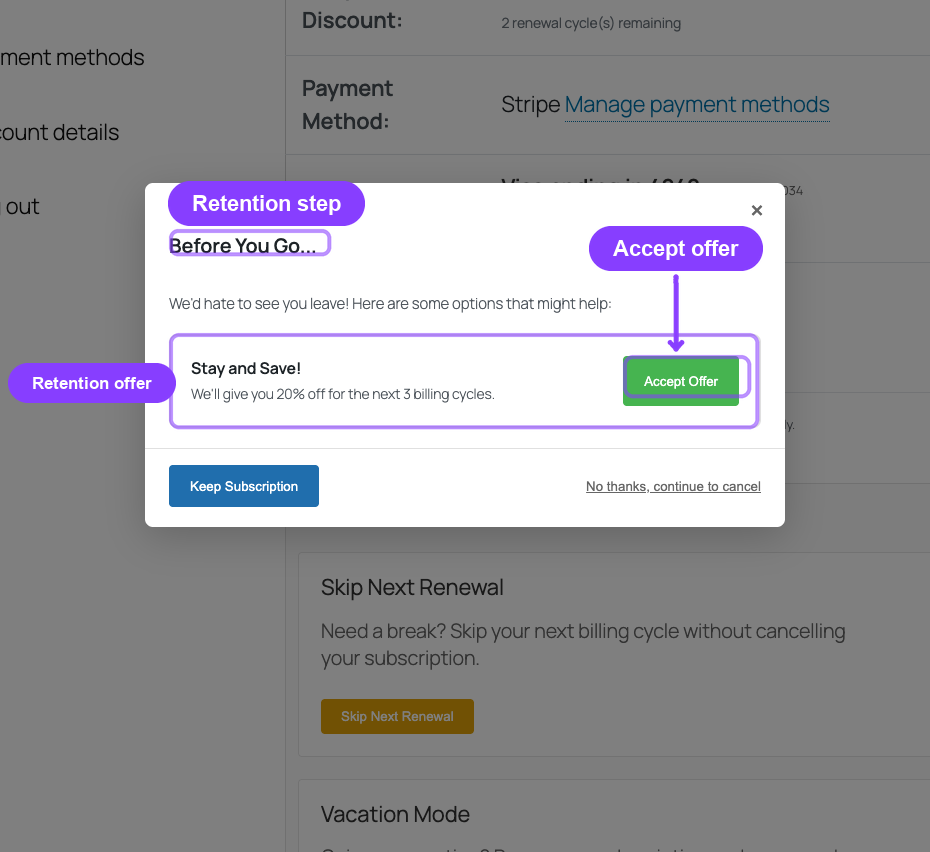
Retention offers are a way to reduce cancellations by presenting customers with alternatives before they actually cancel. When enabled, the retention modal appears between the cancellation reason step and the final cancellation.
When They Appear
Retention offers appear when:
- The Retention Flow feature is enabled in settings
- The subscription supports retention offers
- The customer is eligible based on the offer conditions you configured
- The customer has started the cancellation process
The Retention Modal
After the customer provides a cancellation reason and clicks Continue, a second modal appears with the heading "Before You Go..." and the message: "We'd hate to see you leave! Here are some options that might help:"
The modal dynamically loads offers configured on the admin Retention Flow page. Available offer types:
Discount Offer
Offers the customer a percentage discount on future renewals for a limited number of cycles.
- The customer sees the discount percentage and how many renewals it applies to
- Accepting the offer applies the discount to the subscription's recurring amount
- The subscription remains active
Pause Offer
Offers the customer the option to pause the subscription instead of cancelling.
- The customer sees the proposed pause duration
- Accepting the offer pauses the subscription and schedules an automatic resume
- The subscription moves to On-Hold status
Downgrade Offer
Offers the customer a cheaper plan as an alternative to cancelling.
- The customer sees the suggested downgrade plan with pricing details
- Accepting the offer triggers the plan switching flow
- The subscription remains active on the new plan
Contact Support Offer
Encourages the customer to reach out to support before cancelling.
- The customer sees a link or message to contact support
- Accepting this offer logs the feedback and keeps the subscription active
Accepting or Declining
At the bottom of the retention modal, the customer has two choices:
- Keep Subscription — closes everything and keeps the subscription as-is
- No thanks, continue to cancel — dismisses the offers and proceeds with the original cancellation
Retention offers are only shown once per cancellation attempt. If the customer declines all offers and completes the cancellation, the offers are not shown again on future cancellations of other subscriptions unless the eligibility conditions still match.
Change Plan
Plan switching lets customers upgrade, downgrade, or crossgrade to a different subscription product.
When It Appears
The Change Plan button appears when:
- The subscription status is Active
- Plan switching is enabled: General Settings → Customer Actions → Allow Plan Switching
- The current product has linked upgrade, downgrade, or crossgrade products configured in the Linked Products tab
Flow
- The customer clicks Change Plan.
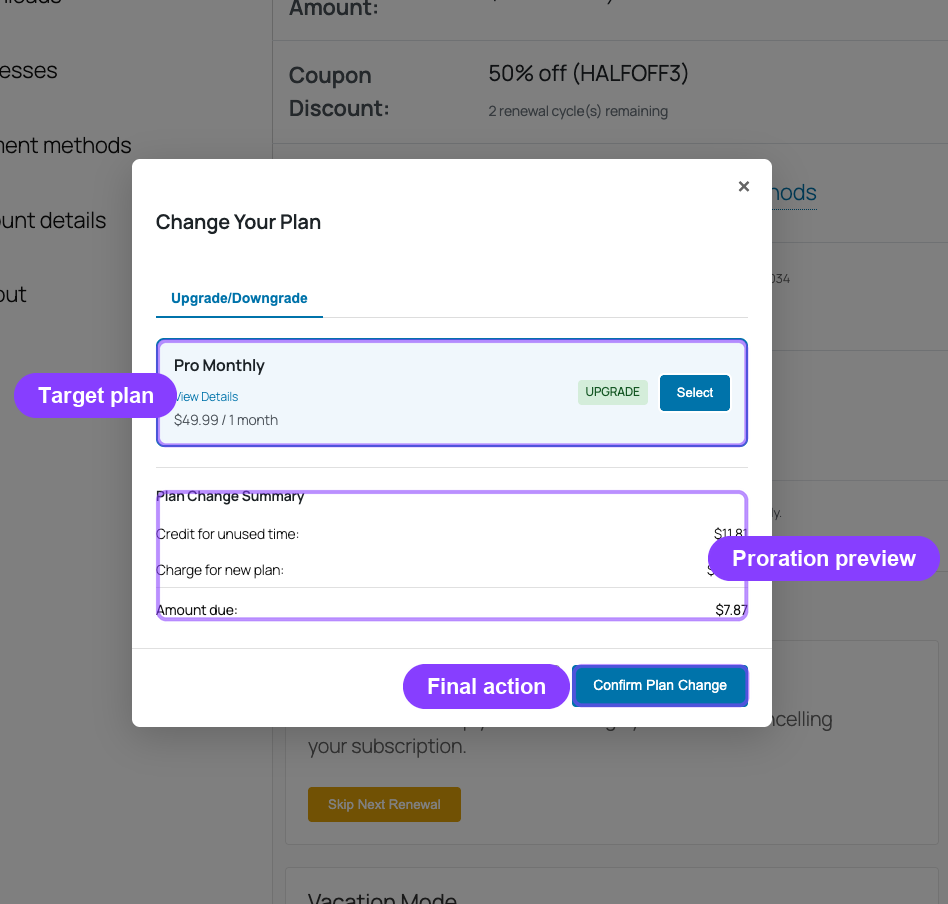
- A modal opens and loads available plan options from the server.
Plan Switch Modal
The modal shows available plans organized into tabs:
- Upgrade/Downgrade — plans explicitly linked as upgrades or downgrades
- Others — crossgrade plans (same tier, different product)
Each option shows the plan name, pricing, and a View Details link if the product page is available.
-
The customer selects a plan.
-
A proration preview appears, showing:
- Credit amount — credit for the unused time on the current plan
- Charge amount — cost of the new plan for the remaining period
- Net amount — what the customer will pay or be refunded
- Switch fee — shown when a fee is configured for the switch direction
-
The customer clicks Confirm Plan Change.
-
The result depends on your store's proration setting:
- Prorate immediately or No proration: if payment is required, the customer is redirected to checkout to complete the switch order. If no payment is required, the switch can complete immediately.
- Apply at renewal: the current subscription stays unchanged and ArraySubs schedules a pending switch for the next renewal.
After an immediate switch is completed, the subscription is updated with the new product, new recurring amount, and adjusted next payment date. After an Apply at Renewal switch, the subscription updates only after the next renewal order is paid.
Pending Switch Banner
When a customer has an Apply at Renewal switch waiting, the subscription detail page shows a pending-switch banner with the target plan, effective date, quantity, future renewal amount, and switch fee when applicable.
The customer can cancel the pending switch before the renewal is paid. If they try to schedule another pending switch, ArraySubs asks them to confirm replacement instead of silently overwriting the existing future change.
Skip Next Renewal
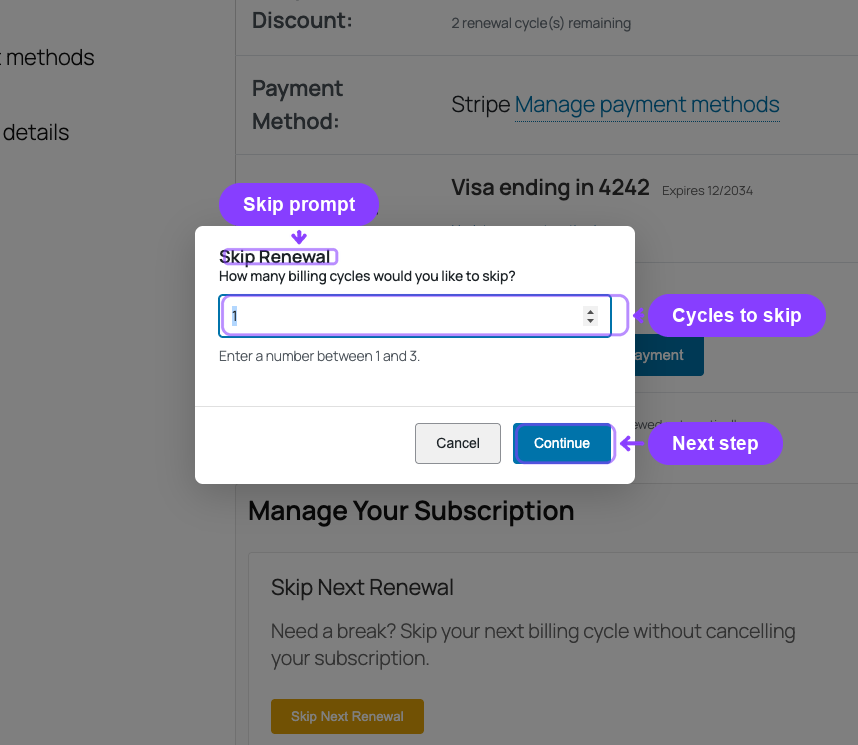
Skipping lets customers delay their next renewal by one or more billing cycles without fully pausing the subscription.
When It Appears
The skip controls appear in the Manage Your Subscription section when:
- Skip Renewal is enabled: General Settings → Skip & Renewal → Enable Skip Renewal
- Customer skip is allowed: General Settings → Skip & Renewal → Customer Can Skip
- The subscription status is Active or Trial
Flow
- The customer clicks Skip Next Renewal.
- A prompt asks how many cycles to skip (from 1 up to the maximum configured in settings).
- After confirming, the next payment date shifts forward by the selected number of billing cycles.
- The customer sees confirmation: "Successfully skipped X renewal cycle(s)."
While Skipping
When a skip is active, the detail page shows a status indicator:
- An icon (⏭) with "Skipping X cycle(s)"
- The date the skip was requested
- An Undo Skip button
Undo Skip
Clicking Undo Skip restores the original next payment date. The subscription reverts to its normal renewal schedule. Customers cannot modify the number of skip cycles once set — they must undo the skip entirely and then skip again with a different amount.
Skipping does not change the subscription status. The subscription remains Active throughout the skip period. The only change is the next payment date being pushed forward.
Pause Subscription
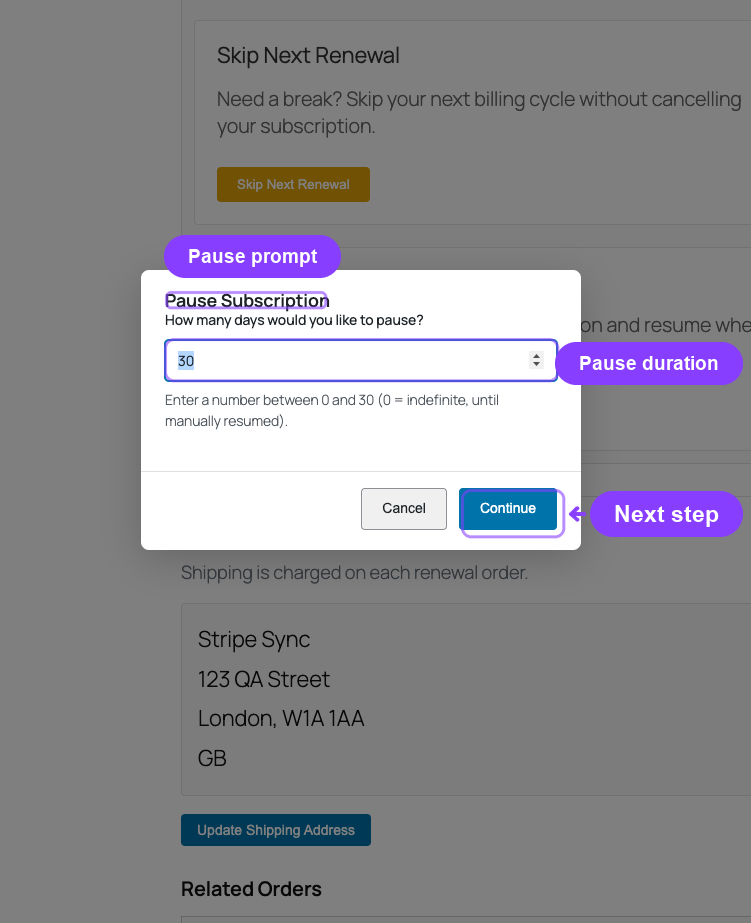
Pausing — also called Vacation Mode — lets customers temporarily suspend their subscription for a set number of days.
When It Appears
The pause controls appear in the Manage Your Subscription section when:
- Pause Subscription is enabled: General Settings → Pause Subscription → Enable Pause
- Customer pause is allowed: General Settings → Pause Subscription → Customer Can Pause
- The subscription status is Active or Trial (to pause), or On-Hold with an active pause (to resume)
Pause Flow
- The customer clicks Pause Subscription.
- A prompt asks for a pause duration in days (up to the maximum configured in settings).
- If a reason is required by settings, the customer enters a reason.
- After confirming, the subscription status changes to On-Hold and a resume date is scheduled.
- The customer sees: "Subscription paused. Will auto-resume on [date]."
While Paused
When the subscription is paused, the detail page shows:
- An icon (⏸) with "Subscription Paused"
- The pause start date
- The scheduled resume date
- A Resume Now button
Resume Subscription
There are two ways a paused subscription resumes:
- Auto-resume: When the scheduled resume date arrives, the subscription automatically returns to Active status.
- Manual resume: The customer clicks Resume Now to end the pause early.
When a subscription resumes, the next payment date is recalculated to account for the pause duration. The billing timeline is extended by the number of days the subscription was paused.
During a pause, renewal processing is suspended. No invoices are created and no payments are collected. Whether the customer retains access to subscription benefits during a pause depends on your Member Access configuration.
Reactivate Subscription
Reactivation allows customers to restart a subscription that was cancelled or put on hold.
When It Is Available
The reactivation capability is controlled by: General Settings → Customer Actions → Allow Reactivation
In the current version, the reactivation setting exists and the backend supports it, but there is no dedicated Reactivate button in the customer portal template. Customers who wish to reactivate a cancelled or expired subscription should contact the store admin, who can change the subscription status from the admin panel.
Admins can reactivate any subscription by changing its status back to Active on the subscription edit screen. See Lifecycle Management for details.
Action Availability Reference
This table summarizes which actions are available based on subscription status:
| Action | Active | Trial | On-Hold | Pending | Cancelled | Expired |
|---|---|---|---|---|---|---|
| Cancel | ✓ | ✓ | — | ✓ | — | — |
| Undo scheduled cancel | ✓ (if pending) | — | — | — | — | — |
| Retention offers | ✓ | ✓ | — | — | — | — |
| Change plan | ✓ | — | — | — | — | — |
| Skip renewal | ✓ | ✓ | — | — | — | — |
| Pause | ✓ | ✓ | — | — | — | — |
| Resume | — | — | ✓ (if paused) | — | — | — |
| Update shipping | ✓ | ✓ | ✓ | — | — | — |
Edge Cases and Important Notes
- Retention offers and immediate cancellation: Even when cancellation is set to immediate, retention offers are shown first. If the customer accepts an offer, the cancellation does not proceed. If the customer declines all offers, the immediate cancellation takes effect.
- Plan switching requires linked products: The Change Plan button only appears when the current product has upgrade, downgrade, or crossgrade products linked in the product editor. If no products are linked, the button is hidden even if plan switching is enabled globally.
- Skip and pause cannot overlap: A customer cannot skip renewals while the subscription is paused, and cannot pause while a skip is active. The controls reflect the current state — if one is active, only the undo/resume action for that feature is shown.
- Cutoff for shipping updates: Shipping address changes are blocked within 3 days of the next payment date. This prevents last-minute address changes from disrupting order fulfillment. The cutoff period is configurable by developers via the
arraysubs_shipping_address_cutoff_daysfilter.
Troubleshooting
| Problem | Likely Cause | What to Do |
|---|---|---|
| Customer cannot see the Cancel button | Cancellation is disabled in settings, or the subscription is already cancelled/expired | Check General Settings → Customer Actions → Allow Cancellation and verify the subscription status |
| Customer cannot see the Change Plan button | Plan switching is disabled, the subscription is not Active, or no linked products are configured | Check General Settings → Customer Actions → Allow Plan Switching, verify the subscription is Active, and confirm that upgrade/downgrade products are linked on the product |
| Skip or Pause section is missing | Skip or pause features are disabled in settings, or the subscription is not in Active/Trial status | Check General Settings → Skip & Renewal and Pause Subscription settings |
| Retention offers are not appearing | The Retention Flow feature is disabled, or no offers are configured, or the subscription does not meet offer eligibility conditions | Check the Retention Flow admin page for enabled offers and their eligibility rules |
| Customer cancelled but subscription is still Active | End-of-period cancellation is configured (not immediate cancellation) | The subscription is scheduled to cancel at the end of the billing period. The customer will see a pending cancellation flag |
Related Guides
- General Settings — Where you enable or disable each customer action
- Retention, Cancellation, and Refunds — Full retention flow configuration, offers, analytics, and refund policies
- Cancellation Setup — Immediate vs end-of-period cancellation setup and reason management
- Retention Offers — How discount, pause, downgrade, and contact support offers work
- Plan Switching and Product Relationships — How to link products for upgrade/downgrade paths
- Lifecycle Management — Detailed status transition rules
FAQ
Can a customer cancel a subscription that is in trial?
Yes. Trial subscriptions can be cancelled by the customer if cancellation is enabled in settings. The same immediate vs end-of-period behavior applies.
What happens if the customer accepts a retention discount and then tries to cancel again later?
The customer can cancel again at any time (subject to the same settings). Retention offers may be shown again if the subscription still meets the eligibility conditions. The previously accepted discount remains active for its configured cycle count regardless of whether the customer cancels.
Can customers skip multiple times in a row?
A customer can only have one active skip at a time. To change the number of skip cycles, they must first undo the current skip and then set up a new one.
Does pausing a subscription cancel the pending renewal invoice?
Yes. When a subscription is paused, any pending renewal actions are suspended. No new invoices are generated during the pause period. When the subscription resumes, the billing cycle restarts from the resume date.
What if a customer closes the browser during the cancellation flow?
Nothing happens. The cancellation is only processed when the customer explicitly confirms it. If they close the modal or navigate away, the subscription remains unchanged.
Can an admin override a customer's cancellation?
Yes. Store admins can change any subscription's status from the admin panel, including reactivating a cancelled subscription. See Subscription Operations for details on admin status changes.