
Admin Bar Visibility
Hide the WordPress frontend toolbar for customers while keeping normal admin shortcuts for administrators.
Availability: Free
Page Navigation
- Current guide: Admin Bar Visibility
- Where to open it: WordPress Admin -> ArraySubs -> Settings -> Toolkit
- Direct route:
/wp-admin/admin.php?page=arraysubs-mainadmin#/settings/toolkit - Section overview: Manual Home
- Previous guide: Toolkit Settings
- Next guide: Admin Dashboard Access
- Troubleshooting: Audits, Logs, and Troubleshooting
What This Tool Does
Hide admin bar for non-admin users removes the WordPress toolbar from frontend pages for users who are not administrators. Customers get a cleaner storefront and portal experience, while administrators still see their normal WordPress toolbar.
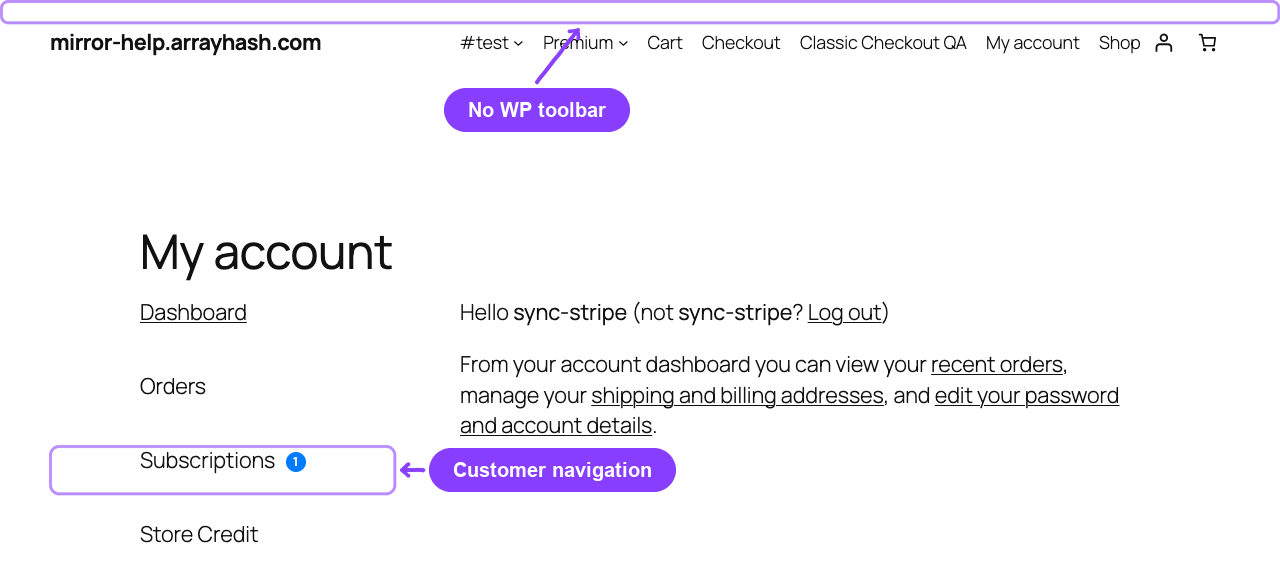
This is a presentation control, not a permission system. A customer can still try to visit /wp-admin directly unless Admin Dashboard Access is also configured.
When to Use This
- Your members see the black WordPress toolbar after logging in.
- Your storefront should look like a branded customer portal, not a WordPress admin session.
- You want support staff and administrators to keep toolbar shortcuts while customers do not see them.
How to Configure It
- Go to ArraySubs -> Settings -> Toolkit.
- In Admin Bar, turn on Hide admin bar for non-admin users.
- Click Save Settings.
- Open the storefront as a customer and confirm the toolbar is gone.
- Open the storefront as an administrator and confirm the toolbar still appears.
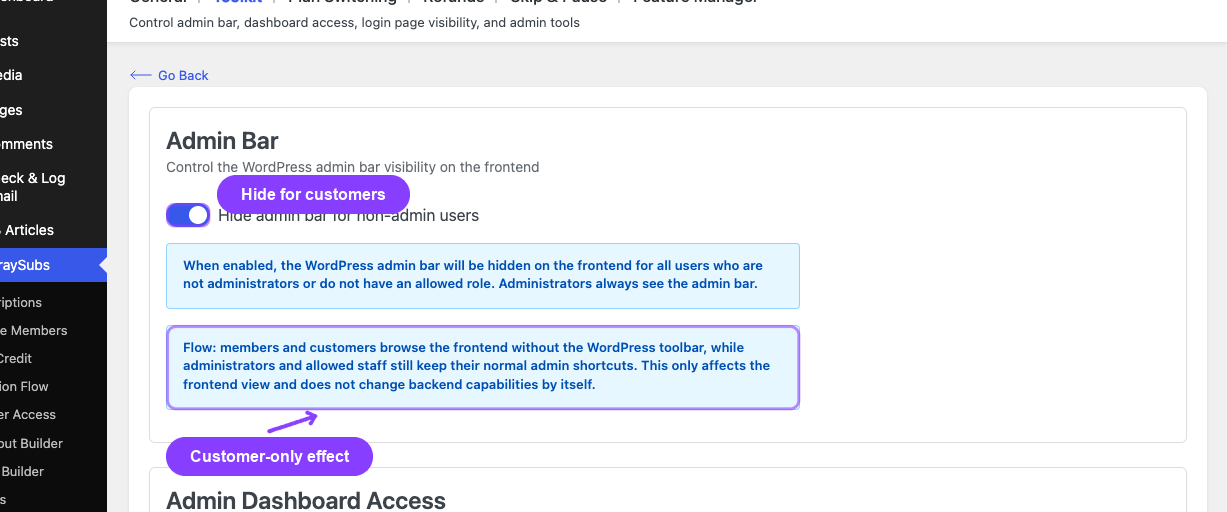
Settings Reference
| Setting | Default | Type | Notes |
|---|---|---|---|
| Hide admin bar for non-admin users | Off | Toggle | Applies to frontend pages for non-admin users |
Important Notes
- Administrators always keep the toolbar.
- This does not block direct
/wp-adminaccess. - This does not change user roles or capabilities.
- Use it with Admin Dashboard Access for a complete customer-facing cleanup.

Related Guides
- Admin Dashboard Access — Redirect customers away from
/wp-admin. - WordPress Login Page — Route customer login traffic through WooCommerce My Account.