
Store Credit Shortcode
ProEmbed a store credit purchase form or product card anywhere on your site so customers can buy credits directly.
Availability: Pro
Page Navigation
- Current guide: Store Credit Shortcode Pro
- Where to open it: WordPress Admin -> ArraySubs -> Shortcodes
- Section overview: Open overview
- Previous guide: content-gating
- Next guide: credit-history
- Troubleshooting: Audits, Logs, and Troubleshooting
Overview
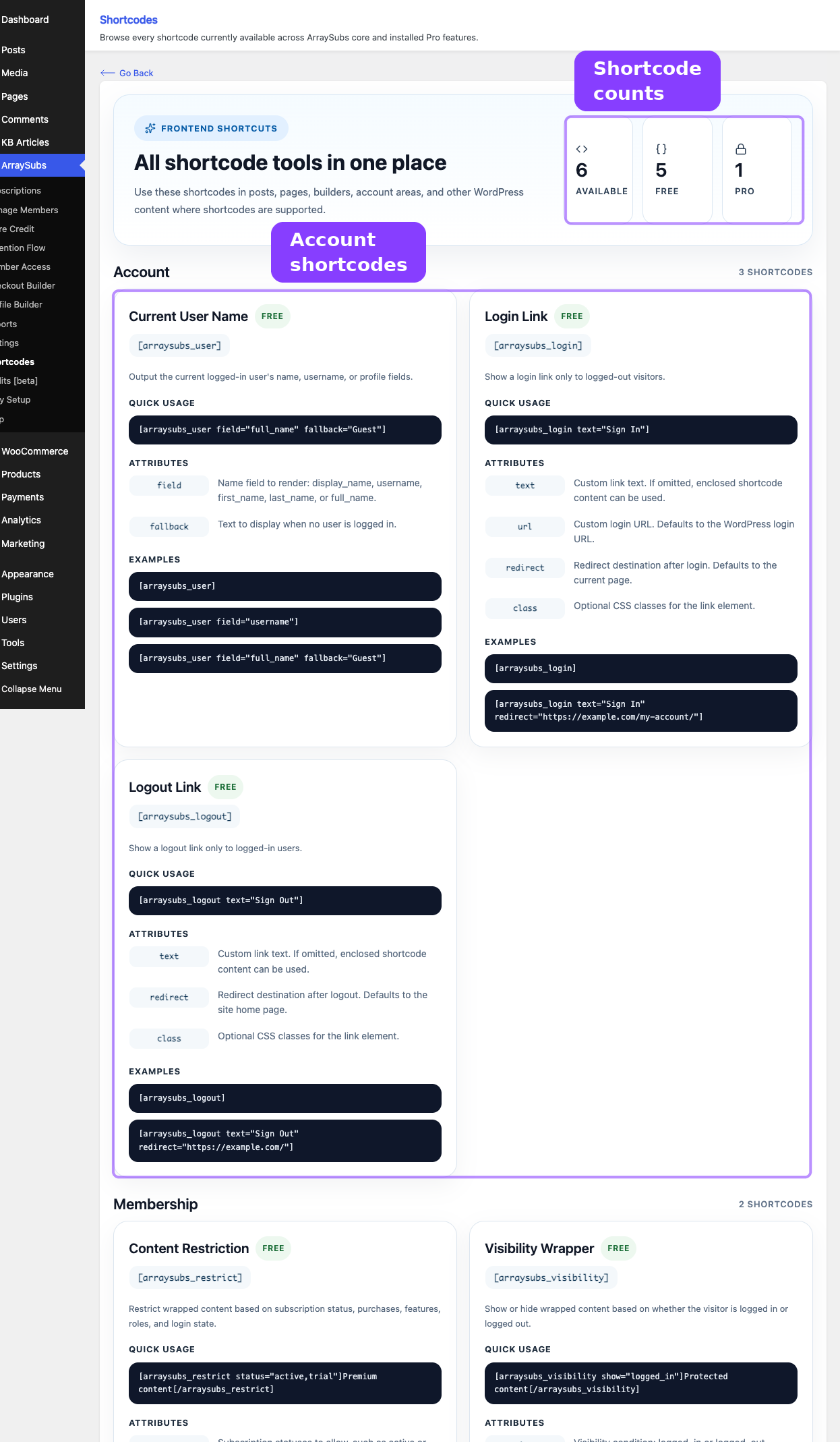
The [arraysubs_buy_credits] shortcode renders a storefront purchase form for buying store credit. Place it on any page, post, or widget where you want customers to top up their credit balance.
When to Use This
- You want a dedicated "Buy Credits" page outside of the standard WooCommerce shop.
- You want to embed a credit purchase form on a landing page, pricing page, or inside a member dashboard.
- You have multiple store credit products and want to show a product grid on a single page.
- You want to feature a specific store credit product on a targeted page.
Prerequisites
- ArraySubs Pro installed and active.
- Store Credit enabled in ArraySubs → Store Credit → Settings.
- Credit purchases enabled (the "Enable purchase" toggle in Store Credit settings).
- At least one published store credit product configured.
[arraysubs_buy_credits] — Buy Store Credits
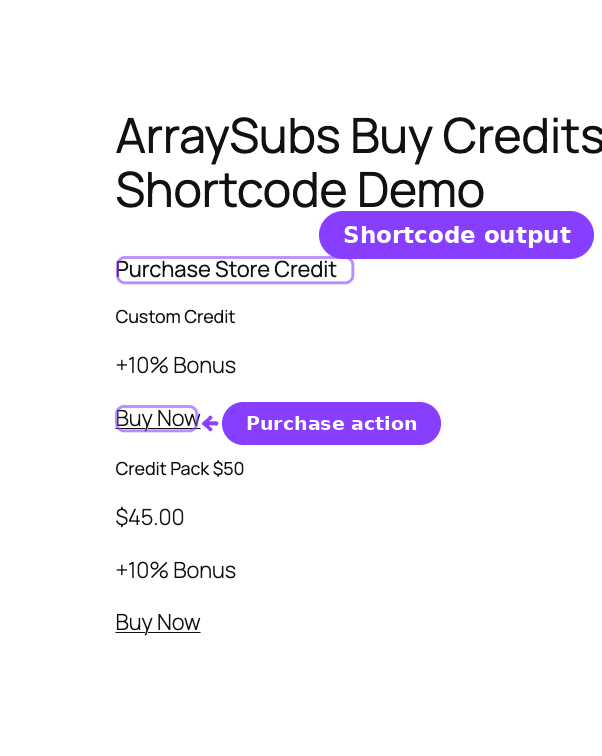
Renders a purchase interface for store credits. Only visible to logged-in users.
Attributes
| Attribute | Default | Description |
|---|---|---|
product_id |
0 | A specific store credit product ID. If provided and valid, renders that product's purchase view. If omitted, shows the default purchase form or a product grid. |
How It Works
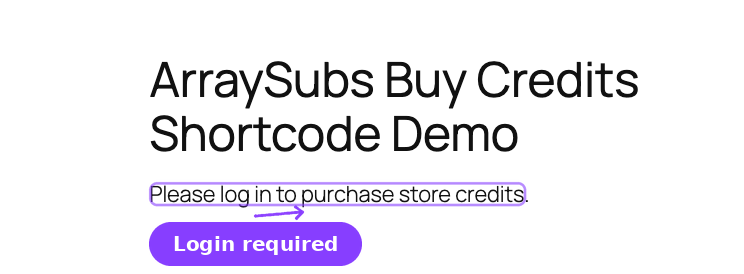
- Login check. If the visitor is not logged in, a message is shown: "Please log in to purchase store credits."
- Specific product. If
product_idis provided and the ID belongs to a valid, published store credit product, the shortcode renders that product's single-product display. - Default view. If
product_idis omitted or invalid, the shortcode queries all published store credit products. - Multiple products. When more than one store credit product exists, a card grid is rendered. Each card shows the product name, price, bonus percentage (if configured), and a Buy Now button.
- Single product. When only one store credit product exists, the purchase form is rendered directly.
- No products. If no store credit products are available, a message is shown: "No credit products available."
Purchase Form Modes
The purchase form adapts based on how the store credit product is configured:
| Mode | What The Customer Sees |
|---|---|
| Fixed amount | A static credit amount set by the merchant. The customer clicks Buy to add it to cart. |
| Customer-entered amount | A number input where the customer chooses how much credit to buy. The input respects the configured minimum and maximum amounts, with a default starting value. |
If a bonus percentage is configured on the product (for example, "Buy $50 in credits, get 10% extra"), the form displays the bonus amount the customer will receive.
Examples
Default purchase form (shows all available credit products):
[arraysubs_buy_credits]
Specific store credit product by ID:
[arraysubs_buy_credits product_id="123"]
Real-Life Use Cases
Use Case 1: Dedicated "Buy Credits" Page
Create a WordPress page titled "Buy Store Credits" and add:
[arraysubs_buy_credits]
Link this page from your site's navigation or My Account area. Customers can browse available credit options and purchase directly.
Use Case 2: Featured Credit Product on a Landing Page
Promote a specific credit package on a marketing page:
Top up your account and save on future renewals!

[arraysubs_buy_credits product_id="456"]
This shows only the specified product, which is useful for promotions or featured credit bundles.
Use Case 3: Credit Purchase Inside a Members-Only Area
Combine with [arraysubs_restrict] to show the credit purchase form only to active subscribers:
[arraysubs_restrict status="active"]
  ## Add Credits to Your Account

  Use credits toward future renewals or purchases in our store.

  [arraysubs_buy_credits]
[/arraysubs_restrict]
Use Case 4: Different Credit Options for Different Audiences
Place different credit products on different pages using the product_id attribute. For example, a "Starter Credits" page with a low-value product and a "Bulk Credits" page with a high-value product with bonus percentage.
Edge Cases and Important Notes
- Login required. Logged-out visitors see a login prompt, not the purchase form. Store credits are tied to customer accounts, so authentication is mandatory.
- Store Credit must be enabled. If Store Credit is disabled in settings or credit purchases are turned off, the shortcode may render an empty state or show no products.
- Product must be a credit product. If the
product_idprovided does not belong to a store credit product type, the shortcode falls back to the default view (showing all credit products). - Bonus display. Bonus percentage badges only appear when the merchant configures a bonus on the product. If no bonus is set, the form shows only the credit amount and price.
- Cart and checkout. After clicking Buy, the credit product is added to the WooCommerce cart. The customer completes the purchase through the normal checkout flow. Credits are applied to their balance after the order is completed.
Troubleshooting
| Problem | Likely Cause | What to Do |
|---|---|---|
| Shortcode shows "Please log in to purchase store credits" | Customer is not logged in | Log in and revisit the page |
| Shortcode shows "No credit products available" | No store credit products are published, or Store Credit purchases are disabled | Create a store credit product and verify the "Enable purchase" toggle is on in Store Credit → Settings |
product_id does not show the expected product |
The product ID is wrong or the product is not a store credit type | Verify the product ID and ensure it has the store credit product type |
| Shortcode appears as plain text | ArraySubs Pro is inactive | Activate the Pro plugin |
| Bonus percentage is not displayed | No bonus is configured on the store credit product | Edit the product and set a bonus percentage |
Related Guides
- Shortcodes Overview — Quick reference for all shortcodes
- Store Credit — Purchase Product — How to create and configure store credit products
- Store Credit — Management — Managing customer credit balances
- Store Credit — Settings — Enable credit purchases, set limits, and configure expiration
FAQ
Can logged-out visitors see the purchase form?
No. Logged-out visitors see a "Please log in to purchase store credits" message. Store credits are tied to customer accounts.
What happens after the customer clicks Buy?
The store credit product is added to the WooCommerce cart. The customer completes the purchase through the normal checkout flow. After the order is marked as completed, the credits are added to the customer's balance.
Can I show multiple credit products on one page?
Yes. Use [arraysubs_buy_credits] without a product_id attribute. If multiple store credit products exist, a product grid is displayed with all available options.
Does this shortcode work in page builders?
Yes. Add it via a Shortcode block, text module, or HTML module in any major page builder.
Can I customize the look of the purchase form?
The form uses standard WooCommerce markup and ArraySubs CSS classes. You can override styles in your theme's stylesheet using the appropriate class selectors.