
Store Credit
ProGive customers a flexible balance they can earn from refunds, downgrades, promotions, or direct purchases — and spend on renewals, new orders, or anything in your store.
Availability: Pro
Page Navigation
- Current guide: Store Credit
- Where to open it: WordPress Admin -> ArraySubs -> Store Credit
- Section overview: Open overview
- Previous guide: Store Credit Shortcode
- Next guide: Credit History
- Troubleshooting: Audits, Logs, and Troubleshooting
If a customer sees "Store credit is not available.", confirm ArraySubs Pro is active and Store Credit is enabled in Store Credit Settings. The same My Account menu location becomes the balance, purchase, expiration, and transaction-history page once the module is available.
Overview
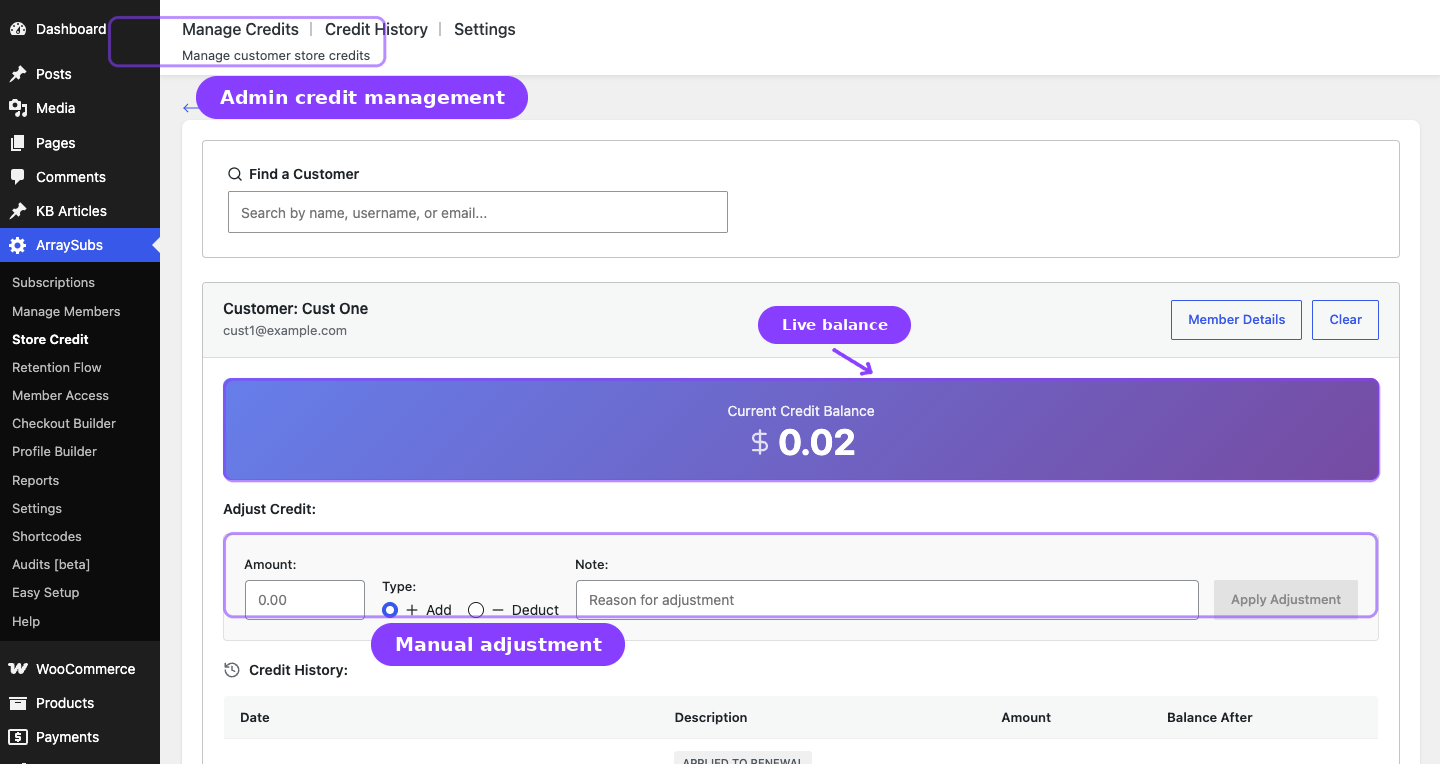
Store Credit is a complete virtual-wallet system built into ArraySubs Pro. It lets you reward customers with reusable credit that automatically applies to subscription renewals or can be spent at checkout, reducing friction and increasing retention.
Credit flows into customer accounts from several sources — plan downgrades, refund conversions, admin adjustments, promotional grants, and self-service credit purchases. Credit flows out when it is applied to renewal invoices, used at checkout, or when it expires after a configurable period.
Every transaction is logged, every balance is tracked in real time, and customers can view their credit from the My Account area.
When to Use This
- Reduce refund losses. Convert cancellation refunds into store credit instead of sending money back through the payment gateway — the revenue stays in your store.
- Smooth out downgrades. When a customer switches to a cheaper plan, automatically grant the price difference as credit so nothing feels wasted.
- Run promotions. Manually add promotional credit to reward loyal customers, incentivize sign-ups, or run seasonal campaigns.
- Let customers pre-pay. Enable credit purchases so customers can buy credit upfront (with optional bonus incentives) and use it over time.
- Minimize failed renewals. Auto-apply credit to renewal invoices so even if a card fails, existing credit can cover part or all of the charge.
How It Works
Store Credit operates at two levels:
| Level | Where stored | Purpose |
|---|---|---|
| Subscription credit | On the individual subscription | Earned from plan downgrades. Applied first during renewals. |
| Customer credit | On the customer's account | Earned from refunds, purchases, promotions, and admin adjustments. Applied after subscription credit. |
When credit is applied to an order, the system uses subscription-level credit first, then draws from customer-level credit for any remaining balance. This priority ensures downgrade credits are consumed by the subscription that generated them before dipping into the customer's general balance.
Credits appear as a negative fee line item on orders, reducing the payment total while keeping full auditability.
What's Inside
| Topic | What it covers |
|---|---|
| Store Credit Management | Search customers, view balances, add or deduct credit manually, and review individual transaction histories. |
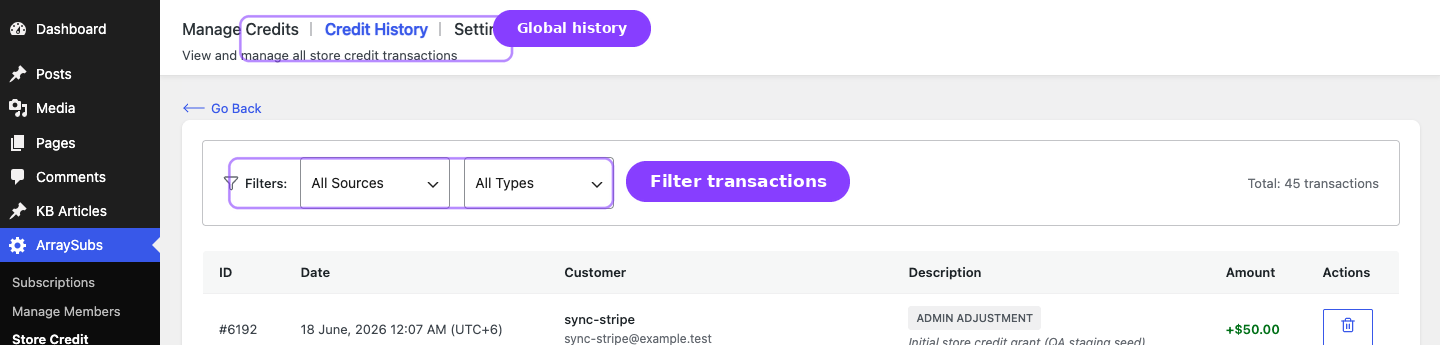
| Credit History | Global transaction log across all customers — filter by source, type, and browse every credit event in your store. |
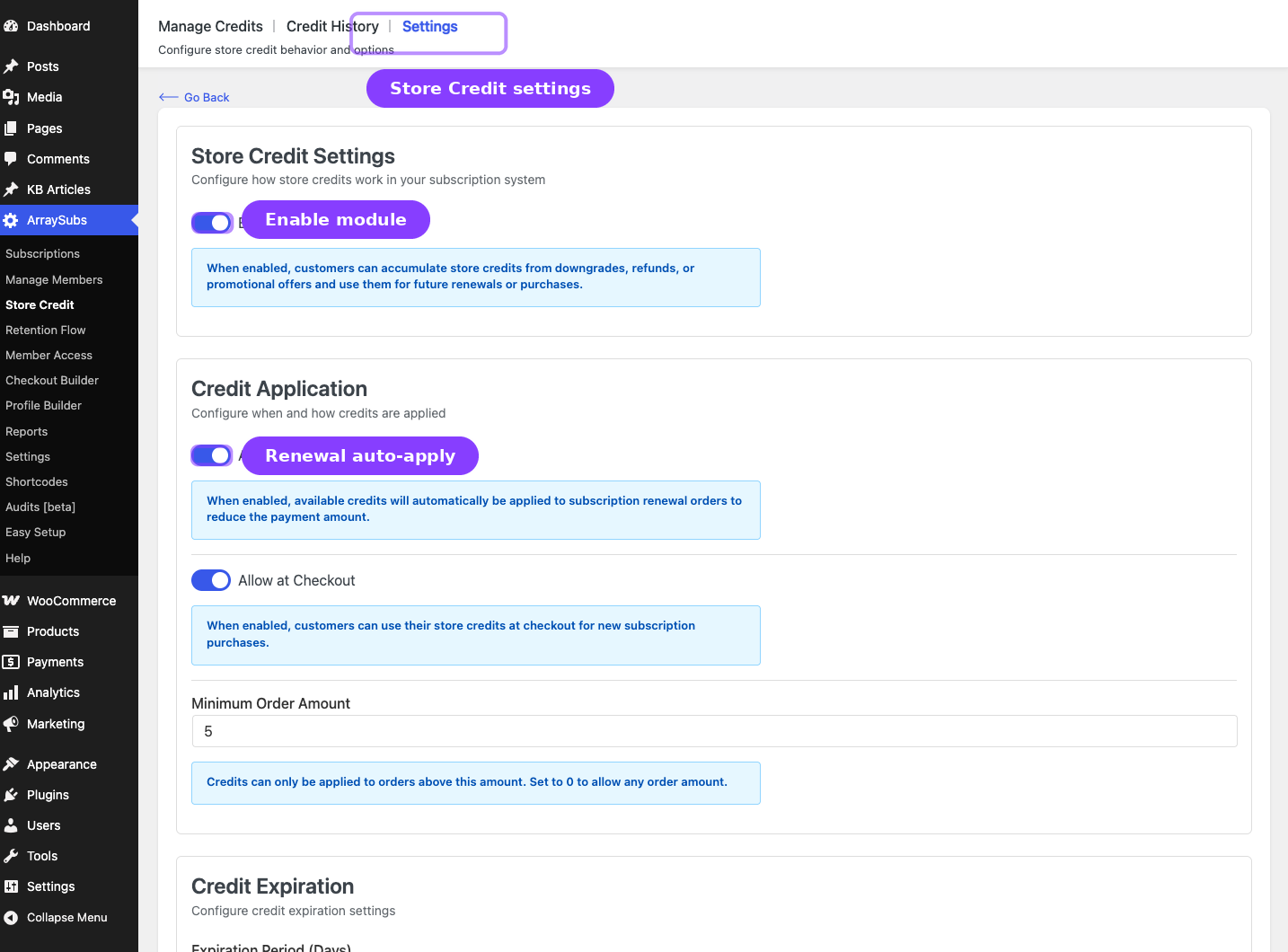
| Store Credit Settings | Enable the system, configure auto-apply rules, set expiration periods, and control credit purchase limits. |
| Purchase Product | Create a WooCommerce product that lets customers buy store credit with fixed or custom amounts and optional bonus percentages. |
| Emails | Four automated email notifications: Credit Added, Credit Used, Credit Expiring, and Credit Expired. |
| Refund to Credit | Process refunds as store credit instead of gateway refunds directly from the WooCommerce order screen. |
Credit Sources at a Glance
Every credit transaction is tagged with a source so you can track where credit comes from and where it goes.
| Source | Direction | When it happens |
|---|---|---|
Plan Downgrade |
Credit (in) | Customer switches to a cheaper subscription plan. The price difference is granted as subscription-level credit. |
Refund |
Credit (in) | Admin processes a refund as store credit instead of a gateway refund. |
Admin Adjustment |
Credit (in) or Debit (out) | Admin manually adds or deducts credit from a customer's account. |
Promotional |
Credit (in) | Admin grants promotional credit (manual adjustment with a promotional note). |
Credit Purchase |
Credit (in) | Customer buys credit through a Store Credit product in the shop. |
Applied to Renewal |
Debit (out) | Credit automatically applied to a subscription renewal invoice. |
Applied to Order |
Debit (out) | Credit applied at checkout for a new order. |
Reversal |
Credit (in) | A previously-applied credit is restored after the renewal payment failed (see "Failed renewal reversal" below). |
Expired |
Debit (out) | Credit passes its expiration date and is removed from the balance. |
Failed renewal reversal
When credit is auto-applied to a renewal invoice, the deduction happens at the moment the invoice is generated — before the payment lands. If the renewal payment then fails (Stripe declines, customer doesn't pay the manual invoice in time, etc.), the credit is automatically restored:
- The plugin listens for
arraysubs_renewal_payment_failed. - The original split is read from order meta (subscription bucket vs customer bucket — preserved per-application so reversal returns credit to the right place).
- Each bucket is re-credited via the normal
addSubscriptionCredit/addCustomerCreditpath with sourceReversal. - The negative "Store Credit Applied" fee line is removed from the order so its outstanding balance reflects the true amount due.
- A subscription system note records the reversal: "Store credit $X.XX restored after renewal payment failed on order #1234."
The reversal is idempotent — a second failure on the same order is a no-op. When the order is later retried (auto-retry or manual retry), the renewal pipeline re-runs applyCreditsToOrder; if credit is still available it will be re-applied to the new attempt.
This guarantees the customer never silently loses credit because of a transient payment failure.
Customer Experience
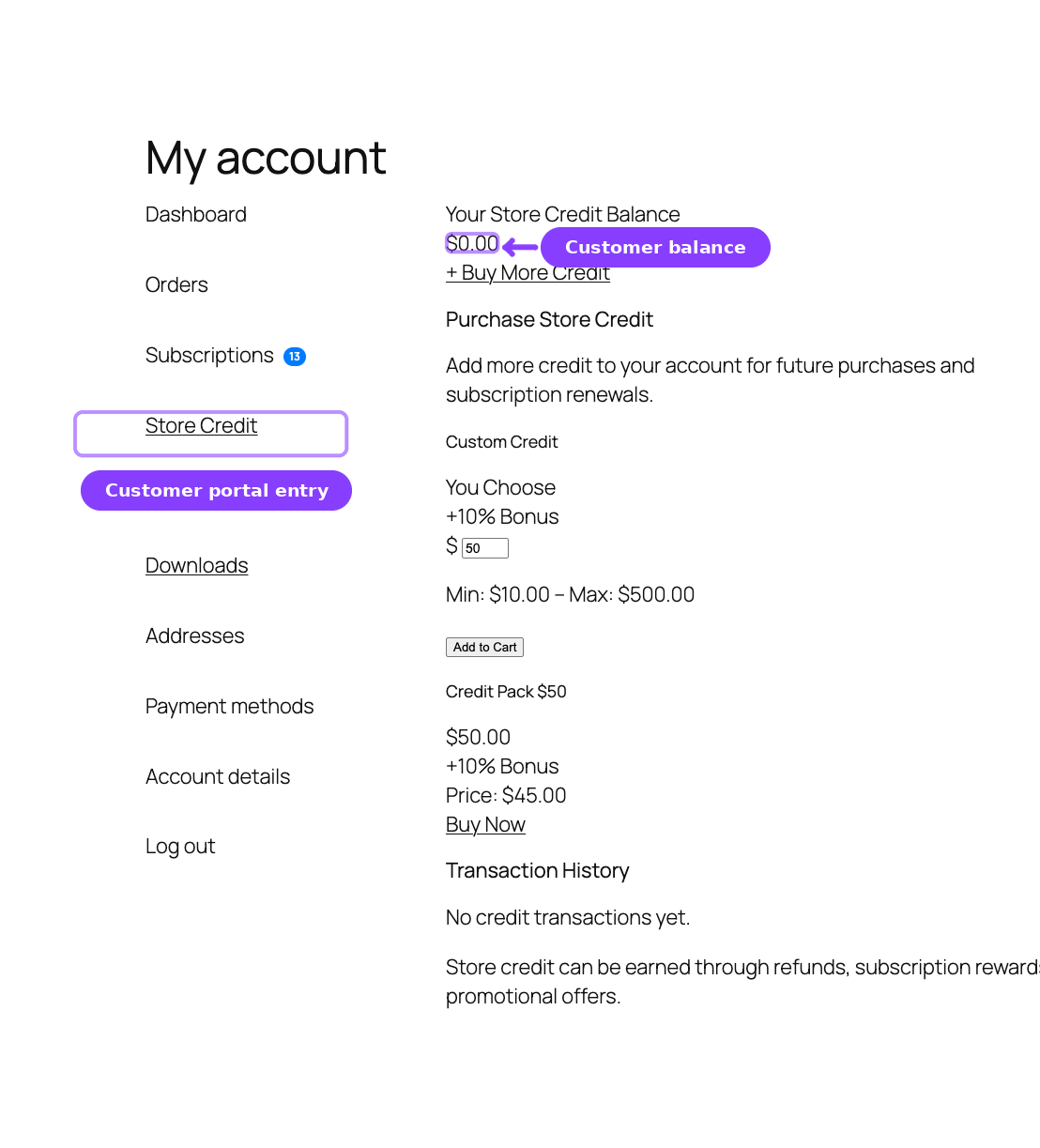
Customers interact with store credit in the My Account → Store Credit page, where they can:
- View their current balance
- Browse their transaction history
- See any credits expiring soon (30-day window)
- Purchase more credit if the merchant has enabled credit purchases
Credit is applied automatically to renewal orders (if enabled) — customers do not need to take action. When credit is used, they receive an email confirmation showing the amount applied and their remaining balance.
Related Guides
- Customer Portal Pages — How the Store Credit page appears in the customer portal.
- Manage Members — Commerce Overview — View a member's credit balance from the admin profile.
- Lifecycle Management — How renewals and downgrades interact with credit.
FAQ
Does Store Credit require the Pro plugin?
Yes. Store Credit is a Pro-only feature. The admin menu pages appear in the core plugin's interface, but all backend functionality — credit management, transactions, emails, and the customer portal — requires ArraySubs Pro to be active.
Can credit go negative?
No. The system never deducts more than the available balance. If a customer has $30 in credit and a renewal costs $50, only $30 is applied and the remaining $20 is charged through the normal payment method.
What happens to credit if a subscription is cancelled?
Subscription-level credit remains on the subscription record. Customer-level credit stays in the customer's account and can still be used for other purchases or new subscriptions.
Can I disable credit for specific customers?
There is no per-customer toggle. Credit is enabled or disabled globally through the Store Credit Settings. You can, however, manually deduct a customer's full balance through the Store Credit Management page.
Does credit work with all payment gateways?
Yes. Store credit is applied as a fee line item that reduces the order total before payment processing. It works with every WooCommerce-compatible gateway.