
Renewal Operations
How ArraySubs generates renewal invoices, routes payments, and handles price changes across the subscription lifecycle.
Availability: Free (core renewal engine), with Pro extensions for automatic gateway payments
Page Navigation
- Current guide: Renewal Operations
- Where to open it: WordPress Admin -> ArraySubs -> Subscriptions
- Section overview: Open overview
- Previous guide: Billing and Renewals
- Next guide: renewal-sync
- Troubleshooting: Audits, Logs, and Troubleshooting
Last updated: 2026-07-08
Overview
Every active subscription eventually reaches its next payment date. When that happens, ArraySubs creates a renewal invoice (a pending WooCommerce order), routes the payment through the appropriate channel (manual or automatic), and schedules the next renewal. This page explains each step in that process, including how tiered pricing works.
When to use this
- You want to understand how renewal invoices are created and when they appear
- You need to configure how far in advance invoices are generated
- You want to offer introductory pricing that changes after a set number of payments
- You want to understand where renewal sync fits into the renewal lifecycle
How it works
Renewal Sync and first billing alignment
Renewal Sync changes the first renewal date for eligible new subscriptions so future invoices land on a predictable cycle boundary. The billing engine still uses the subscription's stored next payment date; renewal invoice generation, reminders, payment collection, and grace-period checks continue to follow that date.
Renewal Sync now has a dedicated guide covering the global First Charge modes and the Pro product-level Flexible Renewal Sync segment picker: Renewal Sync.
Renewal invoice generation
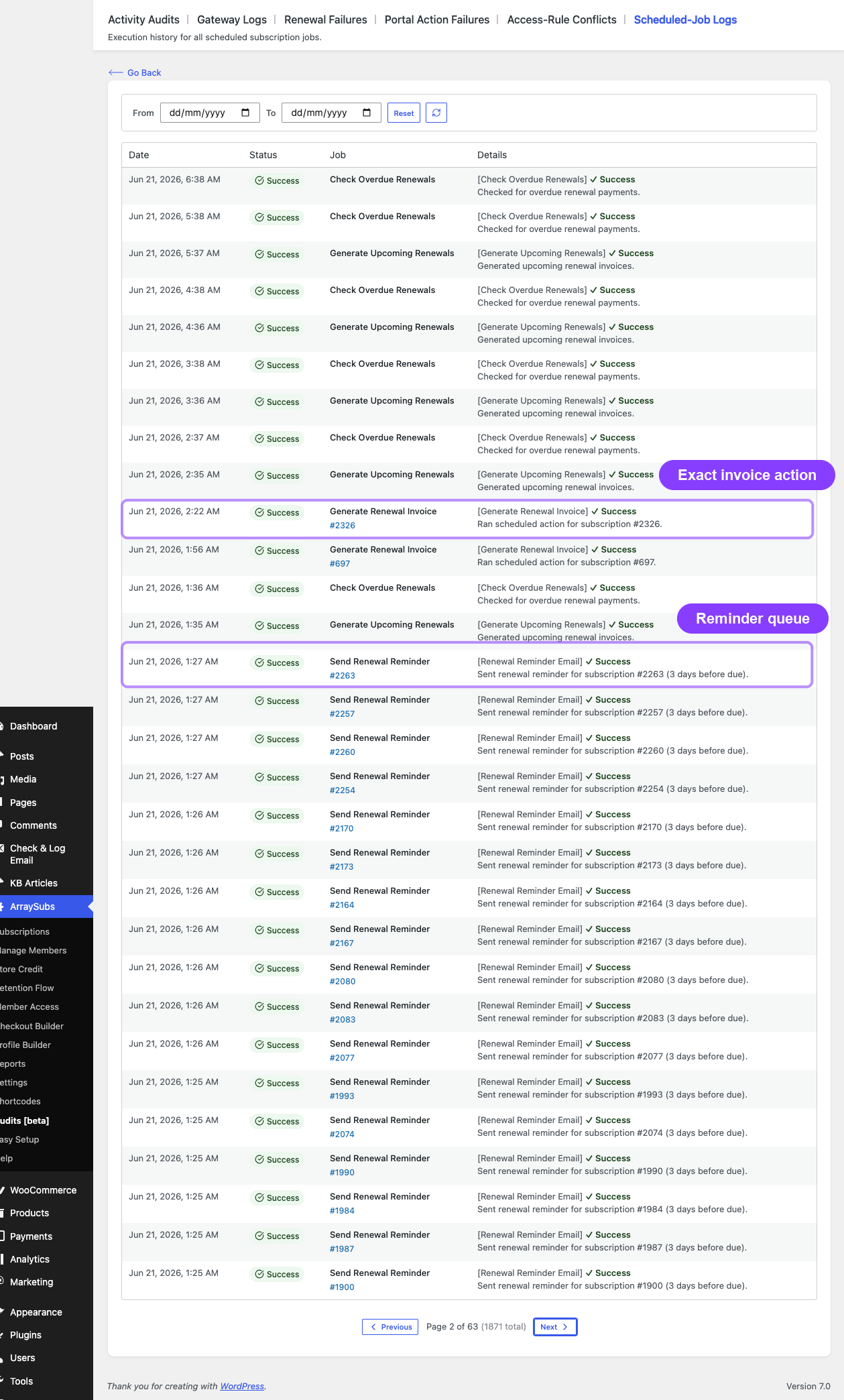
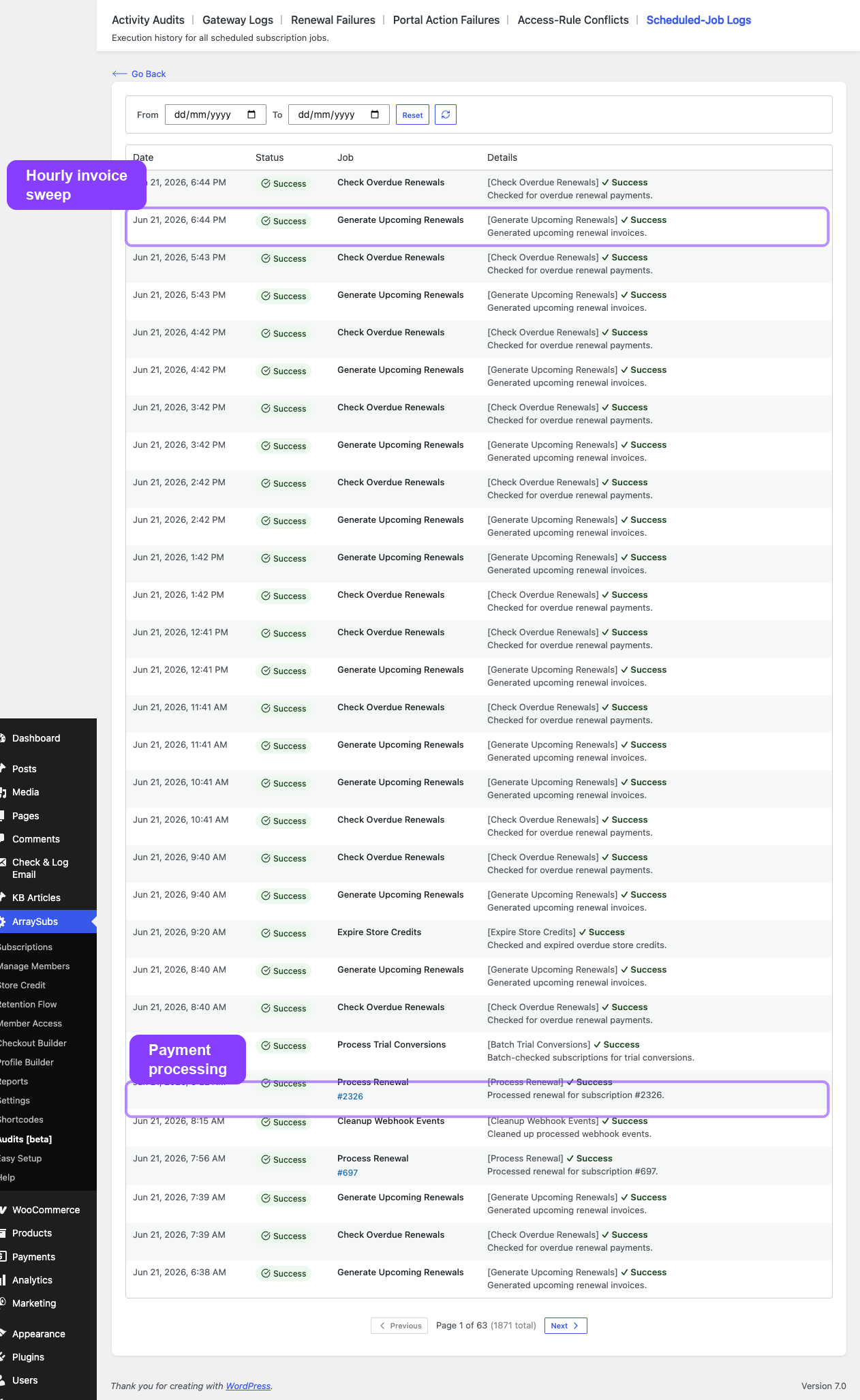
The billing engine schedules renewal invoice generation for each subscription using the configured invoice lead time. An hourly background job called Generate Upcoming Renewals remains active as a recovery safety net; it creates missing invoices if an exact scheduled invoice action was missed.
Default behavior: Invoices are created 6 hours before the payment is due. This timing is configurable in ArraySubs → Settings → General Settings → Renewals.
The job selects subscriptions that meet all of these conditions:
- Status is Active or Trial
- Next payment date is within the advance window (or already past due)
- Billing period is not Lifetime
- No pending renewal order already exists for this subscription
When a subscription qualifies, the engine creates a pending WooCommerce order containing:
- The subscription's stored recurring price (not the current product price)
- The correct quantity from the subscription
- Renewal shipping costs (if the subscription uses recurring shipping)
- Any active retention discount applied to the order
- The different renewal price, if the payment count threshold has been reached
- The pending target plan price and switch fee when an Apply at Renewal plan switch is waiting
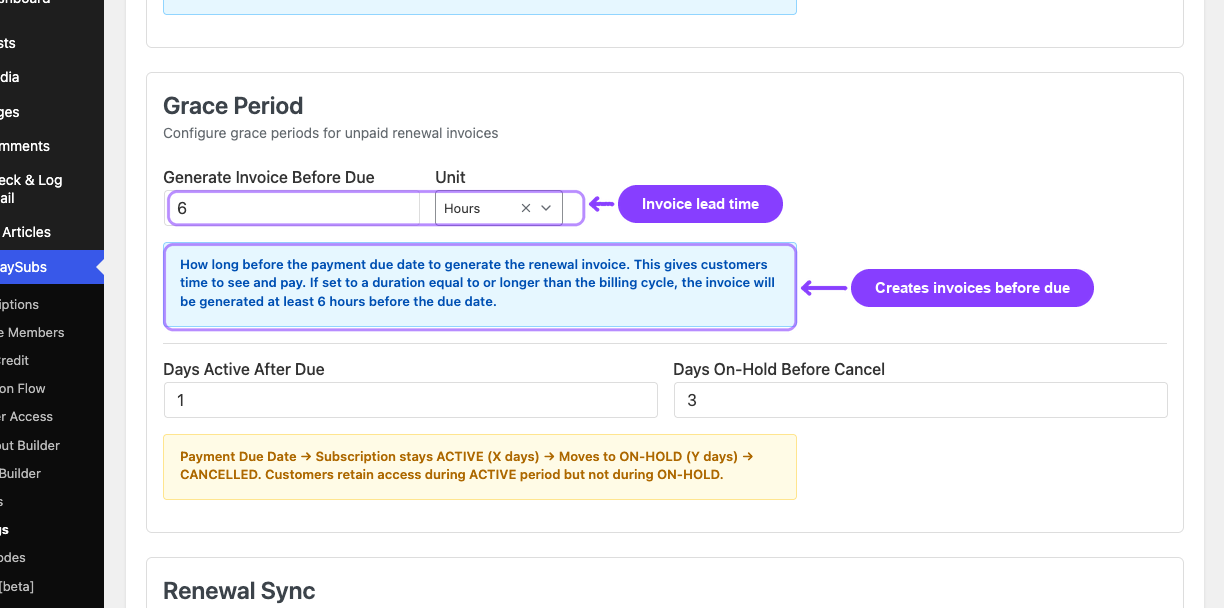
After the order is created, the subscription's pending renewal order reference is updated, and the subscription status stays Active — no status change happens when an invoice is generated. In the admin timeline, invoice creation appears as a pending event, not as a successful payment.
Invoice timing is configurable
Go to ArraySubs → Settings → General Settings → Renewals to adjust the invoice advance window. You can set the value and unit (hours or days). For example, setting it to 1 day generates invoices 24 hours before payment is due.
What the renewal invoice contains
Each renewal order is a standard WooCommerce order with additional metadata linking it to the subscription:
| Field | Source |
|---|---|
| Product line item | Subscription's stored product and variation |
| Price | Stored recurring amount (or different renewal price if threshold reached) |
| Quantity | Subscription's quantity |
| Shipping | Renewal shipping cost (if recurring shipping is enabled) |
| Billing address | Subscription's billing address |
| Shipping address | Subscription's shipping address |
| Payment method | Subscription's payment method and token |
| Retention discount | Applied if an active retention offer exists |
The order also records the renewal cycle number (how many renewals have occurred) and the scheduled renewal date (when the payment was originally due).
If the subscription has an Apply at Renewal plan switch waiting, the renewal order uses the target plan and quantity. With Pro Subscription Shipping, renewal shipping also uses the target product's shipping rules before the subscription metadata is permanently updated.
Order note example:
Renewal order for subscription #142 (Cycle #5, scheduled for 2025-04-15, billing every 1 month). Order generated on 2025-04-15.
Payment routing — manual vs automatic
After the renewal invoice is created, the billing engine decides how to collect payment.
Manual payment (Free)
- The invoice stays in Pending status
- The customer receives a Renewal Invoice email with a payment link
- The customer must log in and pay through the WooCommerce checkout payment page
- The subscription stays active during the configurable grace period while waiting for payment
Automatic payment (Pro)
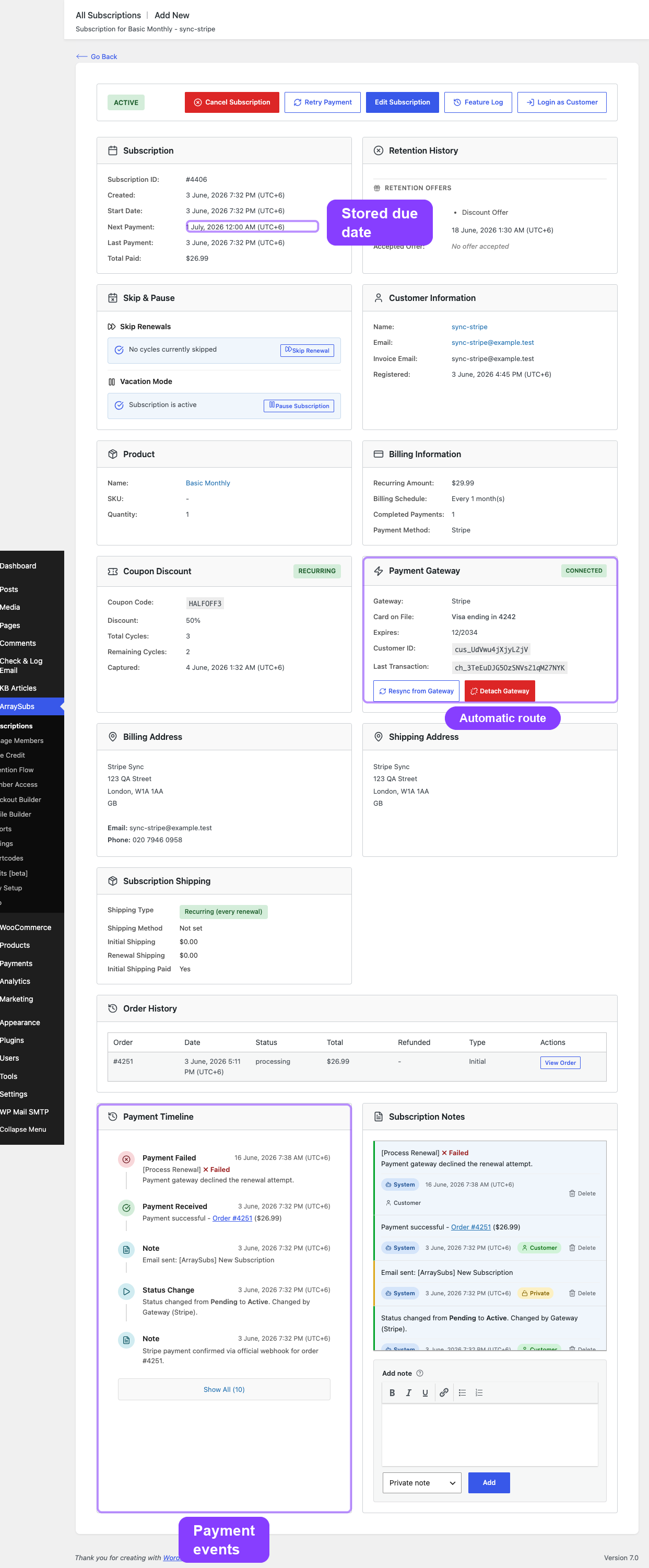
- The billing engine checks whether the subscription is configured for automatic payment via the gateway (Stripe, PayPal, or Paddle)
- If yes, the system charges the customer's saved payment method
- On success, the order moves to Completed for non-shipping subscription renewals, or Processing when fulfillment/shipping is still required, and the subscription advances to the next cycle
- On failure, the system fires payment failure hooks and may schedule a retry
The payment route is determined by the subscription's payment method. If the customer is using a Pro gateway with automatic billing enabled, payment is automatic. Otherwise, it defaults to manual. Customers can toggle auto-renew on or off from the customer portal when the Pro auto-renew feature is enabled.
Renewal order status after successful payment
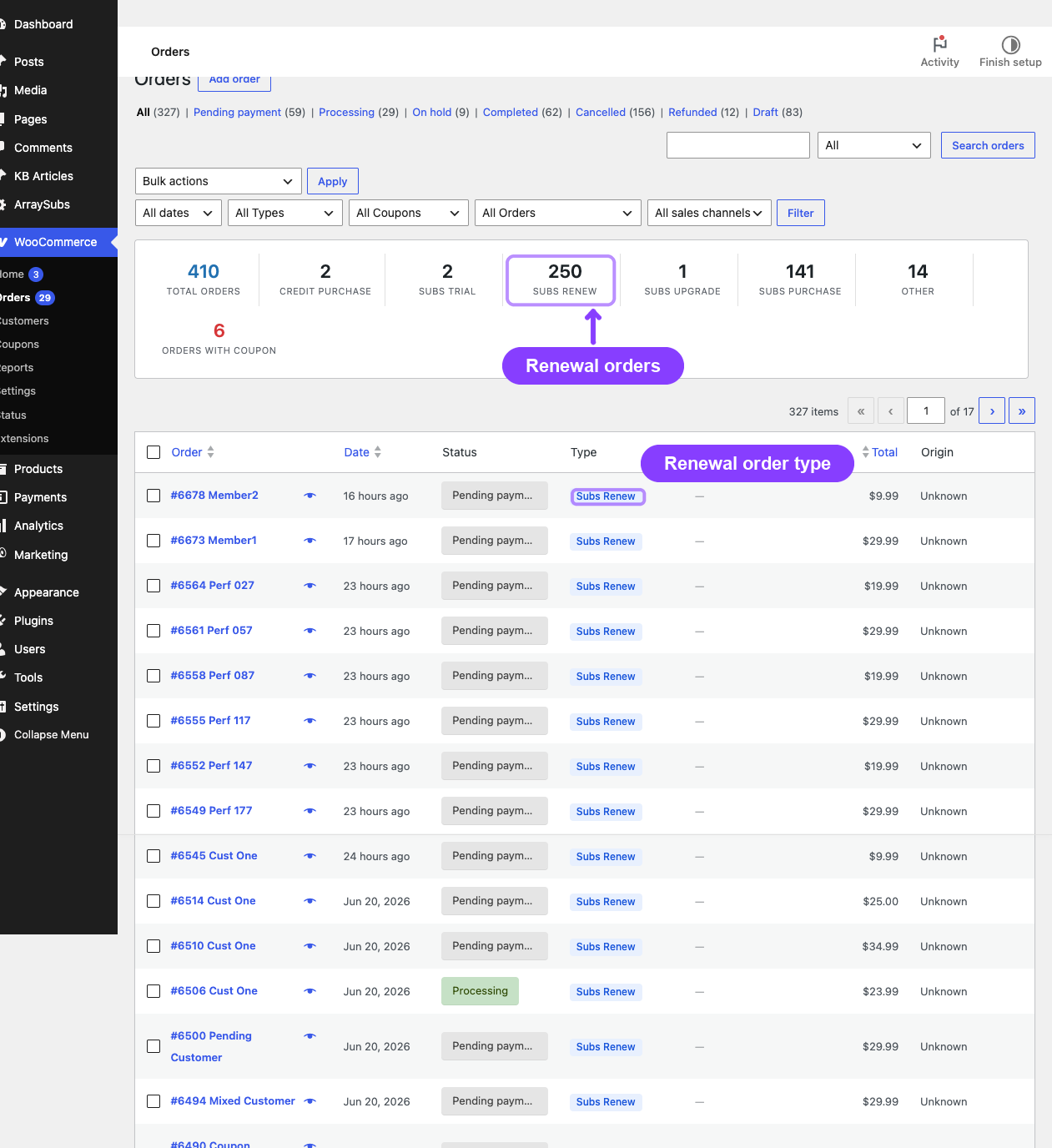
A successful renewal payment does not always mean the WooCommerce order should be immediately marked Completed. ArraySubs separates payment success from fulfillment status:
| Renewal order condition | Expected WooCommerce order status | What it means |
|---|---|---|
| Subscription-only renewal with no shipping total, no shipping line, and products that do not need shipping | Completed | Payment succeeded and there is no fulfillment work left |
| Renewal includes recurring subscription shipping or a product that needs shipping | Processing | Payment succeeded, but the store still needs to fulfill or ship the order |
| Manual renewal invoice has not been paid yet | Pending payment | Customer still needs to pay the invoice |
| Automatic gateway charge failed | Failed or remains unpaid depending on the gateway response | The renewal follows retry and grace-period rules |
For Stripe renewals, ArraySubs creates the renewal order, charges the stored payment method off-session, and marks the order paid when Stripe succeeds. If the renewal has no shipping work, ArraySubs completes the order. If the renewal has shipping work, the order stays Processing so staff can fulfill it.
Virtual products and renewal completion
WooCommerce normally auto-completes only when products are both virtual and downloadable. ArraySubs adds subscription-aware handling so paid, non-shipping subscription renewals can complete even when a product is virtual but not downloadable. If shipping is configured, Processing is still the correct status.
After successful payment
When a renewal invoice is paid (either manually by the customer or automatically by the gateway), the following happens:
- Payment tracking updates — The last payment date is recorded and the completed payments counter increments
- Grace period clears — Any pending renewal order reference and on-hold date are removed
- Next payment date advances — Calculated by adding one billing cycle (interval × period) to the current stored due date
- Status restored — If the subscription was on-hold during the grace period, it returns to Active
- Pending switch applied — If this renewal paid an Apply at Renewal switch, the subscription now changes to the target plan and the pending switch is cleared
- Next renewal scheduled — The billing engine queues the next renewal action
- Renewal reminder scheduled — A reminder email is queued for the configured number of days before the next payment
Different renewal price
The different renewal price feature lets you charge a different amount after a specified number of billing cycles. This supports introductory pricing, promotional periods, or graduated pricing models.
When to use this
- Introductory offer: $19.99/month for the first 3 months, then $29.99/month
- Promotional discount: $9.99/month for the first month, then $24.99/month
- Graduated pricing: $49/month for the first 6 months while onboarding, then $79/month
How it works
- Configure on the product — Set the different renewal price and the number of payments before it takes effect on the WooCommerce product edit screen under the subscription fields
- Price locked at checkout — When a customer purchases the subscription, the different renewal price and threshold are stored on the subscription
- Counter tracks payments — Each successful payment increments the completed payments counter
- Price switches automatically — When the completed payments count reaches or exceeds the threshold, all future renewal invoices use the different renewal price
Price selection logic
The billing engine uses this priority when setting the renewal invoice amount:
- If the completed payments ≥ threshold and a different renewal price is set → use the different renewal price
- Otherwise, if a recurring amount is stored → use the recurring amount
- Otherwise → use the subscription price (fallback)
The completed-payments counter only increments when money actually changed hands. Free-trial conversion orders (BDT 0 / $0) and renewal orders fully zeroed out by store credit do not advance the counter — only orders with total > 0. This guarantees the "different renewal price" threshold trips on the right cycle and matches the customer's intuition (a free trial is not "payment 1", and an applied-credit renewal that costs nothing is also not "payment 1"). Subscription length thresholds and retention analytics use the same counter and benefit from the same guard.
Example timeline
| Payment | Cycle # | Price charged | Reason |
|---|---|---|---|
| Initial purchase | 1 | $19.99 | Product price at checkout |
| First renewal | 2 | $19.99 | Completed payments (1) < threshold (3) |
| Second renewal | 3 | $19.99 | Completed payments (2) < threshold (3) |
| Third renewal | 4 | $29.99 | Completed payments (3) ≥ threshold (3) — price changes |
| All future renewals | 5+ | $29.99 | Permanent new price |
What customers see
On the product page:
$19.99 every month for the first 3 payments, then $29.99 every month
On the subscription detail page (customer portal):
Current Price: $19.99 Different Renewal Price: $29.99 (applies after 3 payments) Completed Payments: 2 (1 remaining at current price)
In the admin subscription detail:
Different Renewal Price: $29.99 Applies After: 3 payments
Configuration
Set different renewal prices on each subscription product:
- Go to Products → Edit Product
- Open the Subscription tab (or the variation's subscription fields for variable products)
- Enable Different Renewal Price
- Enter the Renewal Price amount
- Enter Apply Renewal Price After (number of payments before the new price takes effect)
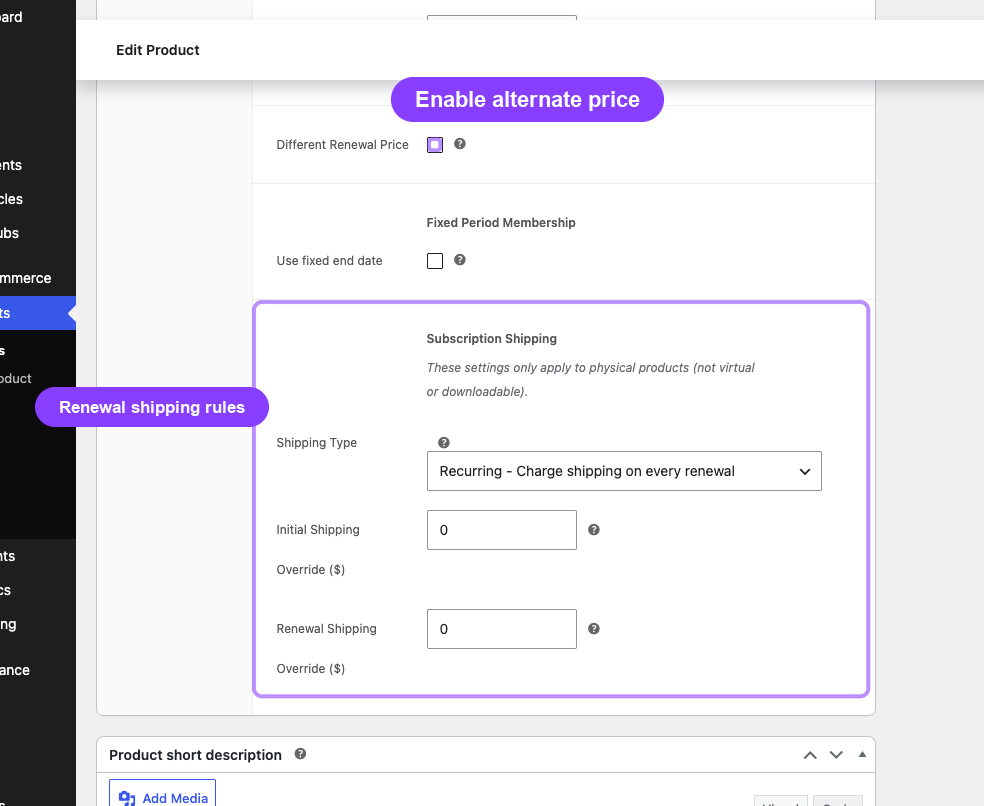
Each product variation can have its own different renewal price configuration, independent of other variations.
Subscription length and expiration
Subscriptions can be configured to expire automatically after a set number of billing cycles or on a fixed end date.
Payment-count expiration
When the product's Subscription Length is set to a value greater than 0 (e.g., 12), the subscription expires after that many successful payments. The billing engine compares the completed payments counter against the subscription length after each renewal.
Example: A 12-month subscription (length = 12) expires after the 12th payment. No 13th renewal invoice is created.
Fixed end-date expiration (Pro)
When the Fixed Period Membership feature is enabled, subscriptions can have a hard end date regardless of payment count. The expiration checker runs as part of the overdue renewal job and sets the subscription to Expired when the end date passes.
What happens on expiration
- Subscription status changes to Expired
- All future renewal actions are unscheduled
- The
end dateis recorded - An Subscription Expired email is sent to the customer
- If an auto-downgrade target is configured, the subscription may switch to a different product instead of expiring
Edge cases and important notes
- Prices are locked at checkout. Changing a product's price in WooCommerce does not affect existing subscriptions. Only new purchases use the updated price.
- Retention discounts apply to renewal invoices. If a customer has accepted a retention discount offer, that discount is applied when the next renewal invoice is generated. See Retention, Cancellation, and Refunds for details.
- Lifetime subscriptions never generate renewal invoices. Subscriptions with a billing period of Lifetime are excluded from the renewal invoice generation job entirely.
- One pending renewal at a time. The system does not create a second renewal invoice if one is already pending for the subscription.
- Invoice created is not payment received. The admin timeline separates "Renewal Invoice Created" from "Renewal Payment Successful" so support staff can tell the difference between an invoice waiting for payment and an order that was actually paid.
- Different renewal price is permanent. Once the threshold is reached, the subscription's recurring amount is updated. Even if you later change the product's different renewal price configuration, existing subscriptions keep their stored values.
Troubleshooting
| Problem | Likely cause | What to do |
|---|---|---|
| Renewal invoice not being created | Subscription has a pending renewal order already, or billing period is Lifetime | Check the subscription detail for an existing pending order. Verify the billing period is not Lifetime. |
| Invoice created too early or too late | Invoice timing setting misconfigured | Go to Settings → General → Renewals and adjust the invoice advance window (value and unit). |
| Customer not receiving invoice email | Email disabled in settings, or email delivery issue | Check WooCommerce → Settings → Emails for the Renewal Invoice email status. Check email logs. |
| Price not changing after N payments | Completed payments counter has not reached the threshold yet | View the subscription detail to check the completed payments count against the different renewal price threshold. |
| Paid renewal order is still Processing | The renewal includes shipping work, or the order was created before the product/shipping configuration was corrected | Check the order's shipping lines and the subscription product's shipping settings. If there is no shipping work, future paid renewals should complete automatically; existing paid orders can be completed manually after confirming payment. |
| Subscription is Active but renewal order is Processing | Payment succeeded and the subscription advanced, but WooCommerce is keeping the order open for fulfillment | Treat the subscription as paid. Complete the WooCommerce order only when any fulfillment work is done. |
Related docs
- General Settings for configuring renewal timing and grace period options
- Recovery and Grace Flows for what happens when payment is not received on time
- Trial Management for how trials interact with the first renewal
- Renewal Communication for all emails sent during the billing cycle
- Automatic Payments Pro for gateway-managed automatic billing
- Subscription Checkout for how billing terms are established at purchase
- Subscription Detail Cards for admin-visible pricing cards
FAQ
When exactly is the renewal invoice created?
By default, 6 hours before the next payment date. This is configurable in General Settings under the Renewals section. You can set the advance window in hours or days.
Does the renewal invoice use the current product price?
No. Renewal invoices use the price stored on the subscription at the time of purchase. Product price changes do not affect existing subscriptions.
What happens if the customer pays the renewal invoice late?
The subscription enters the grace period. During the active grace phase (default 3 days), the subscription stays Active. After that, it moves to On-Hold. Payment at any point during the grace period restores the subscription to Active and advances the next payment date. See Recovery and Grace Flows.
Can I change the different renewal price after a subscription is created?
The price stored on the subscription is locked at checkout. To change it, you would need to edit the subscription's meta data directly. Changing the product's configuration only affects new purchases.