
Customer Portal Pages
A guide to every page your customers see in the My Account subscription area — the subscription list, the subscription detail view, the My Features page, and the Store Credit page.
Availability: Free + Pro
Page Navigation
- Current guide: Customer Portal Pages
- Where to open it: Storefront -> My Account -> Subscriptions
- Section overview: Open overview
- Previous guide: payment-and-shipping
- Next guide: README
- Troubleshooting: Audits, Logs, and Troubleshooting
Overview
ArraySubs adds dedicated pages to the WooCommerce My Account navigation. The two core pages — My Subscriptions and View Subscription — are available in the free plugin. With Pro active, customers may also see My Features and Store Credit tabs depending on your configuration.
All portal pages respect ownership: customers can only see their own subscriptions and data.
My Subscriptions Page
The My Subscriptions page is the main entry point. Customers reach it by clicking the Subscriptions tab in their WooCommerce My Account navigation.
URL path: /my-account/subscriptions/
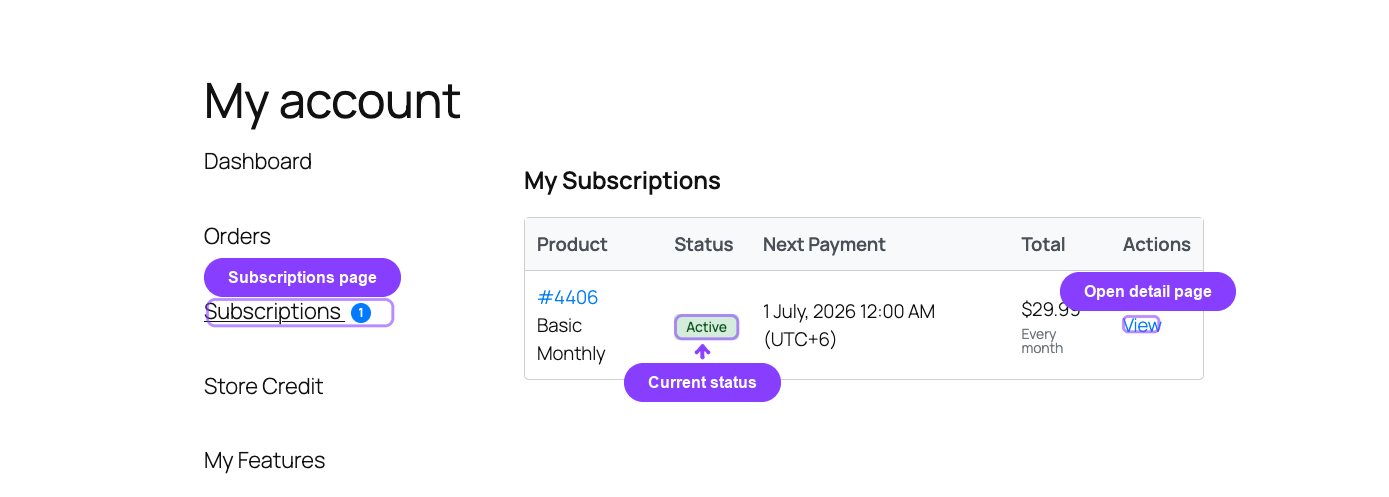
What Customers See
The page shows a table of all subscriptions belonging to the logged-in customer, sorted by newest first.
| Column | What It Shows |
|---|---|
| Product | Subscription ID (as a link to the detail page) and the product name |
| Status | A colored status badge — Active, On-Hold, Trial, Cancelled, Expired, or Pending |
| Next Payment | The next renewal date for active and on-hold subscriptions. Shows "—" for cancelled, expired, or pending subscriptions |
| Total | The recurring amount with the billing schedule shown below (for example, "$29.99" with "every 1 month" beneath it) |
| Actions | A View button that opens the subscription detail page |
The recurring amount displayed here reflects any active retention discounts. If the customer accepted a retention offer, the discounted amount is shown instead of the base price.
Pagination
The page displays 10 subscriptions at a time. When the customer has more than 10 subscriptions, pagination controls appear below the table with previous/next navigation. A summary line shows "Showing X–Y of Z subscriptions."
Empty State
If the customer has no subscriptions, the page displays: "You have no subscriptions yet."
Subscription Statuses Shown
The list page includes subscriptions in all of these statuses:
| Active — subscription is live and renewing | On-Hold — subscription is paused or held |
| Trial — subscription is in a trial period | Pending — subscription is scheduled to start |
| Cancelled — subscription has been cancelled | Expired — subscription has reached its end date |
View Subscription Page
Clicking View on any subscription from the list page opens the detail page for that specific subscription.
URL path: /my-account/view-subscription/{id}/
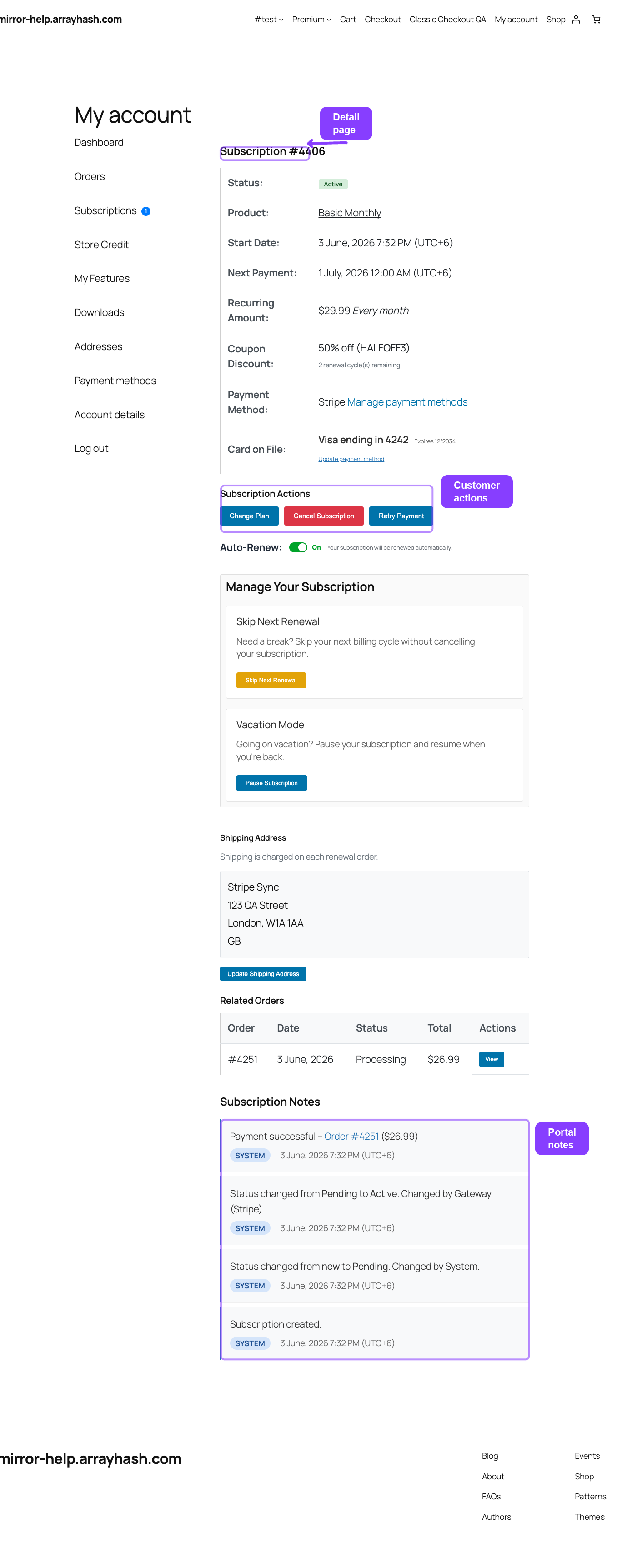
This page contains the complete subscription overview, action buttons, skip and pause controls, shipping address, related orders, refund history, and subscription notes.
Subscription Overview Table
The top section shows a detailed information table:
| Row | What It Shows | Visibility |
|---|---|---|
| Status | Colored status badge | Always |
| Product | Product name (with variation name if applicable) | Always |
| Start Date | The date the subscription began | Always |
| Next Payment | The next renewal date, or "Lifetime Deal — No recurring payment" for lifetime subscriptions | Active and On-Hold only |
| End Date | The date the subscription will end | Only if an end date is set |
| Recurring Amount | The effective price per billing cycle with the billing schedule | Always |
| Coupon Discount | Applied coupon code, discount type, and remaining cycles | Only if a recurring coupon is active |
| Payment Method | Payment method name with a link to manage payment methods | If a payment method is on file |
Recurring Amount with Discounts
The recurring amount row shows the effective price — the amount the customer will actually be charged at the next renewal. If the customer has an active retention discount, the row also shows:
Discounted from [original price] for the next [X] renewal(s).
This tells the customer exactly how long the special pricing lasts.
Coupon Discount Display
When a recurring coupon is active on the subscription, the coupon row appears below the recurring amount. It shows:
- Percentage coupons: "X% off (CODE)"
- Fixed amount coupons: "$X.00 off (CODE)"
Below the discount, a note indicates the remaining lifecycle:
- Limited cycles: "X renewal cycle(s) remaining"
- Unlimited: "Applied to all future renewals"
- Exhausted: "Coupon 'CODE' — all discount cycles used" (shown in a muted style)
Payment Method Row
The payment method row shows the name of the payment gateway and provides a link to the WooCommerce payment methods page at My Account → Payment methods. With the Pro plugin active, additional gateway details appear after this row — see Payment and Shipping Actions for details.
Subscription Actions
Below the overview table, the subscription actions section displays buttons for major actions. This section only appears when the subscription status is Active or On-Hold and at least one action is enabled.
| Button | When It Appears |
|---|---|
| Change Plan | Subscription is Active and plan switching is enabled in settings and the product has linked upgrade/downgrade/crossgrade products |
| Cancel Subscription | Customer cancellation is enabled in settings and the subscription is in an eligible status (Active, Trial, or Pending) and there is no pending cancellation already scheduled |
For full details on what happens when a customer clicks these buttons, see Subscription Self-Service Actions.
Skip and Pause Section
If skip or pause features are enabled and the subscription is in an eligible status, a Manage Your Subscription section appears with skip and pause controls.
Skip Next Renewal
This section appears when Skip Renewal is enabled in General Settings and the customer is allowed to skip. The subscription must be in Active or Trial status.
- When not skipping: A Skip Next Renewal button appears. Clicking it prompts the customer to choose how many cycles to skip (1 up to the configured maximum).
- When currently skipping: A status message shows "Skipping X cycle(s)" with the date the skip was requested, and an Undo Skip button to restore the original renewal date.
Pause Subscription (Vacation Mode)
This section appears when Pause Subscription is enabled in General Settings and the customer is allowed to pause. The subscription must be in Active or Trial status to pause, or On-Hold to resume from a pause.
- When not paused: A Pause Subscription button appears. Clicking it prompts the customer for a pause duration (in days) and optionally a reason.
- When paused: A status message shows "Subscription Paused" with the pause date and the scheduled resume date, plus a Resume Now button.
Shipping Address Section
This section appears only when the subscription product requires shipping (marked with the _arraysubs_needs_shipping flag).
What the customer sees:
- The current shipping address on file
- A note about shipping frequency:
- Recurring shipping: "Shipping is charged on each renewal order."
- One-time shipping: "Shipping was charged on the initial order only."
- An Update Shipping Address button (when eligible)
Update restrictions:
The shipping address can only be updated when:
- The subscription is Active, On-Hold, or in Trial status
- The next payment date is more than 3 days away (this cutoff prevents last-minute changes that could disrupt order fulfillment)
If the cutoff has passed, the button is hidden and the customer sees a message explaining that the address cannot be changed this close to the next renewal.
For details on the shipping update flow, see Payment and Shipping Actions.
Related Orders
Below the subscription information, a Related Orders table shows all orders connected to the subscription — the initial sign-up order and any renewal invoices.
| Column | What It Shows |
|---|---|
| Order | Order number, linked to the order detail page |
| Date | The order creation date |
| Status | The WooCommerce order status (Processing, Completed, Pending Payment, etc.) |
| Total | The order total, formatted in the store currency |
| Actions | View link to the order, Invoice link (if a PDF invoice plugin is installed), and Pay link (if the order still needs payment) |
The Pay link is especially important for manual renewal invoices. When a renewal order is created but the customer has not yet paid, this link takes them directly to the WooCommerce payment page to complete payment.
The Invoice link appears only when a compatible PDF invoice plugin is installed, such as WooCommerce PDF Invoices & Packing Slips or WooCommerce PDF Invoices.
Refund History
If any refunds have been processed for the subscription, a Refund History table appears.
| Column | What It Shows |
|---|---|
| Date | When the refund was processed |
| Order | The linked WooCommerce order |
| Amount | The refund amount |
| Reason | The refund reason, if provided |
Subscription Notes
At the bottom of the detail page, customer-visible subscription notes are displayed. These are system-generated notes and any notes that store staff have marked as visible to the customer.
Each note shows:
- An author badge — System, Customer, or Staff
- The note content
- A timestamp
My Features Page Pro
With the Pro plugin's Feature Manager active, eligible customers see a My Features tab in their My Account navigation.
URL path: /my-account/features/
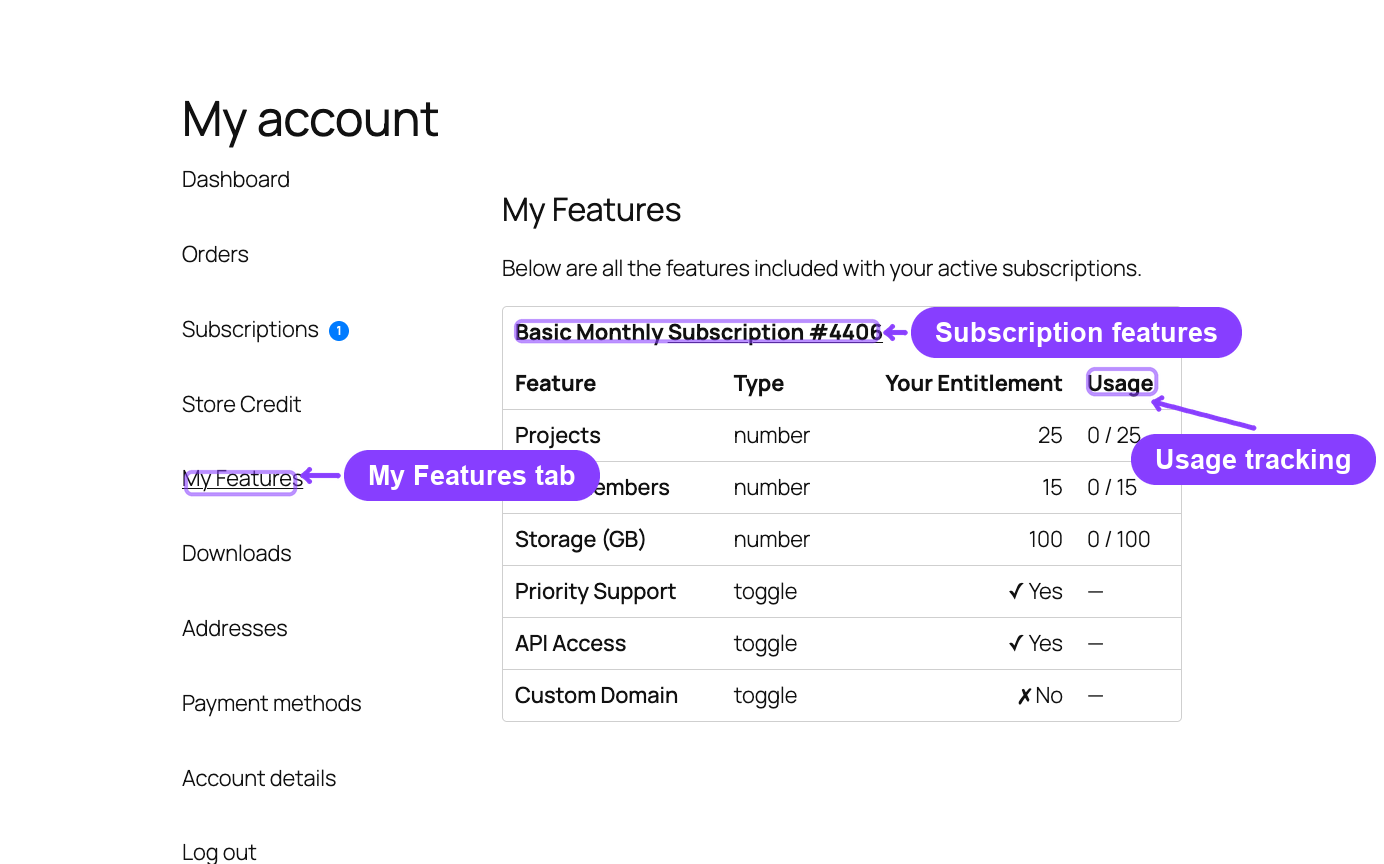
This page requires the Feature Manager to be enabled in settings: Feature Manager → Enable Feature Manager must be on, and Show in My Account must be on.
What Customers See
The page shows all features (entitlements) that the customer's active subscriptions grant them. The display format depends on the aggregation mode configured by the store admin.
Per-Subscription Mode (Default)
Each active subscription is listed as a separate section with its own table. The subscription ID is shown as a link back to the subscription detail page.
| Column | What It Shows |
|---|---|
| Feature | The feature name defined in the product editor |
| Type | The feature type — text, number, or toggle |
| Your Entitlement | The value granted by this subscription |
| Usage | Current usage against the entitlement limit (if usage tracking is enabled) |
Combined Mode
All features across all active subscriptions are merged into a single table. When multiple subscriptions grant the same feature, the highest entitlement value is shown.
Feature Value Display
- Toggle features: Shows a checkmark "✓ Yes" or a cross "✗ No"
- Number features: Shows the numeric limit
- Text features: Shows the entitlement string
When usage tracking is enabled, the Usage column shows progress:
3 / 10— 3 used out of 10 allowed3 / Unlimited— 3 used with no cap
Empty State
If the customer has no active subscriptions with features, the page displays: "You don't have any features yet. Subscribe to a plan to unlock features!" with a link to the shop.
For the complete Feature Manager guide — including product setup, all settings, usage tracking, and the admin Feature Log — see the dedicated Feature Manager section.
Store Credit Page Pro
With the Pro plugin's Store Credit feature active, customers see a Store Credit tab in their My Account navigation.
URL path: /my-account/store-credit/
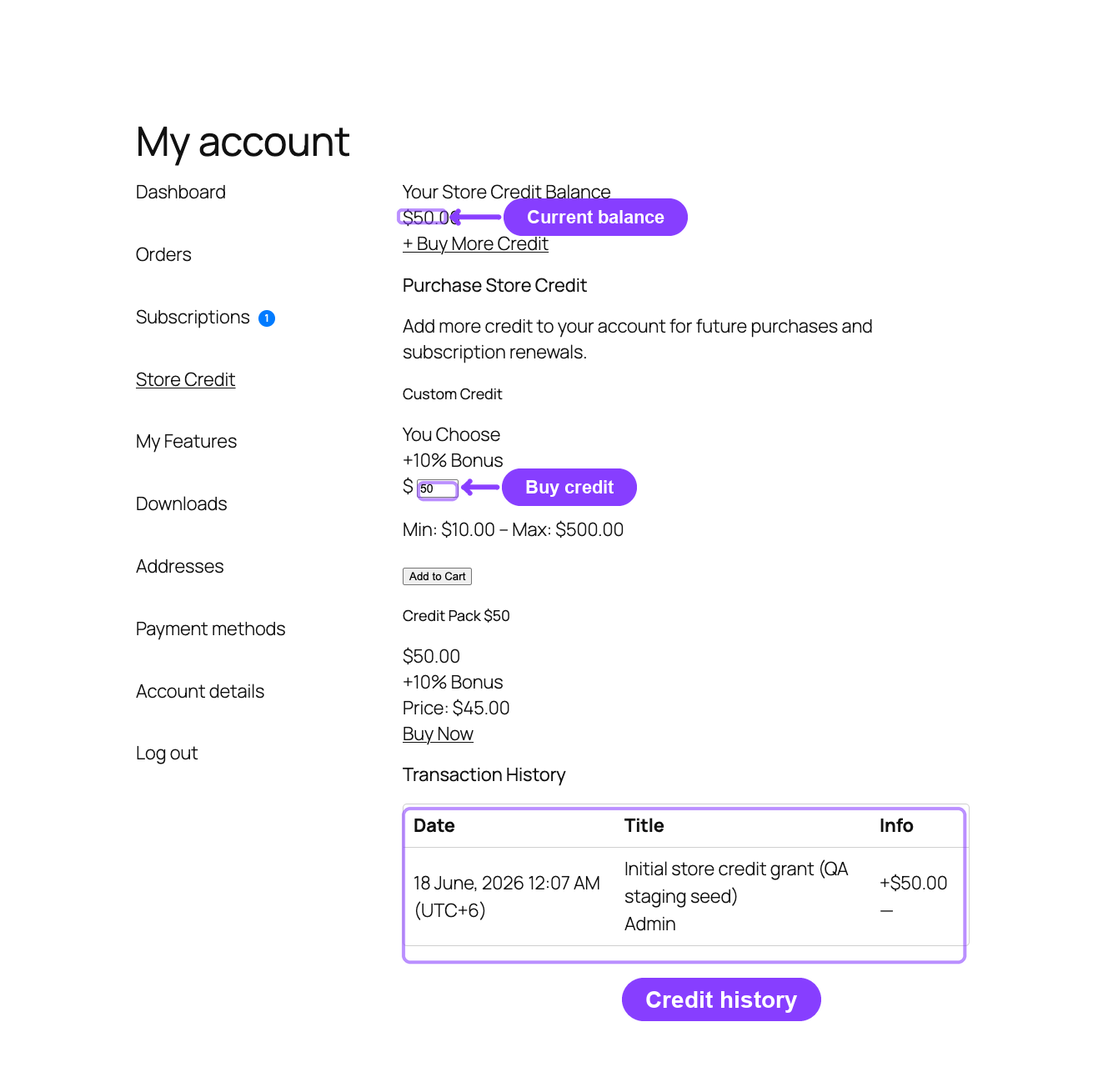
This page requires Store Credit to be enabled in settings.
What Customers See
Credit Balance
The top of the page shows the customer's current store credit balance displayed in the store currency.
If credit purchases are enabled, a Buy More Credit button appears next to the balance.
Purchase Section
When store credit purchases are enabled, the page shows available credit products:
- Fixed-amount products: Display the product name, credit amount, any bonus percentage, and a Buy Now button that adds the product to the cart.
- Custom-amount products: Display a currency input field where the customer enters a custom amount. Minimum and maximum limits are shown below the field, with a default amount pre-filled. An Add to Cart button submits the amount.
Expiring Credits Warning
If any of the customer's credits are set to expire within 30 days, a warning banner appears:
⚠ $X.00 of your store credit is expiring within the next 30 days. [Use it now!]
The "Use it now!" link directs the customer to the shop page.
Transaction History
A paginated table of all credit transactions is displayed, with 10 transactions per page.
| Column | What It Shows |
|---|---|
| Date | When the transaction occurred |
| Title | A description of the transaction (such as "Credit added" or "Credit applied to order"), a source badge (Refund, Admin, Subscription, Purchase, etc.), and a linked order reference for debits |
| Info | The credit or debit amount (green for credits, red for debits), plus expiration date if applicable or an "Expired" label for expired credits |
If the customer has no transactions yet, the page shows: "No credit transactions yet." with a note that store credit can be earned through refunds, subscription rewards, or promotional offers.
For the full admin-side documentation — including settings, management, purchase products, emails, and refund integration — see Store Credit.
FAQ
Can customers see cancelled and expired subscriptions?
Yes. The My Subscriptions list shows all subscription statuses including cancelled and expired subscriptions. Customers can click View to see the full details of past subscriptions.
Can I customize the Subscriptions menu label or position?
Yes. Go to ArraySubs → Profile Builder → My Account and edit the Subscriptions item there. You can rename it, drag it to a new position, or hide/reorder other My Account items around it. General Settings no longer includes separate Menu Title or Menu Position fields for the portal tab.
What if a customer tries to view someone else's subscription?
The portal verifies subscription ownership on every page load. If the subscription does not belong to the logged-in user, an error message is displayed: "Subscription not found or you do not have permission to view it."
Are the My Features and Store Credit tabs always visible?
No. Each tab only appears when its corresponding Pro feature is enabled in the ArraySubs settings. If the Feature Manager or Store Credit module is disabled, the tab is automatically hidden from the My Account navigation.
Why does a subscription show "Lifetime Deal — No recurring payment"?
This appears when the subscription's billing period is set to lifetime. Lifetime subscriptions have no renewal date because they do not recur.
What is the Pay link in Related Orders?
When a renewal invoice has been generated but not yet paid, the Pay link takes the customer to the WooCommerce checkout payment page for that specific order. This is the primary way customers pay manual renewal invoices.