
Account Shortcodes
Display login links, logout links, and personalized user information based on visitor authentication state.
Availability: Free
Page Navigation
- Current guide: Account Shortcodes
- Where to open it: WordPress Admin -> ArraySubs -> Shortcodes
- Section overview: Open overview
- Previous guide: toolkit-settings
- Next guide: content-gating
- Troubleshooting: Audits, Logs, and Troubleshooting
Overview
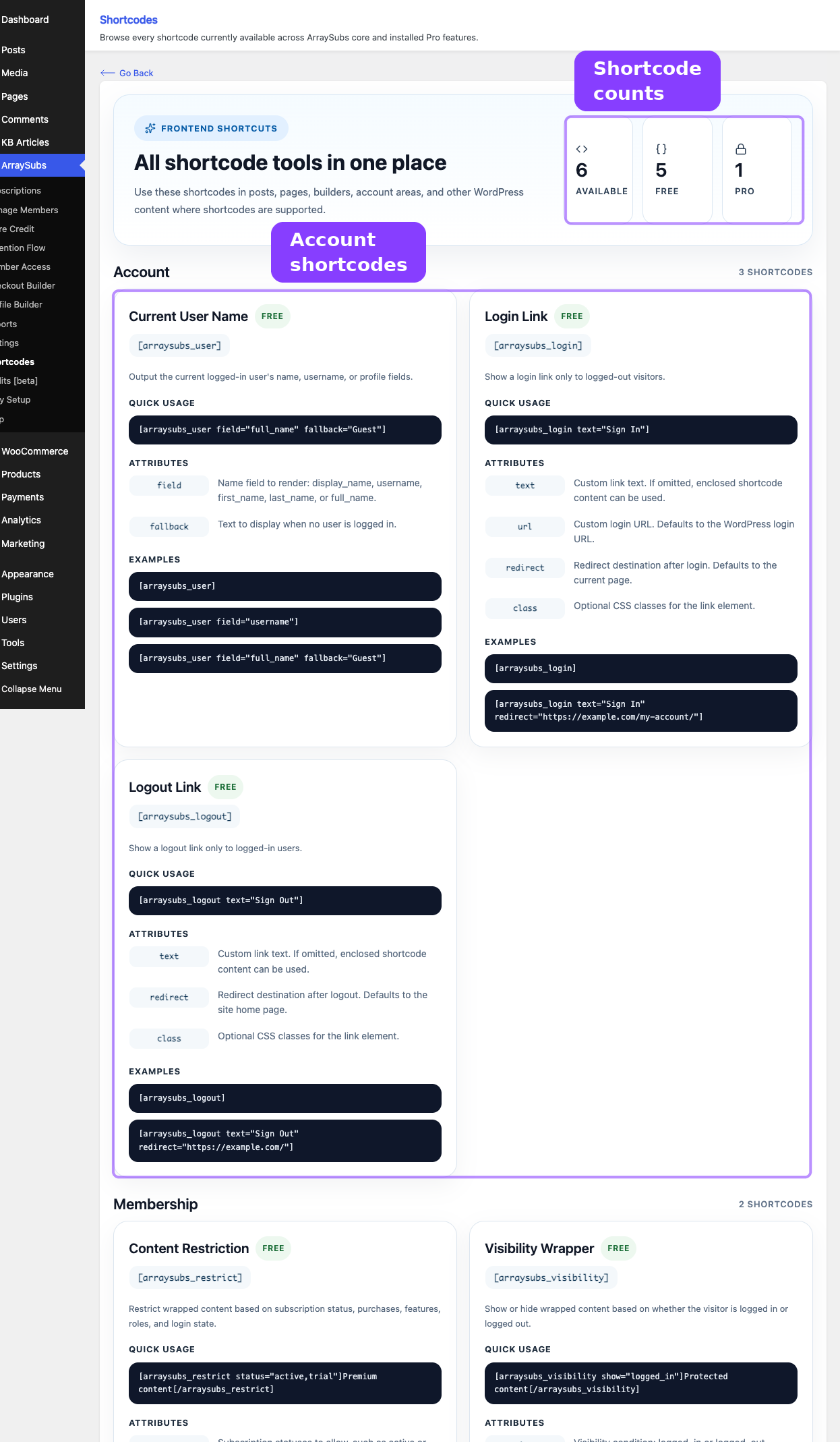
Three shortcodes handle authentication-related display on the frontend:
| Shortcode | What It Does |
|---|---|
[arraysubs_login] |
Shows a login link to logged-out visitors |
[arraysubs_logout] |
Shows a logout link to logged-in users |
[arraysubs_user] |
Displays the current user's name or profile field |
These shortcodes are self-aware — they automatically show or hide based on whether the visitor is logged in. No extra logic or conditional wrappers are needed.
When to Use This
- You want a "Sign In" or "Log In" link in a page, post, or widget that disappears once the visitor logs in.
- You want a "Sign Out" link that only appears for authenticated users.
- You want personalized greetings, account status text, or user information displayed dynamically.
- You are building a custom header, footer, sidebar, or landing page with user-aware content.
[arraysubs_login] — Login Link
Renders a clickable login link for logged-out visitors. The link is automatically hidden when the visitor is already logged in.
Attributes
| Attribute | Default | Description |
|---|---|---|
text |
Log In | The link text. If omitted and the shortcode wraps content, the inner content is used instead. |
url |
WordPress login URL | A custom login URL. Defaults to the standard WordPress login page. |
redirect |
Current page | Where to send the user after a successful login. |
class |
(empty) | An extra CSS class added to the <a> tag for custom styling. |
How It Works
- If the visitor is already logged in, the shortcode renders nothing — no empty tags, no whitespace.
- If the visitor is logged out, it renders an
<a>tag with the classarraysubs-login-linkplus any custom class. - The link text can be set three ways (in priority order): the
textattribute, wrapped content between[arraysubs_login]...[/arraysubs_login], or the default "Log In" label. - After login, the user is redirected to the URL specified in
redirect, or back to the page where they clicked the link.
Examples
Basic login link:
[arraysubs_login]
Custom link text:
[arraysubs_login text="Sign In"]
Using wrapped content as link text:
[arraysubs_login]Sign In to Your Account[/arraysubs_login]
Custom redirect after login:
[arraysubs_login text="Sign In" redirect="https://example.com/my-account/"]
With a CSS class for styling:
[arraysubs_login text="Member Login" class="btn-primary"]
Custom login URL (useful when using a custom login page):
[arraysubs_login text="Log In" url="https://example.com/custom-login/"]
[arraysubs_logout] — Logout Link
Renders a clickable logout link for logged-in users. The link is automatically hidden when the visitor is logged out.
Attributes
| Attribute | Default | Description |
|---|---|---|
text |
Log Out | The link text. If omitted and the shortcode wraps content, the inner content is used instead. |
redirect |
Home page | Where to send the user after logout. |
class |
(empty) | An extra CSS class added to the <a> tag for custom styling. |
How It Works
- If the visitor is logged out, the shortcode renders nothing.
- If the visitor is logged in, it renders an
<a>tag with the classarraysubs-logout-linkplus any custom class. - The logout URL is generated via WordPress core (
wp_logout_url) and includes a security nonce automatically. - After logout, the user is redirected to the
redirectURL, or to the site's home page.
Examples
Basic logout link:
[arraysubs_logout]
Custom text and redirect:
[arraysubs_logout text="Sign Out" redirect="https://example.com/"]
Using wrapped content:
[arraysubs_logout]Exit Your Account[/arraysubs_logout]
Redirect to a "You've been logged out" page:
[arraysubs_logout text="Sign Out" redirect="https://example.com/signed-out/"]
[arraysubs_user] — Current User Name
Outputs the current logged-in user's name or a selected profile field. Renders plain text — no wrapping HTML element.
Attributes
| Attribute | Default | Description |
|---|---|---|
field |
display_name | Which name field to show. |
fallback |
(empty) | Text shown when the visitor is not logged in. If empty, nothing is rendered for guests. |
Available Fields
| Field | What It Shows |
|---|---|
display_name |
The WordPress display name from the user's profile. Falls back to the username if the display name is empty. |
username |
The login username (the user_login field). |
first_name |
The user's first name from their profile. |
last_name |
The user's last name from their profile. |
full_name |
First name and last name combined with a space. Falls back to display_name if both are empty. |
How It Works
- If the visitor is logged out, the shortcode renders the
fallbacktext if provided, or nothing at all. - If the visitor is logged in, it fetches the requested field from the current user's WordPress profile.
- For
full_name, the shortcode combinesfirst_nameandlast_name. If both are empty, it falls back todisplay_name. - All output is HTML-escaped for security.
Examples
Personalized greeting using the display name:
Welcome, [arraysubs_user]!
First name with fallback for visitors:
Hello, [arraysubs_user field="first_name" fallback="Guest"]!
Show the login username:
Your username is [arraysubs_user field="username"].
Full name with fallback:
Signed in as [arraysubs_user field="full_name" fallback="Visitor"]
Real-Life Use Cases
Use Case 1: Personalized Header Navigation
Add login and logout links to a custom header, sidebar, or navigation widget that automatically switch based on visitor state:
[arraysubs_visibility show="logged_out"]
  [arraysubs_login text="Sign In" class="header-link"]
[/arraysubs_visibility]

[arraysubs_visibility show="logged_in"]
  Hi, [arraysubs_user field="first_name"]! [arraysubs_logout text="Sign Out" class="header-link"]
[/arraysubs_visibility]
Logged-out visitors see the Sign In link. Logged-in users see their first name and a Sign Out link.
Use Case 2: Custom Landing Page With Personalized CTA
Build a landing page where the call-to-action changes based on login state:
[arraysubs_visibility show="logged_out"]
  Ready to get started? [arraysubs_login text="Create Your Account" redirect="/my-account/"]
[/arraysubs_visibility]

[arraysubs_visibility show="logged_in"]
  Welcome back, [arraysubs_user field="full_name" fallback="there"]! Head to your dashboard to manage your subscription.
[/arraysubs_visibility]
Use Case 3: Sidebar Welcome Widget
Add a text widget to your sidebar with a user greeting:
[arraysubs_user field="display_name" fallback="Welcome, visitor!"]
Logged-in users see their name. Visitors see "Welcome, visitor!"
Edge Cases and Important Notes
- Empty output for guests.
[arraysubs_logout]and[arraysubs_user](without afallback) render nothing for logged-out visitors. This is by design — no empty HTML tags or broken markup is produced. - Text attribute vs wrapped content. If both the
textattribute and wrapped content are provided, thetextattribute takes priority. - Caching. If your site uses full-page caching, login/logout links may show incorrect state. Exclude pages using these shortcodes from cache or use fragment caching.
- Custom login pages. If you use a custom login page (not the WordPress default), use the
urlattribute on[arraysubs_login]to point to it. Theredirectattribute still works independently.
Troubleshooting
| Problem | Likely Cause | What to Do |
|---|---|---|
| Shortcode appears as plain text | Plugin is inactive or there's a typo in the tag | Verify ArraySubs is active and check the shortcode spelling |
| Login link doesn't redirect correctly | The redirect URL is malformed or missing |
Set redirect to the full URL including https:// |
[arraysubs_user] shows nothing for logged-in user |
The selected field is empty in the user's profile | Use display_name (which falls back to username) or full_name (which falls back to display name) |
| Links show the wrong state after login/logout | Full-page cache is serving stale content | Exclude the page from your caching plugin |
Related Guides
- Content Gating Shortcodes —
[arraysubs_visibility]and[arraysubs_restrict]for login-based and subscription-based content control - Shortcodes Overview — Quick reference for all shortcodes and the admin catalog page
- Profile Builder — Custom profile fields and My Account customization
FAQ
Can I use [arraysubs_login] with a page builder?
Yes. Add it via a Shortcode block, text module, or HTML module in any major page builder (Elementor, Beaver Builder, Divi, etc.).
What if the user's first name and last name are both empty?
If you use field="full_name", the shortcode falls back to the display_name. If display_name is also empty, it falls back to the login username. You always get a meaningful value.
Can I style the login and logout links?
Yes. Use the class attribute to add your own CSS classes. The links also have built-in classes (arraysubs-login-link and arraysubs-logout-link) that you can target in your theme's stylesheet.
Does the logout link include a security nonce?
Yes. The logout URL is generated by WordPress core and includes a nonce automatically. Direct URL access to the logout endpoint without a valid nonce is rejected by WordPress.