
Subscription Detail Cards
A deep dive into every conditional information card on the subscription detail screen.
Availability: Free (Cancellation, Skip & Pause, Coupon); Pro (Payment Gateway, Checkout Builder Fields, Subscription Shipping)
Page Navigation
- Admin screen: WordPress Admin → ArraySubs → Subscriptions → View Details
- Direct admin route pattern:
/wp-admin/admin.php?page=arraysubs-mainadmin#/subscriptions/detail/{subscription_id} - Start from the list: Subscription Operations
- Change core fields: Subscription Operations → Edit a Subscription
- Customer version: Subscription Self-Service Actions
- Payment troubleshooting: Gateway Health Dashboard
Overview
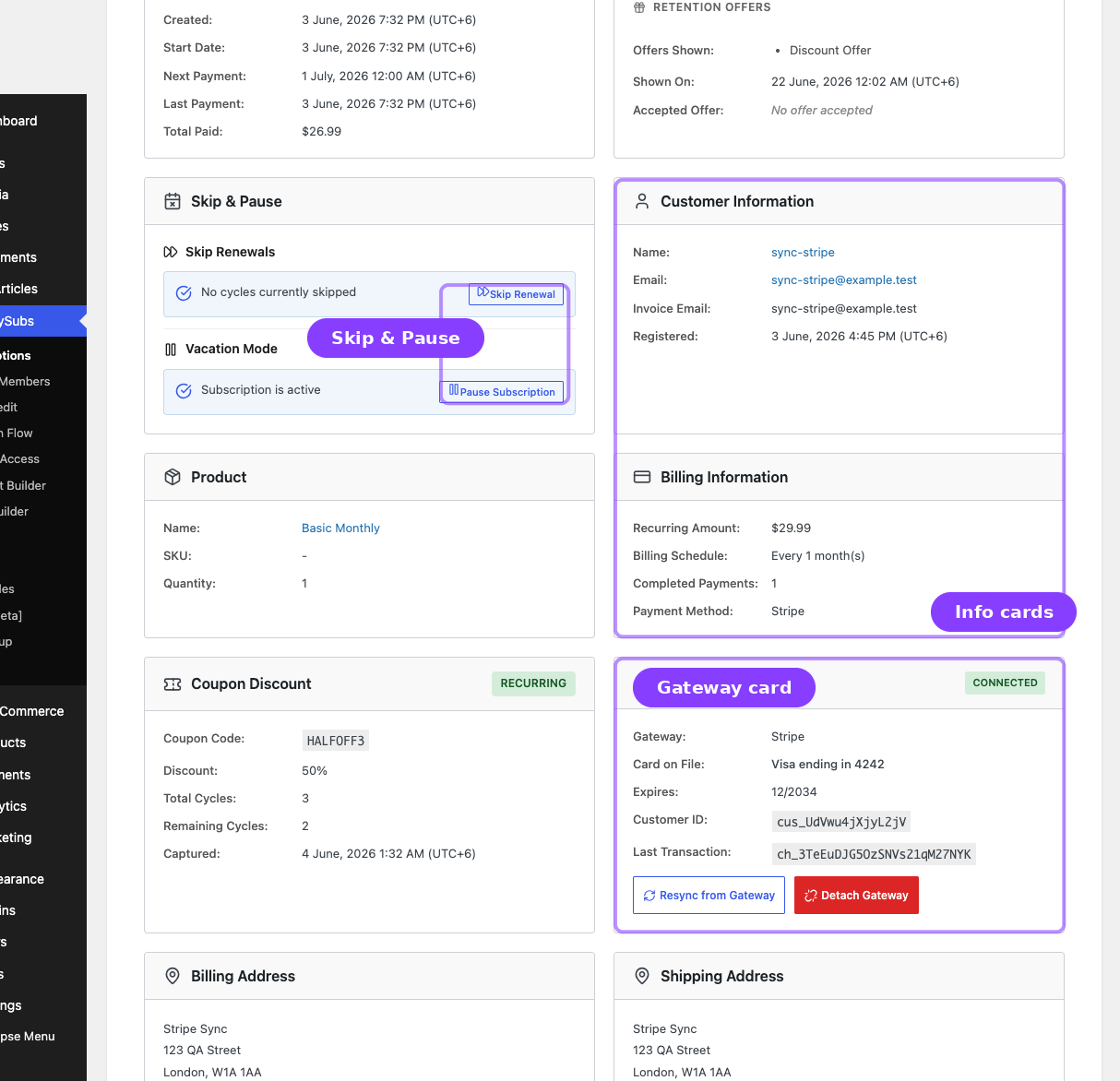
The subscription detail screen displays a series of information cards. Some are always visible (covered in Subscription Operations), but several cards only appear when specific conditions are met. This guide covers each conditional card in detail.
The detail screen is intentionally read-heavy. Use it when support needs to understand the current state before taking action: status, renewal date, payment gateway, skip/pause state, customer, product, billing amount, cancellation history, and related order context.
| Card | Appears When |
|---|---|
| Cancellation Details | The subscription has been cancelled, has a scheduled cancellation, or has retention history |
| Pending Plan Switch | The subscription has an Apply at Renewal plan switch waiting |
| Skip & Pause | Always shown, but displays a disabled state if skip/pause features are turned off |
| Coupon Discount | A coupon is applied to the subscription |
| Payment Gateway | An automatic payment gateway is attached (Pro) |
| Checkout Builder Fields | The subscription has custom checkout fields (Pro) |
| Subscription Shipping | The subscription product requires shipping (Pro) |
Cancellation Details Card
This card appears when a subscription has any cancellation-related data — whether it was cancelled outright, has a scheduled (end-of-period) cancellation pending, or has retention offer history.
Title Variations
The card title changes based on the subscription's state:
| State | Card Title |
|---|---|
| Subscription is cancelled | Cancellation Details |
| Cancellation is scheduled (end-of-period) | Scheduled Cancellation — with a "Pending" badge |
| Subscription was retained (has retention history but not currently cancelled) | Retention History |
Fields Displayed
| Field | What It Shows |
|---|---|
| Cancellation Reason | The reason label selected at cancellation (e.g., "Too expensive", "Found a better alternative") |
| Additional Details | Free-text comment the customer provided during cancellation (if they chose "Other" or added extra detail) |
| Cancelled Date | When the cancellation was executed |
| Scheduled Date | For end-of-period cancellations — when the cancellation will take effect |
Retention Offer History
If the subscription has been through the retention flow, a Retention Offers section appears showing:
| Field | What It Shows |
|---|---|
| Offers Shown | Which retention offer types were presented — Discount, Pause, Downgrade, Contact Support, Skip |
| Date Shown | When the offers were displayed to the customer |
| Offer Accepted | Which offer the customer accepted (if any) |
| Date Accepted | When the customer accepted the offer |
The Retention Offers section only appears if the subscription has been through the retention flow at least once. If the customer cancelled without being shown any offers, this section is hidden.
Pending Plan Switch Card
This card appears when a subscription has a plan switch scheduled for the next renewal.
Fields Displayed
| Field | What It Shows |
|---|---|
| Target Plan | The product or variation the subscription will move to |
| Effective Date | The renewal date when the switch is expected to apply |
| Quantity | The quantity that will be used on the future renewal |
| Target Unit Price | The per-unit recurring price of the target plan |
| Future Renewal Amount | The target unit price multiplied by quantity |
| Switch Fee | Any configured fee for upgrade, downgrade, or crossgrade |
| Requested By | Customer or admin attribution |
| Requested At | When the pending switch was created |
Admin Actions
| Action | What It Does |
|---|---|
| Cancel Pending Switch | Removes the future plan change. The subscription stays on the current plan and no switch fee is charged. |
The Pending Plan Switch card only appears for Apply at Renewal switches. Immediate switches apply after the switch order is paid, so there is no long-lived pending switch to display.
Skip and Pause Card
This card is always present on the detail screen. If skip and pause features are not enabled in your settings, the card displays a message indicating the features are disabled.
Skip Section
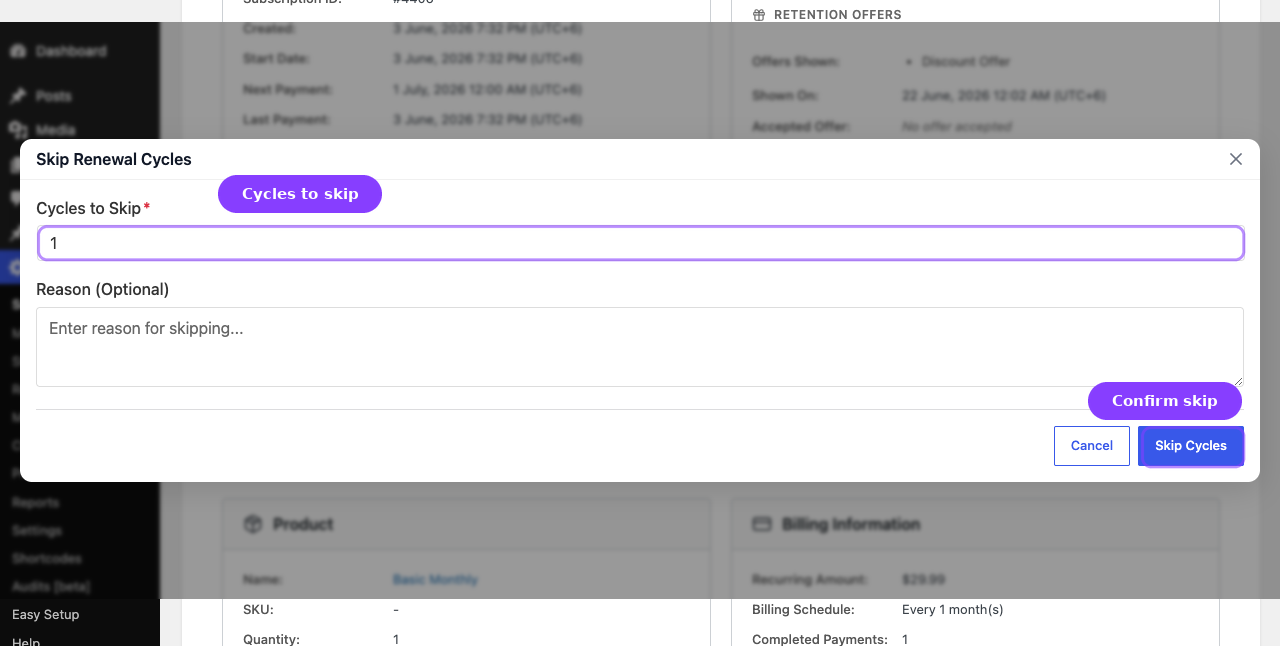
The skip feature lets you (or the customer) skip one or more upcoming renewal cycles. During a skip, no payment is collected and the next payment date advances by the skipped number of cycles.
When a Skip Is Active
| Field | What It Shows |
|---|---|
| Status | Warning indicator: "Currently Skipping" |
| Cycles Remaining | How many more cycles will be skipped |
| Skip Started | When the skip was initiated |
| Original Next Payment | What the next payment date was before the skip |
| Reason | The reason entered when setting up the skip (if provided) |
Admin Actions for Skip
| Action | What It Does |
|---|---|
| Skip Renewal | Opens a modal where you set the number of cycles to skip (up to the configured maximum, default 3) and an optional reason |
| Modify Skip | Opens a modal to change the number of remaining skip cycles |
| Undo Skip | Cancels the active skip and restores the original next payment date. Requires confirmation. |
Pause Section
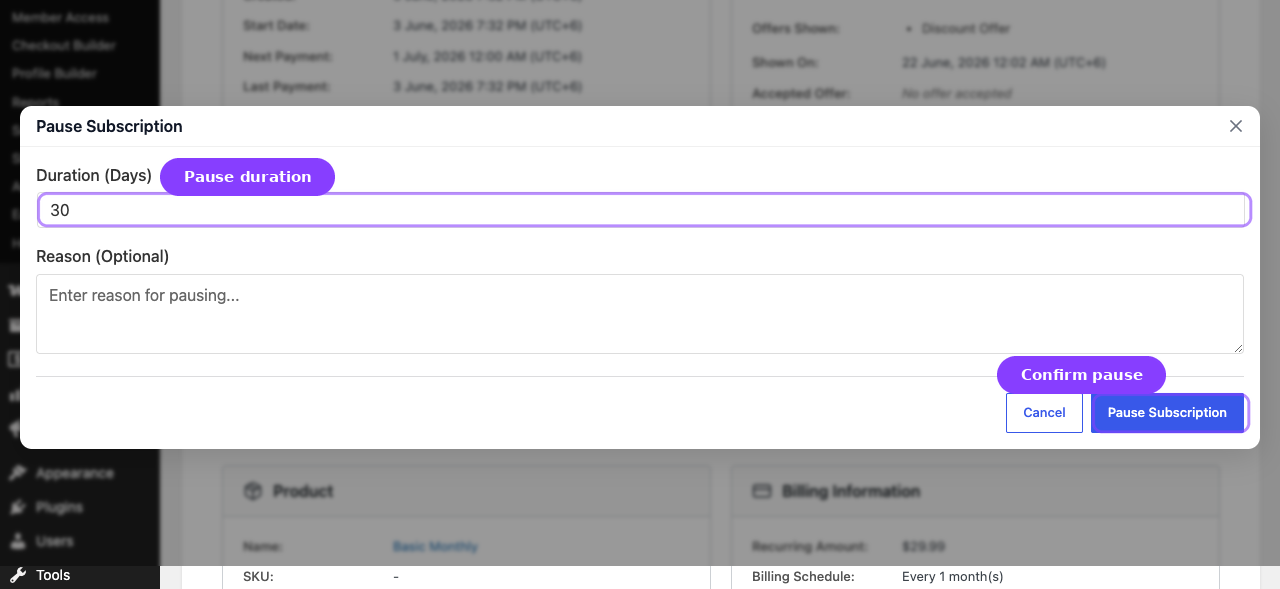
The pause feature temporarily suspends the subscription entirely. No renewals are processed during the pause. When resumed, the next payment date is extended by the duration of the pause.
When a Pause Is Active
| Field | What It Shows |
|---|---|
| Status | "Paused" indicator |
| Paused Since | When the pause started |
| Resume Date | When the subscription will auto-resume (if a duration was set), or "Indefinite" |
| Reason | The reason for the pause (if provided) |
| Pause History | Total number of times this subscription has been paused |
Admin Actions for Pause
| Action | What It Does |
|---|---|
| Pause Subscription | Opens a modal where you set the pause duration in days (0 = indefinite) and an optional reason |
| Resume Now | Ends the pause immediately and reactivates the subscription. Requires confirmation. |
Pausing a subscription changes its status to On Hold. The subscription will not process renewals until it is resumed or the auto-resume date is reached.
Availability Rules
- Skip and pause are available for Active and Trial subscriptions only.
- If the feature is disabled in settings, the card shows a disabled state message.
- The maximum skip cycles and maximum pause duration are configurable in settings.
Coupon Discount Card
This card appears when a WooCommerce coupon has been applied to the subscription.
Fields Displayed
| Field | What It Shows |
|---|---|
| Coupon Code | The coupon code displayed in a code element (e.g., SAVE20) |
| Coupon Status | If the original coupon has been deleted from WooCommerce, a "(coupon deleted)" note appears |
| Discount | The discount amount — either as a percentage (e.g., "20%") or a fixed currency amount |
| Type Badges | "Recurring" or "One-time" badge indicating whether the discount applies to every renewal or just once |
| Expired Badge | A red "Expired" badge if the coupon's cycle limit has been reached |
For Recurring Coupons
| Field | What It Shows |
|---|---|
| Total Cycles | The total number of billing cycles this coupon applies to. If unlimited, shows "Unlimited (applies to all renewals)". |
| Remaining Cycles | How many more renewal cycles will receive the discount |
| Initial Checkout Note | If the coupon counts the initial checkout order toward the cycle limit, a note explains this |
For One-Time Coupons
One-time coupons were applied at the initial checkout only. The card still displays the code and discount amount for reference.
Captured Date
The card shows when the coupon was captured (applied) to this subscription.
Payment Gateway Card Pro
This card appears only when an automatic payment gateway (Stripe, PayPal, Paddle) is attached to the subscription. It is part of the Automatic Payments Pro module.
Manual gateways do not show this card. If the subscription was paid through Bank Transfer (BACS), Cheque, Cash on Delivery, or any other manual gateway, there is no remote state to surface — the gateway slug is already shown in the Order Summary card. The Payment Gateway card, its status badge, and the Detach / Resync actions all stay hidden.
Fields Displayed
| Field | What It Shows |
|---|---|
| Gateway | The gateway name (e.g., "Stripe", "PayPal") |
| Connection Status | A color-coded badge — "Connected" (green), "Detached" (gray), or "Error" (red). New automatic-gateway subscriptions show "Connected" by default. |
| Card on File | The stored payment method title with card brand and last 4 digits (e.g., "Visa ending in 4242") |
| Expiry | Card expiration date — with an "Expired" badge if the card has expired |
| Customer ID | The customer identifier in the payment gateway (displayed in code format) |
| Last Transaction ID | The most recent transaction reference (displayed in code format) |
Resync from Gateway
When the gateway supports state sync (Stripe, PayPal, Paddle all do), a Resync from Gateway button appears in the card. Click it to pull the latest subscription state from the gateway and reconcile any missed webhook events — useful when you suspect the local data has drifted from the gateway (e.g. site was down for a long stretch, signing-secret changed, network blip).
The reconciler updates _gateway_status, _next_payment_date, payment method card fields, and matches recent successful charges to local orders that are still marked unpaid. Product / plan / amount changes are deliberately not synced — those are merchant decisions, not gateway state.
Detach Gateway
If the gateway supports detachment, a Detach Gateway button appears next to Resync. Clicking it shows a confirmation dialog:
"Are you sure you want to detach the payment gateway? The subscription will revert to manual payment."
After detaching:
- The subscription no longer processes automatic payments.
- Future renewals generate invoices that the customer must pay manually.
- The gateway data is removed from the subscription.
- The Payment Gateway card disappears (the subscription is now treated as a manual-gateway subscription).
Detaching a gateway is not reversible from this screen. The customer would need to update their payment method to re-enable automatic billing.
Checkout Builder Custom Fields Card Pro
This card appears when a subscription has custom fields captured through the Checkout Builder module. The Checkout Builder lets merchants add custom form fields to the checkout page.
What It Shows
Each custom field captured at checkout is displayed as a labeled row:
| Display Element | What It Shows |
|---|---|
| Field Label | The human-readable label defined in the Checkout Builder (e.g., "Company Size", "Referral Source") |
| Field Value | The value the customer entered at checkout |
Field Type Rendering
| Field Type | How It Appears |
|---|---|
| Text / Textarea | Plain text |
| Select / Checkbox | The selected option label |
| Date Range | Formatted as "Start date — End date" |
| File Upload | A formatted download link |
This card only appears if the Show on subscription detail setting is enabled in Checkout Builder settings and the subscription has captured field data.
Subscription Shipping Card Pro
This card appears when the subscription product requires shipping. It is part of the Subscription Shipping Pro module.
Fields Displayed
| Field | What It Shows |
|---|---|
| Shipping Type | A badge indicating the shipping model: "One-time (first order only)" or "Recurring (every renewal)" |
| Shipping Method | The selected shipping method name (e.g., "Flat Rate", "Free Shipping"), or "Not set" |
| Initial Shipping | The shipping cost charged on the first order |
| Renewal Shipping | The shipping cost charged on each renewal (only shown for recurring shipping) |
| Initial Shipping Paid | "Yes" or "No" — whether the initial shipping charge has been collected |
Shipping Types Explained
| Type | Behavior |
|---|---|
| One-time | Shipping is charged only on the first order. All renewals ship for free. |
| Recurring | Shipping is charged on the initial order and again on every renewal order. |
Real-Life Use Cases
Use Case 1: Understanding Why a Subscription Was Cancelled
Open the subscription detail and look for the Cancellation Details card. It shows the reason the customer selected, any additional comments, and whether they were shown retention offers. If the customer accepted a retention offer but later cancelled anyway, the Retention Offers section shows the full history.
Use Case 2: Verifying Coupon Application
A customer claims their discount is not being applied. Open the subscription detail and check the Coupon Discount card. Verify the coupon code, whether it is marked as "Recurring" or "One-time", and how many remaining cycles are left. If the badge says "Expired", the cycle limit has been reached.
Use Case 3: Checking Gateway Health Before a Renewal
Before a large customer's renewal date, open their subscription detail and check the Payment Gateway card. Verify the connection status is "Connected", the card on file is not expired, and note the last transaction ID for reference. If anything looks stale, click Resync from Gateway to pull the latest state from Stripe / PayPal / Paddle.
Use Case 4: Reviewing Custom Checkout Data
A customer ordered through a customized checkout with extra fields (company name, tax ID, special instructions). Open the subscription detail and scroll to the Checkout Builder Fields card to see exactly what they entered.
Troubleshooting
| Problem | Likely Cause | What to Do |
|---|---|---|
| Cancellation Details card is missing | The subscription has never been cancelled or scheduled for cancellation | The card only appears when cancellation data exists |
| Skip/Pause card shows "disabled" | The skip or pause feature is turned off in settings | Enable the features in your subscription settings |
| Gateway card shows "Error" status | The payment method or customer reference is invalid at the gateway | Check the gateway dashboard for the customer/card status. The customer may need to update their payment method. |
| Checkout Builder fields card is missing | The "Show on subscription detail" setting is off, or no custom fields were captured | Enable the setting in Checkout Builder and verify the checkout had custom fields |
| Shipping card is missing | The subscription product does not require shipping, or shipping is not configured | Verify the product has shipping enabled in its WooCommerce settings |
| Pending Plan Switch card is missing | The subscription does not currently have an Apply at Renewal switch waiting | Check the subscription notes or customer portal if the switch may have already applied, been cancelled, or been cleared by cancellation |
Related Guides
- Subscription Operations — the detail screen layout and always-visible cards
- Lifecycle Management — how status transitions affect what cards appear
- Settings — General Settings — configuring grace periods and customer actions
- Subscription Products — Coupon Integration — how coupons are applied to subscriptions
FAQ
Can I edit the data shown in these cards?
These cards are read-only views. To change the underlying data, use the subscription edit page, change the product configuration, or manage the coupon/gateway through their respective screens.
Do the detail cards show Pro features if the Pro plugin is not active?
No. The Payment Gateway, Checkout Builder Fields, and Subscription Shipping cards are only rendered when the Pro plugin is active and the relevant data exists on the subscription.
Can the Cancellation Details card appear on an active subscription?
Yes — if the subscription was previously cancelled and then reactivated, or if it went through the retention flow and was retained. The card shows the retention offer history even if the subscription is currently active.
Can I detach a gateway and reattach a different one?
You can detach a gateway from this screen, but reattaching requires the customer to update their payment method through the customer portal or at checkout. There is no admin control to assign a specific gateway token.