
Content Gating Shortcodes
Control which visitors see specific page content using login state, subscription status, product ownership, user roles, spending thresholds, or feature entitlements.
Availability: Free — feature conditions require Pro with Feature Manager
Page Navigation
- Current guide: Content Gating Shortcodes
- Where to open it: WordPress Admin -> ArraySubs -> Shortcodes
- Section overview: Open overview
- Previous guide: account-shortcodes
- Next guide: store-credit-shortcode
- Troubleshooting: Audits, Logs, and Troubleshooting
Overview
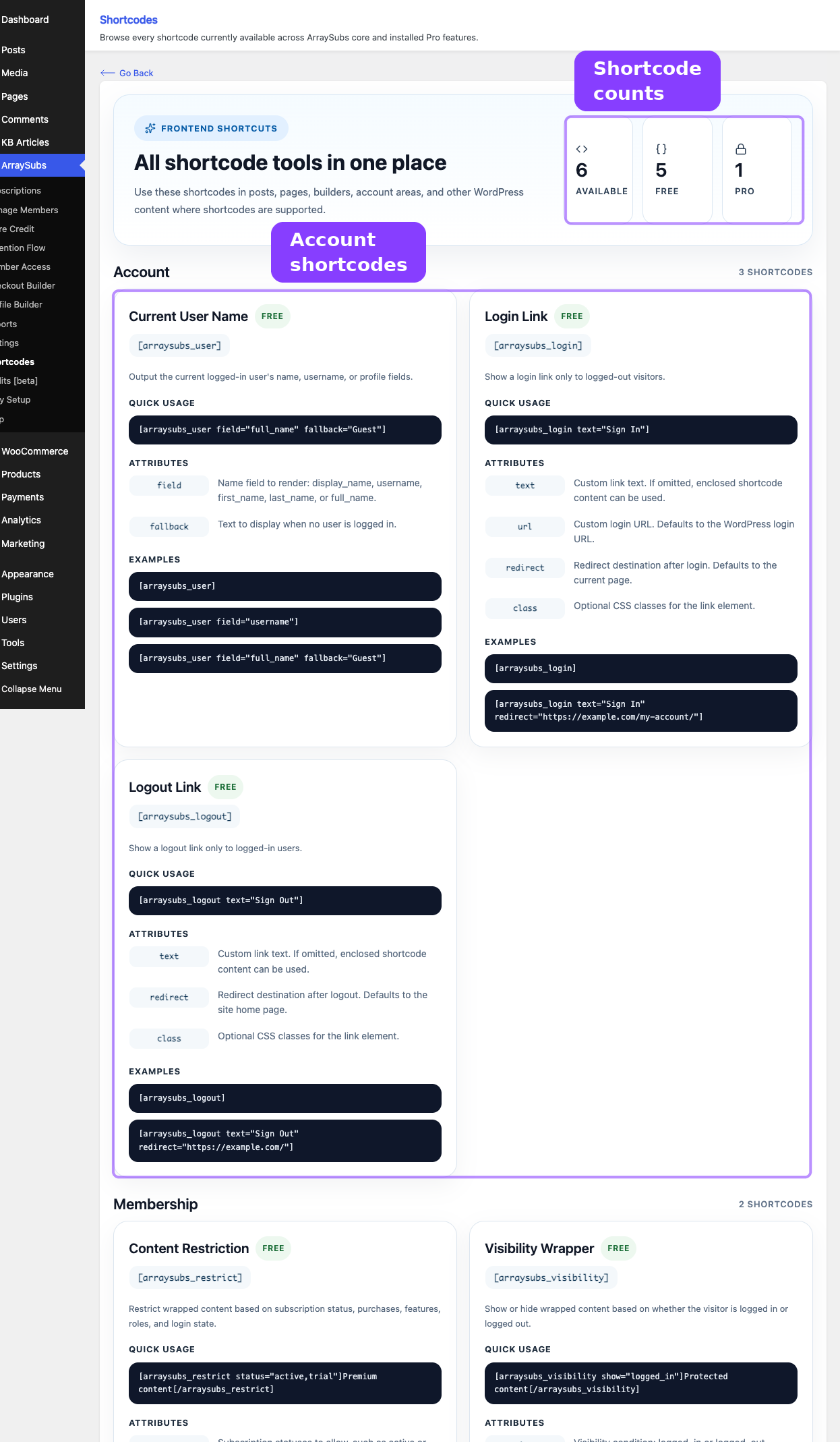
Two shortcodes handle content gating on the frontend:
| Shortcode | Scope | Best For |
|---|---|---|
[arraysubs_visibility] |
Login state only | Simple show/hide based on whether the visitor is logged in or logged out |
[arraysubs_restrict] |
Subscriptions, products, roles, spending, features | Membership-level content locking with multi-condition logic |
Use [arraysubs_visibility] when you only need to check login state. Use [arraysubs_restrict] when you need subscription-aware, role-based, or spending-based access control.
When to Use This
- You want to show a welcome message to logged-in users but a signup prompt to visitors.
- You want to lock premium tutorials, downloads, or resources behind an active subscription.
- You want to restrict content to customers who subscribe to a specific product or variation.
- You want to gate exclusive content behind a minimum lifetime spending threshold.
- You want to show different content based on WordPress user roles.
- You want to use Feature Manager entitlements to control who sees what Pro.
- You want to show teaser content publicly while hiding the full version behind a paywall.
Prerequisites
- ArraySubs installed and active.
- For
[arraysubs_restrict]withfeatureconditions: ArraySubs Pro with Feature Manager enabled. - Subscription products configured if using product-based conditions.
[arraysubs_visibility] — Login-Based Content Wrapper
Shows or hides wrapped content based on the visitor's login state. This is a lightweight wrapper — for subscription or membership-based gating, use [arraysubs_restrict] instead.
Attributes
| Attribute | Default | Description |
|---|---|---|
show |
logged_in | When to display the wrapped content. Options: logged_in or logged_out. |
fallback |
(empty) | Content shown when the condition is not met. Supports nested shortcodes. |
How It Works
- The shortcode checks the visitor's login state against the
showattribute. - If the condition matches, the wrapped content is processed and rendered (including any nested shortcodes).
- If the condition does not match, the
fallbackcontent is rendered instead (if provided). Fallback content also supports nested shortcodes. - When there is no fallback and the condition does not match, nothing is rendered.
Examples
Show content only to logged-in users:
[arraysubs_visibility show="logged_in"]
  Welcome back! Manage your subscriptions from your account page.
[/arraysubs_visibility]
Show content only to logged-out visitors:
[arraysubs_visibility show="logged_out"]
  Please log in to access your account.
[/arraysubs_visibility]
Logged-in greeting with a login link as fallback:
[arraysubs_visibility show="logged_in" fallback="[arraysubs_login text='Log In']"]
  Welcome back, [arraysubs_user field="full_name"]!
[/arraysubs_visibility]
The show condition is extensible. Developers can add custom conditions through the arraysubs_visibility_shortcode_show filter without changing the shortcode contract.
[arraysubs_restrict] — Subscription-Based Content Gating
Gates wrapped content based on subscription status, product ownership, variation-specific access, user roles, lifetime spending, purchase history, or Feature Manager entitlements. This is the most powerful shortcode for membership-level content locking.
Attributes
| Attribute | Default | Description |
|---|---|---|
status |
(empty) | Required subscription status. Comma-separated. Options: active, trial, on-hold, cancelled, expired, pending. |
products |
(empty) | Subscription product IDs (comma-separated). The customer must have a subscription for one of these products. |
variations |
(empty) | Subscription variation IDs (comma-separated). The customer must have a subscription for one of these variations. |
purchased |
(empty) | Product IDs (comma-separated). The customer must have purchased at least one of these products (any completed order, not only subscriptions). |
lifetime_spent |
(empty) | Minimum total lifetime spending amount across all orders. |
feature |
(empty) | Feature Manager entitlement key to check (requires Pro with Feature Manager). |
feature_min |
1 | Minimum feature value required when using the feature attribute. |
feature_op |
>= | Comparison operator for feature value: =, !=, >, <, >=, <=. |
aggregation |
sum | How to aggregate feature values across multiple subscriptions: sum, max, any. |
roles |
(empty) | WordPress user roles (comma-separated). The customer must have at least one listed role. |
condition |
and | Logic for combining conditions: and (all must match) or or (any one is enough). |
message |
Global default | Custom message shown to visitors who do not qualify. Overrides the global default from Member Access → Content Restriction settings. |
redirect |
(empty) | URL to redirect non-qualifying visitors to. When set, no message is shown — the visitor is redirected instead. |
login_required |
true | Whether the visitor must be logged in before conditions are evaluated. Set to false to allow guest evaluation. |
show_to_admins |
true | Whether administrators always see the content regardless of conditions. |
How It Works
- Admin bypass. If
show_to_adminsistrueand the visitor is an administrator, the content is shown immediately. - Login check. If
login_requiredistrueand the visitor is not logged in, the shortcode shows a "Please log in to access this content" message. - Condition building. Each non-empty attribute creates a condition rule. Only attributes with values are evaluated — empty attributes are ignored.
- No conditions specified. If all condition attributes are empty, the content is shown to all logged-in visitors.
- Evaluation. Conditions are evaluated using the specified logic (
andoror). - Access granted. The wrapped content is processed and rendered (including nested shortcodes).
- Access denied. If
redirectis set, the visitor is redirected. Otherwise, the denial message is shown.
Condition Logic
By default, the condition attribute is set to and, meaning all specified conditions must be true for the content to show. Change it to or to show content when any one condition is true.
AND example — must have an active subscription AND subscribe to product 123:
[arraysubs_restrict status="active" products="123" condition="and"]
  Content for active subscribers of the Pro Plan.
[/arraysubs_restrict]
OR example — show to active subscribers OR administrators:
[arraysubs_restrict status="active" roles="administrator" condition="or"]
  Available to active subscribers or site admins.
[/arraysubs_restrict]
Denial Messages
When access is denied, the shortcode chooses a message in this priority order:
- Custom
messageattribute — if provided on the shortcode, it is used. - Login-required message — if the visitor is not logged in and
login_requiredistrue, the message is: "Please log in to access this content." - Global default — the message configured in your Member Access → Content Restriction settings. Falls back to: "This content is restricted. Please subscribe to access."
The message is rendered inside a <div> with the class arraysubs-restricted-content. If the denial reason is login-required, the additional class arraysubs-login-required is added.
Condition Types in Detail
Status Conditions
| Status | Description |
|---|---|
active |
Currently active, paid subscription |
trial |
In free trial period |
on-hold |
Payment failed or manually put on hold |
cancelled |
Subscription was cancelled |
expired |
Subscription has expired |
pending |
Awaiting activation |
Multiple statuses can be combined:
[arraysubs_restrict status="active,trial"]
  Content for active and trial subscribers.
[/arraysubs_restrict]
Product and Variation Conditions
Check if the customer has a subscription for a specific product or variation.
By product ID:
[arraysubs_restrict products="123,456"]
  Content for Pro Plan or Business Plan subscribers.
[/arraysubs_restrict]
By variation ID (useful for variable subscription products):
[arraysubs_restrict variations="789"]
  Thank you for choosing the Annual billing option!
[/arraysubs_restrict]
Purchased Product Condition
Check if the customer has purchased any product — not limited to subscriptions. This works with completed WooCommerce orders:
[arraysubs_restrict purchased="100,101"]
  Thank you for your purchase! Here are your bonus materials.
[/arraysubs_restrict]
Lifetime Spending Condition
Gate content behind a minimum lifetime spending amount. This checks the customer's total spend across all completed orders:
[arraysubs_restrict lifetime_spent="500"]
  VIP content for customers who have spent $500 or more.
[/arraysubs_restrict]
Feature Entitlement Conditions (requires Pro)
Check Feature Manager entitlements from the customer's subscription products:
[arraysubs_restrict feature="api_calls" feature_min="1000"]
  You have API access with 1,000+ calls.
[/arraysubs_restrict]
[arraysubs_restrict feature="storage_gb" feature_min="10" feature_op=">="]
  You have 10 GB or more of storage.
[/arraysubs_restrict]
Aggregation modes control how values are combined when a customer has multiple subscriptions:
| Mode | Behavior | Example |
|---|---|---|
sum |
Add all feature values together across subscriptions | A customer with two plans each offering 5 seats = 10 total seats |
max |
Use the highest feature value from any single subscription | A customer on a 10 GB plan and a 50 GB plan = 50 GB (highest) |
any |
Check if any subscription has the feature at all (ignores the numeric value) | Show content if the customer has any plan with API access |
[arraysubs_restrict feature="seats" feature_min="5" aggregation="sum"]
  Content for teams with 5 or more total seats across all plans.
[/arraysubs_restrict]
Role Conditions
Gate content by WordPress user role:
[arraysubs_restrict roles="member,premium_member"]
  Members-only content area.
[/arraysubs_restrict]
This checks if the logged-in user has at least one of the listed roles.
Custom Messages and Redirects
Override the global restricted-content message:
[arraysubs_restrict status="active" message="Subscribe to the Pro Plan to unlock this tutorial."]
  Premium tutorial content here.
[/arraysubs_restrict]
Redirect non-subscribers to a pricing page instead of showing a message:
[arraysubs_restrict status="active" redirect="/pricing"]
  This content is only visible to subscribers.
[/arraysubs_restrict]
If both message and redirect are set, the redirect takes precedence on the frontend. The message is only used in admin and REST contexts where redirects are blocked.
Admin Visibility Control
By default, administrators always see restricted content. To test the restriction as a non-subscriber:
[arraysubs_restrict status="active" show_to_admins="false"]
  Content hidden even from admins unless they have an active subscription.
[/arraysubs_restrict]
Remove show_to_admins="false" after testing.
Shortcode vs. Post Type Rules
The [arraysubs_restrict] shortcode and the Member Access Post Type Rules both restrict content, but they serve different purposes:
| Feature | [arraysubs_restrict] Shortcode |
Post Type Rules |
|---|---|---|
| Scope | A specific portion of a page | An entire post, page, or CPT entry |
| Configuration | Inline in the content editor | Admin UI at Member Access → Post Types |
| Archive behavior | Not applicable — the page itself is accessible | Configurable (hide from archive, show with lock icon, show normally) |
| Drip/schedule | Not built-in — use Post Type Rules for drip content | Built-in schedule option with delay-based access |
| Nesting | Can be nested inside other shortcodes | N/A |
| Ideal for | Teaser pages with both free and premium sections on the same page | Full-page restrictions where the entire post should be locked |
Use shortcodes for inline gating on mixed-content pages. Use Post Type Rules for site-wide restrictions that apply to entire pages or post types.
Real-Life Use Cases
Use Case 1: Teaser Content With Upgrade Prompt
Show a preview of premium content publicly, with the full content locked behind a subscription:
Here's what you'll learn in this guide:

1. Setting up your development environment
2. Building your first API integration
3. Advanced error handling patterns

[arraysubs_restrict status="active" products="55"]
  ## Full Tutorial

  Welcome to the complete tutorial...
  (Full tutorial content here)
[/arraysubs_restrict]
Non-subscribers see the teaser list and the default restricted message. Active subscribers of product 55 see the full tutorial.
Use Case 2: Role-Based Staff Resources
Show internal resources only to users with a custom staff role:
[arraysubs_restrict roles="staff,administrator"]
  ## Staff Resources

  - Internal playbook: [link]
  - Shift calendar: [link]
  - Support escalation guide: [link]
[/arraysubs_restrict]
Use Case 3: Tiered Feature Access
Use Feature Manager entitlements to show different content based on plan tier:
[arraysubs_restrict feature="api_calls" feature_min="100" feature_op=">="]
  Your API documentation and keys are available in the developer portal.
[/arraysubs_restrict]

[arraysubs_restrict feature="api_calls" feature_min="100" feature_op="<" message="Upgrade to a plan with API access to view this section."]
  (This content is hidden from users whose plans include fewer than 100 API calls.)
[/arraysubs_restrict]
Use Case 4: VIP Content by Spending
Unlock exclusive content for high-value customers:
[arraysubs_restrict lifetime_spent="1000" message="This exclusive content is available to customers who have spent $1,000 or more."]
  ## VIP Resources

  Thank you for being a top customer! Here are your exclusive resources...
[/arraysubs_restrict]
Use Case 5: Mixed Login and Subscription Gating
Combine [arraysubs_visibility] and [arraysubs_restrict] for layered content:
[arraysubs_visibility show="logged_out"]
  Please log in to see if you qualify for premium content.
  [arraysubs_login text="Log In"]
[/arraysubs_visibility]

[arraysubs_visibility show="logged_in"]
  [arraysubs_restrict status="active" message="Subscribe to unlock this content."]
    ## Premium Content

    Here is the exclusive article...
  [/arraysubs_restrict]
[/arraysubs_visibility]
Visitors see a login prompt. Logged-in non-subscribers see the subscribe message. Active subscribers see the premium content.
Use Case 6: Combined Conditions With OR Logic
Show a section to anyone who is either an active subscriber OR has purchased a specific one-time product:
[arraysubs_restrict status="active" purchased="200" condition="or"]
  You have access because you're a subscriber or you purchased the Lifetime Access product.
[/arraysubs_restrict]
Edge Cases and Important Notes
- Empty conditions. If no condition attributes are specified on
[arraysubs_restrict], all logged-in users pass (whenlogin_requiredistrue). Always add at least one condition for meaningful restriction. - Guest evaluation. By default,
[arraysubs_restrict]requires login before evaluating conditions. Setlogin_required="false"to allow guest visitors to pass non-login conditions (though most conditions like subscription status inherently require a logged-in user). - Multiple conditions. When using
condition="and", leave irrelevant attributes empty. Empty attributes are ignored — only attributes with values become active conditions. - Caching. Pages with content gating shortcodes show user-specific results. If your site uses full-page caching, these pages may display incorrect content. Exclude them from cache or use fragment caching.
- Feature conditions need Pro. The
feature,feature_min,feature_op, andaggregationattributes only work when ArraySubs Pro is active and Feature Manager is enabled. Without Pro, these attributes are ignored. - Redirect behavior. Redirects only happen on the frontend. In admin previews or REST API contexts, the redirect is skipped and the denial message is shown instead.
- Nesting shortcodes. You can nest
[arraysubs_visibility]inside[arraysubs_restrict]and vice versa. Inner shortcodes are processed viado_shortcode()when the outer condition passes.
Troubleshooting
| Problem | Likely Cause | What to Do |
|---|---|---|
[arraysubs_restrict] shows content to everyone |
show_to_admins is true and you're logged in as admin, or no conditions are specified |
Set show_to_admins="false" for testing, and add at least one condition like status="active" |
| Content shows the wrong restricted message | The global default message is generic, or no message attribute is set |
Set a custom message attribute on the shortcode, or update the global default in Member Access → Content Restriction settings |
| Feature conditions have no effect | Pro is inactive or Feature Manager is not enabled | Activate ArraySubs Pro and enable Feature Manager in settings |
| Redirect doesn't work in the editor preview | Redirects only fire on the frontend | View the page normally (logged out or as a test user) to see the redirect |
| Shortcode appears as plain text | Plugin is inactive or there's a typo | Verify ArraySubs is active and check the shortcode tag spelling |
Related Guides
- Account Shortcodes —
[arraysubs_login],[arraysubs_logout],[arraysubs_user] - Store Credit Shortcode —
[arraysubs_buy_credits]Pro - Content Gate — The Member Access tab that maps shortcode, Elementor, Gutenberg, and PHP gating.
- Post Types — Full-page restrictions for posts, pages, and custom post types
- URL — Path-based restrictions for entire protected sections
FAQ
What's the difference between [arraysubs_visibility] and [arraysubs_restrict]?
[arraysubs_visibility] checks login state only (logged in vs logged out). [arraysubs_restrict] checks subscription status, products, roles, spending, features, and more. Use visibility for simple show/hide. Use restrict for membership-level access control.
Can I combine [arraysubs_visibility] and [arraysubs_restrict]?
Yes. They can be nested. Use [arraysubs_visibility] for the outer login check and [arraysubs_restrict] for the inner subscription check:
[arraysubs_visibility show="logged_in"]
  [arraysubs_restrict status="active"]
    Active subscriber content.
  [/arraysubs_restrict]
[/arraysubs_visibility]
Can I restrict only part of a page?
Yes. Wrap only the restricted section in [arraysubs_restrict]. Everything outside the shortcode is visible to all visitors.
How do I test restriction rules as an admin?
Add show_to_admins="false" to the shortcode while testing. This forces the system to evaluate conditions even for administrators. Remove it after testing.
Can I use [arraysubs_restrict] without any status condition?
Yes. You can use it with only products, roles, lifetime_spent, purchased, feature, or any combination. If no conditions are specified at all, all logged-in users pass.
Is restricted content hidden from the page source?
Yes. When a visitor does not meet the conditions, the server omits the content entirely. It is never rendered in the HTML — it is not just hidden with CSS.
Does [arraysubs_restrict] work with the WooCommerce Block Editor (Store API)?
The shortcode renders server-side and works anywhere WordPress processes shortcodes. It does not directly interact with the WooCommerce Store API, but it works on any page rendered by WordPress.